







Background information
Web OceanBase Developer Center (ODC) V4.2.0 allows a user with the project creation permission to create a project and add members to the project. A project member can add and change databases in the project.
This topic describes how to implement database changes through project collaboration.
Technical mechanism

The ODC system administrator grants the project creation permission to a user. Then, the user can create a project and adds members to the project.
The project administrator or DBA adds a database to the project.
A project member initiates a database change ticket.
ODC determines the risk level of this ticket based on the risk level identification rules and selects the corresponding approval process for this ticket.
After the ticket is approved, the database change is automatically executed by ODC or manually executed by the user.
Project creation
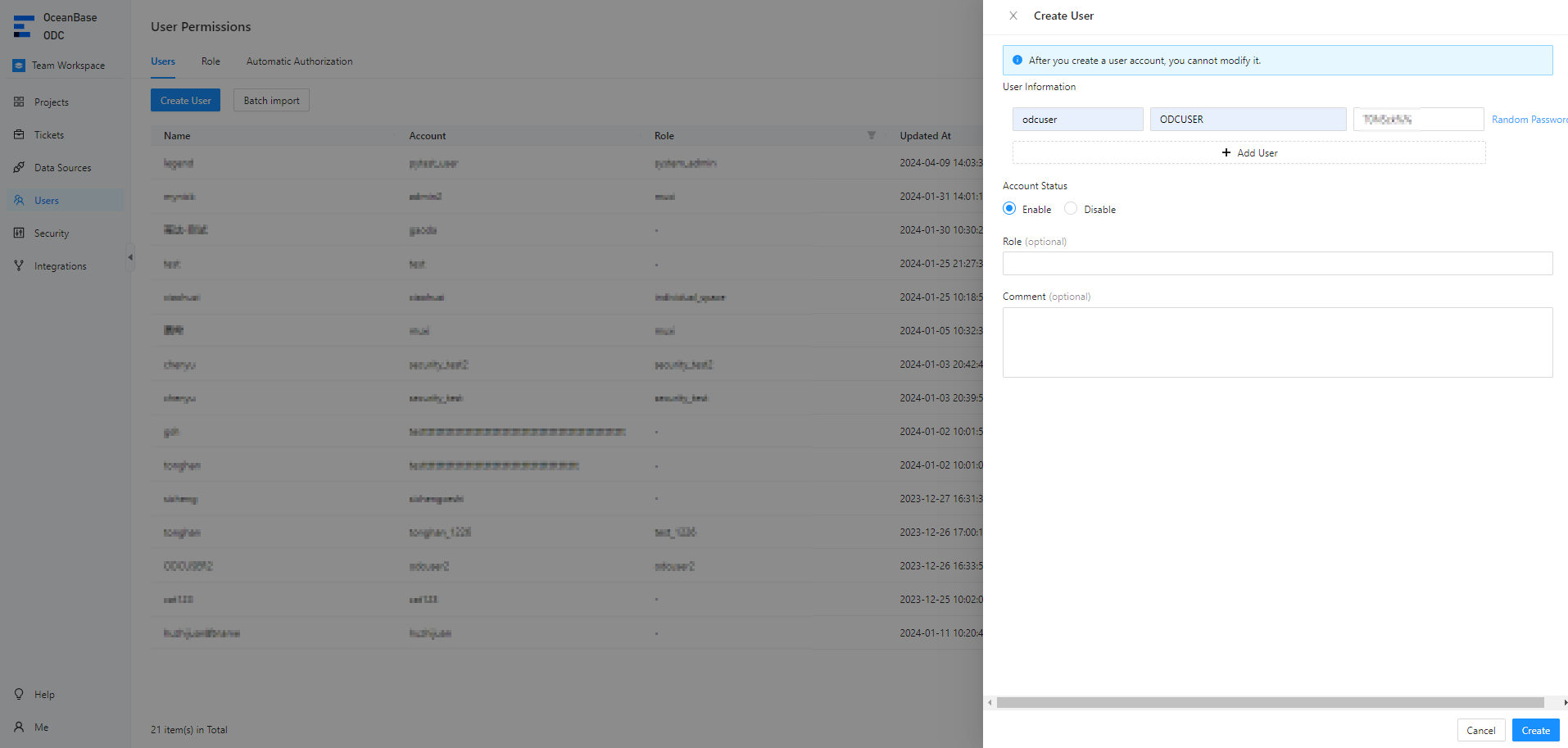
Method 1: A user with the project creation permission creates a project
The system administrator grants the project creation permission to a user.
The project administrator creates a project and adds members to the project.
Note
An ODC user with the project creation permission can create projects. By default, the user who creates a project is granted the administrator role of this project. After the project administrator assigns ODC users as members of the project, the members can access this project after logging on to the ODC console with their own accounts, and work as a team in the project.
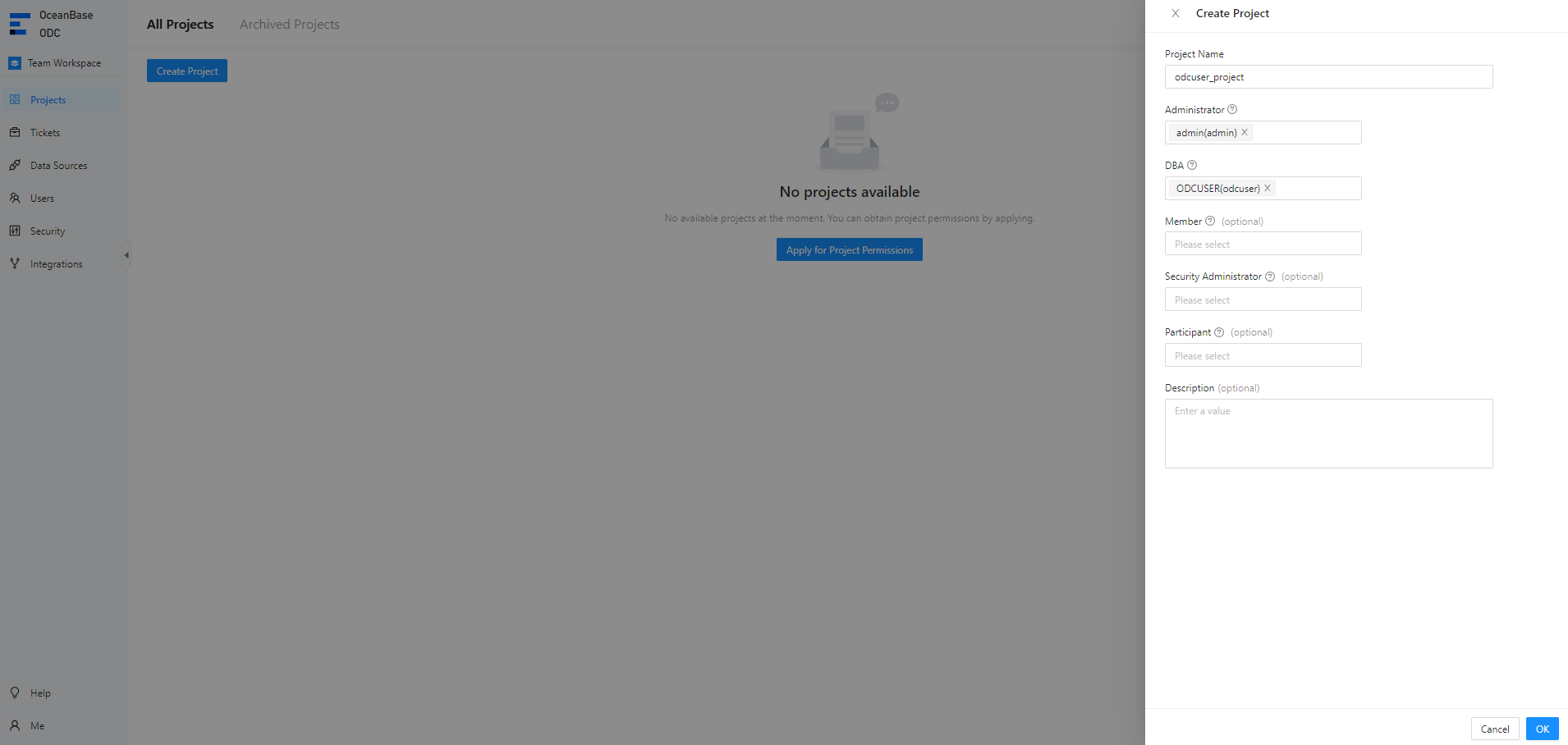 ParameterDescription
Project Name The name of the project to be created. Administrator The administrator that can manage all databases and members in the project. DBA The administrator that can manage all databases in the project. Member (optional) A member allowed to access all databases in the project. Security Administrator (optional) The administrator that can only manage the sensitive columns and participate in the approval process of the project. Participant (optional) A user that can only participate in the approval process of the project. Description (optional) The description of the project.
Method 2: Join a project
An ODC user can click Apply for Project Permissions to join an existing project.
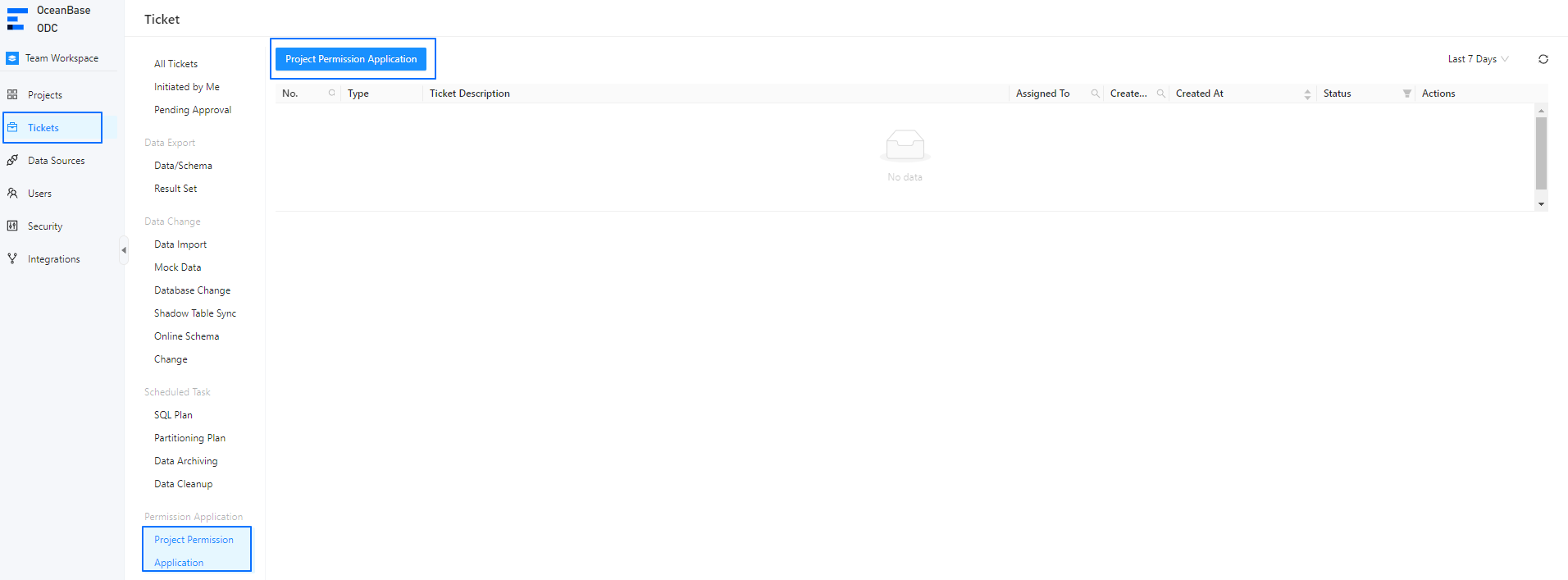
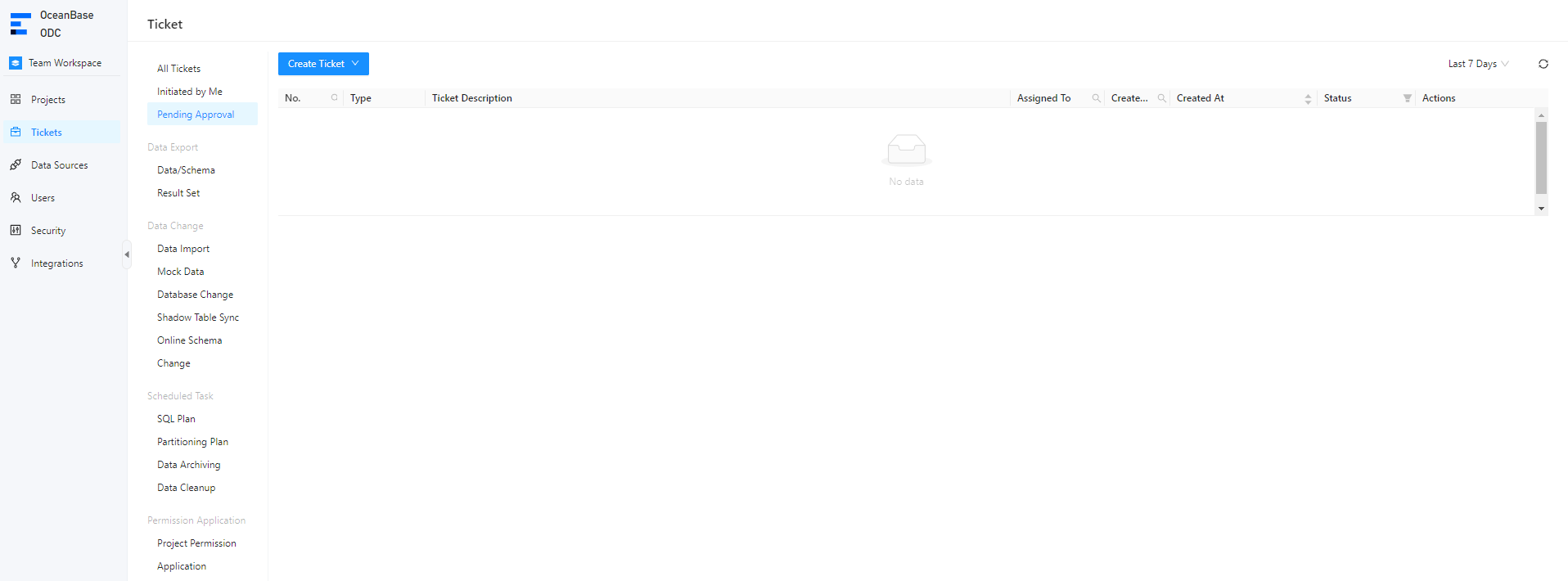
On the Projects or Ticket tab, click Apply for Project Permissions.
a. Apply for project permissions on the Projects tab.

b. Apply for project permissions on the Ticket tab.
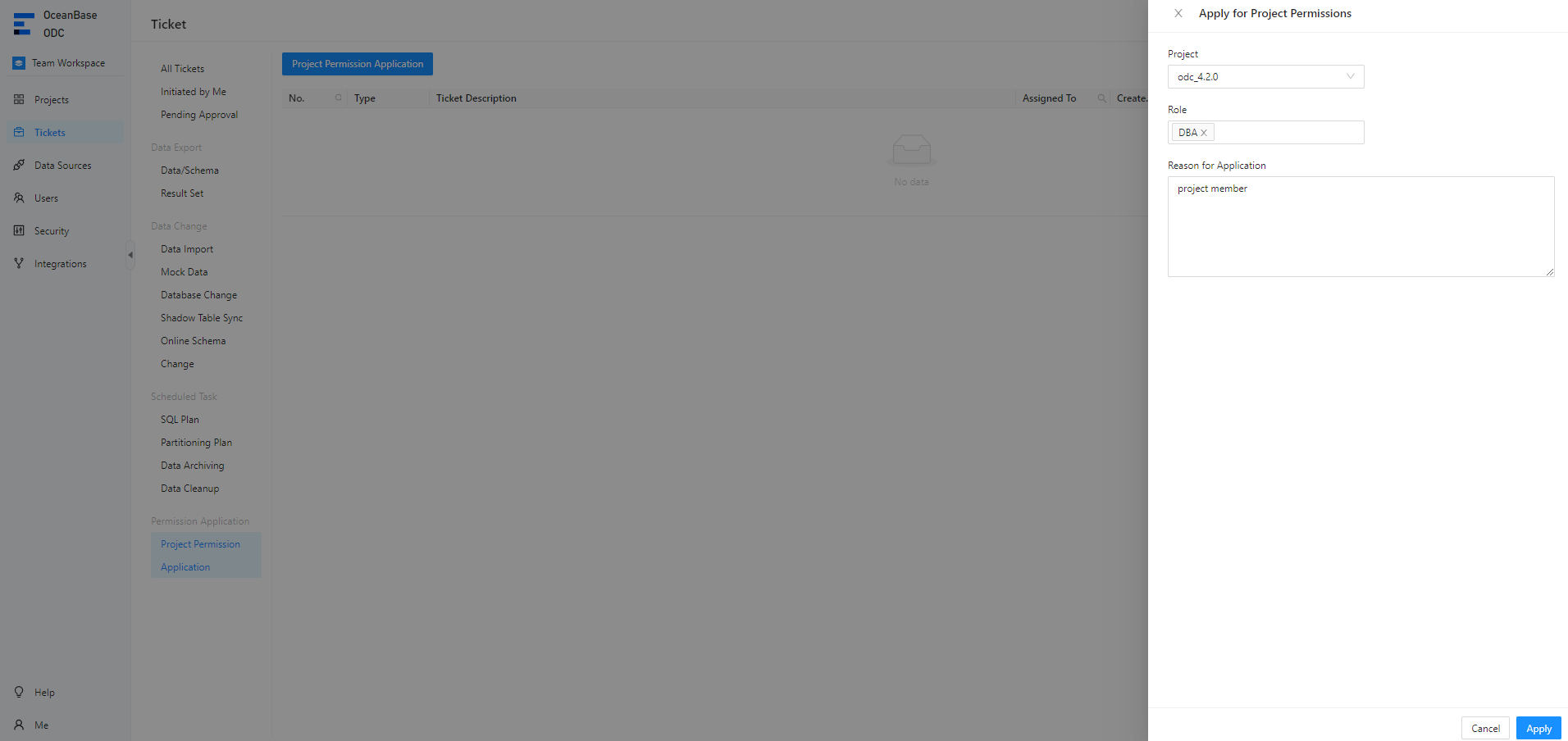
In the Apply for Project Permissions panel, select the project and role and enter the reason for application, and then click Create to create a project permission application.
View the approval status on the Ticket tab.

View the project that you joined in the project list.

Database management
Click the name of a project to go to the project management page.

Add a database.

A member can export data, import data, perform database changes, and log on to databases. The project administrator or DBA can change the project to which a member belongs.

Note
If a data source has been bound to a project, you cannot transfer the databases in the data source to other projects.
Ticket management
A project member without the database editing permission can submit a ticket to execute a data export, data import, data mocking, database change, lock-free schema change, SQL plan, or data archiving task.
Member management
The project administrator can add, edit, or remove members on the member page.

Project settings
The project administrator can change the project name and archive the project on the project settings page.