







After completing the deployment, you can verify the success of the deployment by checking OCP login, OCP features, log files, OCP version, and clock time.
Check OCP login
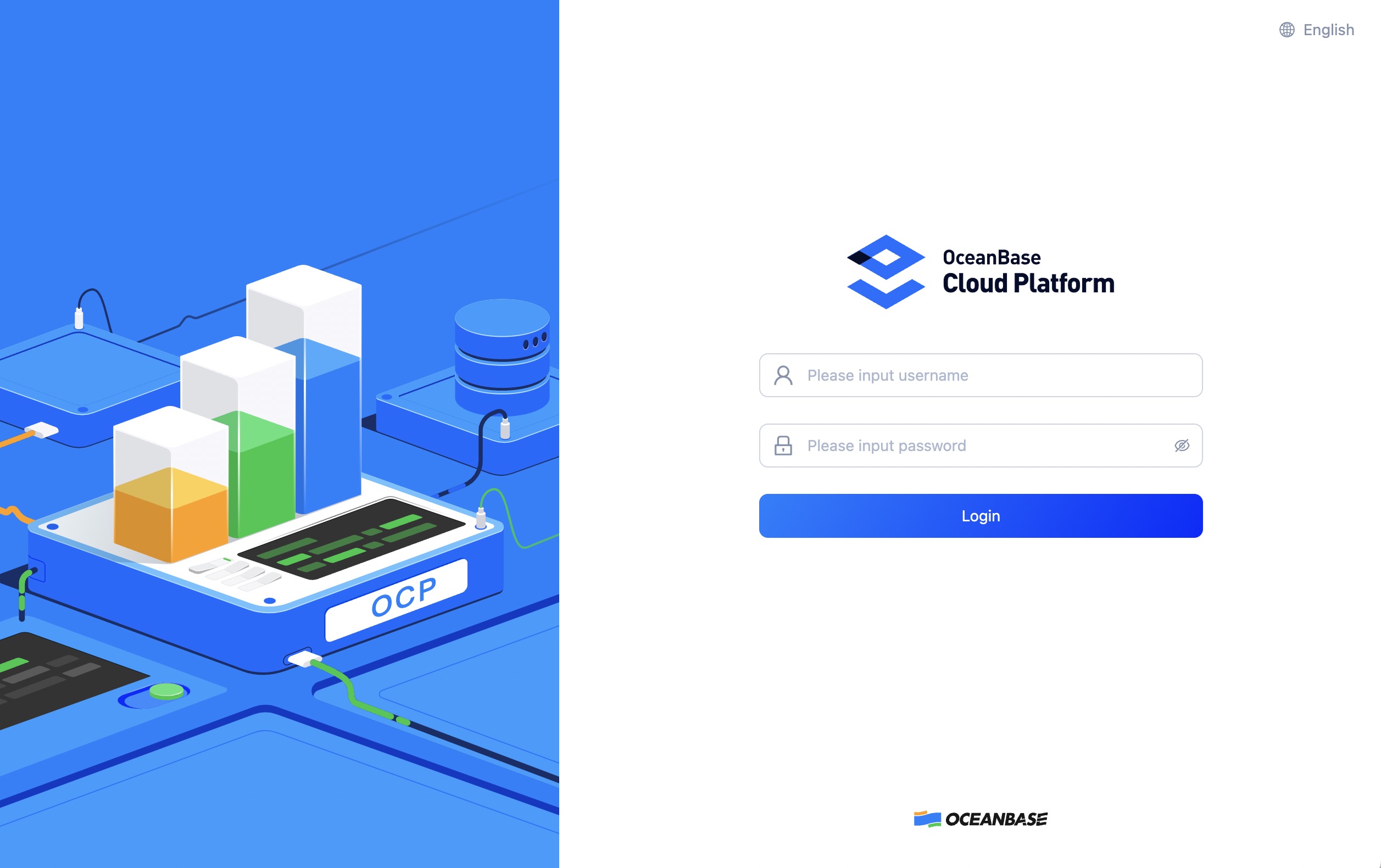
Enter the access address of the OCP in your browser and press Enter.
http://<hostip>:<port>/loginOn the displayed login page, enter the OCP username and password.
Notice
You can copy the OCP username and password from the page of successful upgrade. To ensure the security of your account, it is recommended that you change the default password after logging in for the first time. For instructions on how to change the password, see Change your login password.
Check OCP features
Check whether the following features work normally:
Configure an alert channel to verify that it is available. For instructions on how to configure an alert channel, see Create an alert channel.
Check basic features such as adding hosts, creating clusters, creating tenants, and viewing monitoring metrics.
Check log files
Check if the
ocp.logfile exists in the/home/admin/logs/ocpdirectory.Check if the output information of the
ocp.logfile is normal.
Check the OCP version
Verify the OCP-Server version information using the following command. If the buildVersion in the returned information matches the OCP-Server version, it indicates that the OCP-Server version is correct.
curl --user <username>:<password> 'http://<OCP_HOST>:<OCP_PORT>/api/v2/info'
where
username: indicates the login account for OCP.
password: indicates the login password for OCP.
Check the clock time
You can use the following command to obtain the OCP-Server time. If the returned time matches the expected time, it indicates that the current clock of OCP-Server is normal.
curl 'http://<OCP_HOST>:<OCP_PORT>/api/v2/time'