







The user management feature allows you to view users under the current MySQL tenant, create a user, delete a user, and grant and revoke user privileges.
Prerequisites
- You must have the permissions to modify the tenant.
- Only a primary tenant has the user management permissions.
- You cannot manage users with access restrictions on IP addresses, such as a user with the restriction of
testuser@10.%.
Procedure
In the left-side navigation pane, click Tenants to go to the Tenants page.
In the tenant list, find the target tenant and click its name to go to its Overview page.
In the left-side navigation pane, click User Management to go to the User Management page.
In the user list, view the following user parameters: Username, Accessible Database, Login Connection String, Lock, and Actions.
You can lock a user to prevent the user from logging on to the database.
You can perform various operations on users, such as lock a user, change the password of a user, modify the privileges of a user, and delete a user.
You can view and copy the logon connection string.

Click Create User in the upper-right corner.
Configure the User Name, Password, Confirm Password, Global Privileges (Optional), and Database Privileges (Optional) parameters.
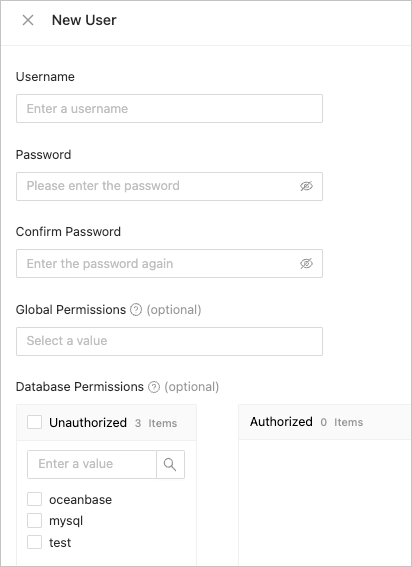 ParameterDescription
Password The password must be 8 to 32 characters in length and can contain letters, digits, and special characters. It must contains at least three of the following character types: digits(0~9), uppercase letters(A~Z), lowercase letters(a~z), and special characters (ie: ~!@#%^&*_-+=|(){}[]:;,.?/).Confirm Password Enter the password you specified for the Password parameter. Global Privileges (Optional) For more information, see the Privileges table in this topic. Grant privileges to the new user. To select the databases that the user can access, click the > icon to move the databases to the right-side pane, and then select the privileges as needed.
Click Submit.
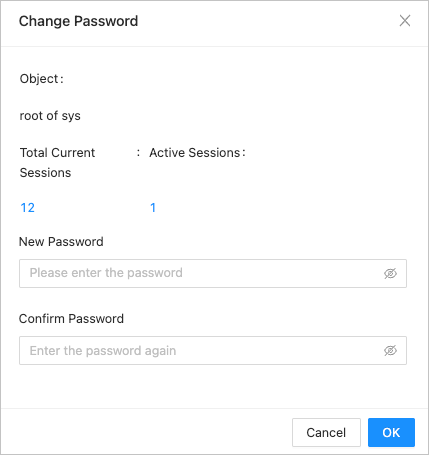
Change the password of a user: Click Change Password in the Actions column. In the dialog box that appears, change the password.
Modify the user privileges: Click Modify Permission in the Actions column to modify the global and database privileges of the corresponding user.
Delete a user: Click Delete in the Actions column to delete the corresponding user. Deleting a user may affect the business that involves this user. Proceed with caution.
Privileges
Privilege |
Description |
|---|---|
| ALTER | The ALTER TABLE privilege. |
| CREATE | The CREATE TABLE privilege. |
| DELETE | The DELETE privilege. |
| DROP | The DROP privilege. |
| INSERT | The INSERT privilege. |
| SELECT | The SELECT privilege. |
| UPDATE | The UPDATE privilege. |
| INDEX | The CREATE INDEX and DROP INDEX privileges. |
| CREATE VIEW | The privilege to create and drop views. |
| SHOW VIEW | The SHOW CREATE VIEW privilege. |
| CREATE USER | The CREATE USER, DROPUSER, RENAME USER, and REVOKE ALLPRIVILEGES privileges. |
| PROCESS | The PROCESS privilege. |
| SUPER | The SET GLOBAL privilege for modifying global system parameters. |
| SHOW DATABASES | The global SHOW DATABASES privilege. |
| GRANT OPTION | The GRANT OPTION privilege. |
| CREATE ROUTINE | The privilege to create procedures and functions.
NoteThis parameter is applicable only to OceanBase Database V4.2.2 and later. |
| EXECUTE | The privilege to execute procedures and functions.
NoteThis parameter is applicable only to OceanBase Database V4.2.2 and later. |
| ALTER ROUTINE | The privilege to modify and drop procedures and functions.
NoteThis parameter is applicable only to OceanBase Database V4.2.2 and later. |