







You can view the tenants, the resource distribution information of all tenants, and monitoring data of the top 5 tenants in the cluster that you manage.
Prerequisites
You have all permissions on the cluster and the management permissions on its tenants.
Procedure
Log on to the OceanBase Cloud Platform (OCP) console.
In the left-side navigation pane, click Clusters. The Clusters tab automatically appears.
In the cluster list, find the target cluster and click its name. The Overview page of the cluster appears.
In the left-side navigation pane, click Tenant Management to go to the Tenant Management page.
Click Create Tenant to create a tenant for the cluster. For more information, see Create a tenant.
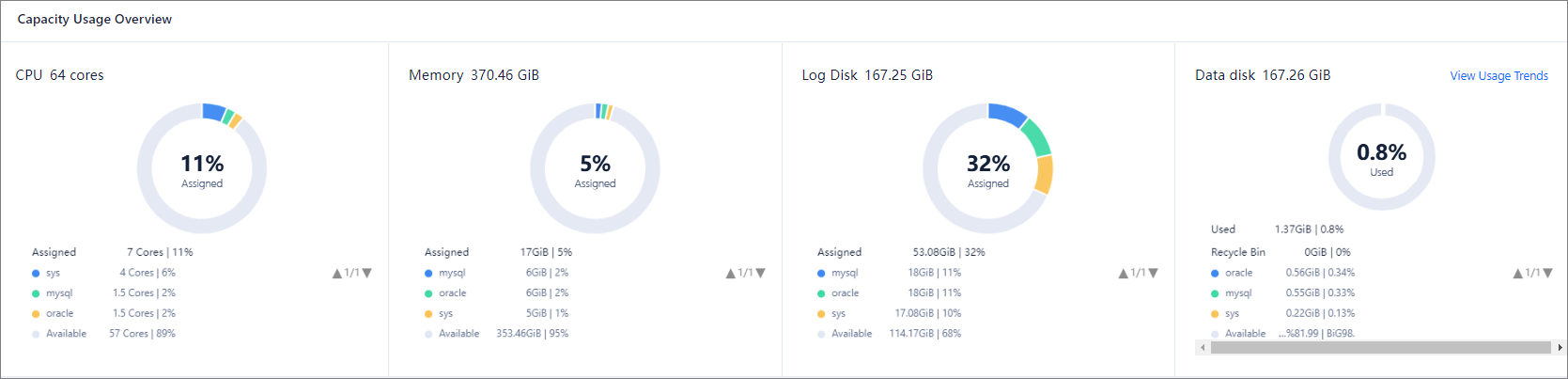
View the resource distribution information in the Capacity Usage Overview section.
The resource distribution information includes the CPU utilization, memory usage, log disk usage, and data disk usage of each tenant in percentage, as well as the remaining CPU, memory, log disk, and data disk resources of the system in percentage.
When you move the pointer over a tenant in a pie chart, the chart displays the specific resource usage of the tenant. You can also click View Usage Trends in the upper-right corner of Data disk to view the data disk usage trend within a specified period of time.
Note
- If CPU overprovisioning is enabled for the cluster, the maximum and minimum numbers of CPU cores allocated to each tenant in the cluster are displayed in the Capacity Usage Overview module.
- The Log Disk data is displayed only for a cluster of OceanBase Database V4.0 or later.
In the Tenants section, view the basic information of all tenants in the following columns: Tenant Name, Tag, OceanBase version number, Mode, Primary Zone, Read-only, Locked, Status, and Created On.
- You can hover the pointer over the tag of a tenant to view all its tags. You can click the Edit icon to manage the tags. For more information, see Manage tags.
- Lock or copy a tenant. For more information, see Lock a tenant and Copy a tenant.

In the Top 5 Tenants section, view the performance metrics of the top 5 tenants by workload, such as the QPS, TPS, SQL response time, transaction response time, number of sessions, event waiting_count, event waiting_time, capacity_tables, and capacity_partitions. You can also view the monitoring information during the last hour, day, or week as needed.
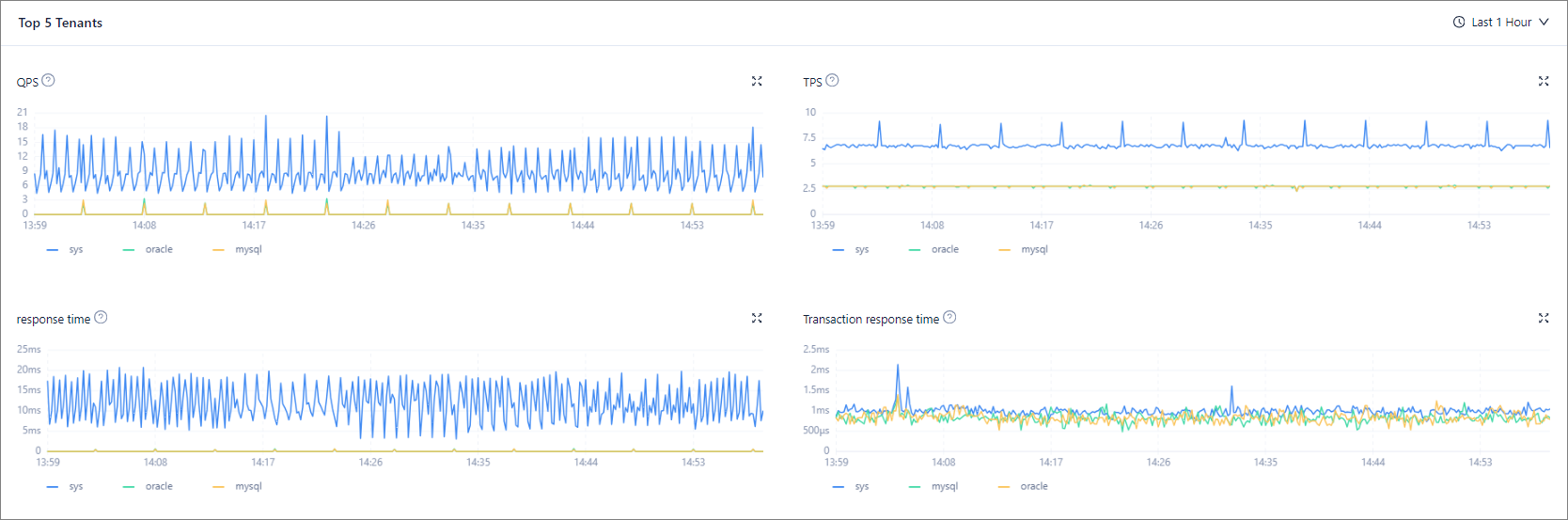
The following table describes the performance monitoring metrics.
MetricDescriptionData sourceQPS The average number of SQL statements processed per second. v$sysstat TPS The average number of transactions processed per second. v$sysstat SQL Response Time The SQL response time, in µs. v$sysstat Transaction Response Time The average time taken by the server to process a transaction, in µs. v$sysstat Sessions The number of active sessions and the number of current sessions. __all_virtual_processlist Event waiting_Number of times The average number of wait events per second. v$system_event Event waiting_Time The average wait time of each wait event, in μs. v$system_event Capacity_Number of tables The number of tables. gv$table Capacity_Number of partitions The number of partitions. v$partition