This topic describes how to build a WordPress website using OceanBase Database.
Background information
- WordPress: WordPress is an open-source content management system (CMS) built with PHP and MySQL. For more information, visit WordPress's official website. Due to its ease of use, scalability, and strong community support, WordPress is a popular choice for many users. This topic uses WordPress to demonstrate how to build a website on OceanBase Database.
- MAMP: MAMP is a software package for macOS and Windows that provides a complete local development environment. It allows developers to easily develop and test PHP and MySQL-based web applications on their local machines, making it a suitable runtime environment for WordPress. For more information, visit MAMP's official website.
Prerequisites
You have deployed an OceanBase cluster of V4.3.3 or later and created a MySQL tenant. For more information about how to deploy an OceanBase cluster, see Deployment overview.
The MySQL tenant you created has been granted insert and query privileges. For more information about how to grant privileges, see Grant direct privileges.
You have created a database. For more information, see Create a database.
You have installed Apache and PHP.
Run the following command to install Apache.
brew install httpdRun the following command to install PHP.
brew install php
## Procedure
Install WordPress.
Run the following command to download WordPress.
curl -O https://wordpress.org/latest.tar.gzRun the following command to decompress WordPress.
tar -xzvf latest.tar.gzRename the decompressed WordPress folder to your desired name (such as
your-wordpress-site) and move it to thehtdocsdirectory of MAMP. The path is typically/Applications/MAMP/htdocs/.mv wordpress /Applications/MAMP/htdocs/your-wordpress-site
Edit the WordPress configuration file.
Edit the
wp-config-sample.phpfile in your WordPress installation directory to configure database connection details./** The name of the database for WordPress */ define('DB_NAME', 'your_db_name'); ## Set the database name. /** MySQL database username */ define('DB_USER', 'your_db_user'); ## Set the tenant and username. /** MySQL database password */ define('DB_PASSWORD', 'your_db_password'); ## Set the password of the tenant user. /** MySQL hostname */ define('DB_HOST', 'your_ob_cloud_host'); // ## Set the IP address and port of the tenant.Edit the
class-wpdb.phpfile in WordPress to replaceutf8mb4_unicode_520_ciwithutf8mb4_general_ci.if ( $this->has_cap( 'utf8mb4_520' ) && 'utf8mb4_unicode_ci' === $collate ) { $collate = 'utf8mb4_general_ci'; }
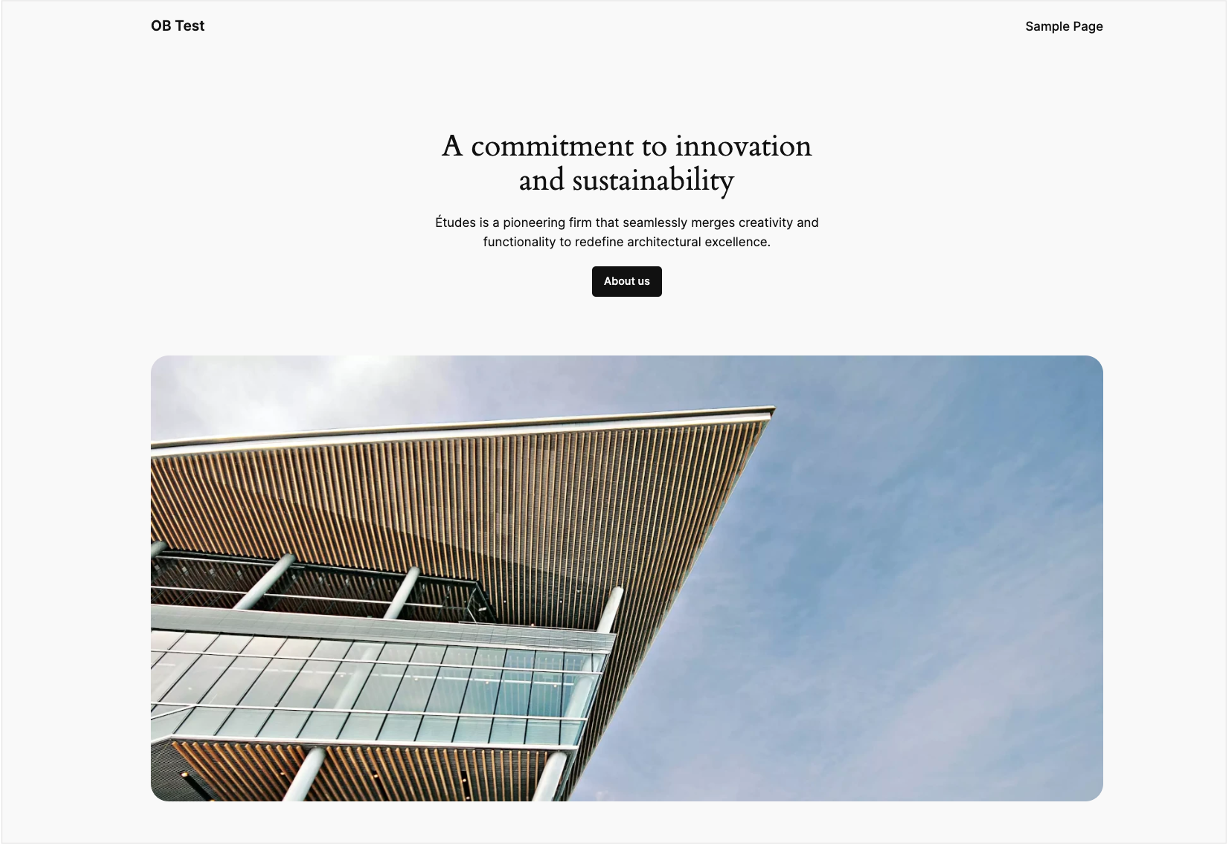
Visit your website at http://localhost:8888/your-wordpress-site