Background information
As digital transformation accelerates, enterprises are placing higher demands on data analysis, particularly for processing large volumes of offline historical data. One effective solution is to build a data warehouse. OceanBase Database enables you to create a data warehouse specifically for real-time data analysis. Through scheduled tasks, OceanBase Database enables the hierarchical construction of data layers, starting from the Operational Data Store (ODS) layer, moving to the Data Warehouse Detail (DWD) layer, and finally reaching the Application Data Store (ADS) layer. Additionally, you can leverage supported ecosystem tools to create a visual dashboard for better data insights.
Prerequisites
The source database is a MySQL database, or you have deployed a cluster of OceanBase Database V4.3.3 or later and created a MySQL tenant. For more information about how to deploy an OceanBase cluster, see Deployment overview.
The MySQL tenant has the privileges to insert and query data. For more information about how to set privileges, see Directly grant privileges.
You have created a database. For more information about how to create a database, see Create a database.
The Binlog service is enabled in the source database.
You have deployed Flink CDC, DBT, airflow, and Grafana.
Preparations
Create a database and tables
Create the
tptestandaptestdatabases in the source and destination databases, respectively, and use them as the TP and AP databases.create database aptest;create database tptest;Create tables in the TP and AP databases. The SQL statements are as follows.
CREATE TABLE `orders` ( order_id bigint not null primary key, user_id varchar(50) not null, shop_id bigint not null, product_id bigint not null, buy_fee numeric(20,2) not null, create_time timestamp not null, update_time timestamp not null default now(), state int not null ); CREATE TABLE `orders_pay` ( pay_id bigint not null primary key, order_id bigint not null, pay_platform varchar(64) not null, create_time timestamp not null ); CREATE TABLE `product_catalog` ( product_id bigint not null primary key, catalog_name varchar(50) not null );Insert some data into the table in the TP database.
INSERT INTO product_catalog VALUES(1, 'iphone 14'),(2, 'iphone 14 pro max'),(3, 'iphone 15'),(4, 'huawei mate 60'),(5, 'huawei pura 70'); insert into `tptest`.`orders_pay`(`pay_id`,`order_id`,`pay_platform`,`create_time`) values(1,1,'test','2024-10-01 00:00:00'); insert into `tptest`.`orders_pay`(`pay_id`,`order_id`,`pay_platform`,`create_time`) values(2,2,'test','2024-10-02 00:00:00'); insert into `tptest`.`orders_pay`(`pay_id`,`order_id`,`pay_platform`,`create_time`) values(3,3,'test','2024-10-03 00:00:00'); insert into `tptest`.`orders_pay`(`pay_id`,`order_id`,`pay_platform`,`create_time`) values(4,4,'test','2024-10-04 00:00:00'); insert into `tptest`.`orders_pay`(`pay_id`,`order_id`,`pay_platform`,`create_time`) values(1,1,'test','2024-10-01 00:00:00'); insert into `tptest`.`orders_pay`(`pay_id`,`order_id`,`pay_platform`,`create_time`) values(2,2,'test','2024-10-02 00:00:00'); insert into `tptest`.`orders_pay`(`pay_id`,`order_id`,`pay_platform`,`create_time`) values(3,3,'test','2024-10-03 00:00:00'); insert into `tptest`.`orders_pay`(`pay_id`,`order_id`,`pay_platform`,`create_time`) values(4,4,'test','2024-10-04 00:00:00');
Build a Flink synchronization link
After you start Flink CDC, go to the deployment folder of Flink and run the ./bin/sql-client.sh command to open the Flink SQL console. Execute the following SQL statements in sequence.
```sql
CREATE TABLE mysql_orders (
order_id bigint not null primary key NOT ENFORCED,
user_id varchar(50) not null,
shop_id bigint not null,
product_id bigint not null,
buy_fee numeric(20,2) not null,
create_time timestamp not null,
update_time timestamp not null,
state int not null
) WITH (
'connector' = 'mysql-cdc',
'hostname' = 'xxx.xxx.xxx.xxx',
'port' = '3306',
'username' = 'wktest',
'password' = '******',
'database-name' = 'tptest',
'table-name' = 'orders');
CREATE TABLE `mysql_orders_pay` (
pay_id bigint not null primary key NOT ENFORCED,
order_id bigint not null,
pay_platform varchar(64) not null,
create_time timestamp not null
) WITH (
'connector' = 'mysql-cdc',
'hostname' = 'xxx.xxx.xxx.xxx',
'port' = '3306',
'username' = 'wktest',
'password' = '******',
'database-name' = 'tptest',
'table-name' = 'orders_pay');
CREATE TABLE `mysql_product_catalog` (
product_id bigint not null primary key NOT ENFORCED,
catalog_name varchar(50) not null
) WITH (
'connector' = 'mysql-cdc',
'hostname' = 'xxx.xxx.xxx.xxx',
'port' = '3306',
'username' = 'wktest',
'password' = '******',
'database-name' = 'tptest',
'table-name' = 'product_catalog');
CREATE TABLE `orders` (
order_id bigint not null primary key NOT ENFORCED,
user_id varchar(50) not null,
shop_id bigint not null,
product_id bigint not null,
buy_fee numeric(20,2) not null,
create_time timestamp not null,
update_time timestamp not null,
state int not null
) WITH (
'connector' = 'jdbc',
'url' = 'jdbc:mysql://******:3306/aptest',
'username' = 'wktest@mysql001',
'password' = '******',
'table-name' = 'orders');
CREATE TABLE `orders_pay` (
pay_id bigint not null primary key NOT ENFORCED,
order_id bigint not null,
pay_platform varchar(64) not null,
create_time timestamp not null
) WITH (
'connector' = 'jdbc',
'url' = 'jdbc:mysql://******:3306/aptest',
'username' = 'wktest@mysql001',
'password' = '******',
'table-name' = 'orders_pay');
CREATE TABLE `product_catalog` (
product_id bigint not null primary key NOT ENFORCED,
catalog_name varchar(50) not null
) WITH (
'connector' = 'jdbc',
'url' = 'jdbc:mysql://******:3306/aptest',
'username' = 'wktest@mysql001',
'password' = '******',
'table-name' = 'product_catalog',
'sink.buffer-flush.max-rows' = '0',
'sink.buffer-flush.interval' = '0');
INSERT INTO product_catalog SELECT * FROM mysql_product_catalog;
INSERT INTO orders_pay SELECT * FROM mysql_orders_pay;
INSERT INTO orders SELECT * FROM mysql_orders;
```
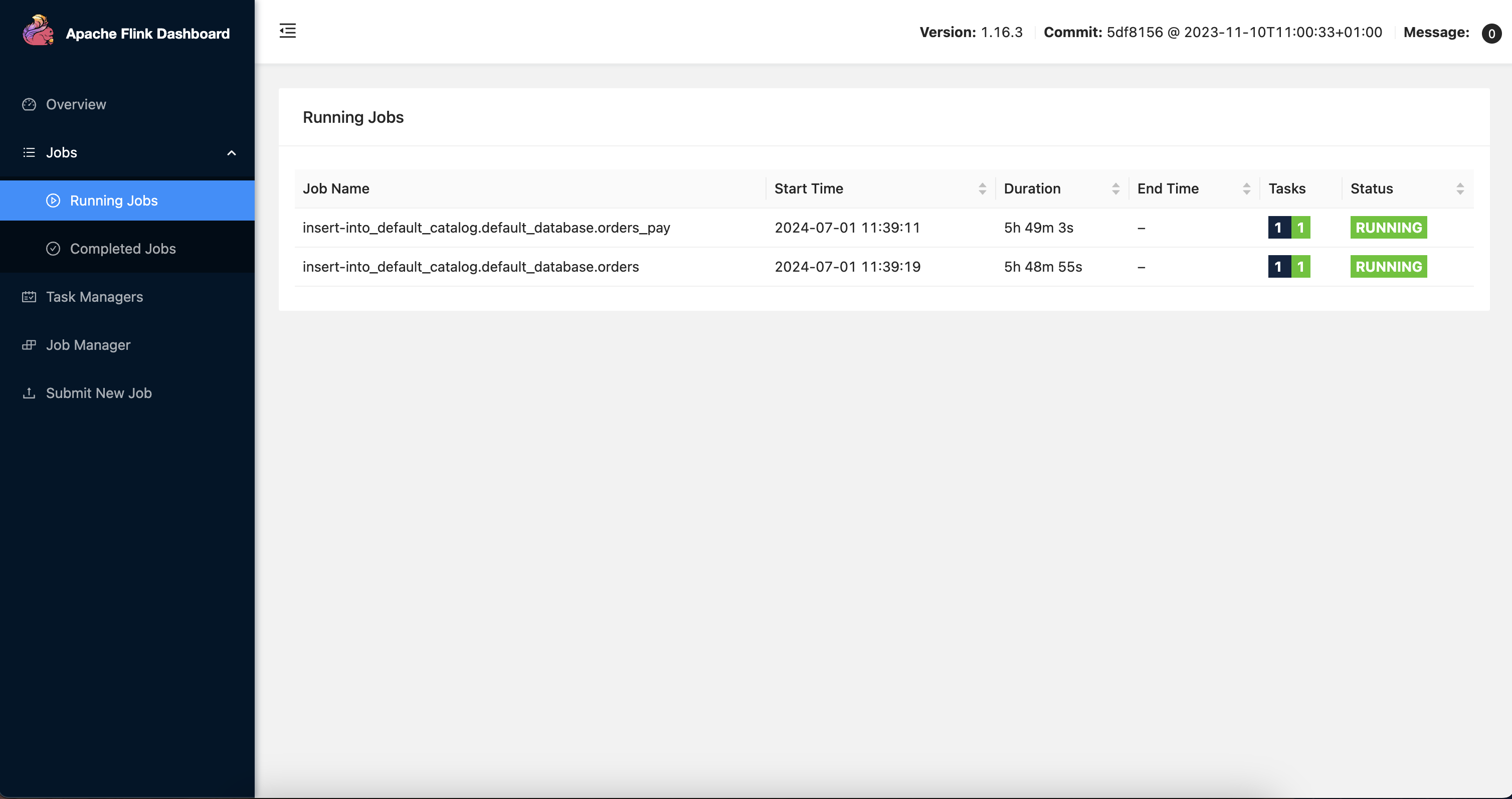
After you create the Flink CDC synchronization link, data is synchronized in real time from the tptest database to the aptest database. You can view the table data in the SQL console.
Build a compute layer
Build a DBT project
The original TP table structure is not suitable for direct data analysis and display, and requires some conversion. Here, data conversion is performed using a DBT project. Based on the original example, a DBT project is built, and models are defined. The detailed steps are as follows:
After the DBT project is installed and deployed, run the
dbt init my_projectcommand to create a DBT project namedmy_project. In the dialog box that appears, enter the database information as prompted. Note that you only need to enter the username. After the project is created, the information you entered is recorded in the~/.dbt/profiles.ymlfile and used for database connection.Run the
cd my_projectcommand to enter the project directory.Write SQL files to define data models in the
/my_project/models/exampledirectory.# models/example/dwd_orders.sql {{ config( materialized='view') }} select o.order_id as order_id, o.user_id as order_user_id, o.shop_id as order_shop_id, o.product_id as order_product_id, o.buy_fee as order_fee, o.create_time as order_create_time, o.update_time as order_update_time, o.state as order_state, c.catalog_name as order_product_catalog_name, p.pay_id as pay_id, p.pay_platform as pay_platform, p.create_time as pay_create_time from orders o left join product_catalog c on o.product_id = c.product_id left join orders_pay p on o.order_id = p.order_id# models/example/dwd_shops.sql {{ config(materialized='table') }} select order_shop_id, str_to_date(date_format(pay_create_time, '%Y%m%d'), '%Y%m%d') as ds, sum(order_fee) as sum_fee from {{ ref('dwd_orders') }} where order_state=1 GROUP BY order_shop_id, date_format(pay_create_time, '%Y%m%d')# models/example/dwd_shops_all.sql {{ config(materialized='table') }} select str_to_date(date_format(pay_create_time, '%Y%m%d'), '%Y%m%d') as ds, sum(order_fee) as sum_fee from {{ ref('dwd_orders') }} where order_state=1 GROUP BY date_format(pay_create_time, '%Y%m%d')# models/example/dwd_users.sql {{ config(materialized='table') }} select order_user_id, str_to_date(concat(date_format(pay_create_time, '%Y%m'), '01'), '%Y%m%d') as ds, sum(order_fee) as sum_fee from {{ ref('dwd_orders') }} where order_state = 1 group by order_user_id, date_format(pay_create_time, '%Y%m')Run the
dbt compilecommand to compile the models, which converts the SQL statements into database-specific statements.Run the
dbt runcommand to enable all models.
Create a DAG scheduling task
Airflow is used as the basic DAG and scheduling platform. After the initial installation and deployment, you need to run the airflow db init command to initialize the Airflow database. After deploying Airflow, run the airflow scheduler command to start the scheduler, allowing for real-time DAG scheduling; run the airflow webserver command to start the web server, enabling you to view the entire scheduling task on the web interface.
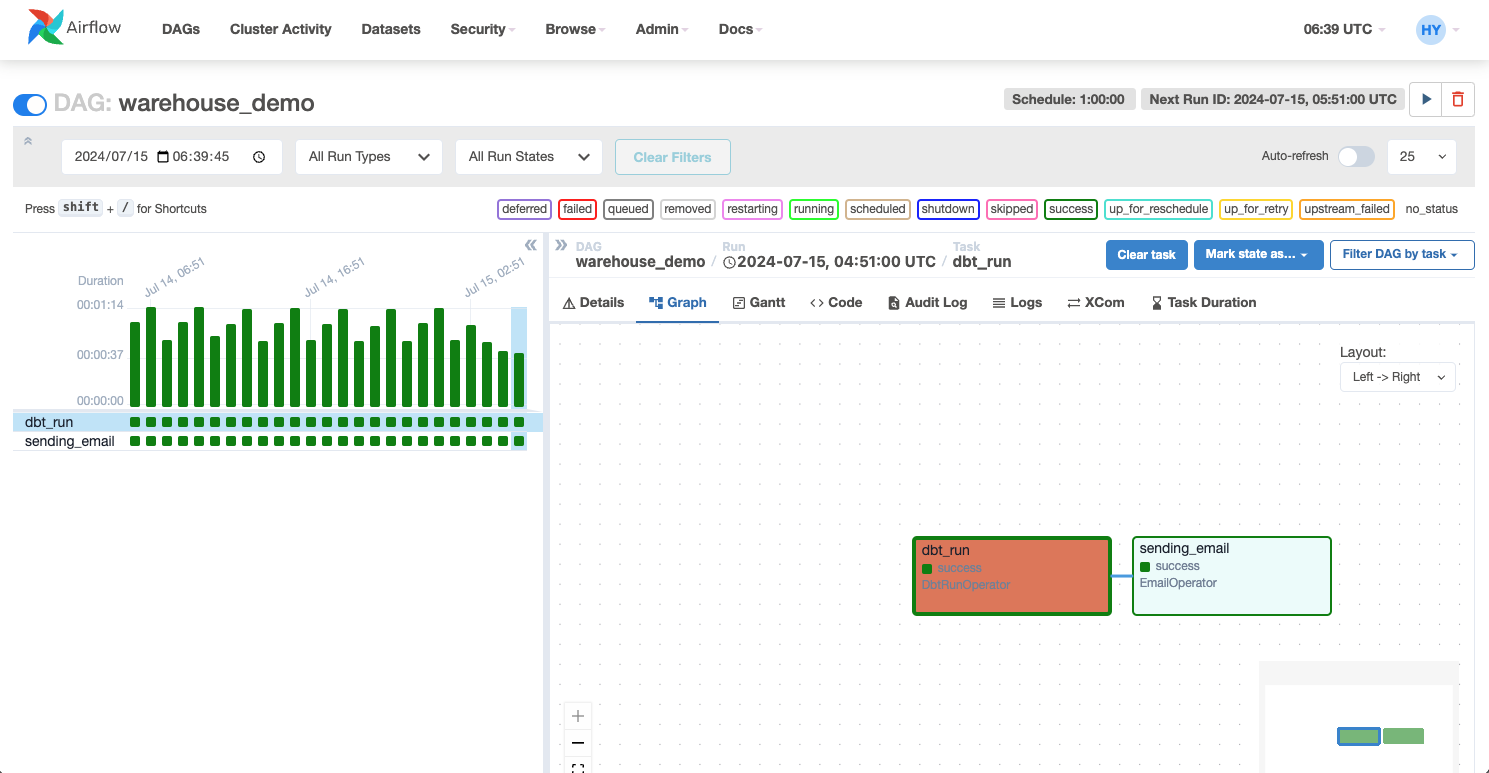
Once the database is configured, log in to the server where Airflow is deployed and place your DAG file (.py file) in the Airflow's dags directory. Airflow will automatically discover and load these DAGs. Two compute nodes are defined here: one for running the DBT project to complete the data warehouse computing task, and another for sending an email notification to the user upon task completion. The DAG definition is as follows.
# Copyright (c) 2023 OceanBase.
#
# Licensed under the Apache License, Version 2.0 (the "License");
# you may not use this file except in compliance with the License.
# You may obtain a copy of the License at
#
# http://www.apache.org/licenses/LICENSE-2.0
#
# Unless required by applicable law or agreed to in writing, software
# distributed under the License is distributed on an "AS IS" BASIS,
# WITHOUT WARRANTIES OR CONDITIONS OF ANY KIND, either express or implied.
# See the License for the specific language governing permissions and
# limitations under the License.
from datetime import datetime, timedelta
from airflow import DAG
from airflow.operators.email import EmailOperator
from airflow_dbt import DbtRunOperator
default_args = {
"owner": "airflow",
"depends_on_past": False,
"start_date": datetime(2024, 7, 12, 8, 35),
"email": ["******@oceanbase.com"],
"email_on_failure": True,
"email_on_retry": False,
"retries": 1,
"retry_delay": timedelta(minutes=5),
}
dag = DAG("warehouse_demo", default_args=default_args, schedule=timedelta(minutes=1))
t4 = EmailOperator(
task_id="sending_email",
to="******@oceanbase.com",
subject="AirFlow Notice",
html_content="<h1>Your Airflow Has been completed</h1>",
dag=dag,
)
dbt_operator = DbtRunOperator(
task_id="dbt_run", dir="xxx", dag=dag
)
dbt_operator >> t4
After the file is deployed, you can view the entire scheduling task on the Airflow web interface. You can schedule the task as needed.
Configure the Grafana dashboard
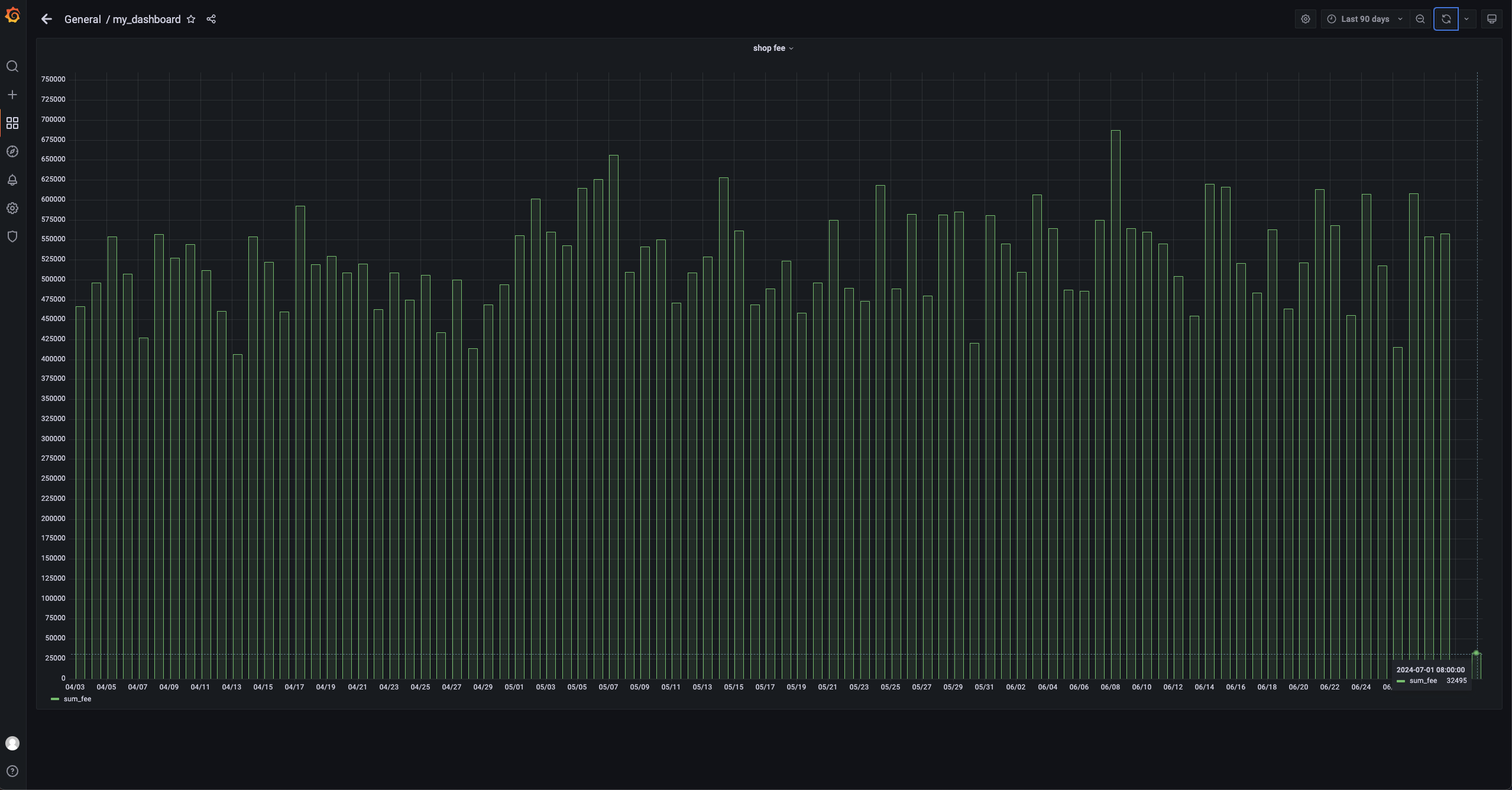
Here, we only display the daily sales of a single store, focusing on the sales of one store and all stores. Therefore, configure the connection to the AP database in Grafana and use it to display the corresponding SQL query. The SQL query is as follows:
```sql
SELECT
ds AS "time",
sum_fee AS "sum_fee"
FROM dwd_shops
WHERE
order_shop_id = 35
ORDER BY ds
```
Implementation
Simulate purchase behavior
Write a simple Python script named test.py to simulate user purchase behavior.
# Copyright (c) 2023 OceanBase.
#
# Licensed under the Apache License, Version 2.0 (the "License");
# you may not use this file except in compliance with the License.
# You may obtain a copy of the License at
#
# http://www.apache.org/licenses/LICENSE-2.0
#
# Unless required by applicable law or agreed to in writing, software
# distributed under the License is distributed on an "AS IS" BASIS,
# WITHOUT WARRANTIES OR CONDITIONS OF ANY KIND, either express or implied.
# See the License for the specific language governing permissions and
# limitations under the License.
import dataclasses
from typing import Dict
import mysql.connector
PRODUCT_ID_2_FEE: Dict[int, float] = {
1: 5399,
2: 10099,
3: 4599,
4: 5499,
5: 6499,
}
@dataclasses.dataclass
class Phone:
product_id: int
catalog_name: str
buy_fee: float
def get_max_order_id(cur):
cur.execute("select order_id from orders order by order_id desc limit 1")
id = cur.fetchone()
return next(iter(id))
def get_max_pay_id(cur):
cur.execute("select pay_id from orders_pay order by pay_id desc limit 1")
id = cur.fetchone()
return next(iter(id))
def buy_phone(product_id: int, cursor, user_id=15, shop_id=35):
cursor.execute("select product_id, catalog_name from product_catalog")
tuples = cursor.fetchall()
phones = [
Phone(
**{
"product_id": p_id,
"catalog_name": c_name,
"buy_fee": PRODUCT_ID_2_FEE.get(p_id),
}
)
for p_id, c_name in tuples
]
target = next(filter(lambda p: p.product_id == product_id, phones))
order_id = get_max_order_id(cursor) + 1
sql = f"insert into `orders`(`order_id`, `user_id`, `shop_id`, `product_id`, `buy_fee`, `create_time`, `update_time`, `state`) values({order_id}, {user_id}, {shop_id}, {product_id}, {target.buy_fee}, now(), now(), 0)"
cursor.execute(sql)
pay_id = get_max_pay_id(cursor) + 1
sql = f"insert into `orders_pay`(`pay_id`, `order_id`, `pay_platform`, `create_time`) values({pay_id}, {order_id}, 'Alipay', now())"
cursor.execute(sql)
sql = f"update orders set state=1 where order_id={order_id}"
cursor.execute(sql)
cursor.execute("commit")
print(target)
if __name__ == "__main__":
with mysql.connector.connect(
**{
"host": "******",
"port": "3306",
"database": "tptest",
"user": "wktest@mysql001",
}
) as conn:
with conn.cursor() as cursor:
buy_phone(5, cursor)
Run the script by executing the sh python.py command.
Airflow scheduling
After 1 minute, Airflow will schedule the previously configured DAG. You can check the node status and task logs on the web interface.
View data dashboard
On the data dashboard, you can view the latest data. This example only shows the daily sales of shops. It focuses on the sales of one shop and all shops. You can see that the sales of July 1 have increased to 32,495.