







This topic describes how to create a project template in OceanBase Migration Service (OMS).
Create a project template by configuring its parameters
Log on to the OMS console.
In the left-side navigation pane, choose O&M and Monitoring > Parameter Template. The Project Template tab automatically appears.
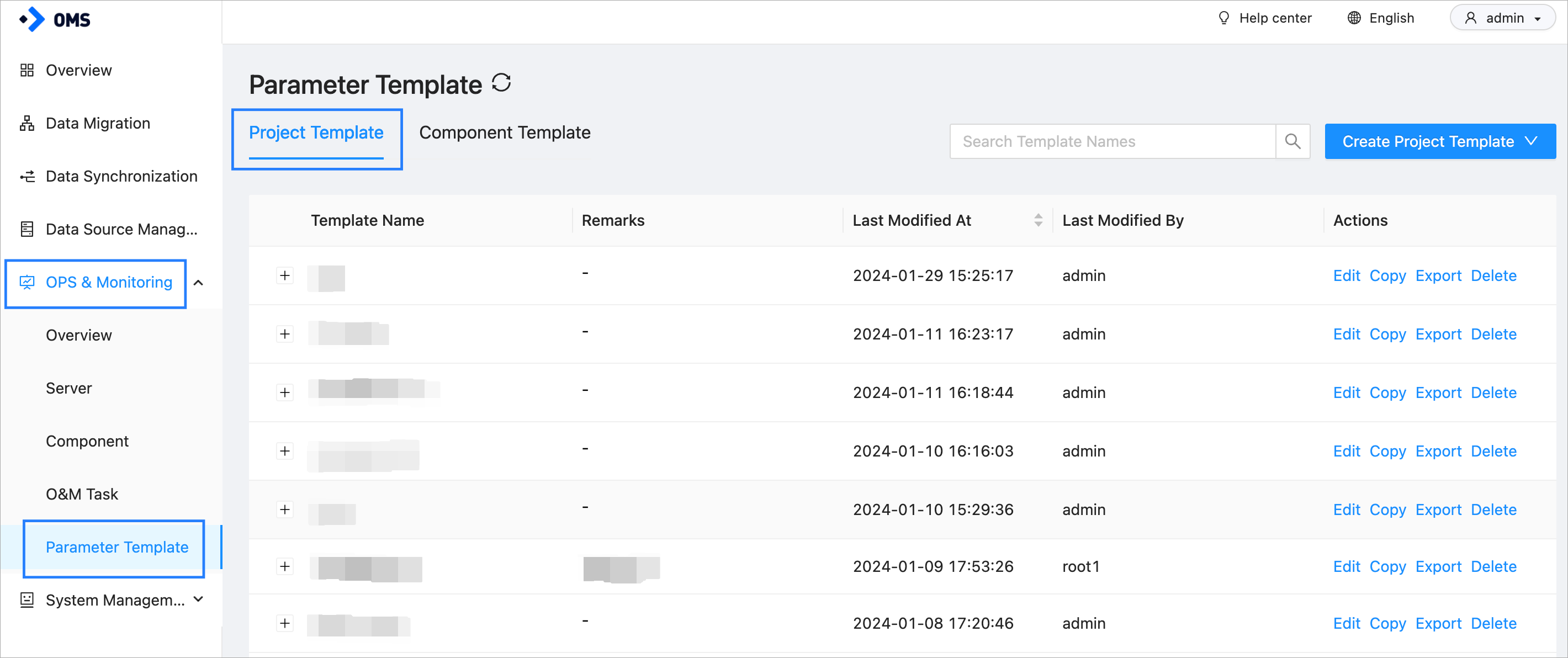
In the upper-right corner of the Project Template tab, choose Create Project Template > Create Project Template.

In the Create Project Template dialog box, configure the parameters.
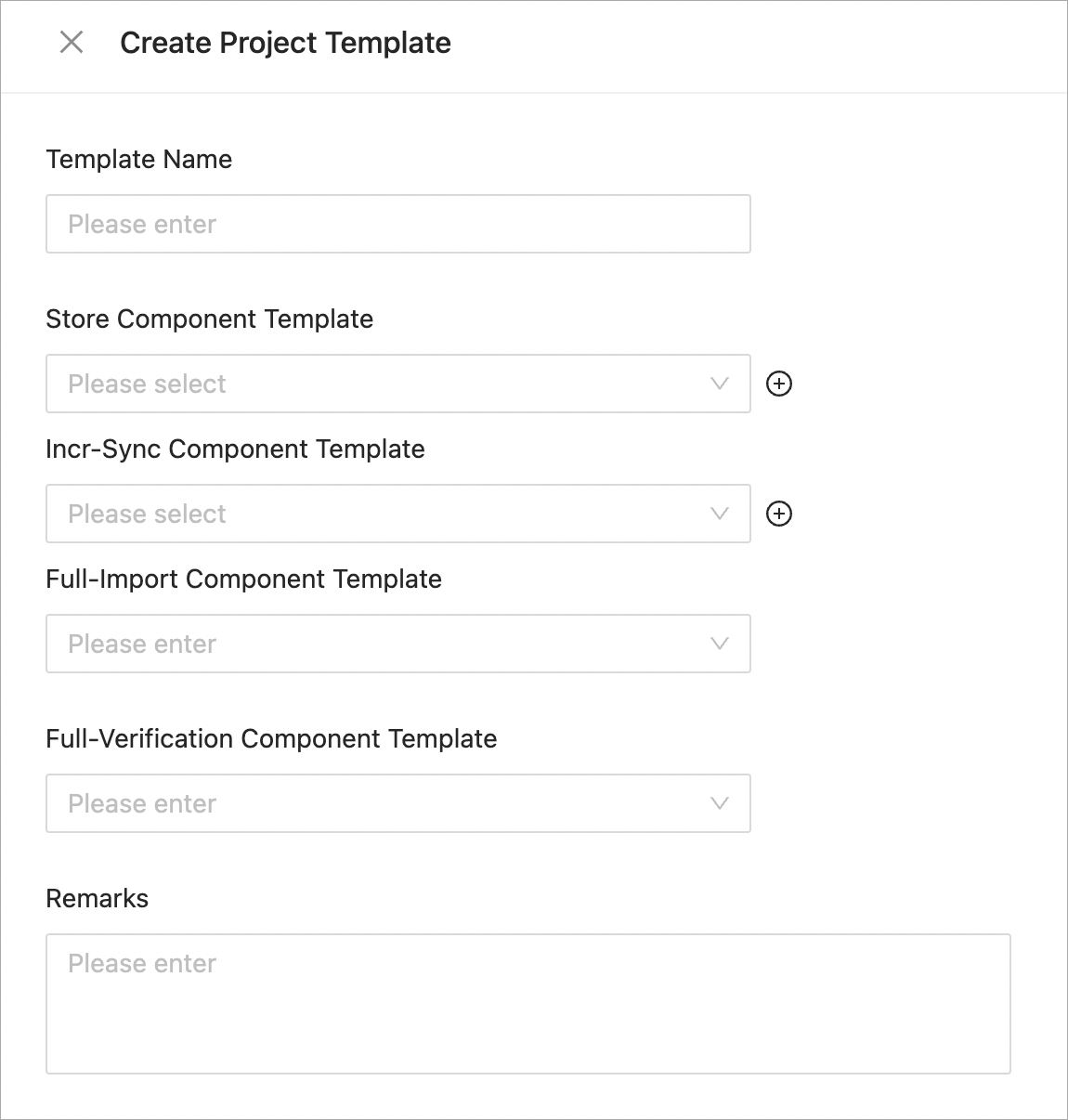 ParameterDescription
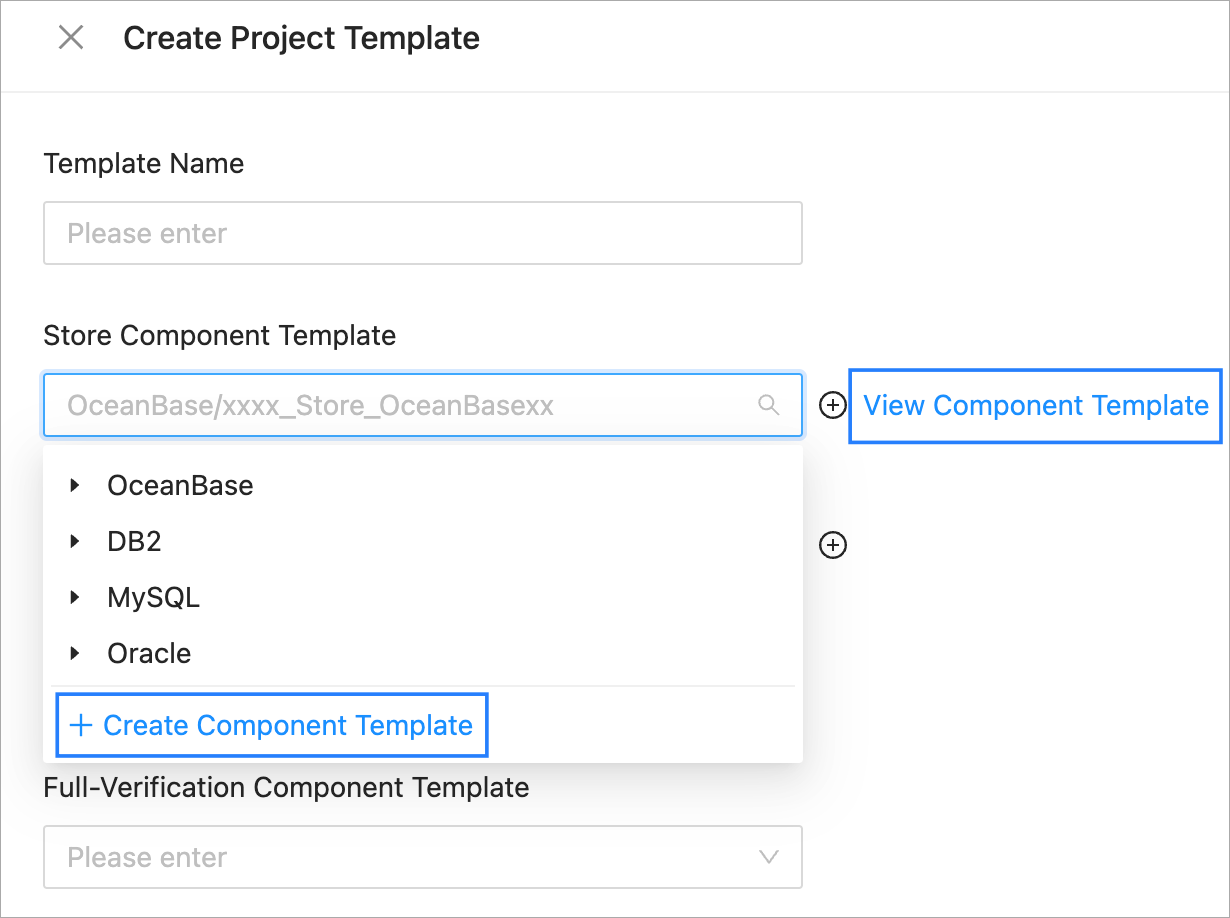
Template Name It must not contain any spaces and cannot exceed 64 characters in length. Store Component Template Select an existing component template from the drop-down list. Supported Store component types are MySQL, Oracle, OceanBase, DB2, and PostgreSQL. You can add at most two types of Store component templates. Incr-Sync Component Template Select an existing component template from the drop-down list. Supported Incr-Sync component types are Forward, Reverse, and Bidirectional. You can add at most two types of Incr-Sync component templates. Full-Import Component Template Select an existing component template from the drop-down list. Full-Verification Component Template Select an existing component template from the drop-down list. Remarks Additional information about the project template. After you select a component template, you can click View Component Template next to the drop-down list to view its content. If the required component template does not exist, you can click Create Component Template to create one.
Click OK.
Create a project template by importing existing parameter configuration
In the left-side navigation pane of the OMS console, choose O&M and Monitoring > Parameter Template. The Project Template tab automatically appears.
In the upper-right corner of the Project Template tab, choose Create Project Template > Import Parameter Configuration.

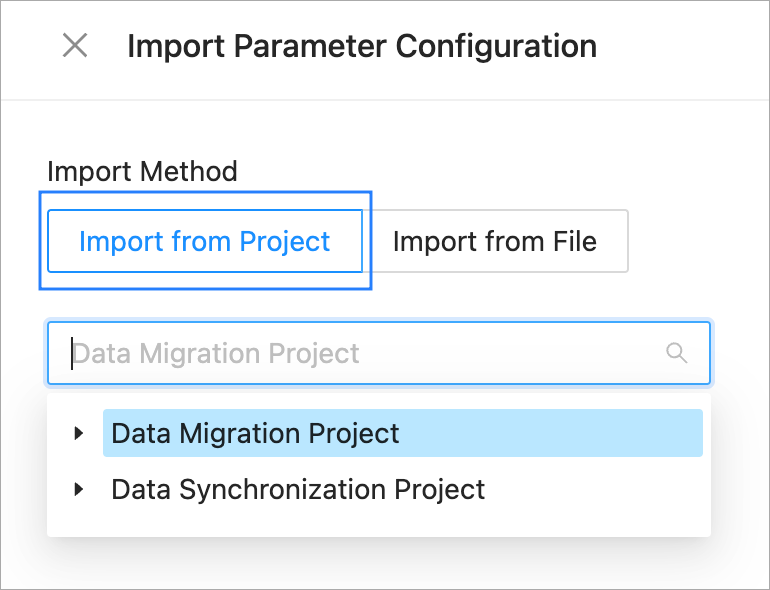
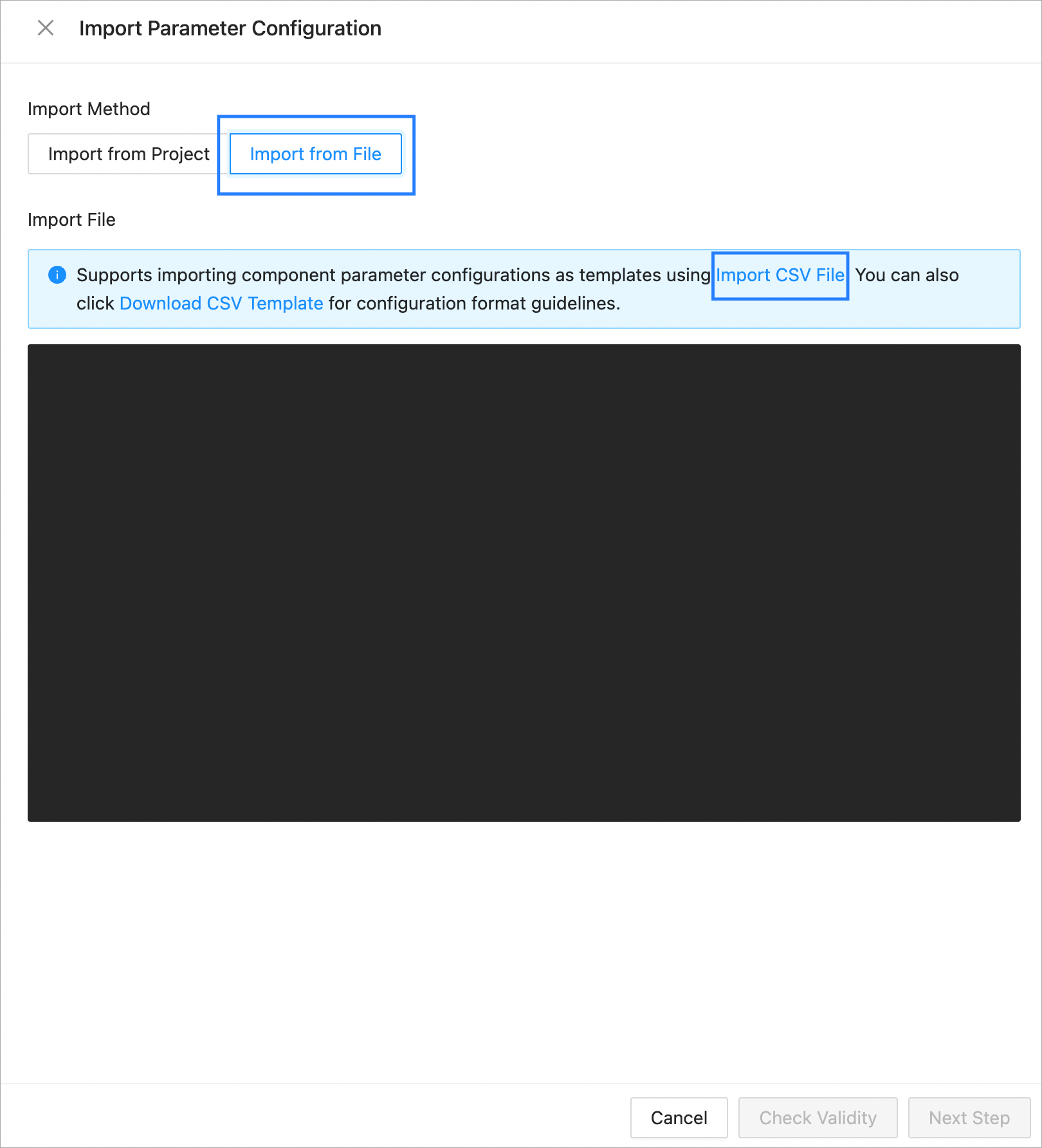
In the Import Parameter Configuration dialog box, specify the import method.
Supported import methods are Import From Project and Import From File.
OMS allows you to import the parameter configurations of components from an existing data migration or synchronization project to a template. To do so, select Import From Project and then select the project whose parameter configuration you want to import from the drop-down list.
OMS allows you to create a template by importing a CSV file that contains the parameter configuration of each component. To do so, select Import From File, click Import CSV, and then select the CSV file in your local storage.
After the CSV file is imported, its content is displayed. You can edit the content as needed. Then, confirm that the configuration is correct, and click Validate in the lower part of the dialog box.
Click Next.
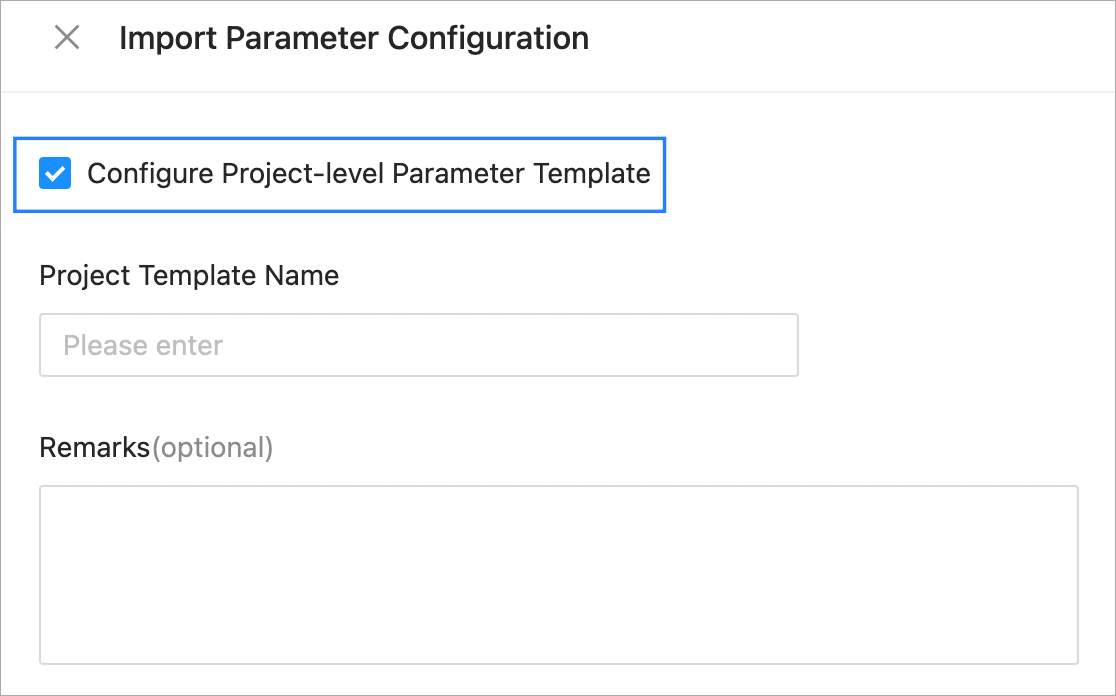
Select Configure Project-level Parameter Template as needed.
By default, Configure Project-level Parameter Template is selected. In this case, you need to specify Project Template Name and Remarks (optional). If you do not need to configure a project template, deselect the parameter.
In the Import Parameter Configuration dialog box, confirm the imported component parameters. You can modify, delete, and add parameters as needed.
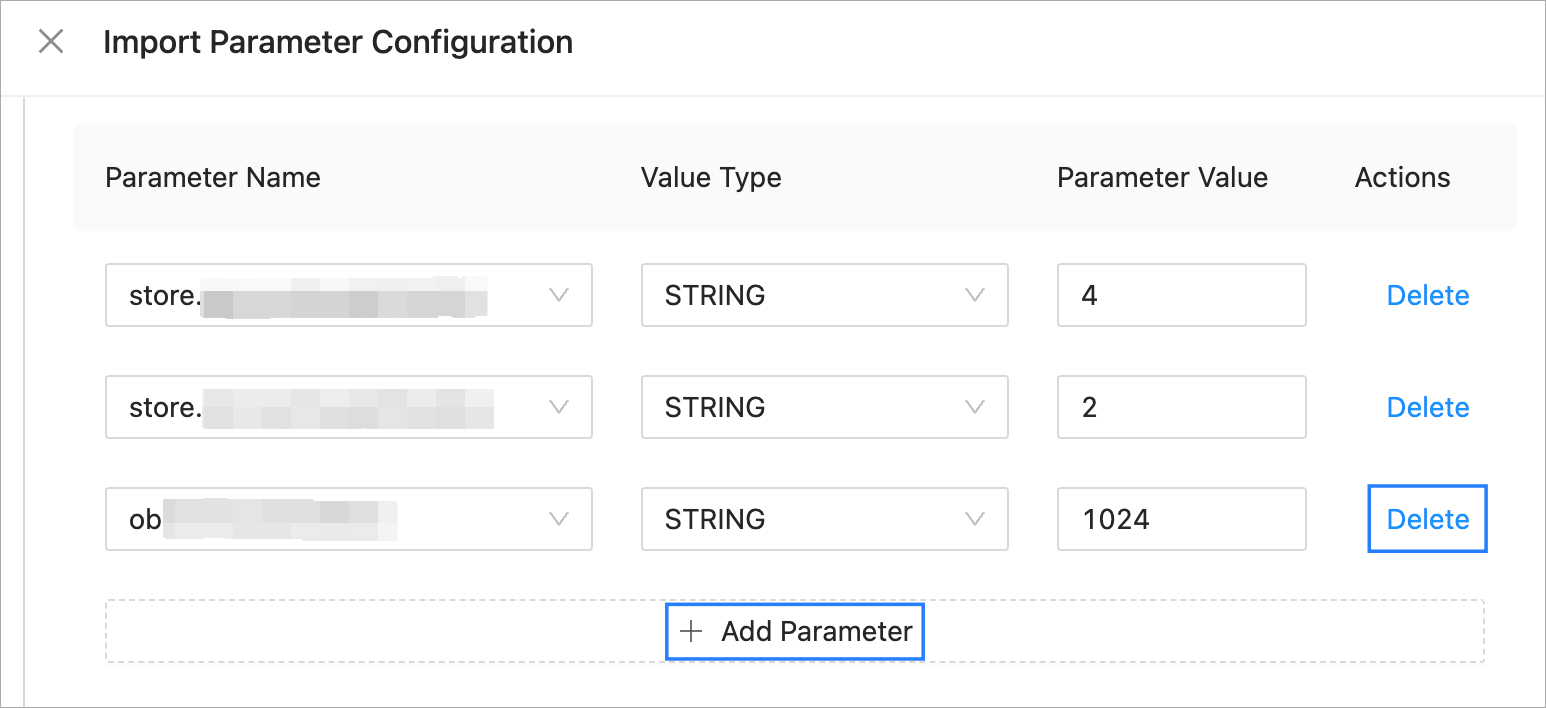
After you configure the parameters, click OK in the lower part of the dialog box.