








Overview
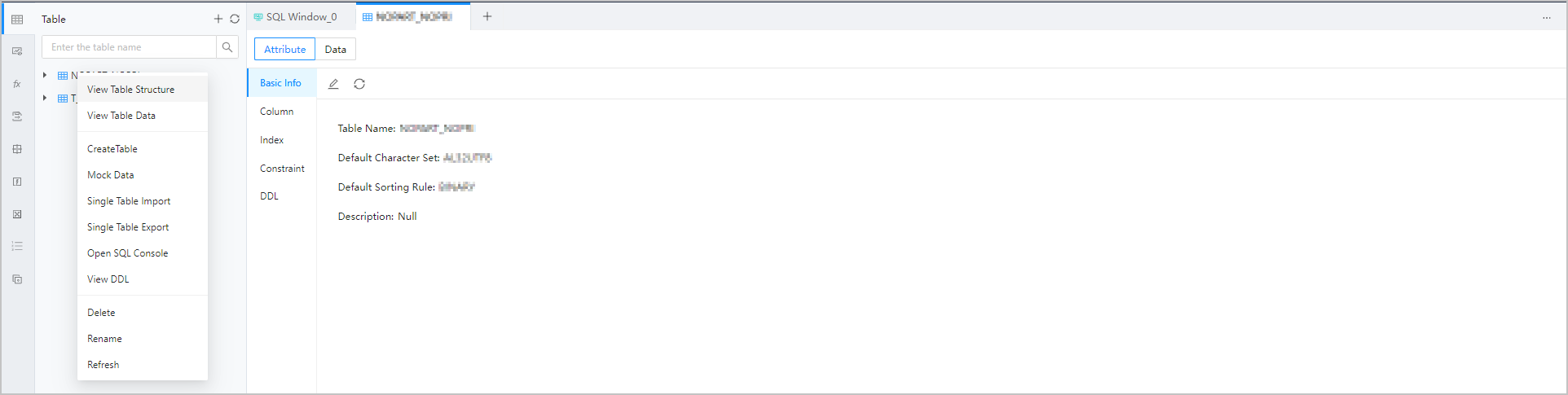
After you log on to OceanBase Developer Center (ODC), click the name of the target connection on the ODC homepage to go to the corresponding connection management page.
In the left-side navigation pane, click Table to get a list of tables.
Double-click the name of a table in the table list to go to the table management page.
Click Attribute in the top navigation bar to go to the Attribute tab.
The Attribute tab displays the following table attributes:
Basic information
Column
Index
Constraints
Partition
DDL
Basic information
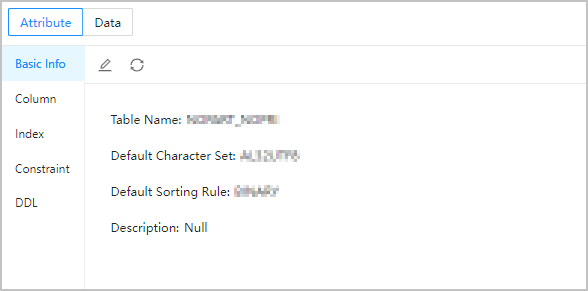
In the left-side navigation pane of the Attribute tab, click Basic Info to view the basic information about the table.
| Field | Description |
|---|---|
| Table Name | Displays the name of the table. You can modify the table name here. |
| Default Character Set | Displays the character set that the table uses. |
| Default Sorting Rule | Displays the sorting rule that the table uses. |
| Description | Displays the description that you specified when you created the table. You can also modify the table description here. |
The basic information page provides the following buttons.
| Button | Description |
|---|---|
| Edit | Click  to modify the basic information. to modify the basic information. |
| Refresh | Click  to refresh the basic information. to refresh the basic information. |
Column information
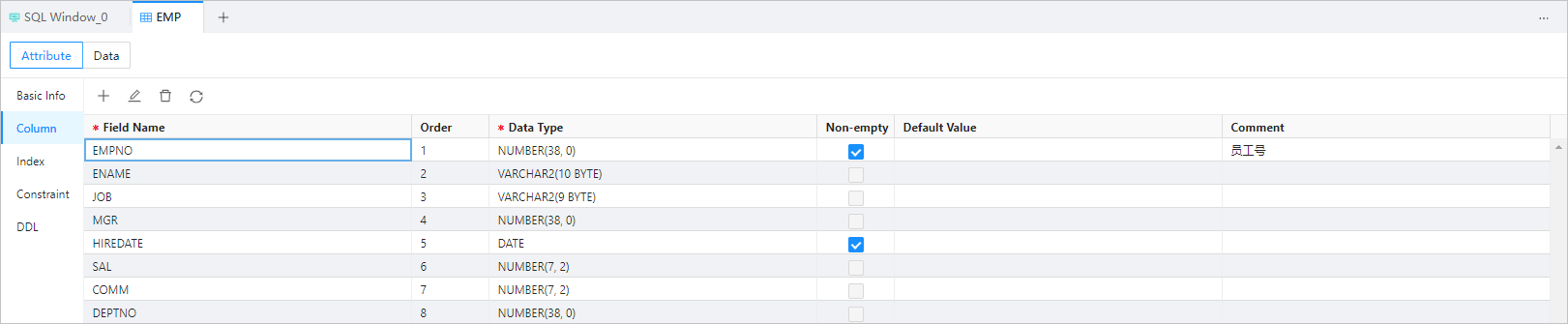
In the left-side navigation pane of the Attribute tab, click Column to view the columns in the table. The navigation bar also provides the following buttons.
| Button | Description |
|---|---|
| Create | Click + to add a field (or column) to the table. |
| Edit | Click to open the editing page where you can edit the selected field. You can modify Data Type , Primary Key , Non-empty , Default Value , and Comment , but cannot modify Field Name . You can also directly double-click a cell to edit it. |
| Delete | Click  to delete the selected field. to delete the selected field. |
| Refresh | Click to refresh the field information. |
| Filter | Click  (to the right of Field Name ) to filter or search for fields. (to the right of Field Name ) to filter or search for fields. |
Index information

In the left-side navigation pane of the Attribute tab, click Index to view the indexes on the table. The navigation bar also provides the following buttons.
| Button | Description |
|---|---|
| Create | Click + to add an index to the table. |
| Edit | Click to modify the parameters in the Create Index dialog box that appears. You can modify Index Name , Index Range , Constraint Type , and Optional Field . |
| Delete | Click to delete the selected index. |
| Refresh | Click to refresh the index information. |
| Filter | Click (to the right of Index Name ) to filter or search for indexes. |
Note
An index cannot be modified after it is created.
Constraint information

In the left-side navigation pane of the Attribute tab, click Constraint to view the constraints on the table. The navigation bar also provides the following buttons.
| Button | Description |
|---|---|
| Create | Click + to add a constraint to the table. |
| Edit | Click to edit the selected constraint. |
| Delete | Click to delete the selected constraint. |
| Refresh | Click to refresh the constraint list. |
Note
The buttons provided vary with the constraint method. If a button is dimmed out or not present in the navigation bar, it means that the constraint method does not support the corresponding action.
To view foreign key constraints on a table, you can query the
all_constraintsview in Oracle mode, or the information_schema.key_column_usage table in MySQL mode since OBServer V2.2.6.OceanBase Database supports constraint checking only in Oracle mode.
Partition information

In the left-side navigation pane of the Attribute tab, click Partition to view the information about the partitions in the table. The information includes Partition Name , Order , Partitioning Method , Expression , Upper limit of the range , and Enumeration Value . In Oracle mode, Expression indicates the partitioning key. Partitioning Method indicates the partitioning method specified when the table was created. The information displayed varies with the partitioning method. The navigation bar also provides the following buttons.
| Button | Description |
|---|---|
| Create | Click + to create a partition from an undefined range. |
| Edit | Click to edit the information of the selected partition. |
| Split | Click  to split a partition into smaller granules. to split a partition into smaller granules. |
| Delete | Click to delete the selected partition and destroy the data in the partition. |
| Refresh | Click to refresh the partition list. |
| Filter | Click  to filter partitions by partition name, order, partitioning method, expression, or upper limit of the range. to filter partitions by partition name, order, partitioning method, expression, or upper limit of the range. |
Note
In ODC V3.3.0 and later versions, you can view the partitions of table objects not necessarily under the SYS tenant.
DDL information

In the left-side navigation pane of the Attribute tab, click DDL to view the DDL statements that define the table. You cannot edit these statements. Click  in the toolbar to view the statements.