







After you deploy OCP, you can log on to the OCP console to check if everything is ok.
The graphic user interface (GUI) varies with the OCP version. This topic takes OCP V2.4.4 as an example.
Log on to the OCP console
Enter the OCP access URL into the address bar of your browser and press the Enter key.
The access address is http://< IP address of the OCP server >:8080.
On the logon page that appears, use the default account
adminto log on to the OCP console. The default password isroot. Change your password after your first logon. Note
NoteIf you want to access OCP through a domain name, you must configure the domain name resolution service for the local host.
Check the information of the MetaDB cluster.
In the left-side navigation pane, click Cluster .
On the Cluster Overview page, check whether the performance metrics, server resources, and cluster list are properly displayed.

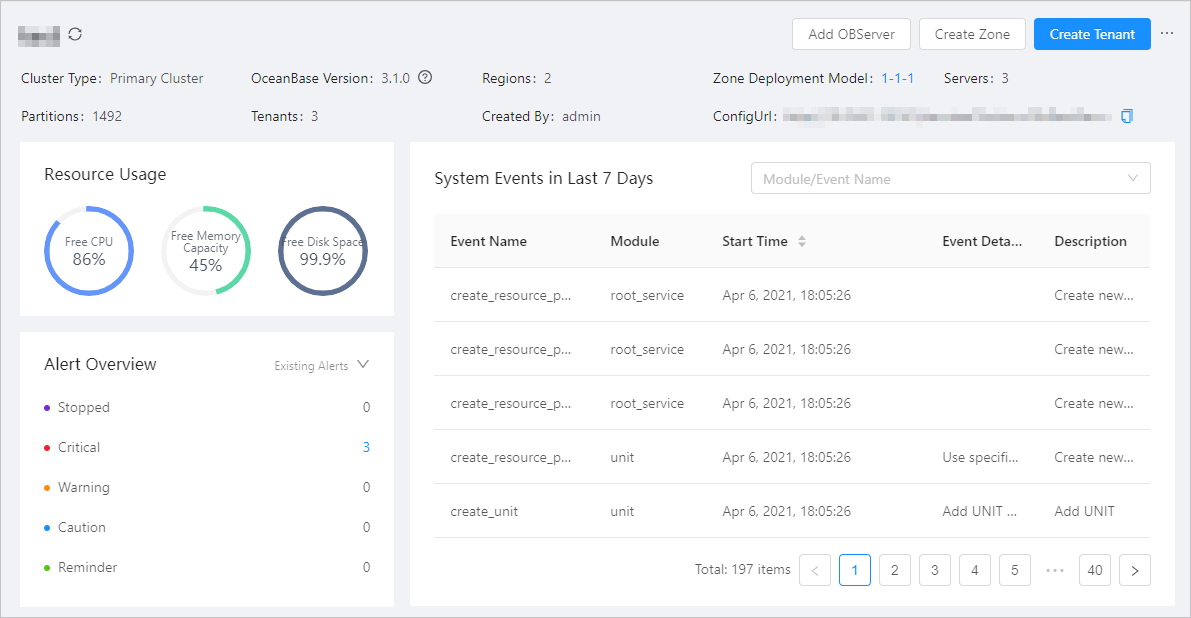
In the Clusters section of the Cluster Overview page, find the MetaDB cluster and click the cluster name. On the Overview page of the cluster, check whether the basic information, resource usage, zone list, and OBServer list of the MetaDB database are correct.
Check the monitoring status
In the left-side navigation pane of the Cluster Overview page, click Performance Monitoring . On the Performance Monitoring page of the cluster, check whether the database performance and host performance curves are correct.
