







This topic describes how to upgrade OceanBase Database.
Background
The GUI of OceanBase Cloud Platform (OCP) may vary with the version. This topic takes OCP V3.1.0 as an example. For OCP of other versions, see User Guide of the corresponding version.
Preparations before upgrade
You must prepare all RPM packages in the upgrade path from the source version to the target version.
Note
For example, to upgrade OceanBase Database from V2.2.30 to V3.2.4.0, you must prepare all RPM packages in the following four parts of the upgrade path:
- V2.2.30 > V2.2.40 > V2.2.50 (binary)
- V2.2.50 (binary) > V2.2.51 > V2.2.52 > V2.2.60 > V2.2.70 > V2.2.71 > V2.2.72 > V2.2.73 > V2.2.74 > V2.2.75 > V2.2.76 > V2.2.77 (binary)
- V2.2.77 (binary) > V3.1.2 (binary)
- V3.1.2 (binary) > V3.2.0 > V3.2.1 > V3.2.2 > V3.2.3.0 > V3.2.3.1 > V3.2.4.0
Upgrade procedure
Log on to the OCP console.
In the Clusters list on the Clusters page, find the target cluster and click its name.

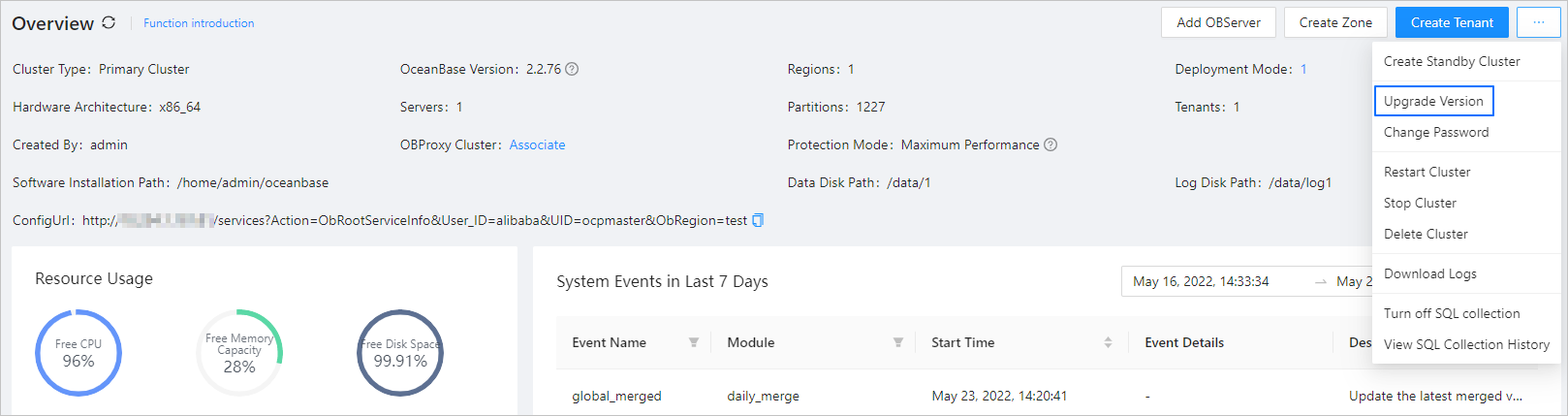
In the upper-right corner of the Overview page, click the More icon and choose Upgrade Version.
In the Upgrade Version dialog box that appears, select the target version. The Confirm Upgrade Path window automatically appears.
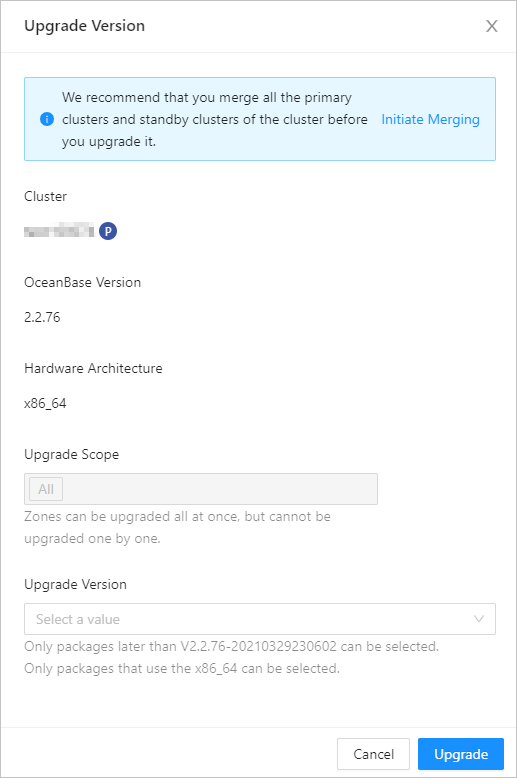
- Set the Upgrade Method parameter based on your business requirements. Valid values of this parameter:
- Rolling Upgrade (recommended): Your business is not interrupted during the upgrade.
- Downtime Upgrade: Your business is interrupted during the upgrade. Proceed with caution. If your cluster has less than three zones, no zones can become the majority in rolling upgrade. In this case, we recommend the Rolling Upgrade (recommended) method.
- Select the target OceanBase version from the drop-down list of the Upgrade Version field.
If the RPM package of the target version is not available in the Upgrade Version drop-down list, click Add Version at the bottom of the list to upload the required RPM package to OCP.
In the Confirm Upgrade Path window, check the upgrade path, and then click OK.
In the Upgrade Version dialog box, click Upgrade.
The upgrade begins. The upgrade task takes some time to complete. You can view the progress at any time during the upgrade and the results of the upgrade on the task management page of OCP. OCP displays the complete upgrade path, checks the entire upgrade process, and marks the faulty nodes in the path with fault details.
View the upgrade progress
OCP generates the following two types of tasks for each upgrade:
The
Submit Upgrade OB cluster dagtask controls the upgrade in general. It divides the upgrade process into multiple steps based on the number of binary versions, and initiates anUpgrade OB clustertask to complete each step.An
Upgrade OB clustertask upgrades the current version in each step.
In the left-side navigation pane of the OCP console, choose System Management > Tasks. The Tasks page automatically appears.

Usage notes
After you upgrade an earlier version to V2.1.31 or V2.2.1, an error occurs to the next Upgrade OB cluster task.`` In this case, you must log on to OceanBase Database and manually initiate a major compaction.
After the major compaction is completed, choose System Management > Tasks in the left-side navigation pane of the OCP console. In the Tasks list, find the failed task and click its name to go to the details page of the task.
Click Retry.****
Repeat steps 1 and 2 until all the
Upgrade OB clustertasks succeed.
Note
- The upgrade takes some time to complete. You can view the progress at any time during the upgrade and the results of the upgrade on the task management page of OCP.
- Unlike a traditional standalone database, OceanBase Database can be upgraded without any business downtime. However, we recommend that you perform the upgrade during off-peak hours, especially if your business is sensitive to the response time (RT). This is because the cluster is upgraded zone by zone, and the leader role is switched from one zone to another during the upgrade, which increases the RT a little bit.