







This topic describes how to query OBServer logs, OBProxy logs, host logs, and OceanBase Cloud Platform (OCP) Agent logs in the OCP console.
Prerequisites
You have the read-only permission on the log query objects.
Procedure
Log on to the OCP console.
In the left-side navigation pane, choose System Management > Log service.
The Log service page automatically appears. Alternatively, you can go to this page from the following entries:
Note
If you go to the Log service page from the following entries, the system automatically sets the Object Scope and Log Type parameters based on the entry.
In the upper-right corner of the Overview page of a cluster, click the More icon and select Download Logs.
In the OBServers list of the Overview page of a cluster, click the More icon in the Actions column of the target OBServer and select Download Logs.
In the left-side navigation pane, click Hosts. In the host list, select multiple IP addresses. Click Batch Download Logs in the lower-right corner of the page.
In the upper-right corner of the Overview page of an OBProxy cluster, click the More icon and select Download All Logs.
In the OBProxies list of the Overview page of an OBProxy cluster, find the target OBProxy and click Download Logs in the Actions column.
On the Log Search page, set the search criteria described in the following table.
 CriteriaDescription
Time Range The default time range is last 1 hour. You can select a time range of last 5, 10, 15, or 30 minutes or last 24 hours from the left-side drop-down list, or specify a custom time range in the right-side box. Object Scope The scope for log query. You must specify this parameter. - Select an OceanBase cluster, an OBProxy cluster, or a host from the left-side drop-down list to specify the log query object.
- Select one or more servers of the specified object from the right-side drop-down list.
Log Level The log level. Valid values: ERROR, WARN, INFO, and DEBUG. You can select multiple levels. Log Type The log type and files. You must specify this parameter. For more information, see Log types. - Select OceanBase Database Logs, OBProxy Logs, Host Logs, or OCP Agent Logs from the left-side drop-down list to specify the log type.
- Select one or more log files of the specified type from the right-side drop-down list.
Parameter The keywords that the logs to query contain. Regular expression matching and general matching of multiple keywords are supported. Negative Keywords The keywords that the logs to query cannot contain. You can specify multiple negative keywords. Click Query.
The query results are displayed in the lower part of the page.
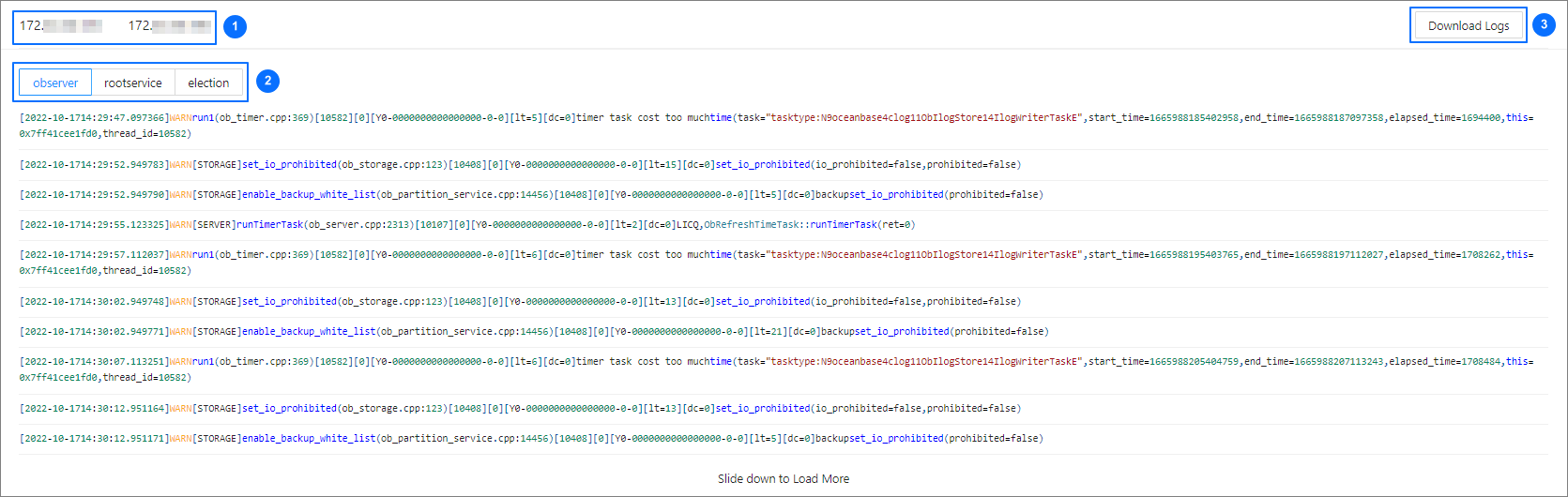
In section ①, you can switch between severs to view their logs.
In section ②, you can switch between log files.
In section ③, you can click Download Logs.
You can download all logs meeting the specified criteria on the server.
Log types
The following table describes the log types.
Log type |
Description |
|---|---|
| OBServer Logs | All logs in the /log/ directory of the installation path. The log clearing strategy is determined by the value you specified for the ocp.agent.ob-cleaner.config parameter:
|
| OBProxy Logs | All logs in the /home/admin/logs/obproxy/log/ directory. |
| Host Logs | All message- files in the /var/log directory. |
| OCP Agent Logs | All logs in the /home/admin/ocp_agent/log/ directory. |