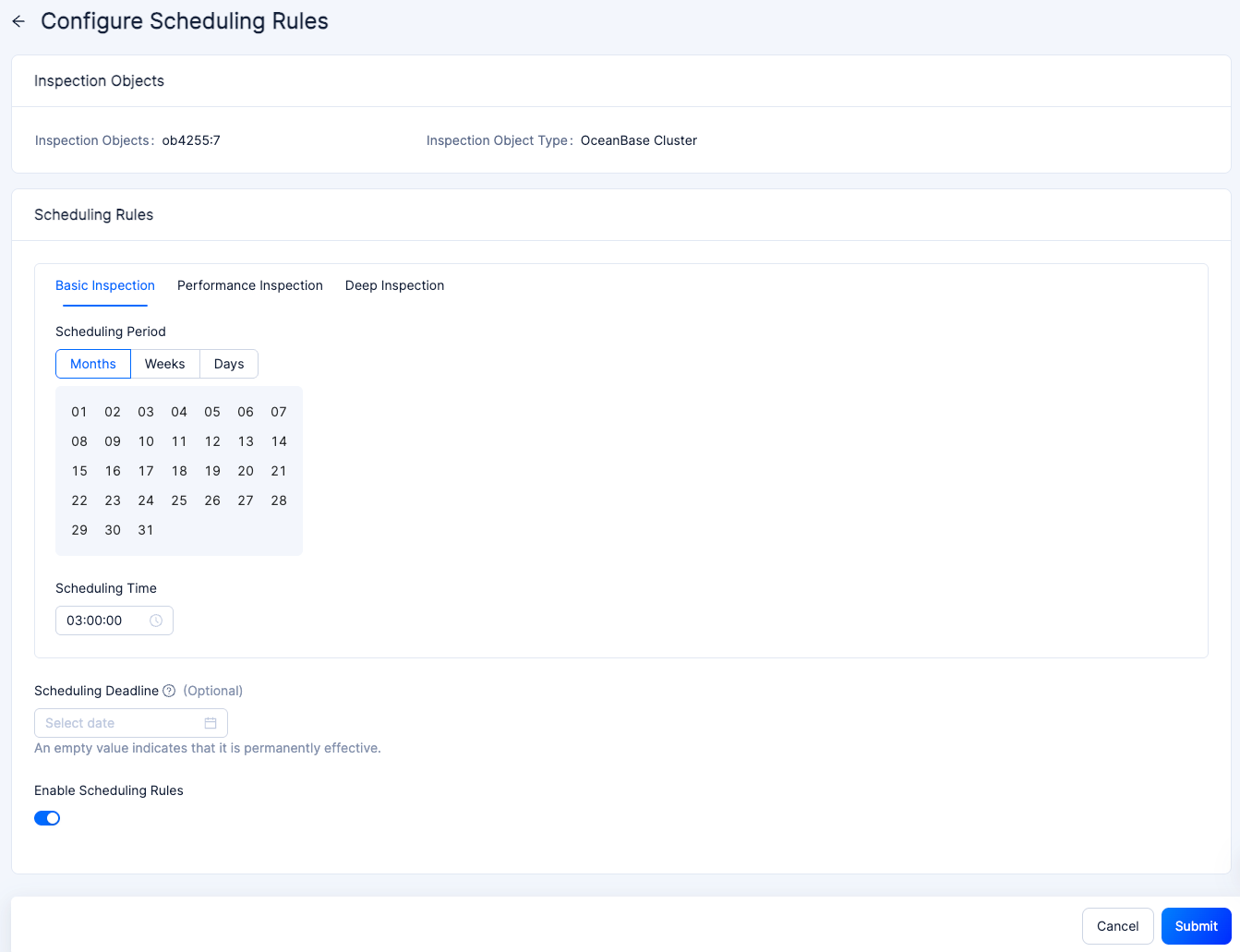
You can refer to this topic to configure a personalized scheduling rule for an inspection object. If you want to configure a unified scheduling rule for objects managed by OCP, see Configure a global scheduling rule.
Background information
After you configure a scheduling rule for an inspection object, OCP performs periodic inspections on the object based on the rules defined in the scheduling rule. For more information, see Inspection feature.
Prerequisites
Make sure that the user who logs in to the OCP console has the following permissions:
- Cluster Maintenance or Tenant Maintenance permissions.
- Inspection Service permissions in the O&M Management module.
Procedure
Log in to the OCP console.
In the left-side navigation pane, choose O&M Management > Inspection Service.
The Inspection List page automatically appears.
Click the tab that contains the inspection object.
In the list, find the inspection object for which you want to configure a scheduling rule and click More > Configure Scheduling Rules in the Actions column.
On the Configure Scheduling Rules page, configure the scheduling period and scheduling time for different inspection scenarios, and set the scheduling deadline and whether to enable the scheduling rule.
Note
You must configure the scheduling period and scheduling time for at least one inspection scenario.Click Submit.