This topic describes how to initiate an inspection for a single object. If you want to initiate a global inspection, see Initiate a global inspection.
Applicability
This topic applies only to OceanBase Cloud Platform Enterprise Edition. OceanBase Cloud Platform Community Edition does not support the inspection service.
Background information
After you initiate an inspection, OceanBase Cloud Platform (OCP) immediately starts inspection based on the inspection rule. For more information, see Inspection.
Procedure
Log on to the OCP console. In the left-side navigation pane, choose Inspection Service.
Wait until the Inspection List page appears.
Click the tab containing the target inspection object.
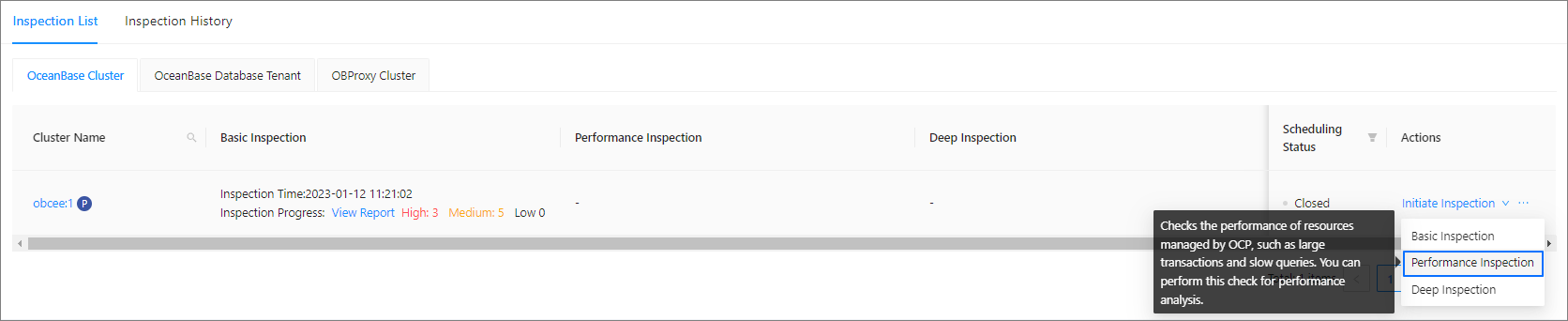
Select the object you want to inspect from the list, move the pointer over Initiate Inspection in the Actions column, and select an inspection scenario from the drop-down list.
In the dialog box that appears, click OK.
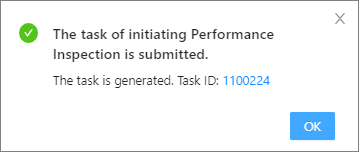
In the dialog box that appears, click the task ID to view the task progress. You can also choose System Management > Tasks to view the task progress. For more information, see Manage tasks.