







This topic describes how to change a user's password.
Prerequisites
The logged-in user has the ADMIN or USER_MANAGER role.
Procedure
Log on to the OceanBase Cloud Platform (OCP) console.
In the left-side navigation pane, choose System Management > User Management.
On the User tab, click Change Password in the Actions column of the user list.
In the dialog box that appears, enter a new password.
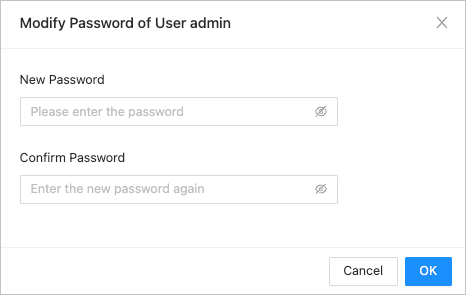
- The length is 8 to 32 characters.
- It contains at least three of the following character types: digits(0~9), uppercase letters(A~Z), lowercase letters(a~z), and special characters (ie:
~!@#%^&*_-+=|(){}[]:;,.?/).
Click OK.