







You must configure data sources before you create a data migration or synchronization task. To migrate data from or to an OceanBase database, you must add the OceanBase database as the source or target data source. This topic describes how to create a standalone OceanBase data source in OceanBase Migration Service (OMS).
Prerequisites
You have obtained the IP address and port number of the related database.
You have created a database user for data migration or synchronization.
We recommend that you create a dedicated database user for the data migration or synchronization task and grant the required data operation permissions to the user. For more information, see Create a database user.
Procedure
Log in to the OMS console.
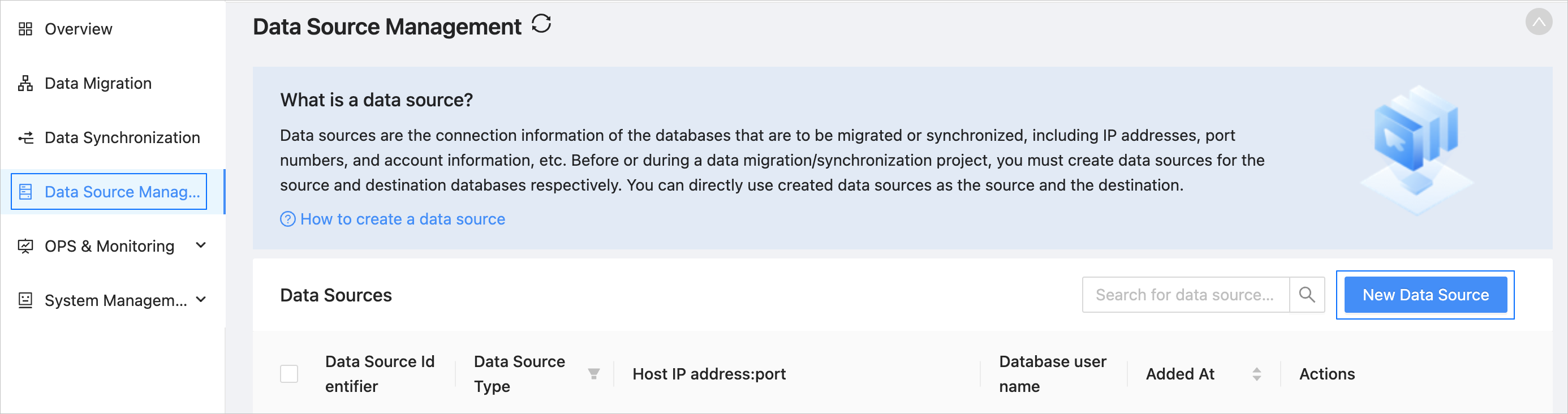
In the left-side navigation pane, click Data Source Management.
On the Data Source Management page, click New Data Source in the upper-right corner.
In the New Data Source dialog box, select OceanBase for Data Source Type.
Select Standalone Data Source and configure the parameters.
ParameterDescriptionData Source Identifier We recommend that you set it to a combination of digits and letters. It must not contain any spaces and cannot exceed 32 characters in length.
Notice
The data source identifier must be globally unique in OMS.Region Select the region where the data source resides from the drop-down list.
Notice- This parameter is displayed only when multiple regions are available.
- Make sure that the mappings between the data source and the region are consistent. Otherwise, the migration and synchronization performance can be poor.
Tenant Type The type of the OceanBase Database tenant. Valid values: Oracle and MySQL. Input Method Valid values: Manual Input and Command-line Connection String. - Manual Input: Enter the host IP address and port number of the OceanBase database.
- Command-line Connection String: Enter a command-line connection string.
Command-line Connection String This parameter is displayed only if you have selected Command-line Connection String for Input Method. You can enter a one-segment or three-segment string. After you enter the string, the Service Address and Port parameters are automatically populated. Examples of command-line connection strings: - One-segment string:
mysql -ht5zxxxx.oceanbase.aliyuncs.com -utest -P3306 -c -A -p - Three-segment string:
obclient -hxxx.xxx.xxx.xxx -P2891 -uuser@tenant#cluster -p
Host IP Address The IP address of the host where the database is located. Port The port number of the host where the database is located. Tenant Name The name of the OceanBase Database tenant. Database Username The name of the OceanBase database user for data migration or synchronization. We recommend that you create a separate database user for the migration or synchronization task. Database Password The password of the database user. Remarks (Optional) Additional information about the data source. (Optional) In the New Data Source dialog box, click Show next to Advanced Options to set the parameters as needed.
 ParameterDescription
DRC User Name (Optional) The username of the user for reading database incremental logs and database object schemas in OceanBase Database. You must create this user in the sys tenant of your business cluster. Password (Optional) The password of the DRC user. __OCEANBASE_INNER_DRC_USER password (Optional) This user is used to migrate data of tables without a unique key in OceanBase Database. Note that you must create this user in the tenant where the current data source resides. When you create a data migration or synchronization task with a physical OceanBase data source as the source:
You must enter the username and password for schema migration, schema synchronization, and incremental synchronization.
When you migrate a table without a unique key, you must enter the password of the
__OCEANBASE_INNER_DRC_USERuser.
When you create a data migration task with a physical OceanBase data source as the target, you must specify the username and password for reverse incremental synchronization.
Click Test Connection to check whether OMS can connect to the data source and whether the specified username and password are valid.
After the test is passed, click OK.