







Before you use the data migration and synchronization features of OceanBase Migration Service (OMS), create a dedicated database user for the data migration or synchronization task in the source and destination databases, and grant the corresponding privileges to the user.
OceanBase data source
Create an OceanBase Database user
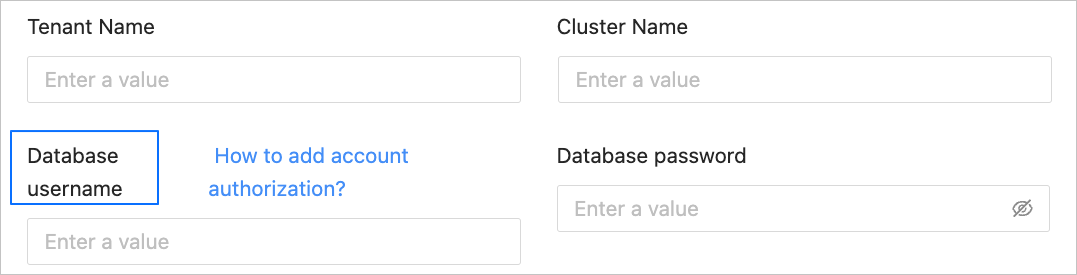
The OceanBase Database user created here is used to fill in the Database Username field when you create an OceanBase data source (including physical data sources, logical data sources, and public cloud data sources). For example, you can fill in OMSTEST as the database username.
Log in to the OceanBase Database as a system administrator.
Create a user in the source business tenant for data migration or synchronization.
OceanBase Database in MySQL compatible mode
CREATE USER '<user_name>' IDENTIFIED BY '<password>';OceanBase Database in Oracle compatible mode
CREATE USER '<user_name>' IDENTIFIED BY <password>;
Use the
GRANTstatement to grant privileges to the created database user. For more information, see User privileges.
Create a DRC user
If you need to read incremental log data and database object structure information from the OceanBase Database, create a DRC user in the source sys tenant.
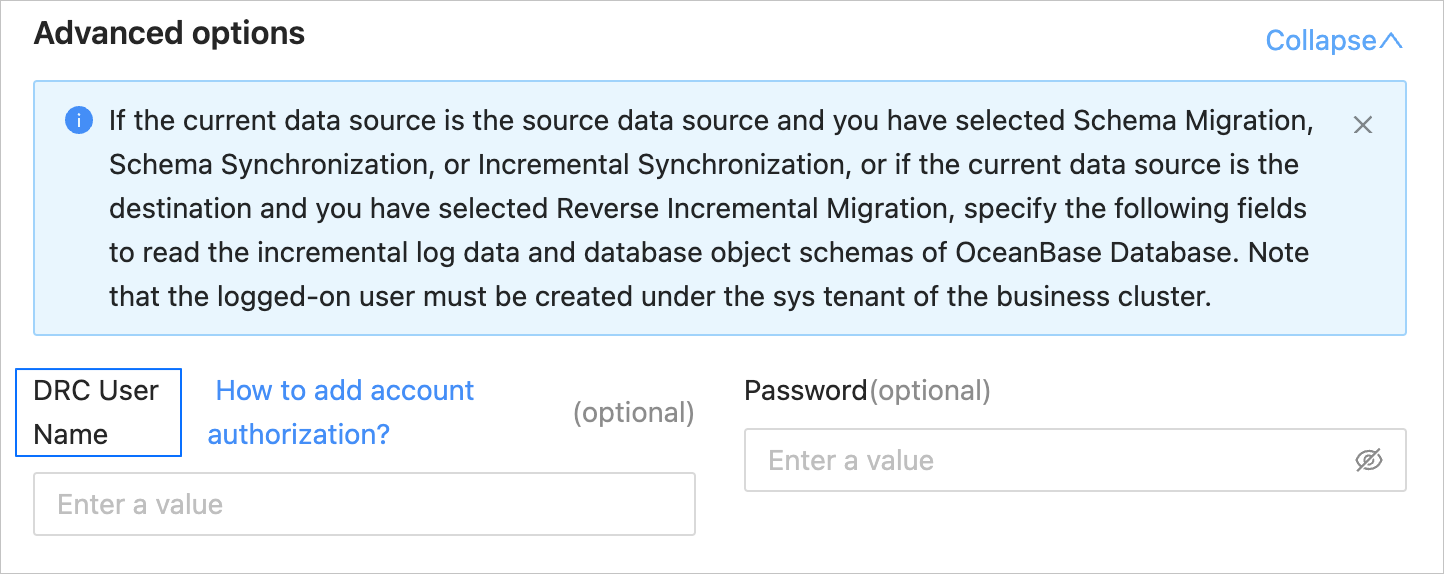
The DRC user created here is used to fill in the Advanced Options field when you create an OceanBase data source (including physical data sources and logical data sources). For example, you can fill in user01 as the DRC username.
CREATE USER <drc_user> IDENTIFIED BY '<drc_password>';
GRANT SELECT ON *.* TO <drc_user>;
Create a sys tenant user
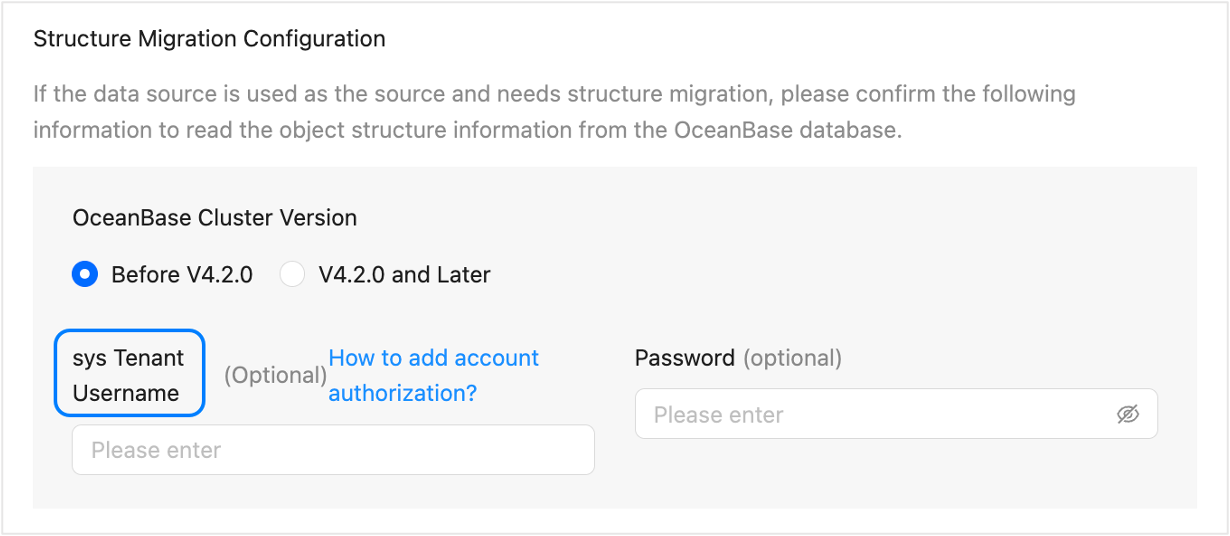
The user created in the sys tenant is used to fill in the Advanced Options field when you create an OceanBase public cloud data source and the OceanBase cluster version is earlier than V4.2.0. For example, you can fill in user02 as the sys tenant username.
CREATE USER <drc_user> IDENTIFIED BY '<drc_password>';
GRANT SELECT ON *.* TO <drc_user>;
Create the __oceanbase_inner_drc_user user
If you need to migrate a table without a primary key, create a user and grant privileges to it before you execute a data migration task.
If the source is an OceanBase database in MySQL compatible mode, create the
__oceanbase_inner_drc_useruser in the source business tenant.This user is used to specify the password of the
__oceanbase_inner_drc_useruser when you create an OceanBase data source of the Tenant Type of MySQL.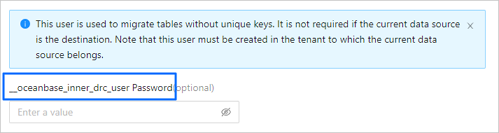
Create a user
CREATE USER __oceanbase_inner_drc_user IDENTIFIED BY '<password>';Grant privileges
GRANT SELECT ON *.* TO __oceanbase_inner_drc_user;
If the source is an OceanBase database in Oracle compatible mode, create the
__OCEANBASE_INNER_DRC_USERuser in the source business tenant.This user is used to specify the password of the
__OCEANBASE_INNER_DRC_USERuser when you create an OceanBase data source of the Tenant Type of Oracle.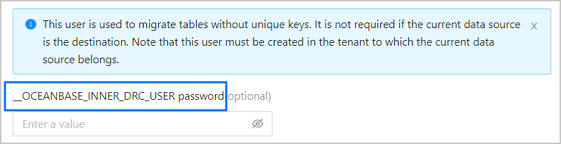
Create a user
CREATE USER '__OCEANBASE_INNER_DRC_USER' IDENTIFIED BY <your_password>;Grant privileges
OceanBase Database versionGrant statementEarlier than V2.2.77 GRANT CREATE SESSION TO '__OCEANBASE_INNER_DRC_USER';
GRANT SELECT ON *.* TO '__OCEANBASE_INNER_DRC_USER';V2.2.77 and later versions GRANT CREATE SESSION TO '__OCEANBASE_INNER_DRC_USER';GRANT SELECT ANY DICTIONARY TO '__OCEANBASE_INNER_DRC_USER';
You can grant theSELECTprivilege on the migration database and table by using the following two methods:- Grant the system privilege
GRANT SELECT ANY TABLE TO '__OCEANBASE_INNER_DRC_USER'; - Grant the object privilege (you can grant the privilege only to specific database and table objects).
GRANT SELECT ON <schema>.<table> TO '__OCEANBASE_INNER_DRC_USER';
- Grant the system privilege
Oracle data source
The Oracle database user created here is used for the Database Username field when you create an Oracle data source.
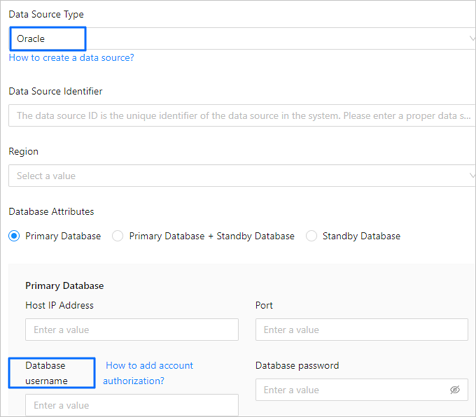
Log in to the Oracle database.
Create a user for data migration or synchronization.
CREATE USER <user_name> IDENTIFIED BY "<password>";Use the
GRANTstatement to grant privileges to the database user. For more information, see User privileges.
MySQL data source
The MySQL database user created here is used for the Database Username field when you create a MySQL data source.
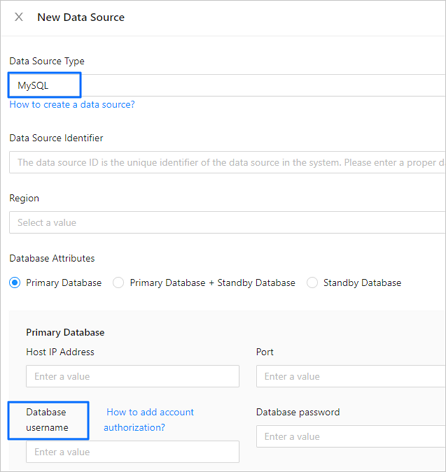
Log in to the MySQL database.
Use the
CREATE USERstatement to create a new user.CREATE USER '<user_name>'@'<host_name>' IDENTIFIED BY '<user_password>';ParameterDescriptionuser_name The name of the user to be created. host_name The host that allows the user to log in. If the user can log in from any host, use a percent sign (%). user_password The password of the user to be created. For example, create a user named
testwho can log in to the MySQL database from any host, and set the login password topassword.CREATE USER 'test'@'%' IDENTIFIED BY 'password';Use the
GRANTstatement to grant privileges to the created database user. For more information, see User privileges.
PostgreSQL data source
The PostgreSQL database user created here is used to fill in the Database Username field when you create a PostgreSQL data source.
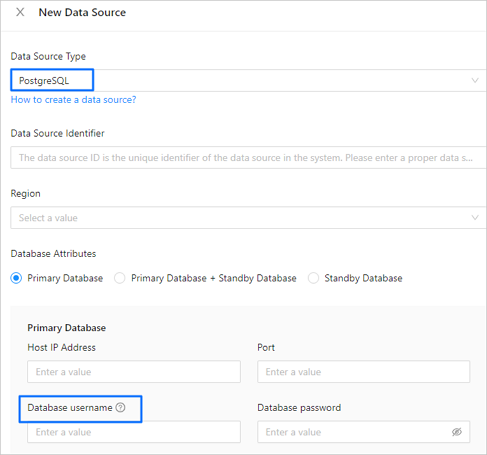
Log in to the PostgreSQL database.
Create a user in the PostgreSQL database for data migration or synchronization.
CREATE USER <user_name> ENCRYPTED PASSWORD '<password>';Use the
GRANTstatement to grant privileges to the created database user. For more information, see User privileges.
DB2 LUW data source
The DB2 LUW database user created here is used to fill in the Database Username field when you create a DB2 LUW data source.
In DB2 LUW (Linux/UNIX/Windows), the database system does not support directly creating a database user by using SQL statements. If you need to create a DB2 LUW database user, you must first create a system user or group and then grant privileges to the user.
Create a user group in the operating system.
groupadd <user_group_name>Create a system user and specify the user group to which the user belongs.
useradd -g <user_group_name> <user_name>Set a login password for the new user.
passwd <user_name>Grant privileges to the database user. For more information, see User privileges.
TiDB data source
The TiDB database user created here is used to fill in the Database Username field when you create a TiDB data source.
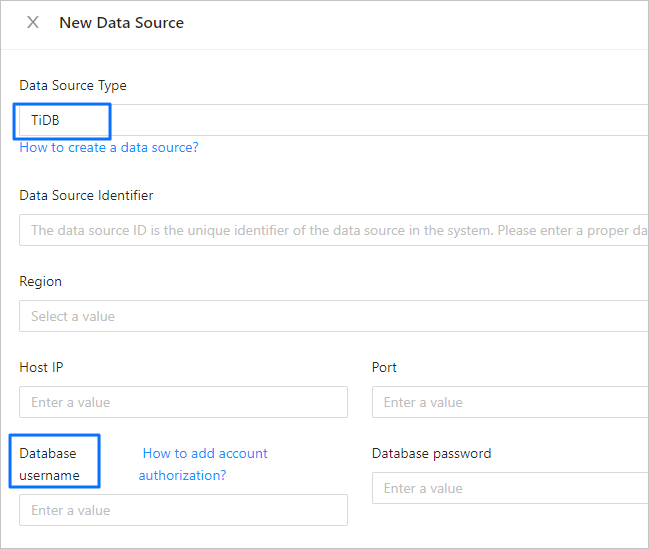
Log in to the TiDB database.
Create a user in the TiDB database for data migration or synchronization.
CREATE USER '<user_name>'@'<host_name>' IDENTIFIED BY '<password>';ParameterDescriptionuser_name The name of the user to be created. host_name The host that allows the account to log in. If the account is allowed to log in from any host, use the percent sign (%). password The password of the user to be created. Use the
GRANTstatement to grant privileges to the created database user. For more information, see User privileges.
PolarDB-X 1.0 data source
The PolarDB-X 1.0 database user created here is used to fill in the Account field when you create a PolarDB-X 1.0 data source.
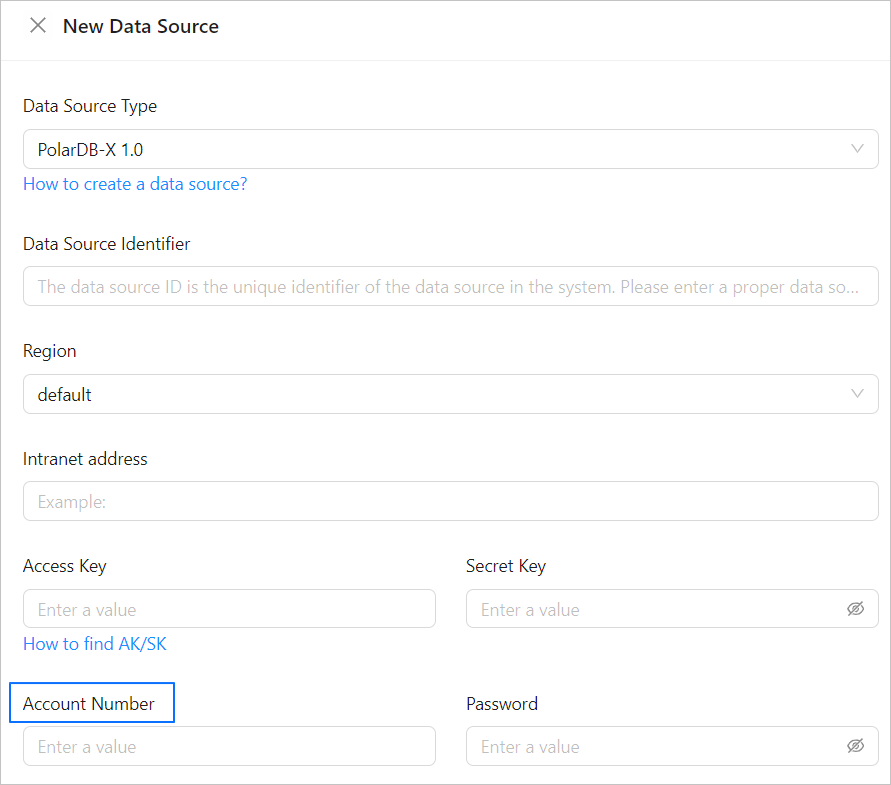
Log in to the Apsara Stack console.
In the top navigation bar, choose Product > Database > PolarDB-X 1.0.
In the Instances section of the target organization, click the name of the PolarDB-X 1.0 instance to go to the instance's basic information page.
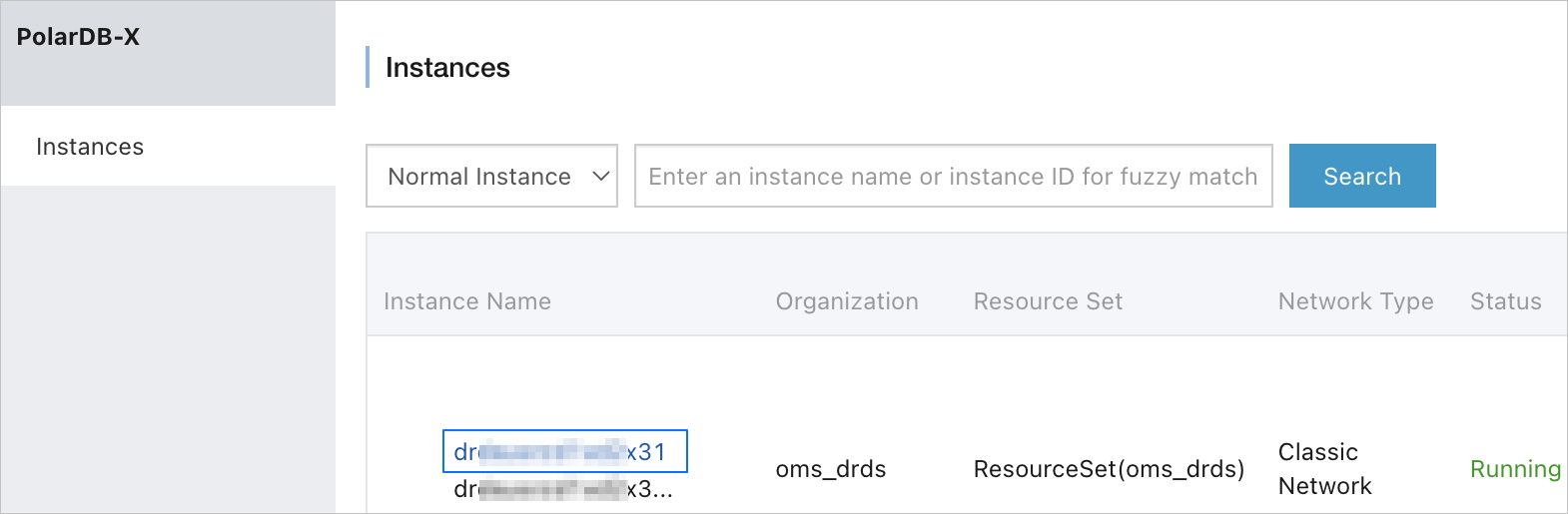
In the left-side navigation pane, choose Configuration and Management > Account Management.
Note
After a database is created, a high-level account is created by default. The password of the account is the same as that of the database. You can use the account directly, or create a regular account as needed.
On the Account Management page, click Create Account.

In the Create Account dialog box, configure the parameters.
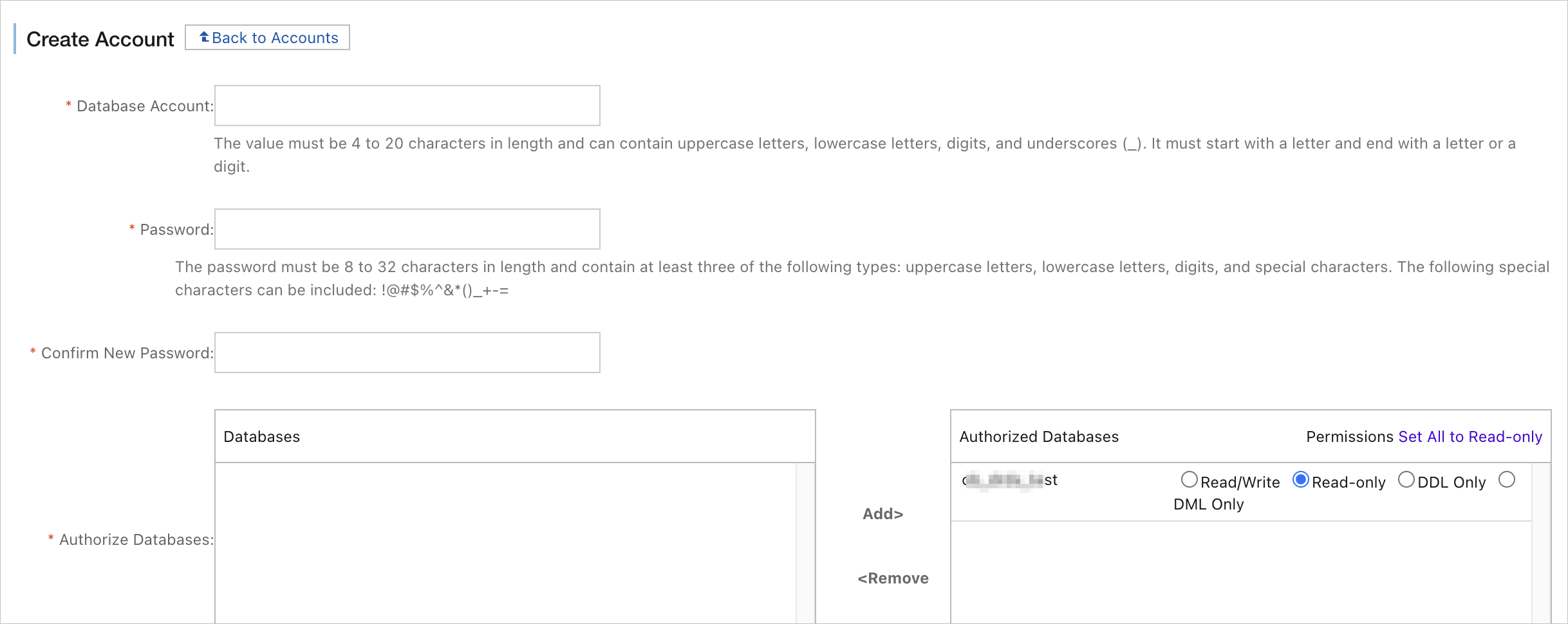 ParameterDescription
Database Account The database account must be 4 to 20 characters in length and can contain uppercase letters, lowercase letters, digits, and underscores. It must start with a letter and end with a letter or a digit. New Password We recommend that you use a password that contains three of the following types of characters: uppercase letters, lowercase letters, digits, and special characters (!@#$%^&*()_+-=). The password must be 8 to 32 characters in length. Confirm New Password Enter the new password again for confirmation. Authorize Database In the Database List section, select the name of the database to be authorized, click Authorize, and add it to the Authorized Databases section to set the permissions. Note
A regular account of a PolarDB-X 1.0 instance must have at least the Read-only permission in each stage of data migration.
Click OK.