







This topic describes how to prepare resources and configure the environment before deploying a Community Edition cluster using the obd graphical interface.
Note
obd supports deploying both the Community Edition and Enterprise Edition of OceanBase Database. This topic describes how to deploy the Community Edition of OceanBase Database using the obd graphical interface.
Server configuration
The following table describes the server configuration used in this example.
Category |
Configuration |
|---|---|
| Number of servers | 4 |
| CPU | 8-core x86_64 |
| Operating system | CentOS Linux release 8.5.2111 |
| Kernel | 4.18.0-348.7.1 |
| Available memory | 32 GB |
| Disk | SSD storage. The storage space includes 196 GB for the installation directory, 2 TB for the log directory, and 2 TB for the data directory. |
Note
In a production environment, the server must meet the minimum resource requirements (4 CPU cores and 16 GB of memory). For long-term use, the available memory must be at least 32 GB. Note that the memory limit refers to the value in the
availablecolumn of the output when you execute thefree -gcommand.If the number of CPU cores is less than 8, the minimum CPU count is set to 8 by default. A low CPU count will negatively affect the performance of OceanBase Database.
Deployment mode
This example uses a three-replica deployment mode. We recommend that you deploy the system on four servers. You can choose an appropriate deployment mode based on your actual situation. The following table describes the usage of the four servers in this example:
Role |
Server |
Remarks |
|---|---|---|
| obd | 10.10.10.4 | The automated deployment software installed on the control server. |
| OBServer node | 10.10.10.1 | OceanBase Database zone 1. |
| OBServer node | 10.10.10.2 | OceanBase Database zone 2. |
| OBServer node | 10.10.10.3 | OceanBase Database zone 3. |
| ODP (also known as OBProxy) | 10.10.10.1, 10.10.10.2, 10.10.10.3 | The dedicated proxy server of OceanBase Database. |
| OBAgent | 10.10.10.1, 10.10.10.2, 10.10.10.3 | The monitoring and data collection framework of OceanBase Database. |
| obconfigserver | 10.10.10.4 | Provides metadata registration, storage, and query services for OceanBase Database. |
| Prometheus | 10.10.10.4 | An open-source service monitoring system and time-series database. It provides a general data model and quick data collection, storage, and query interfaces. |
| Grafana | 10.10.10.4 | An open-source data visualization tool. It can visualize various metrics from data sources to help you understand the system status and performance metrics. |
Check the server's hardware and software configuration
Before you deploy OceanBase Database, you must check the hardware and software configuration of the server.
Note
You must perform the following checks on each OBServer node.
Hardware environment
Check whether the CPU supports AVX instructions
Note
This check applies only to servers with x86 architecture. You can skip this section if you use servers with other architectures.
OceanBase Database requires that the server's CPU supports AVX instructions. You can run the following command to check whether the CPU supports AVX instructions.
lscpu | grep Flags | grep avx
The following example shows the return result. If the avx field exists in the output, the server supports AVX instructions. If the avx field does not exist in the output, the server does not support AVX instructions. In this case, you must replace the server with one that supports AVX instructions.
Flags: fpu vme de pse tsc msr pae mce cx8 apic sep mtrr pge mca cmov pat pse36 clflush mmx fxsr sse sse2 ss ht syscall nx pdpe1gb rdtscp lm constant_tsc arch_perfmon rep_good nopl xtopology nonstop_tsc cpuid aperfmperf tsc_known_freq pni pclmulqdq monitor ssse3 fma cx16 pdcm pcid sse4_1 sse4_2 x2apic movbe popcnt aes xsave avx f16c rdrand hypervisor lahf_lm abm 3dnowprefetch cpuid_fault invpcid_single ssbd ibrs_enhanced fsgsbase tsc_adjust bmi1 hle avx2 smep bmi2 erms invpcid rtm avx512f avx512dq rdseed adx smap avx512ifma clflushopt clwb avx512cd sha_ni avx512bw avx512vl xsaveopt xsavec xgetbv1 xsaves avx_vnni avx512_bf16 wbnoinvd ida arat hwp hwp_notify hwp_act_window hwp_epp hwp_pkg_req avx512vbmi umip pku ospke waitpkg avx512_vbmi2 gfni vaes vpclmulqdq avx512_vnni avx512_bitalg avx512_vpopcntdq rdpid bus_lock_detect cldemote movdiri movdir64b enqcmd fsrm md_clear serialize tsxldtrk avx512_fp16 flush_l1d arch_capabilities
Check the memory
Run the following command to check whether the available memory of the server meets the requirements specified in the Software and hardware requirements section of the OceanBase Database documentation.
[root@test001 ~]# free -g
The following example shows the return result. The value of the Mem field in the available column is 32, which meets the available memory requirements.
              total        used        free      shared  buff/cache   available
Mem:             36           4          32           0           0          32
Swap:             0           0           0
If the memory check result does not meet the memory requirements for deploying OceanBase Database, you can run the following commands to clear the Linux cache: PageCache, dentries, and inodes.
sudo sysctl -w vm.drop_caches=3
# or
sudo echo 3 > /proc/sys/vm/drop_caches
Software environment
Check the operating system
Run the following command to check the operating system information. The operating system must meet the requirements specified in the Software and hardware requirements section of the OceanBase Database documentation.
[root@test001 ~]# cat /etc/os-release
The following example shows the return result. The operating system is CentOS Linux (the NAME field) and the version is 8 (the VERSION field).
NAME="CentOS Linux"
VERSION="8"
ID="centos"
ID_LIKE="rhel fedora"
VERSION_ID="8"
PLATFORM_ID="platform:el8"
PRETTY_NAME="CentOS Linux 8"
ANSI_COLOR="0;31"
CPE_NAME="cpe:/o:centos:centos:8"
HOME_URL="https://centos.org/"
BUG_REPORT_URL="https://bugs.centos.org/"
CENTOS_MANTISBT_PROJECT="CentOS-8"
CENTOS_MANTISBT_PROJECT_VERSION="8"
Check the kernel
OceanBase Database provides installation packages for x86 architecture (el7 and el8) and ARM architecture (el7 and el8). Before you deploy OceanBase Database, you must check the kernel of the server to obtain the correct installation package.
Run the following command to check the kernel information:
[root@test001 ~]# uname -a
The following example shows the return result. The kernel is 4.18.0-348.7.1, the operating system version is el8, and the CPU architecture is x86_64. Therefore, you must use an installation package with the suffix el8.x86_64, such as oceanbase-ce-4.3.5.2-102020032025070315.el8.x86_64.rpm.
Linux test001 4.18.0-348.7.1.el8_5.x86_64 #1 SMP Wed Dec 22 13:25:12 UTC 2021 x86_64 x86_64 x86_64 GNU/Linux
Preparations before deployment
To ensure the smooth installation and better usage of OceanBase Database Community Edition, the following configurations need to be made before deployment.
Note
Each OBServer node must be configured as described below.
Plan the directories
To deploy OceanBase Database Community Edition, you need to plan the following three directories. The file system type must be XFS or EXT4.
- Installation directory: the directory for storing the software and system logs of OceanBase Database. The space must be at least 25 GB to ensure performance.
- Log directory: the directory for storing the logs of OceanBase Database. The space must be at least twice the size of the memory. We recommend that the space be at least three times the size of the memory.
- Data directory: the directory for storing data. The space must be at least twice the size of the memory. The space depends on the size of the data to be stored.
Notice
If the capacity of a directory in a mount point exceeds 16 TB, only the XFS file system is supported.
To ensure the stability of the system, we recommend that you use different physical disks for the three directories. If physical resources are limited, OceanBase Database supports the use of one disk for both the data directory and the log directory. However, we do not recommend this configuration for business scenarios with high write pressure.
The IOPS requirements for disks are as follows:
- If the installation directory, log directory, and data directory are stored in different disks, the IOPS of each disk must be at least 1,000.
- If the installation directory, log directory, and data directory are stored in the same disk, the IOPS of the disk must be at least 3,000.
Mount the disk
If your server does not have any disks that need to be mounted, or if all disks have been mounted, you can skip this step and proceed to the next step Prepare the directory.
Log in as the root user and perform the following steps to mount the disk:
View the disk information
Use the
fdisk -lcommand to identify the available disks and partitions.[root@test001 ~]# fdisk -lThe command output is as follows:
Disk /dev/nvme0n1: 3.5 TiB, 3840755982336 bytes, 7501476528 sectors
Units: sectors of 1 * 512 = 512 bytes
Sector size (logical/physical): 512 bytes / 512 bytes
I/O size (minimum/optimal): 4096 bytes / 4096 bytes

Disk /dev/nvme1n1: 3.5 TiB, 3840755982336 bytes, 7501476528 sectors
Units: sectors of 1 * 512 = 512 bytes
Sector size (logical/physical): 512 bytes / 512 bytes
I/O size (minimum/optimal): 4096 bytes / 4096 bytes

Disk /dev/sda: 60 GiB, 64424509440 bytes, 125829120 sectors
Units: sectors of 1 * 512 = 512 bytes
Sector size (logical/physical): 512 bytes / 512 bytes
I/O size (minimum/optimal): 512 bytes / 512 bytes
Disklabel type: gpt
Disk identifier: 3DC9B58D-90DC-4B90-869A-33592EA28B9E

Device      Start       End   Sectors  Size Type
/dev/sda1    2048      6143      4096    2M BIOS boot
/dev/sda2    6144    415743    409600  200M EFI System
/dev/sda3  415744 125829086 125413343 59.8G Linux filesystem


Disk /dev/sdb: 200 GiB, 214748364800 bytes, 419430400 sectors
Units: sectors of 1 * 512 = 512 bytes
Sector size (logical/physical): 512 bytes / 512 bytes
I/O size (minimum/optimal): 512 bytes / 512 bytes
Use the lsblk command to view the disk information.
[root@test001 ~]# lsblkThe command output is as follows:
NAME    MAJ:MIN RM  SIZE RO TYPE MOUNTPOINT
sda       8:0    0   60G  0 disk
├─sda1    8:1    0    2M  0 part
├─sda2    8:2    0  200M  0 part /boot/efi
└─sda3    8:3    0 59.8G  0 part /
sdb       8:16   0  200G  0 disk /home
sr0      11:0    1    4M  0 rom
nvme0n1 259:0    0  3.5T  0 disk
nvme1n1 259:0    0  3.5T  0 disk
Based on the query results, the disks to be mounted are
/dev/nvme0n1and/dev/nvme1n1.Install the LVM tool
[root@test001 ~]# yum install lvm2Create a physical volume (PV)
Initialize the partition as a physical volume
Notice
When a partition is initialized as a physical volume, it will be reformatted (data will be lost). Proceed with caution.
[root@test001 ~]# pvcreate /dev/nvme0n1
[root@test001 ~]# pvcreate /dev/nvme1n1
The command output is as follows:
Physical volume "/dev/nvme0n1" successfully created.
Physical volume "/dev/nvme1n1" successfully created.
Verify the PV creation result
[root@test001 ~]# pvsThe command output is as follows:
PV           VG Fmt  Attr PSize PFree
/dev/nvme0n1    lvm2 ---  3.49t 3.49t
/dev/nvme1n1    lvm2 ---  3.49t 3.49t
Create a volume group (VG)
Merge multiple physical volumes into one VG
[root@test001 ~]# vgcreate vgob1 /dev/nvme0n1
[root@test001 ~]# vgcreate vgob2 /dev/nvme1n1
The command output is as follows:
Volume group "vgob1" successfully created
Volume group "vgob2" successfully created
View the VG information
[root@test001 ~]# vgsThe command output is as follows:
VG   #PV #LV #SN Attr   VSize VFree
vgob1  1   0   0 wz--n- 3.49t 3.49t
vgob2  1   0   0 wz--n- 3.49t 3.49t
Create a logical volume (LV)
Divide the logical volume from the VG
Create a data logical volume
[root@test001 ~]# lvcreate -L 2t -n data vgob1The command output is as follows:
Logical volume "data" created.Create a log logical volume
[root@test001 ~]# lvcreate -L 2t -n log vgob2The command output is as follows:
Logical volume "log" created.
View the LV information
[root@test001 ~]# lvsThe command output is as follows:
LV   VG    Attr       LSize Pool Origin Data%  Meta%  Move Log Cpy%Sync Convert
data vgob1 -wi-a----- 2.00t
log  vgob2 -wi-a----- 2.00t
Format and mount
Format as an EXT4 file system
Format the data logical volume as an EXT4 file
[root@test001 ~]# mkfs.ext4 /dev/vgob1/dataThe command output is as follows:
mke2fs 1.46.0 (29-Jan-2020)
Discarding device blocks: done
Creating filesystem with 268435456 4k blocks and 67108864 inodes
Filesystem UUID: eb4708c8-e3e3-49b4-9444-b9c81d4be84e
Superblock backups stored on blocks:
      32768, 98304, 163840, 229376, 294912, 819200, 884736, 1605632, 2654208,
      4096000, 7962624, 11239424, 20480000, 23887872, 71663616, 78675968,
      102400000, 214990848

Allocating group tables: done
Writing inode tables: done
Creating journal (262144 blocks): done
Writing superblocks and filesystem accounting information: done
Format the log logical volume as an EXT4 file
[root@test001 ~]# mkfs.ext4 /dev/vgob2/logThe command output is as follows:
mke2fs 1.46.0 (29-Jan-2020)
Discarding device blocks: done
Creating filesystem with 536870912 4k blocks and 134217728 inodes
Filesystem UUID: c48c39cd-bdb9-4635-9304-721dcf013492
Superblock backups stored on blocks:
      32768, 98304, 163840, 229376, 294912, 819200, 884736, 1605632, 2654208,
      4096000, 7962624, 11239424, 20480000, 23887872, 71663616, 78675968,
      102400000, 214990848, 512000000

Allocating group tables: done
Writing inode tables: done
Creating journal (262144 blocks): done
Writing superblocks and filesystem accounting information: done
Create a mount point
[root@test001 ~]# mkdir -p /data/log1
[root@test001 ~]# mkdir -p /data/1
Temporarily mount
[root@test001 ~]# mount /dev/vgob2/log /data/log1
[root@test001 ~]# mount /dev/vgob1/data /data/1
Set the automatic mount at boot.
Edit the
/etc/fstabfile and add the mount configuration:[root@test001 ~]# vim /etc/fstabAdd the following content to the configuration file:
/dev/vgob2/log /data/log1  ext4  defaults,noatime,nodiratime,nodelalloc,barrier=0  0  0
/dev/vgob1/data /data/1  ext4  defaults,noatime,nodiratime,nodelalloc,barrier=0  0  0
View the disk mount status.
Use the following command to view the disk mount status.
[root@test001 ~]# df -hThe command output is as follows, indicating that the disks have been mounted to the directories
/data/1and/data/log1.Filesystem Size Used Avail Use% Mounted on devtmpfs 4.8G 0 4.8G 0% /dev tmpfs 4.8G 0 4.8G 0% /dev/shm tmpfs 4.8G 500K 4.8G 1% /run tmpfs 4.8G 0 4.8G 0% /sys/fs/cgroup /dev/sda3 59G 4.8G 52G 9% / /dev/sda2 200M 5.8M 195M 3% /boot/efi /dev/sdb 196G 3.2G 183G 2% /home tmpfs 970M 0 970M 0% /run/user/1001 /dev/mapper/vgob1-data 2.0T 28K 1.9T 1% /data/1 /dev/mapper/vgob2-log 2.0T 28K 1.9T 1% /data/log1
Prepare the directories
Check the file system type to see whether it is EXT4 or XFS.
[root@test001 ~]# df -ThThe return result is as follows:
Filesystem             Type      Size  Used Avail Use% Mounted on
devtmpfs               devtmpfs  4.8G     0  4.8G   0% /dev
tmpfs                  tmpfs     4.8G     0  4.8G   0% /dev/shm
tmpfs                  tmpfs     4.8G  512K  4.8G   1% /run
tmpfs                  tmpfs     4.8G     0  4.8G   0% /sys/fs/cgroup
/dev/sda3              ext4       59G  5.0G   52G   9% /
/dev/sdb               ext4      196G  113G   74G  61% /home
/dev/sda2              vfat      200M  5.8M  195M   3% /boot/efi
/dev/mapper/vgob2-log  ext4     2.0T  2.1G  1.9T   1% /data/log1
/dev/mapper/vgob1-data ext4      2.0T  2.1G  1.9T   1% /data/1
tmpfs                  tmpfs     970M     0  970M   0% /run/user/1001
Based on the directory query result, set the installation directory to
/home, the log storage directory to/data/log1, and the data storage directory to/data/1.Check whether the IOPS of the directory meets the requirements.
Note
Since the installation directory, log storage directory, and data storage directory are on different disks, you need to query the IOPS of each directory. If the installation directory, log storage directory, and data storage directory are on the same disk, you only need to switch to the mount directory of the disk and query the IOPS.
If the fio tool is not installed on the server, run the
yum install -y fiocommand to install it.
Query the IOPS of the installation directory.
Switch to the installation directory and run the following command:
[root@test001 /home]# fio -filename=./testfile -direct=1 -iodepth 1 -thread -rw=write -ioengine=psync -bs=4k -size=20G -numjobs=1 -runtime=180 -group_reporting -name=sqe_100write_4k --fsync=1 --fallocate=posixThe return result is as follows:
sqe_100write_4k: (g=0): rw=write, bs=(R) 4096B-4096B, (W) 4096B-4096B, (T) 4096B-4096B, ioengine=psync, iodepth=1
fio-3.34
Starting 1 thread
Jobs: 1 (f=1): [W(1)][100.0%][w=6648KiB/s][w=1662 IOPS][eta 00m:00s]
sqe_100write_4k: (groupid=0, jobs=1): err= 0: pid=145805: Thu May  8 10:39:32 2025
write: IOPS=2012, BW=8051KiB/s (8244kB/s)(1415MiB/180001msec); 0 zone resets
   clat (usec): min=84, max=3732, avg=174.51, stdev=71.93
   lat (usec): min=84, max=3732, avg=174.77, stdev=71.98
   clat percentiles (usec):
   |  1.00th=[   89],  5.00th=[   90], 10.00th=[   91], 20.00th=[   95],
   | 30.00th=[  100], 40.00th=[  141], 50.00th=[  184], 60.00th=[  210],
   | 70.00th=[  221], 80.00th=[  231], 90.00th=[  265], 95.00th=[  285],
   | 99.00th=[  351], 99.50th=[  371], 99.90th=[  441], 99.95th=[  515],
   | 99.99th=[  824]
   bw (  KiB/s): min= 3432, max=17608, per=100.00%, avg=8056.18, stdev=4234.76, samples=359
   iops        : min=  858, max= 4402, avg=2014.04, stdev=1058.69, samples=359
lat (usec)   : 100=30.58%, 250=57.09%, 500=12.28%, 750=0.04%, 1000=0.02%
lat (msec)   : 2=0.01%, 4=0.01%
fsync/fdatasync/sync_file_range:
   sync (usec): min=64, max=5690, avg=319.43, stdev=230.86
   sync percentiles (usec):
   |  1.00th=[   68],  5.00th=[   69], 10.00th=[   70], 20.00th=[   72],
   | 30.00th=[   95], 40.00th=[  194], 50.00th=[  379], 60.00th=[  412],
   | 70.00th=[  457], 80.00th=[  474], 90.00th=[  578], 95.00th=[  685],
   | 99.00th=[  996], 99.50th=[ 1205], 99.90th=[ 1336], 99.95th=[ 1385],
   | 99.99th=[ 1713]
cpu          : usr=0.86%, sys=11.80%, ctx=714705, majf=0, minf=0
IO depths    : 1=200.0%, 2=0.0%, 4=0.0%, 8=0.0%, 16=0.0%, 32=0.0%, >=64=0.0%
   submit    : 0=0.0%, 4=100.0%, 8=0.0%, 16=0.0%, 32=0.0%, 64=0.0%, >=64=0.0%
   complete  : 0=0.0%, 4=100.0%, 8=0.0%, 16=0.0%, 32=0.0%, 64=0.0%, >=64=0.0%
   issued rwts: total=0,362308,0,362308 short=0,0,0,0 dropped=0,0,0,0
   latency   : target=0, window=0, percentile=100.00%, depth=1

Run status group 0 (all jobs):
WRITE: bw=8051KiB/s (8244kB/s), 8051KiB/s-8051KiB/s (8244kB/s-8244kB/s), io=1415MiB (1484MB), run=180001-180001msec

Disk stats (read/write):
sdb: ios=0/935811, merge=0/335611, ticks=0/164939, in_queue=217509, util=99.97%
After you complete the preceding steps, delete the testfile file in the directory to prevent insufficient disk space.
[root@test001 /home]# rm -rf testfileQuery the IOPS of the log storage directory.
Switch to the log storage directory and run the following command:
[root@test001 /data/log1]# fio -filename=./testfile -direct=1 -iodepth 1 -thread -rw=write -ioengine=psync -bs=4k -size=20G -numjobs=1 -runtime=180 -group_reporting -name=sqe_100write_4k --fsync=1 --fallocate=posixThe return result is as follows:
sqe_100write_4k: (g=0): rw=write, bs=(R) 4096B-4096B, (W) 4096B-4096B, (T) 4096B-4096B, ioengine=psync, iodepth=1
fio-3.34
Starting 1 thread
Jobs: 1 (f=1): [W(1)][100.0%][w=6648KiB/s][w=1662 IOPS][eta 00m:00s]
sqe_100write_4k: (groupid=0, jobs=1): err= 0: pid=145805: Thu May  8 10:39:32 2025
write: IOPS=2012, BW=8051KiB/s (8244kB/s)(1415MiB/180001msec); 0 zone resets
   clat (usec): min=84, max=3732, avg=174.51, stdev=71.93
   lat (usec): min=84, max=3732, avg=174.77, stdev=71.98
   clat percentiles (usec):
   |  1.00th=[   89],  5.00th=[   90], 10.00th=[   91], 20.00th=[   95],
   | 30.00th=[  100], 40.00th=[  141], 50.00th=[  184], 60.00th=[  210],
   | 70.00th=[  221], 80.00th=[  231], 90.00th=[  265], 95.00th=[  285],
   | 99.00th=[  351], 99.50th=[  371], 99.90th=[  441], 99.95th=[  515],
   | 99.99th=[  824]
   bw (  KiB/s): min= 3432, max=17608, per=100.00%, avg=8056.18, stdev=4234.76, samples=359
   iops        : min=  858, max= 4402, avg=2014.04, stdev=1058.69, samples=359
lat (usec)   : 100=30.58%, 250=57.09%, 500=12.28%, 750=0.04%, 1000=0.02%
lat (msec)   : 2=0.01%, 4=0.01%
fsync/fdatasync/sync_file_range:
   sync (usec): min=64, max=5690, avg=319.43, stdev=230.86
   sync percentiles (usec):
   |  1.00th=[   68],  5.00th=[   69], 10.00th=[   70], 20.00th=[   72],
   | 30.00th=[   95], 40.00th=[  194], 50.00th=[  379], 60.00th=[  412],
   | 70.00th=[  457], 80.00th=[  474], 90.00th=[  578], 95.00th=[  685],
   | 99.00th=[  996], 99.50th=[ 1205], 99.90th=[ 1336], 99.95th=[ 1385],
   | 99.99th=[ 1713]
cpu          : usr=0.86%, sys=11.80%, ctx=714705, majf=0, minf=0
IO depths    : 1=200.0%, 2=0.0%, 4=0.0%, 8=0.0%, 16=0.0%, 32=0.0%, >=64=0.0%
   submit    : 0=0.0%, 4=100.0%, 8=0.0%, 16=0.0%, 32=0.0%, 64=0.0%, >=64=0.0%
   complete  : 0=0.0%, 4=100.0%, 8=0.0%, 16=0.0%, 32=0.0%, 64=0.0%, >=64=0.0%
   issued rwts: total=0,362308,0,362308 short=0,0,0,0 dropped=0,0,0,0
   latency   : target=0, window=0, percentile=100.00%, depth=1

Run status group 0 (all jobs):
WRITE: bw=8051KiB/s (8244kB/s), 8051KiB/s-8051KiB/s (8244kB/s-8244kB/s), io=1415MiB (1484MB), run=180001-180001msec

Disk stats (read/write):
sdb: ios=0/935811, merge=0/335611, ticks=0/164939, in_queue=217509, util=99.97%
After you complete the preceding steps, delete the testfile file in the directory to prevent insufficient disk space.
[root@test001 /data/log1]# rm -rf testfileQuery the IOPS of the data storage directory.
Switch to the data storage directory and run the following command:
[root@test001 /data/1]# fio -filename=./testfile -direct=1 -iodepth 1 -thread -rw=write -ioengine=psync -bs=4k -size=20G -numjobs=1 -runtime=180 -group_reporting -name=sqe_100write_4k --fsync=1 --fallocate=posixThe return result is as follows:
sqe_100write_4k: (g=0): rw=write, bs=(R) 4096B-4096B, (W) 4096B-4096B, (T) 4096B-4096B, ioengine=psync, iodepth=1
fio-3.34
Starting 1 thread
Jobs: 1 (f=1): [W(1)][100.0%][w=6648KiB/s][w=1662 IOPS][eta 00m:00s]
sqe_100write_4k: (groupid=0, jobs=1): err= 0: pid=145805: Thu May  8 10:39:32 2025
write: IOPS=2012, BW=8051KiB/s (8244kB/s)(1415MiB/180001msec); 0 zone resets
   clat (usec): min=84, max=3732, avg=174.51, stdev=71.93
   lat (usec): min=84, max=3732, avg=174.77, stdev=71.98
   clat percentiles (usec):
   |  1.00th=[   89],  5.00th=[   90], 10.00th=[   91], 20.00th=[   95],
   | 30.00th=[  100], 40.00th=[  141], 50.00th=[  184], 60.00th=[  210],
   | 70.00th=[  221], 80.00th=[  231], 90.00th=[  265], 95.00th=[  285],
   | 99.00th=[  351], 99.50th=[  371], 99.90th=[  441], 99.95th=[  515],
   | 99.99th=[  824]
   bw (  KiB/s): min= 3432, max=17608, per=100.00%, avg=8056.18, stdev=4234.76, samples=359
   iops        : min=  858, max= 4402, avg=2014.04, stdev=1058.69, samples=359
lat (usec)   : 100=30.58%, 250=57.09%, 500=12.28%, 750=0.04%, 1000=0.02%
lat (msec)   : 2=0.01%, 4=0.01%
fsync/fdatasync/sync_file_range:
   sync (usec): min=64, max=5690, avg=319.43, stdev=230.86
   sync percentiles (usec):
   |  1.00th=[   68],  5.00th=[   69], 10.00th=[   70], 20.00th=[   72],
   | 30.00th=[   95], 40.00th=[  194], 50.00th=[  379], 60.00th=[  412],
   | 70.00th=[  457], 80.00th=[  474], 90.00th=[  578], 95.00th=[  685],
   | 99.00th=[  996], 99.50th=[ 1205], 99.90th=[ 1336], 99.95th=[ 1385],
   | 99.99th=[ 1713]
cpu          : usr=0.86%, sys=11.80%, ctx=714705, majf=0, minf=0
IO depths    : 1=200.0%, 2=0.0%, 4=0.0%, 8=0.0%, 16=0.0%, 32=0.0%, >=64=0.0%
   submit    : 0=0.0%, 4=100.0%, 8=0.0%, 16=0.0%, 32=0.0%, 64=0.0%, >=64=0.0%
   complete  : 0=0.0%, 4=100.0%, 8=0.0%, 16=0.0%, 32=0.0%, 64=0.0%, >=64=0.0%
   issued rwts: total=0,362308,0,362308 short=0,0,0,0 dropped=0,0,0,0
   latency   : target=0, window=0, percentile=100.00%, depth=1

Run status group 0 (all jobs):
WRITE: bw=8051KiB/s (8244kB/s), 8051KiB/s-8051KiB/s (8244kB/s-8244kB/s), io=1415MiB (1484MB), run=180001-180001msec

Disk stats (read/write):
sdb: ios=0/935811, merge=0/335611, ticks=0/164939, in_queue=217509, util=99.97%
After you complete the preceding steps, delete the testfile file in the directory to prevent insufficient disk space.
[root@test001 /data/1]# rm -rf testfile
Based on the query result, the IOPS of each disk meets the requirements.
Configure clock synchronization
When you deploy a distributed OceanBase cluster, you must ensure that the clocks of all servers in the cluster are synchronized. Otherwise, the cluster cannot be started, and services will run abnormally. The maximum allowed time deviation in an OceanBase cluster is 2 seconds. If the time deviation exceeds 2 seconds, no leader will be elected. After you restore the clock synchronization, you can restart the OceanBase cluster to restore normal operation.
Note
The following example shows how to configure clock synchronization for a single server. You must perform the following steps for all servers in the cluster.
Install the chrony service.
[root@test001 ~]# yum -y install chronyConfigure the chrony file.
[root@test001 ~]# vim /etc/chrony.confHere is an example:
# Use Alibaba NTP server
# Public NTP
# Alicloud NTP
##Use multiple NTP servers provided by Alibaba Cloud to synchronize time, thereby improving the reliability and fault tolerance of time synchronization.
##minpoll 4 indicates that the minimum synchronization interval between the NTP client and server is 16 seconds (when the time deviation is small).
##maxpoll 10 indicates that the maximum synchronization interval between the NTP client and server is 1024 seconds (when the time deviation is large).
##iburst indicates that 4 NTP packets are sent quickly (with a 2-second interval) when a connection is established for the first time or re-established, thereby accelerating time synchronization and reducing the initial synchronization time deviation.
server ntp.cloud.aliyuncs.com minpoll 4 maxpoll 10 iburst
server ntp.aliyun.com minpoll 4 maxpoll 10 iburst
server ntp1.aliyun.com minpoll 4 maxpoll 10 iburst
server ntp1.cloud.aliyuncs.com minpoll 4 maxpoll 10 iburst
server ntp10.cloud.aliyuncs.com minpoll 4 maxpoll 10 iburst
server ntp11.cloud.aliyuncs.com minpoll 4 maxpoll 10 iburst
server ntp12.cloud.aliyuncs.com minpoll 4 maxpoll 10 iburst
server ntp2.aliyun.com minpoll 4 maxpoll 10 iburst
server ntp2.cloud.aliyuncs.com minpoll 4 maxpoll 10 iburst
server ntp3.aliyun.com minpoll 4 maxpoll 10 iburst
server ntp3.cloud.aliyuncs.com minpoll 4 maxpoll 10 iburst
server ntp4.aliyun.com minpoll 4 maxpoll 10 iburst
server ntp4.cloud.aliyuncs.com minpoll 4 maxpoll 10 iburst
server ntp5.aliyun.com minpoll 4 maxpoll 10 iburst
server ntp5.cloud.aliyuncs.com minpoll 4 maxpoll 10 iburst
server ntp6.aliyun.com minpoll 4 maxpoll 10 iburst
server ntp6.cloud.aliyuncs.com minpoll 4 maxpoll 10 iburst
server ntp7.cloud.aliyuncs.com minpoll 4 maxpoll 10 iburst
server ntp8.cloud.aliyuncs.com minpoll 4 maxpoll 10 iburst
server ntp9.cloud.aliyuncs.com minpoll 4 maxpoll 10 iburst

# Ignore stratum in source selection.
stratumweight 0.05

# Record the rate at which the system clock gains/losses time.
##Calculate the rate at which the server gains or loses time based on the actual time and record the rate in /var/lib/chrony/drift. After the system restarts, the system makes the best time compensation adjustment.
driftfile /var/lib/chrony/drift

# Enable kernel RTC synchronization.
##Enable a kernel mode in which the system time is copied to the real-time clock (RTC) every 11 minutes.
rtcsync

# In the first three updates, the system clock is set instead of slew
# if the adjustment is larger than 10 seconds.
makestep 10 3

# Allow NTP client access from local network.
#allow 192.168/16

# Listen for commands only on localhost.
bindcmdaddress 127.0.0.1
bindcmdaddress ::1

# Disable logging of client accesses.
noclientlog

# Send a message to syslog if a clock adjustment is larger than 0.5 seconds.
logchange 0.5

##Specify the directory for log files.
logdir /var/log/chrony
#log measurements statistics tracking
Start the chronyd service.
Set the chronyd service to start automatically when the system boots:
[root@test001 ~]# systemctl enable chronydStart the chronyd service:
[root@test001 ~]# systemctl start chronydForce time synchronization
Run the following command to force time synchronization only after the initial configuration.
[root@test001 ~]# chronyc makestepView the time tracking status
[root@test001 ~]# chronyc trackingThe following example shows the return result. You need to pay attention to the Last offset (last synchronization time deviation) and RMS offset (root mean square value of the average time deviation) fields. By comparing the values of these fields in the execution results of each server, you can determine the time deviation of each server.
Reference ID    : 64643D58 (xx.xx.xx.xx)
Stratum         : 2
Ref time (UTC)  : Fri Jul 18 09:44:59 2025
System time     : 0.000022816 seconds fast of NTP time
Last offset     : -0.000012218 seconds
RMS offset      : 0.000051287 seconds
Frequency       : 6.951 ppm slow
Residual freq   : -0.000 ppm
Skew            : 0.010 ppm
Root delay      : 0.000890165 seconds
Root dispersion : 0.011471443 seconds
Update interval : 1041.4 seconds
Leap status     : Normal
User and parameter configuration
Before deployment, you need to perform the following configurations on the host:
Create a user
Note
It is not recommended to deploy OceanBase Database as the root user. We recommend that you create a user for deployment. We recommend that you use the admin user. The user must be the owner of the directories related to the database.
Configure limits.conf
Configure sysctl.conf
Disable the firewall and SELinux
obd allows you to initialize a host and its corresponding user by using the host commands. You can choose to configure the preceding parameters by using obd commands or manually. We recommend that you configure the parameters by using obd commands.
Install obd
Run the following command to install obd online. You can also download the obd package from OceanBase Download Center and install it by using the package. For more information about how to install obd, see Install obd.
Install yum-utils:
[root@test001 ~]$ yum install -y yum-utilsAdd the OceanBase image source:
[root@test001 ~]$ yum-config-manager --add-repo https://mirrors.aliyun.com/oceanbase/OceanBase.repoInstall obd. By default, the latest version is installed:
[root@test001 ~]$ yum install -y ob-deployConfigure the application environment:
[root@test001 ~]$ source /etc/profile.d/obd.shNote
If you want to deploy OceanBase Database Enterprise Edition, contact Technical Support to obtain the installation package. Then, run the
obd mirror clonecommand to upload the installation package to the local image library of obd. After the installation package is uploaded, run theobd mirror list localcommand to view the installation package in the local image library.Create and initialize a user
Note
The
obd host user initcommand is a new command in obd V3.5.0. For more information, see theobd host user initsection in Host Commands.You also need to run the following commands to deploy and initialize a user on ODP nodes and other components.
[root@test001 ~]$ obd host user init -u admin --host=10.10.10.1 -p ********The following example creates and initializes the admin user on the
10.10.10.1host. You need to configure the user to be created and initialized (-u), the IP address of the host where the user is to be created (--host), and the user password (-p) based on your actual situation.When you run this command, obd will first try to log in to the target host (
10.10.10.1) as the specified user (admin in this example). If the login fails, you need to provide a user with sudo privileges and the corresponding password. obd will then log in to the target host as the specified user and perform the following initialization operations on the user:Set the ulimit parameter: Modify the system resource limit parameters. For more information, see Configure limits.conf in the OceanBase Database documentation. After the user is created, you can log in to the user on the target host and run the
ulimit -acommand to check whether the configuration takes effect.Configure passwordless sudo privileges: Grant the specified user passwordless sudo privileges.
Note
Configuring passwordless sudo privileges facilitates operations. You can manually disable passwordless sudo privileges after the cluster is deployed.
Enable password login: Ensure that the user can log in to the system by using a password.
Modify the directory owner: If the
/data/1and/data/log1directories exist on the target host, change the owner of the directories to the specified user.
Initialize the host
[root@test001 ~]$ obd host init admin 10.10.10.1 -p ********The following example logs in to the
10.10.10.1host as theadminuser and performs initialization. You need to configure the login user, the IP address of the host to be initialized, and the login user password (-p) based on your actual situation. For more information about the command, see theobd host initsection in Host Commands.This command automatically modifies the recommended kernel parameters for deploying OceanBase Database, disables the firewall and SELinux features, changes the owner of the
/data/1and/data/log1directories (if they exist), and installs the network component. For more information about the modified kernel parameters, see Configure sysctl.conf in the OceanBase Database documentation.The output is as follows:
get system config ok
+-------------------------------------------------------------------------------------------------+
|                                   System Parameter Change List                                  |
+---------------+-------------------------------------------+---------------+---------------------+
| ip            | name                                      | current_value | expected_value      |
+---------------+-------------------------------------------+---------------+---------------------+
| 10.10.10.1    | fs.aio-max-nr                             | 65536         | 1048576             |
| 10.10.10.1    | net.core.somaxconn                        | 128           | 2048                |
| 10.10.10.1    | net.core.netdev_max_backlog               | 1000          | 10000               |
| 10.10.10.1    | net.core.rmem_default                     | 212992        | 16777216            |
| 10.10.10.1    | net.core.wmem_default                     | 212992        | 16777216            |
| 10.10.10.1    | net.core.rmem_max                         | 212992        | 16777216            |
| 10.10.10.1    | net.core.wmem_max                         | 212992        | 16777216            |
| 10.10.10.1    | net.ipv4.conf.default.rp_filter           | 0             | 1                   |
| 10.10.10.1    | net.ipv4.conf.default.accept_source_route | 1             | 0                   |
| 10.10.10.1    | net.ipv4.tcp_rmem                         | 6291456       | 4096 87380 16777216 |
| 10.10.10.1    | net.ipv4.tcp_wmem                         | 16384         | 4096 65536 16777216 |
| 10.10.10.1    | net.ipv4.tcp_max_syn_backlog              | 1024          | 16384               |
| 10.10.10.1    | net.ipv4.tcp_fin_timeout                  | 60            | 15                  |
| 10.10.10.1    | vm.min_free_kbytes                        | 67584         | 2097152             |
| 10.10.10.1    | fs.file-max                               | 3205772       | 6573688             |
| 10.10.10.1    | fs.pipe-user-pages-soft                   | 16384         | 0                   |
| 10.10.10.1    | vm.max_map_count                          | 65530         | 655360              |
| 10.10.10.1    | nofile                                    | 65535         | 655350              |
+---------------+-------------------------------------------+---------------+---------------------+
chown dir ok
modify system parameters
10.10.10.1: ( fs.aio-max-nr,net.core.somaxconn,net.core.netdev_max_backlog,net.core.rmem_default,net.core.wmem_default... ) have been successfully modified!
You must reboot the following servers to ensure the ulimit parameters take effect: (10.10.10.1).
Trace ID: f9491158-71db-11f0-81f0-00163e513302
If you want to view detailed obd logs, please run: obd display-trace f9491158-71db-11f0-81f0-00163e513302
View the admin user
[root@test001 ~]$ sudo -l -U adminThe following result indicates that the admin user has passwordless sudo privileges.
Matching Defaults entries for admin on test001:
    !visiblepw, always_set_home, match_group_by_gid, always_query_group_plugin, env_reset, env_keep="COLORS DISPLAY HOSTNAME HISTSIZE
    KDEDIR LS_COLORS", env_keep+="MAIL PS1 PS2 QTDIR USERNAME LANG LC_ADDRESS LC_CTYPE", env_keep+="LC_COLLATE LC_IDENTIFICATION
    LC_MEASUREMENT LC_MESSAGES", env_keep+="LC_MONETARY LC_NAME LC_NUMERIC LC_PAPER LC_TELEPHONE", env_keep+="LC_TIME LC_ALL LANGUAGE
    LINGUAS _XKB_CHARSET XAUTHORITY", secure_path=/sbin\:/bin\:/usr/sbin\:/usr/bin

User admin may run the following commands on test001:
    (ALL) NOPASSWD: ALL
Verify whether the ulimit configuration takes effect
Run the following command as the admin user to check whether the configuration takes effect.
[admin@test001 ~]# ulimit -aThe output is as follows:
core file size          (blocks, -c) unlimited
data seg size           (kbytes, -d) unlimited
scheduling priority             (-e) 0
file size               (blocks, -f) unlimited
pending signals                 (-i) 252876
max locked memory       (kbytes, -l) 64
max memory size         (kbytes, -m) unlimited
open files                      (-n) 655350
pipe size            (512 bytes, -p) 8
POSIX message queues     (bytes, -q) 819200
real-time priority              (-r) 0
stack size              (kbytes, -s) unlimited
cpu time               (seconds, -t) unlimited
max user processes              (-u) 655360
virtual memory          (kbytes, -v) unlimited
file locks                      (-x) unlimited
In the preceding query result, pay attention to the following fields:
core file sizespecifies the maximum threshold (in blocks) for core files, corresponding to thecoreparameter in thelimits.confconfiguration file. Check if the value isunlimited.open filesspecifies the maximum number of open file descriptors, corresponding to thenofileparameter in thelimits.confconfiguration file. Check if the value is655350.stack sizespecifies the stack size (in kilobytes), corresponding to thestackparameter in thelimits.confconfiguration file. Check if the value isunlimited.max user processesspecifies the maximum number of user processes, corresponding to thenprocparameter in thelimits.confconfiguration file. Check if the value is655360.
Verify other configurations
You can execute the
obd host precheckcommand to check whether the host meets the requirements. This command checks for kernel parameters in thesysctl.conffile that differ from the recommended values, whether the firewall and SELinux features are disabled, and whether the owners of the/data/1and/data/log1directories are the specified users. For more information, see the obd host precheck section in Host commands.obd host precheck admin 10.10.10.1 -p ********If all checks pass, the output is as follows:
get system config ok
No need to change system parameters
Please run `obd host user init -u admin --host=10.10.10.1` to init user.
Please run `obd host init admin 10.10.10.1 -p *******` to init host.
Trace ID: 22baecfe-71d8-11f0-9467-00163e513302
If you want to view detailed obd logs, please run: obd display-trace 22baecfe-71d8-11f0-9467-00163e513302
If any checks fail, the corresponding information will be displayed in the output. You can execute the
obd host user initorobd host initcommand to initialize the host. An example of a failed check is as follows:get system config ok [WARN] The owner of the ['/data/1', '/data/log1'] directory is not admin. No need to change system parameters Please run `obd host user init -u admin --host=10.10.10.1` to init user. Please run `obd host init admin 10.10.10.1 -p *******` to init host. Trace ID: 4dcae674-7be2-11f0-a2bc-00163e53f118 If you want to view detailed obd logs, please run: obd display-trace 4dcae674-7be2-11f0-a2bc-00163e53f118
Create a user
It is not recommended to deploy the OceanBase cluster as the root user. We recommend that you create another user for deployment. The admin user is recommended. The user must be the owner of the directories related to the database.
Note
You also need to create a deployment user for the ODP node and other component nodes based on this section.
Execute the following commands to create the admin user group and the admin user.
[root@test001 ~]# useradd -U admin -d /home/admin -s /bin/bashExecute the following command to set a password for the
adminuser.[root@test001 ~]# passwd adminSet sudo privileges for the
adminuser.Note
Granting sudo privileges to the admin user is not mandatory. It is just for convenience in some situations. You can decide whether to perform this operation based on your enterprise security standards.
Add write permissions to the
/etc/sudoersfile:[root@test001 ~]# chmod u+w /etc/sudoersExecute the following command to open the
/etc/sudoersfile:[root@test001 ~]# vim /etc/sudoersAdd the following content at the end of the
/etc/sudoersfile:## Same thing without a password # %wheel ALL=(ALL) NOPASSWD: ALL admin ALL=(ALL) NOPASSWD: ALLView the status of the admin user.
sudo -l -U adminThe following result indicates that the admin user has sudo privileges without a password.
Matching Defaults entries for admin on test001:
    !visiblepw, always_set_home, match_group_by_gid, always_query_group_plugin, env_reset, env_keep="COLORS DISPLAY HOSTNAME HISTSIZE
    KDEDIR LS_COLORS", env_keep+="MAIL PS1 PS2 QTDIR USERNAME LANG LC_ADDRESS LC_CTYPE", env_keep+="LC_COLLATE LC_IDENTIFICATION
    LC_MEASUREMENT LC_MESSAGES", env_keep+="LC_MONETARY LC_NAME LC_NUMERIC LC_PAPER LC_TELEPHONE", env_keep+="LC_TIME LC_ALL LANGUAGE
    LINGUAS _XKB_CHARSET XAUTHORITY", secure_path=/sbin\:/bin\:/usr/sbin\:/usr/bin

User admin may run the following commands on test001:
    (ALL) NOPASSWD: ALL
Set directory permissions.
The user deploying OceanBase Database must be the owner of the directories related to the database. Execute the following command to change the owner of the directory corresponding to the disk mount to admin.
[root@test001 ~]# chown -R admin:admin /data/log1
[root@test001 ~]# chown -R admin:admin /data/1
Verify the directory permissions.
Switch to the
/datadirectory and check the directory permissions.[root@test001 /data]# ls -alThe following result indicates that the owners of the
/data/1and/data/log1directories are the admin user.total 20 drwxr-xr-x 5 root root 4096 Apr 29 15:39 . dr-xr-xr-x. 20 root root 4096 Apr 29 15:39 .. drwxr-xr-x 2 root root 4096 Apr 28 15:28 0 drwxr-xr-x 3 admin admin 4096 Apr 29 15:25 1 drwxr-xr-x 3 admin admin 4096 Apr 29 15:25 log1
Configure limits.conf
Configure the limits.conf file as the admin user. The specific steps are as follows:
Open the
/etc/security/limits.conffile for configuration.[admin@test001 ~]# sudo vim /etc/security/limits.confAdd the following content to the
/etc/security/limits.conffile:* soft nofile 655350 * hard nofile 655350 * soft stack unlimited * hard stack unlimited * soft nproc 655360 * hard nproc 655360 * soft core unlimited * hard core unlimitedRestart the server.
[admin@test001 ~]# sudo rebootConnect to the server again and execute the following command to check whether the configuration is effective.
[admin@test001 ~]# ulimit -aThe output is as follows:
core file size          (blocks, -c) unlimited
data seg size           (kbytes, -d) unlimited
scheduling priority             (-e) 0
file size               (blocks, -f) unlimited
pending signals                 (-i) 252876
max locked memory       (kbytes, -l) 64
max memory size         (kbytes, -m) unlimited
open files                      (-n) 655350
pipe size            (512 bytes, -p) 8
POSIX message queues     (bytes, -q) 819200
real-time priority              (-r) 0
stack size              (kbytes, -s) unlimited
cpu time               (seconds, -t) unlimited
max user processes              (-u) 655360
virtual memory          (kbytes, -v) unlimited
file locks                      (-x) unlimited
In the query result, check the following fields:
core file sizespecifies the maximum threshold (in blocks) for core files, corresponding to thecoreparameter in thelimits.confconfiguration file. Check if the value isunlimited.open filesspecifies the maximum number of open file descriptors, corresponding to thenofileparameter in thelimits.confconfiguration file. Check if the value is655350.stack sizespecifies the stack size (in kilobytes), corresponding to thestackparameter in thelimits.confconfiguration file. Check if the value isunlimited.max user processesspecifies the maximum number of user processes, corresponding to thenprocparameter in thelimits.confconfiguration file. Check if the value is655360.
Configure sysctl.conf
Execute the following command as the admin user to open the /etc/sysctl.conf file:
[admin@test001 ~]# sudo vim /etc/sysctl.conf
Add the following content to the /etc/sysctl.conf file:
# for oceanbase

## Modify the kernel asynchronous I/O limit

fs.aio-max-nr = 1048576

## Network optimization

net.core.somaxconn = 2048
net.core.netdev_max_backlog = 10000
net.core.rmem_default = 16777216
net.core.wmem_default = 16777216
net.core.rmem_max = 16777216
net.core.wmem_max = 16777216

net.ipv4.ip_forward = 0
net.ipv4.conf.default.rp_filter = 1
net.ipv4.conf.default.accept_source_route = 0
net.ipv4.tcp_syncookies = 1
net.ipv4.tcp_rmem = 4096 87380 16777216
net.ipv4.tcp_wmem = 4096 65536 16777216
net.ipv4.tcp_max_syn_backlog = 16384
net.ipv4.tcp_fin_timeout = 15
net.ipv4.tcp_slow_start_after_idle=0

vm.swappiness = 0
vm.min_free_kbytes = 2097152
vm.overcommit_memory = 0

fs.file-max = 6573688
fs.pipe-user-pages-soft = 0

# Change the number of virtual memory areas that can be mapped by a process

vm.max_map_count = 655360

# Set the filename format and directory for core files

kernel.core_pattern = /data/core-%e-%p-%t
After you change the configuration, run the following command to load the configuration and make it take effect.
[admin@test001 ~]# sudo sysctl -p
Note
When the value of the kernel parameter net.ipv4.ip_forward is set to 0, the IP forwarding feature of the system is disabled. When OceanBase Database is deployed together with other Docker containers on the same host, this setting will block communication between the containers and the external network, as Docker containers rely on the host's IP forwarding for network connectivity. We recommend that you enable IP forwarding by running the following commands:
- Temporarily enable IP forwarding:
sysctl -w net.ipv4.ip_forward=1 - Permanently enable IP forwarding: Set
net.ipv4.ip_forward=1in the/etc/sysctl.conffile and runsysctl -pto apply the changes.
Disable the firewall and SELinux
Continue to run the following commands as the admin user to disable the firewall and SELinux.
Disable the firewall
Run the following commands in sequence to disable the firewall:
[admin@test001 ~]# sudo systemctl disable firewalld
[admin@test001 ~]# sudo systemctl stop firewalld
After the firewall is disabled, run the
systemctl status firewalldcommand to check the status. The output should be as follows:firewalld.service - firewalld - dynamic firewall daemon Loaded: loaded (/usr/lib/systemd/system/firewalld.service; disabled; vendor preset: enabled) Active: inactive (dead) Docs: man:firewalld(1)Disable SELinux
Run the following command to open the
/etc/selinux/configconfiguration file:[admin@test001 ~]# sudo vim /etc/selinux/configIn the
/etc/selinux/configconfiguration file, modify the corresponding configuration item to the following content:SELINUX=disabledRun the following command or restart the server to make the changes take effect:
[admin@test001 ~]# setenforce 0Run the following command to check whether the changes take effect:
sestatusThe following result indicates that SELinux is disabled:
SELinux status: disabled
Configure password-free SSH login
As the admin user, configure password-free SSH login from the machine where obd is installed (the central control node) to the local machine and each component node.
Note
ODP nodes and other component nodes also need to configure password-free SSH login from the central control node to each node.
Configure password-free SSH login for convenience. If the admin user passwords of all nodes are the same, you can skip this step and log in by using the password verification method.
Check whether the key exists on the central control node.
[admin@test001 ~]# ls ~/.ssh/id_rsa.pub(Optional) Generate an SSH public key and a private key
If no key exists on the machine where obd is installed, run the following command to generate an SSH public key and a private key. Press the Enter key to use the default values.
[admin@test001 ~]# ssh-keygen -t rsaCopy the public key to the
authorized_keysfile of the OBServer node.[admin@test001 ~]# ssh-copy-id -i ~/.ssh/id_rsa.pub admin@10.10.10.1You need to copy the public key to the central control node and each cluster node. Here, we use
10.10.10.1as an example.
Configure load balancing
Starting from obd V3.3.0, you can configure load balancing (VIP/DNS) when you deploy ODP by using the graphical interface. If you plan to deploy multiple ODP nodes, you can configure load balancing for ODP as described in this section.
F5 BIG-IP Local Traffic Manager (LTM) is an application traffic management system. You can connect multiple ODP nodes to F5 to implement load balancing for ODP. You can use the LTM layer 4 feature as described in the following steps to configure the port for ODP to provide services.
Note
Before you perform the following steps, make sure that you have completed the configuration of F5 BIG-IP and activated the license. Make sure that you have confirmed the IP address of F5 (the default IP address is 192.168.1.245). Make sure that you have confirmed the IP address and port of the ODP server.
Log in to F5 BIG-IP by using the username and password. The default username and password are
admin/admin.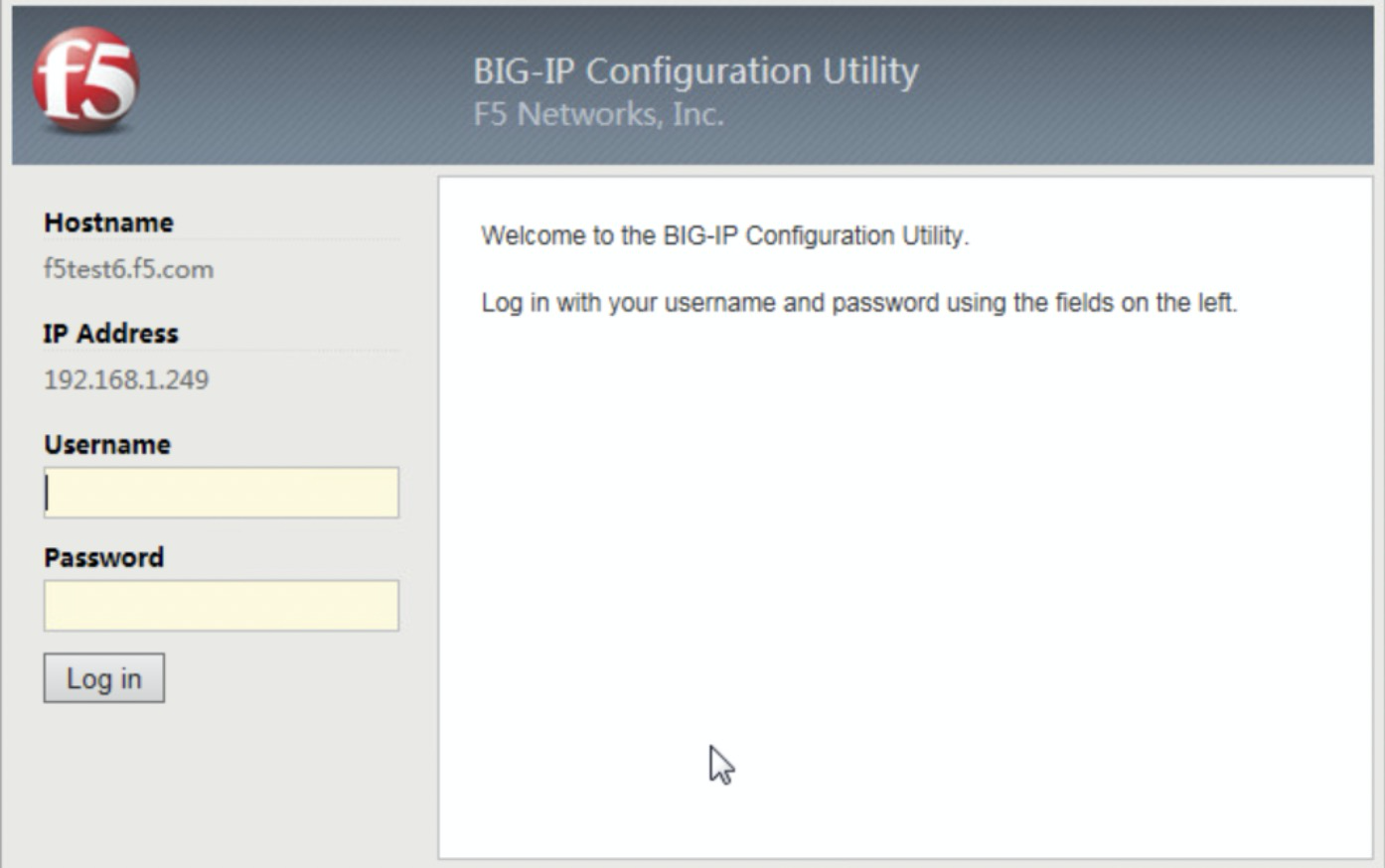
Create Pools:
Click Local Traffic>Monitors and add a Monitor of the TCP Half Open type.
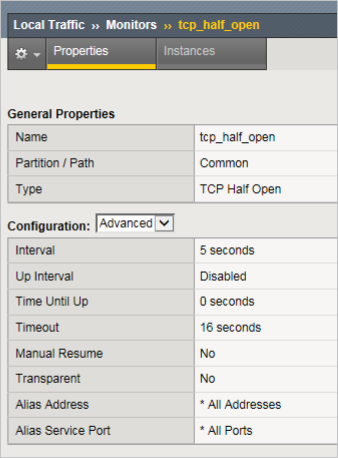
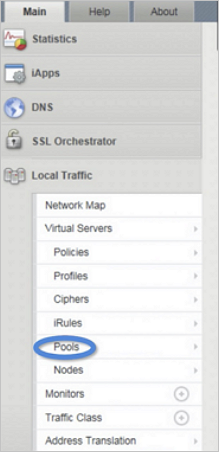
Click Local Traffic>Pools and click + to create a pool.
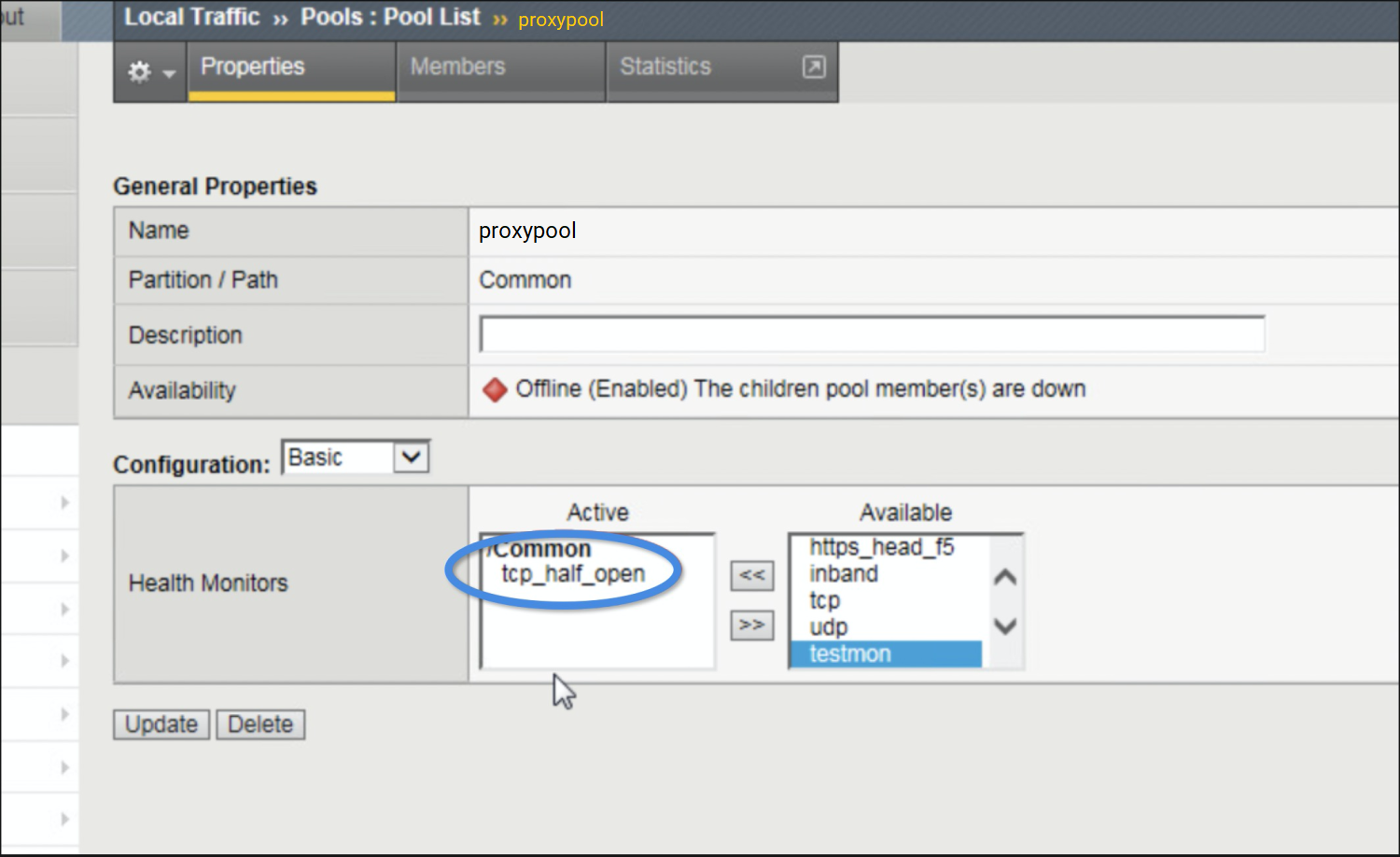
In the Available list, select the Monitor created in step a and move it to the Active list.
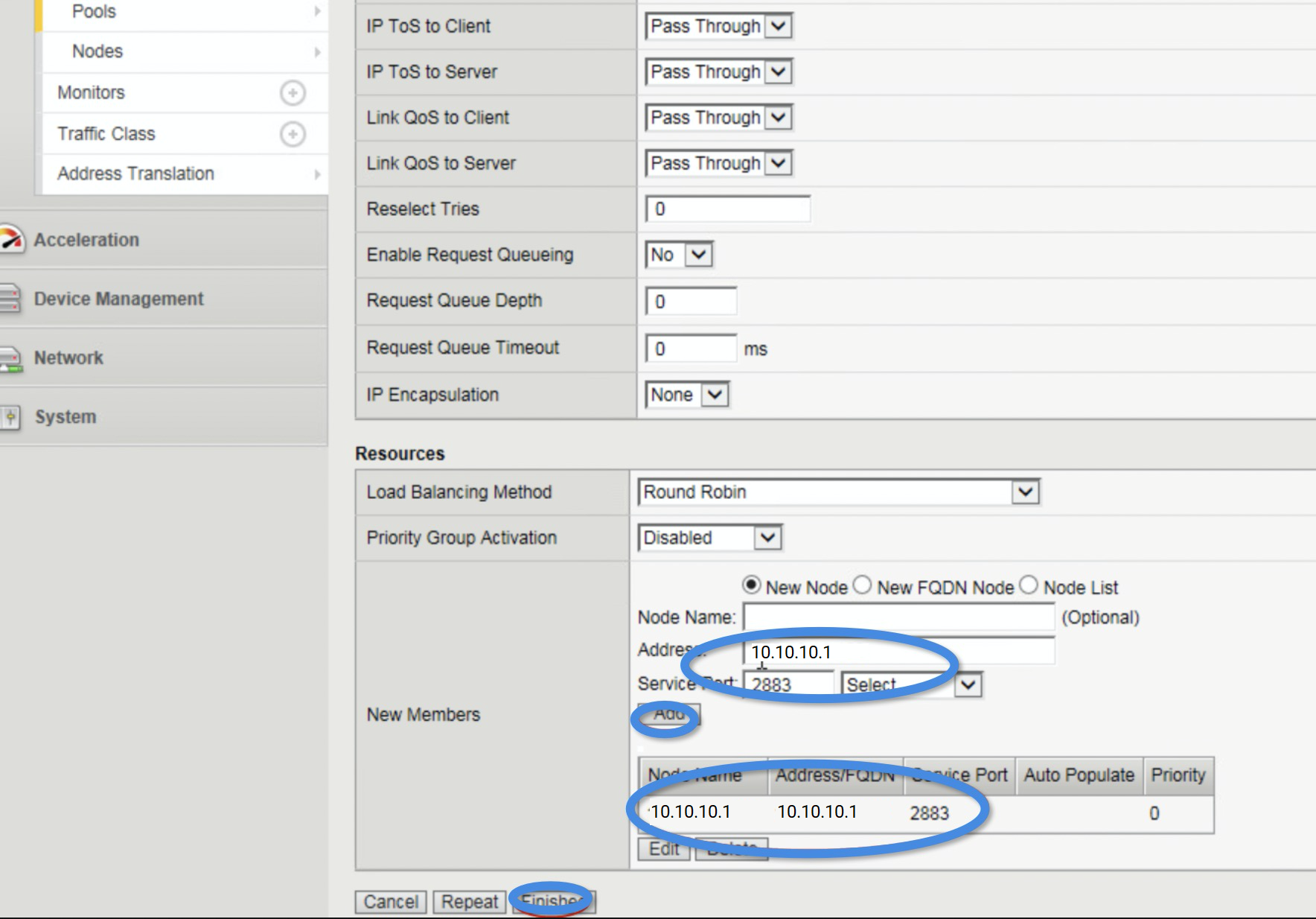
Scroll down and select New Node. Enter the IP address and port of the ODP server in the Address and Service Port fields.
Click Add. You can add multiple nodes. After you finish, click Finished.
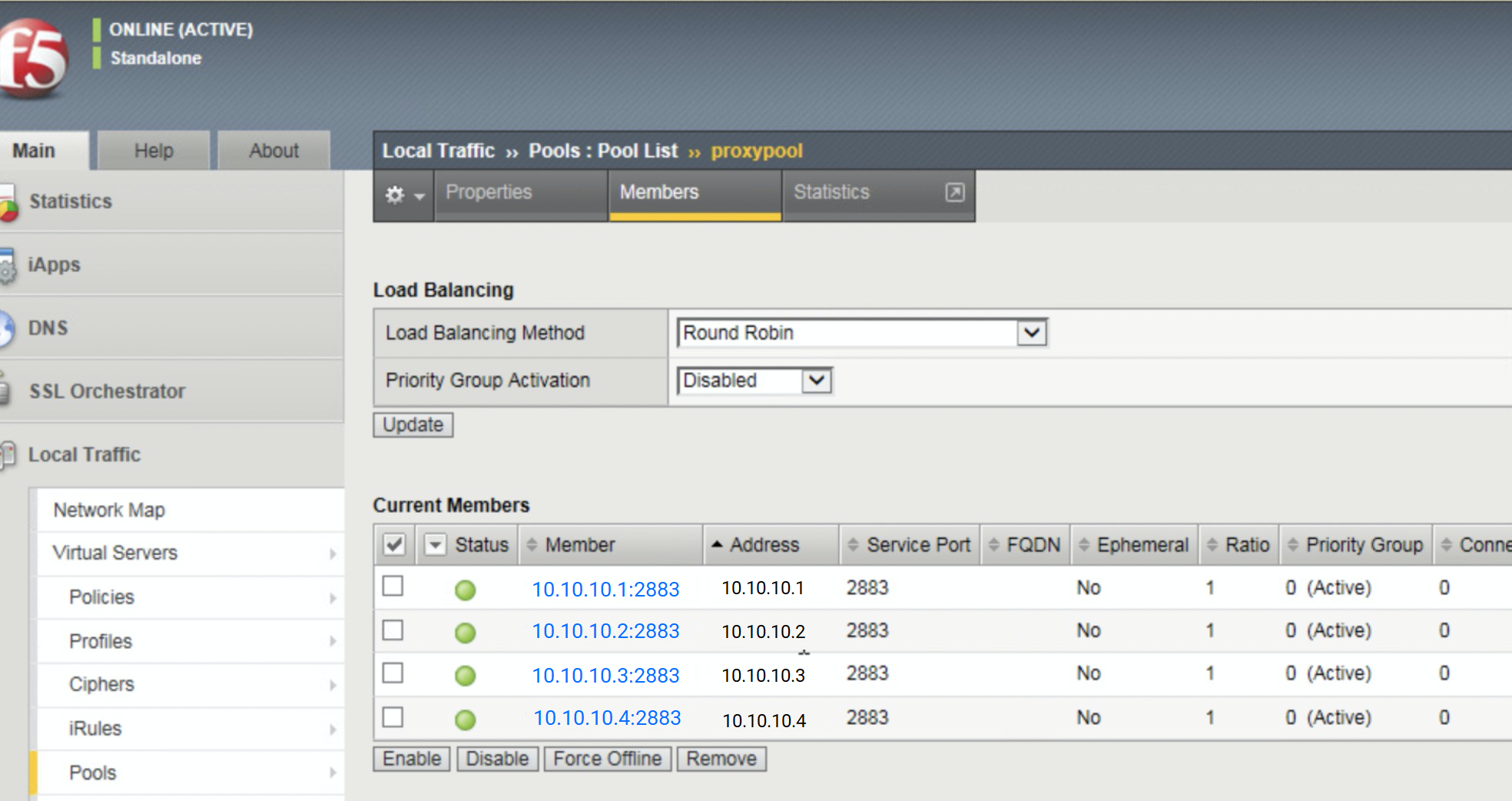
On the Local Traffic>Pools>Pool List page, check whether the status of each Member is green.
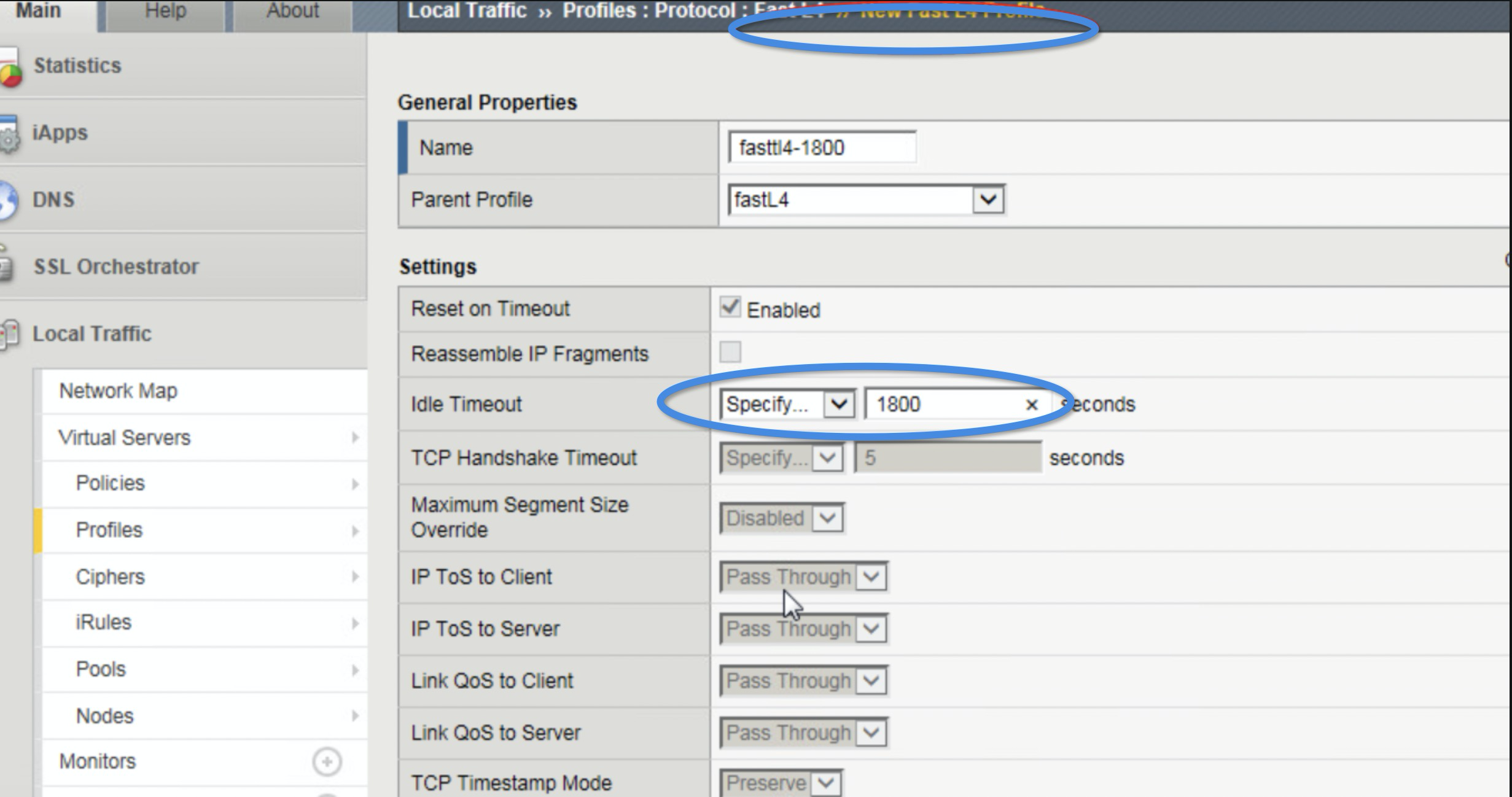
Click Local Traffic>Profiles>FastL4 and add a profile. Set the Type of the layer 4 mode to Performance(Layer 4). Do not enable session persistence. Set Idle Timeout to a value greater than or equal to 1800 seconds.
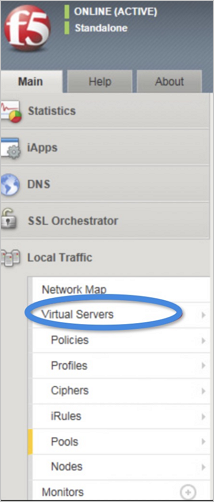
Click Local Traffic>Virtual Servers and add a server.
Enter the following information.
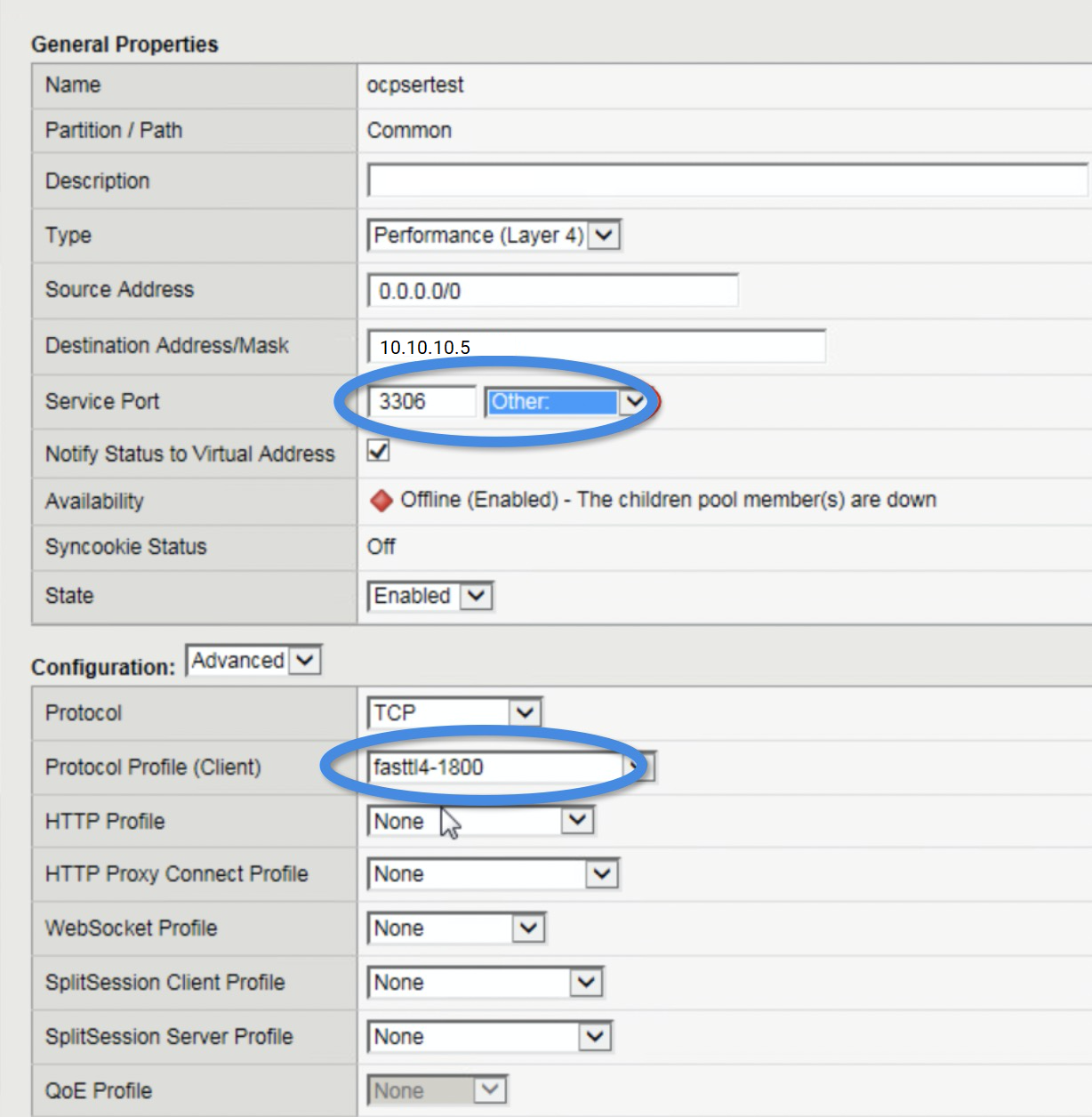 ParameterDescription
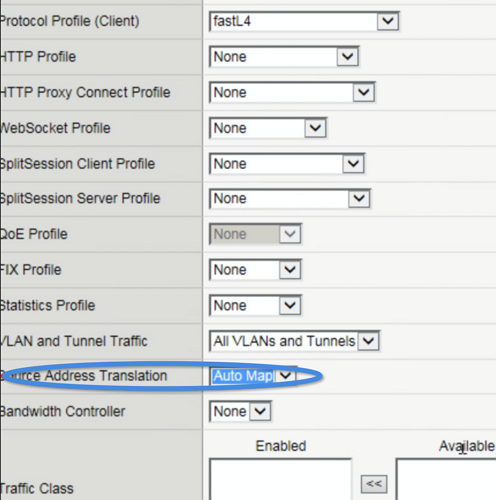
Type Performance(Layer 4) Source Address 0.0.0.0/0 Destination Address/Mask The VIP or self IP, for example: 10.10.10.5 Service Port Port, which is customer-defined Protocol Profile(Client) Select the profile you added in step 3 On the pull-down menu, select Auto Map for Source Address Translation.
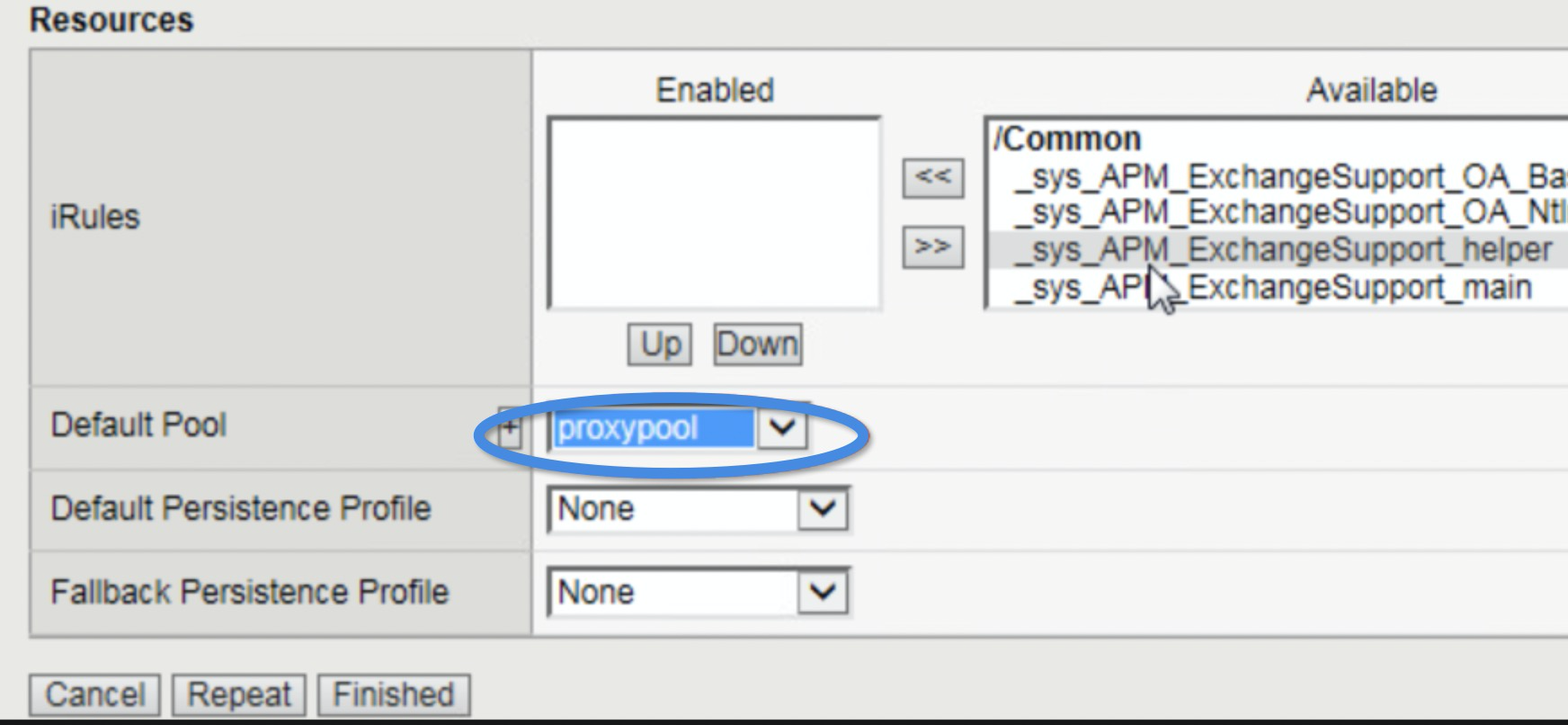
Default Pool Select the pool created in step 2.
Click Finished.
Once the status of the newly created virtual server is green in the Virtual Server List tab of the Local Traffic > Virtual Servers page, the virtual server has been added successfully.
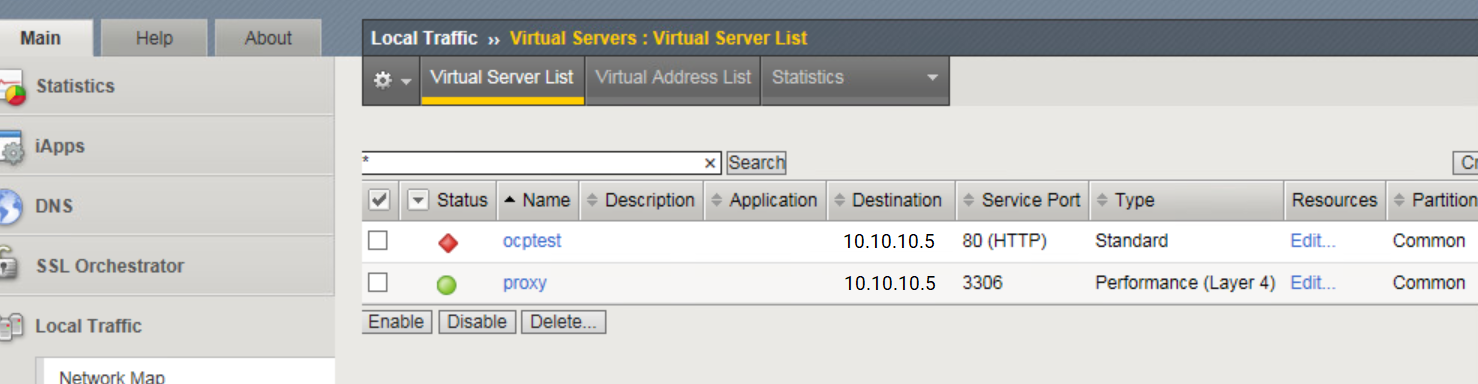
After creating the ODP instance, choose a host that is connected to the F5 and ODP host networks. Run the
telnet 10.10.10.1 2883andtelnet 10.10.10.5 3306commands. If you see the following output, the ODP instance has successfully connected to the F5 instance.Connected to xx.xx.x.xxx.Escape character is '^]'.
Deploy a cluster by using OBD grafana interface
(Optional) Install the obd tool.
Note
If Manual configuration is selected for User and parameter configuration, install obd based on this procedure.
You can execute the following command to install obd online. You can also download obd packages from OceanBase Download Center and install them. For more information about how to install obd, see Install obd.
Install yum-utils:
[admin@test001 ~]$ sudo yum install -y yum-utilsAdd the OceanBase image source:
[admin@test001 ~]$ sudo yum-config-manager --add-repo https://mirrors.aliyun.com/oceanbase/OceanBase.repoTo install obd, enter the following command:
[admin@test001 ~]$ sudo yum install -y ob-deployConfigure the application environment:
[admin@test001 ~]$ source /etc/profile.d/obd.shExplanation
To deploy OceanBase Database Enterprise Edition, contact Technical Support to obtain the installation package, and execute the
obd mirror clonecommand to upload it to the local image library of obd. After uploading, execute theobd mirror list localcommand to view the installation packages in the local image library.Use the graphical user interface to deploy the application.
Run the
obd webcommand at the command line to start the graphical interface.[admin@test001 ~]$ obd web start OBD WEB in 0.0.0.0:8680 please open http://xxx.xxx.xxx.250:8680Overview
The GUI service listens on the 8680 port by default. You can run the
obd web -p <PORT>command to specify the port, which must be in the [1025, 65535] range.In an Alibaba Cloud or other cloud environment, the system may output an internal network address when it fails to obtain a public IP address. This is not a public IP address, so please access the graphical interface using the correct address.
When you use the
obd webcommand, the OBD Web UI is bound to the IP address of the network interface. If the OBD server is deployed on a multinet host, you can access the OBD Web UI through any accessible IP address.You can use the nohup or screen command to run the
obd webcommand in the background.
On the graphical interface, click Start your journey.
Go to the deployment page of OceanBase Database.
In the Welcome to OceanBase Deployment Wizard page that appears, select the OceanBase Database and Tools module and click Install. The database deployment page appears.
Deploy configuration
On the Deployment Configuration page, configure the cluster name and the components to be deployed. By default, the Deployment Configuration page is displayed as follows.
Cluster Configuration
Component Selection
Click Next to go to the Node Configuration page.
Node configuration
In the Node Configuration interface, configure the database, deploy users, and software installation path. The Node Configuration interface is as follows.
After you configure the required parameters, click Next to go to the Cluster Configuration page.
Cluster configuration
In the Cluster Configuration interface, you can configure the cluster, including the administrator password of the system tenant (root@sys), the data and log directories, the ports and parameters of the database and components, etc. The specific settings are shown in the following figure.
Cluster configurations
Note
For this example, the cluster mode configuration uses the maximum occupancy. When deploying, users can choose between maximum and minimum occupancy based on their requirements.
Component Configuration
After all configurations are completed, click Next to go to the Pre-check page.
Configuration confirmation
On the Configuration confirmation page, you can view all configuration information. If you find any issues, click Previous to make modifications. After confirming that everything is correct, click Next to proceed to the Pre-check step. The system will verify whether your environment and configurations meet all the requirements for deploying an OceanBase cluster.
When the Deployment mode is set to Distributed and the number of configured zones is greater than or equal to 2, the Configuration confirmation page will display a cluster topology diagram. You can click Topology to view it.
Pre-check
On the Pre-check page, you can view all configuration information. If you find any issues, click Previous to make modifications. After confirming that everything is correct, click Pre-check to proceed.
If the pre-check fails, you can choose Automatic Fix (for fixable items) or click View More Solutions to jump to the error code documentation for further modifications. After all errors are fixed, click Recheck to perform the pre-check again.
If the pre-check is successful, click Deploy to start deploying OceanBase Database.
Deployment
After the OceanBase cluster is deployed, click Copy to copy and save the access address and account password.
After saving the information, click the Create Business Tenant button in the lower-right corner of the deployment success page to proceed to the tenant creation process.
Create a business tenant
On the Create Business Tenant page, configure the corresponding parameters and click Next: Create Business Tenant. The system will then create the corresponding tenant.
Note
In this example, the tenant is configured with the maximum specifications. In actual deployment, you can choose the maximum, minimum, or custom specifications based on your requirements.
After the tenant is created, the page will display the business tenant information, including the tenant name, root user password, and connection string. Click the Copy button next to Tenant Root Password and Connection String to copy and save the corresponding information.
After saving the information, click the Exit button in the lower-left corner to exit the tenant creation process. Then, click the Exit button on the deployment result page to exit the deployment process.
Verify the deployment result
In the command-line interface, use the connection string provided in the deployment result to connect to the corresponding tenant in OceanBase Database.
Log in to the sys tenant
Use the connection string provided in the deployment result to log in to the sys tenant of OceanBase Database.
obclient -h10.10.10.1 -P2881 -uroot@sys -p'******' -Doceanbase -AThe return result is as follows:
Welcome to the OceanBase.  Commands end with ; or \g.
Your OceanBase connection id is 3221540622
Server version: OceanBase_CE 4.5.0.0 (r100000012025112711-0e8d5ad012baf0953b2032a35a88bdf8886e9a7a) (Built Nov 27 2025 12:06:16)

Copyright (c) 2000, 2018, OceanBase and/or its affiliates. All rights reserved.

Type 'help;' or '\h' for help. Type '\c' to clear the current input statement.

obclient(root@sys)[oceanbase]>
Log in to the created business tenant
obclient -h10.10.10.1 -P'2881' -p'********' -uroot@test_a -Doceanbase -AThe return result is as follows:
Welcome to the OceanBase.  Commands end with ; or \g.
Your OceanBase connection id is 3221547518
Server version: OceanBase_CE 4.3.5.3 (r103010012025090210-8b80b225c2dcba7dd0c83f3d5a24e3c1ffc03f24) (Built Sep  2 2025 10:25:24)

Copyright (c) 2000, 2018, OceanBase and/or its affiliates. All rights reserved.

Type 'help;' or '\h' for help. Type '\c' to clear the current input statement.

obclient(root@test_a)[oceanbase]>
If you can connect to the database, the deployment is successful.
More information
For more information about deploying OceanBase Database using the graphical interface, see Deploy an OceanBase cluster.
For more information about connecting to OceanBase Database, see the Connect to OceanBase Database section.