Scenarios
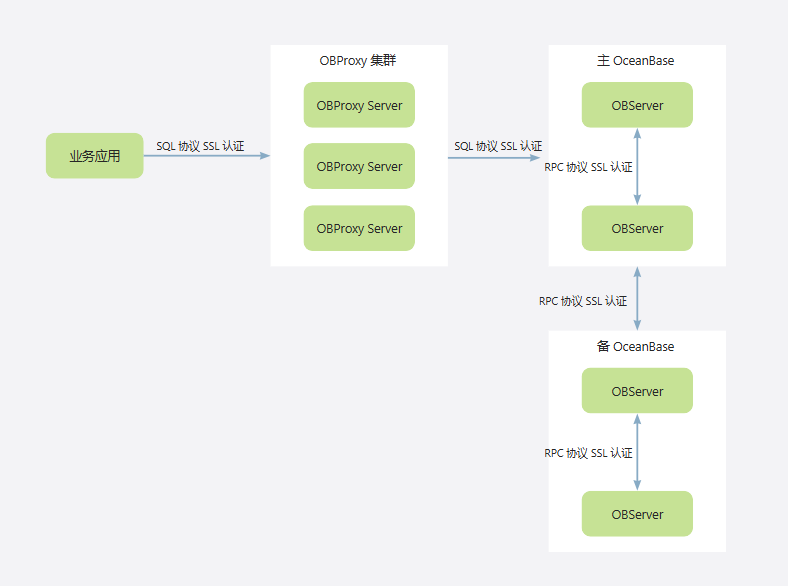
- End-to-end SSL authentication: Use SSL authentication for the entire connection chain from business applications to OBProxy to OceanBase.
- OBProxy-specific SSL authentication: Enable SSL authentication for OBProxy separately, allowing SSL authentication for the connection from business applications to OBProxy.
- OceanBase-specific SSL authentication: Enable SSL authentication for OceanBase separately, allowing SSL authentication for the connection from business applications to OceanBase when OBProxy is not present.
The following diagram shows the end-to-end SSL authentication between OceanBase and OBProxy:
Prerequisites
Certificate application and issuance
- Obtain a CA root certificate from a trusted CA and ensure that it is valid.
- Use the CA root certificate to sign a server certificate and ensure that it is valid. Keep the certificate and private key.
- After completing the above steps, generate three pem files (with file types specified as PEM, and any filenames are acceptable): CA root certificate (ca.pem), server certificate (server.pem), and server private key (server-key.pem).
For more information about signing a server certificate using a CA root certificate, please refer to Important information.
Enable SSL encryption for the link
- OceanBase and OBProxy clusters must be in the running state.
- The OceanBase cluster must be of V4.0.0.0 or later.
Technical principles
Enabling SSL authentication in OceanBase
Step 1: Upload certificate files
Before enabling SSL authentication in OceanBase, upload the CA root certificate, server certificate, and server private key to the ${run_path}/wallet directory of each OBServer node. Once SSL authentication is enabled, OCP will automatically upload the certificate files to new OBServer nodes in scenarios such as adding, reinstalling, replacing, or adding a zone.
Notice
After OCP takes over an SSL-enabled cluster, the new OCP instance may not have the cluster's certificate files. In such cases, OCP will not be able to upload the certificate files to new OBServer nodes in the mentioned scenarios. To resolve this, you can re-upload the certificate files in OCP or update the SSL certificate.
Step 2: Enable SSL authentication
OceanBase supports two types of SSL authentication: RPC SSL authentication and SQL SSL authentication. These authentication methods restrict whether an SSL connection is used to establish RPC and SQL connections with OBServer. Both protocols share the same set of certificates.
Here is an example of enabling RPC SSL authentication:
# Specify the SSL certificate retrieval method, which must be set to 'file' to obtain it from a local file. Leave it as an empty string when disabled.
ALTER SYSTEM SET ssl_external_kms_info = '{"ssl_mode":"file"}';

# Set the authentication method for OceanBase as a server and client for RPC.
# If set to 'ALL', OceanBase can simultaneously establish SSL and non-SSL connections as an RPC server.
ALTER SYSTEM SET rpc_server_authentication_method = 'ALL';

# If set to 'SSL_NO_ENCRYPT', OceanBase can only establish SSL connections as an RPC client. If not specified, the default is 'NONE'.
ALTER SYSTEM SET rpc_client_authentication_method = 'SSL_NO_ENCRYPT';

# Enable SQL RPC authentication.
ALTER SYSTEM SET ssl_client_authentication = True;

# Set the minimum TLS protocol version.
ALTER SYSTEM SET sql_protocol_min_tls_version = "TLSv1.1";
Enabling SSL authentication in OBProxy
Step 1: Upload certificate files
Similar to OceanBase, upload the three files to the ${run_path}/wallet directory of each OBProxy server. In the scenario of adding an OBProxy server, OCP will automatically upload the certificate files to the new OBProxy server.
Step 2: Enable SSL authentication
Connect to OBProxy using the OBProxy administrator user root@proxysys and execute the following SQL statement to set the certificate path.
update proxyconfig.security_config set CONFIG_VAL= '{"sourceType" : "FILE", "CA" : "/xxx/wallet/ca.pem", "publicKey": "/xxx/wallet/proxy-cert.pem", "privateKey" : "/xxx/wallet/proxy-key.pem"}' where APP_NAME = 'obprox
' and VERSION = '1';
Enable SSL authentication.
# Enable client SSL authentication. After enabling, business applications can connect to OBProxy using SSL authentication.
alter proxyconfig set enable_client_ssl=true;

# Enable server SSL authentication. After enabling, OBProxy can connect to OceanBase using SSL authentication.
alter proxyconfig set enable_server_ssl=true;
SSL authentication between clients and OBProxy is not mandatory. It can support both SSL and non-SSL authentication for establishing connections. If SSL authentication is enabled for OBProxy, it can also connect to both SSL-enabled and non-SSL-enabled OceanBase clusters. When establishing a connection, OBProxy will negotiate with OceanBase to determine which method to use.
Notice
Typically, OBProxy and all associated OceanBase clusters use the same set of certificates. Considering that enterprise CA certificates are usually only one, when associating OBProxy with OceanBase clusters, OCP will not perform additional checks. This scenario is user-assured.
Considerations
Server certificate issuance
When you use the CA root certificate to issue a server certificate, OceanBase Database and OBProxy have special requirements for the server certificate.
When you generate a private key for the server certificate, specify the key length as 2048. Here is an example.
openssl genkey -algorithm RSA -out server-key.pem -pkeyopt rsa_keygen_bits:2048When you enable SSL authentication for OceanBase Database and OBProxy at the same time, if OceanBase Database and OBProxy use the same server certificate, the certificate is used as both a client certificate and a server certificate. Therefore, the Extended Key Usage field of the certificate must contain both
Client AuthenticationandServer Authentication. You can run the following command to check whether the certificate meets the requirements.openssl x509 -in server certificate file path -text -noout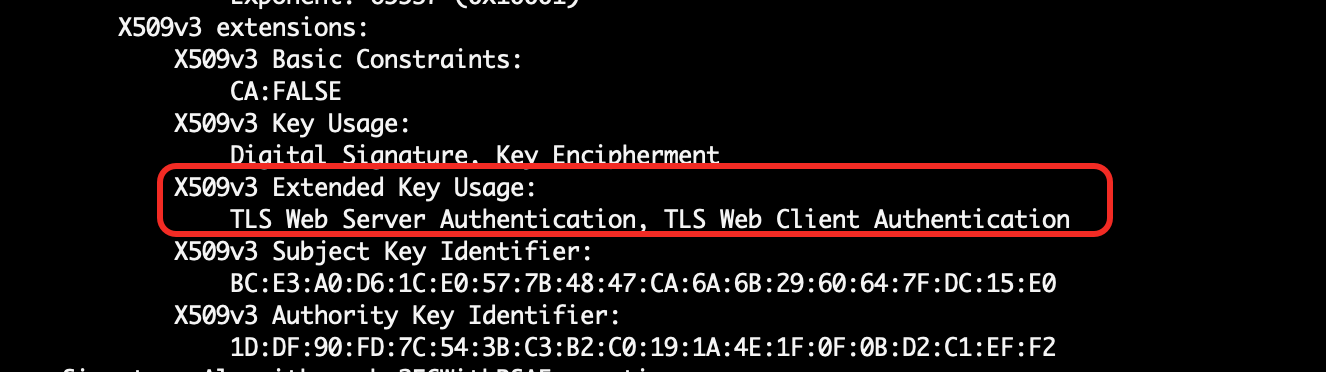
If you need to issue a subordinate certificate, you must specify the subordinate certificate as a CA certificate when you issue it by using the CA root certificate. You can run the following command to check whether the subordinate certificate is a CA certificate.
openssl x509 -in subordinate certificate file path -text -nooutIf the output contains
CA:TRUE, the subordinate certificate is a CA certificate and can be used to issue other certificates.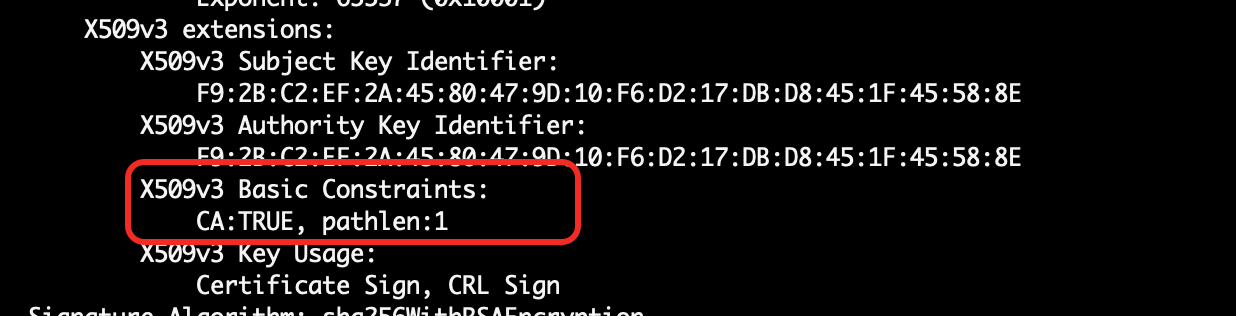
End-to-end SSL authentication
When you enable SSL authentication for OceanBase Database and OBProxy at the same time, OceanBase Database and OBProxy use mutual SSL authentication. On OceanBase Database, you must manually set the tenant parameter ob_ssl_invited_common_names to append the cn field in the subject of the OBProxy certificate to the parameter. Otherwise, OBProxy cannot access the tenant.
For more information, see ob_ssl_invited_common_names.
Procedure
Step 1: Upload the certificate group
On the certificate management page of OCP, upload the CA root certificate, server certificate, and server private key as a certificate group.

Step 2: Enable SSL encryption
On the security configuration page of OceanBase Database and OBProxy, enable SSL encryption for OceanBase Database and OBProxy.