







On the Overview page, you can view the core metrics and alerts of backup and restore, backup storage trends, and information about clusters that have or have not been backed up. You can also go to the corresponding pages to initiate restore tasks and immediate backup tasks, create backup policies and restoration sampling policies, and launch the backup and restore wizard.
Core metrics
In the Core Metrics section, you can view Number of Clusters with Backup Policies, Weekly Data Backup Success Rate, Objects with Log Backup Latency, and Weekly Successful Restoration Sampling Tasks.

Prerequisites
To view information on the Overview page of Backup & Recovery, make sure that you have the following permissions:
- Resource Permissions: Cluster Read-only or Tenant Read-only permission
- Menu Permissions: Permission on the Overview menu of Backup & Recovery
Alerts
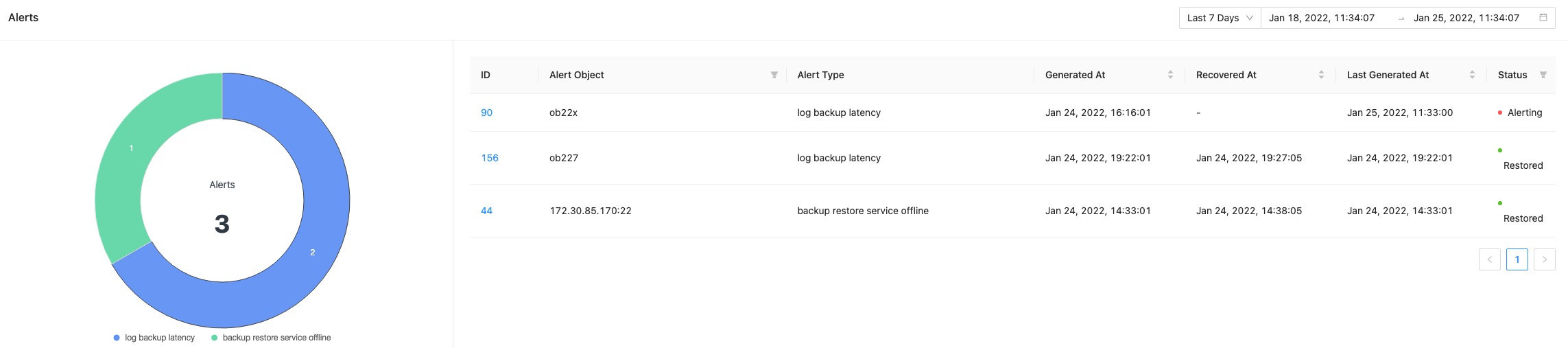
In the Alerts section, you can view all backup and restore alerts, such as the ring chart on the number of alerts and the alert lists. You can filter alerts by time. You can click the Active Alerts or Historical Alerts tab to switch between the alert lists.
You can click the ID of an alert to view the alert details. This way, you can quickly locate and solve backup and restore issues.
Note
You can click Clusters on the navigation pane, go to the Backup & Recovery of a cluster, and view the backup and restore alerts for the cluster on the Alerts tab.
Backup storage trends
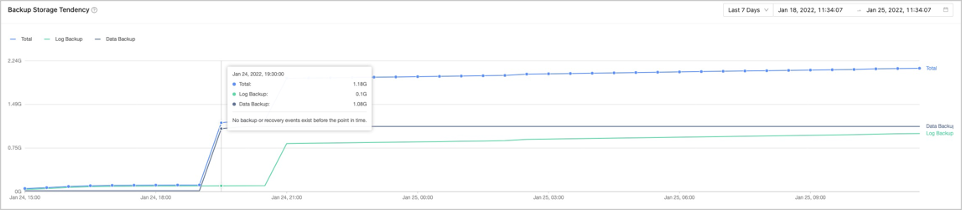
In the Backup Storage Trends section, you can select a time range to view the backup storage trends from the perspective of Total Volume, Log Backup, and Data Backup. You can filter the chart by time and cluster to view the backup storage trends chart in a specific time range. You can also move the pointer over specific points in time on the curves to view the backup storage data.
Backed up clusters
The Cluster Backed Up tab, displays the number of backed up clusters in the tab name. The tab shows the cluster information in the following columns: Cluster Name, Object Type, OceanBase version, Last Data Backup, Last Log Backup Time, Log Latency, Status, and Actions.
- In OceanBase Database V4.0 and later, tenants with backup data (including manually executed and automatically scheduled backups) and the clusters to which the tenants belong are displayed.
- In OceanBase Database of a version earlier than V4.0, clusters with backup data (including manually executed and automatically scheduled backups) are displayed.

Parameter |
Description |
|---|---|
| Last Data Backup | Indicates the time of the last data backup. |
| Log Latency | Indicates the latency between the log backup data and the real-time data. |
| Status | Valid values: No Backup Scheduling, In Progress, Suspend Backup Scheduling Task, Scheduling Exception, and Pending Backup Scheduling. |
| Actions | The following options are available: Pause, Back up Now, and Initiate Recovery. For more information, see Back up now and Initiate a restore task. |
Clusters not backed up
The Cluster Not Backed Up tab displays the number of clusters that have not been backed up in the tab name. The tab displays the name of each cluster andallows you to perform the Back up Now and Create Backup Policy actions for each cluster. For more information, see Back up now and Create a cluster-level backup strategy.