






OceanBase Developer Center (ODC) allows you to create private and public connections. A private connection is created in ODC by a user who obtains the database access information that is not shared with all users for the sake of security. The administrator can create public connections in ODC, combine multiple public connections to create resource groups, and grant the access permission of public connections or resource groups to specific roles.
Log on to ODC as the administrator and go to the Public Resource Console page. In the left-side navigation pane, choose Resource Management > Public Connections to display the Public Connections page.
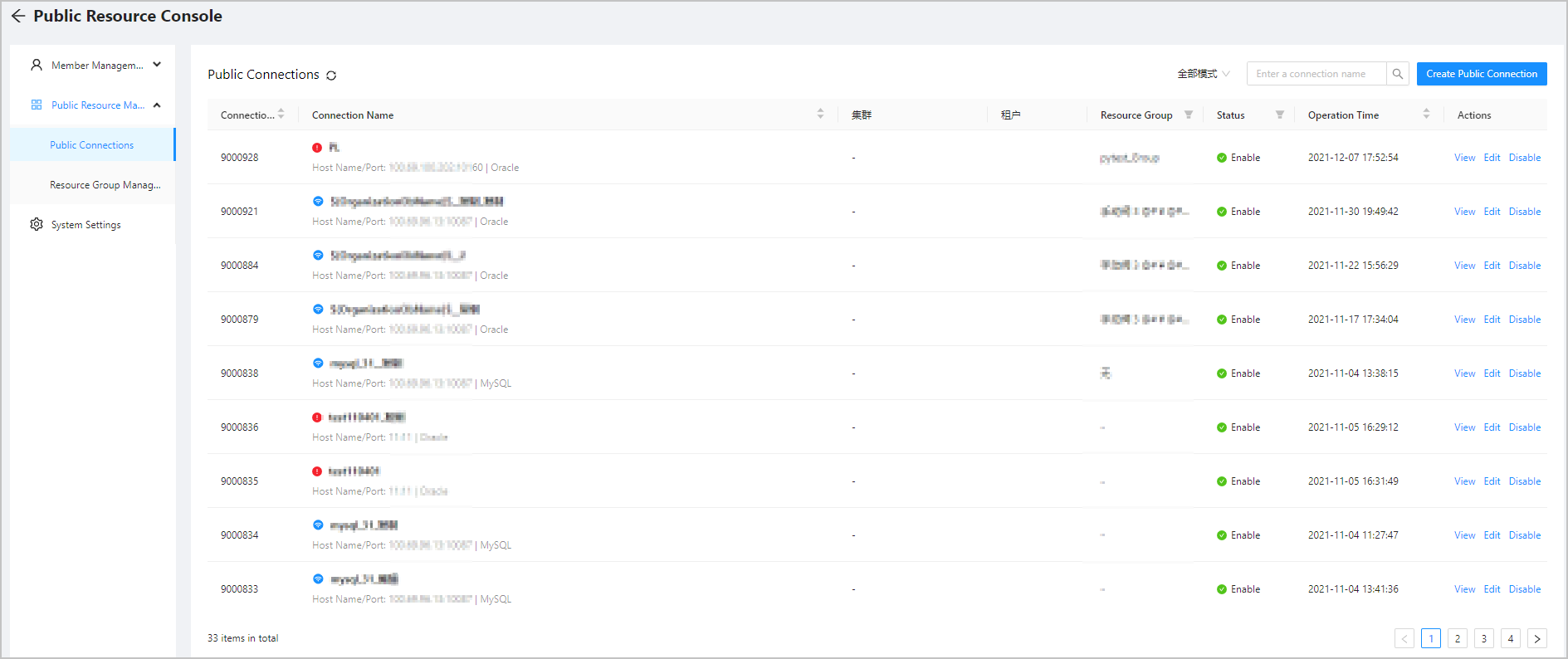
Create a public connection
Click Create Public Connection in the upper-right corner of the Public Connection Management page. The Create Public Connection panel appears.
Specify the following parameters in the Create Public Connection panel.
Parameter |
Description |
|---|---|
| Region | Select Public Cloud if your database instance is deployed on Alibaba Cloud, or select Independent Deployment/Apsara Stack if your database instance is deployed in your own environment. |
| Connection Mode | Select MySQL or Oracle . |
| Connection Name | Specify the name of the connection. |
| Resource Group | Click the field, and select a created resource group from the drop-down list. For more information about the resource group, see Manage resource groups. |
| Connection Status | The default connection status is Enabled . You can manually change the status to Disabled . A disabled connection cannot be accessed. |
| Endpoint | * Host Name : the host name, which you can find on the tenant information page. * Port : the port number, which you can find on the tenant information page. * Cluster : the name of the cluster in which the database you want to connect to is located. * Tenant : the name of the tenant under which the database you want to connect to is located. |
| Read/Write Account | Specify the Database Username and Database Password of the account that has the Read/Write permission on the database. An ODC user with the Read/Write permission can use this account to access OceanBase Database. |
| Read-only Account | Specify the Database Username and Database Password of the account that has the Read-only permission on the database. An ODC user with the Read-only permission can use this account to access OceanBase Database. |
| SQL Query Timeout Value | Specify a timeout value for SQL queries. A query whose execution time exceeds the timeout value is automatically terminated. The default timeout value is 60 seconds. |
| Query sys Tenant View | This field is automatically populated when Tenant in Endpoint is set to sys. * Account : an account having the permission to check the views in the sys tenant. * Password : the password of the account. After you specify the account and password, you can click the Test Connection button next to the password box to verify whether the account information is valid. In ODC V2.3.0 and later versions, to use the import and export features and check the partition information, you need to configure the root@sys account by using this option. |
After you specify all preceding information, click Create in the lower-right corner of the panel. Notice
After you click Create , a warning message will appear in the following cases:
The read/write account is disconnected.
The read/write account does not have the permission.
The read-only account is disconnected.
The read-only account does not have the permission.
Manage public connections
The information of public connections is displayed in a list on the Public Connection Management page, where you can perform the following operations:
Click the refresh icon to manually refresh the list.
Search for connections by using the search box in the upper-right corner of the list.
Click All Modes to select MySQL or Oracle mode.
List of public connections
The information of public connections is provided by columns, which are described in the following table. A filter is provided on top of columns for you to filter connections.
Column |
Description |
|---|---|
| Connection ID | The sequence number of the public connection. You can click Connection ID to sort the connection IDs in ascending or descending order. |
| Cluster | The cluster information. |
| Tenant | The tenant information. |
| Resource Group | The name of the resource group to which the connection belongs. |
| Status | The current status of the connection. Valid values: Enabled and Disabled . |
| Operation Time | The time when the connection was last edited, or the time when the connection was created if the connection has not been edited. |
| Actions | Indicates the actions you can take, including View , Edit , and Disable / Enable . You can click Disable / Enable in the Actions column to directly modify the status of the connection. |
View public connections
Click View in the Actions column, the Public Connection Information panel appears. You can see the Connection Details and Related Users tabs.
Information |
Description |
|---|---|
| Connection Details | * Connection information: displays the information you specified when you created the connection in fields such as Region , Connection Mode , Connection Name , Resource Group , Endpoint , Database Username , SQL Query Timeout Value , and Query sys Tenant Account . * Operation information: displays information in fields such as Created By , Created At , and Updated At . * Delete User: You can click Delete Public Connection on the tab to delete the current connection. After the connection is deleted, the user who was granted the access to the connection cannot use it. |
| Related Users | The following information is displayed: Name , Role , Permissions , and other information of the users who can access the current public connection. |
| Edit | You can click Edit in the lower-right corner of the Public Connection Information panel to go to the Edit Public Connection panel. |
Edit a public connection
Click Edit in the Actions column of the public connection information list. The Edit Public Connection panel appears. In the Edit Public Connection panel, all the information you specified when you created it is displayed. Note that Region and Connection Mode cannot be changed once the connection is created. Database Password specified for Read/Write Account and Read-only Account is not displayed. Notice
After you edit the information, click Save . A warning message will appear in the following cases:
The read/write account is disconnected.
The read/write account does not have the permission.
The read-only account is disconnected.
The read-only account does not have the permission.