







This topic describes how to deploy a single-node OceanBase Database in a Docker container.
Notice
The operations described in this document are intended for learning or testing scenarios only and must not be applied to production environments.
Prerequisites
Before you perform the operations described in this topic, confirm the following:
You have installed Docker and started the Docker service. For detailed steps, see Docker documentation.
Note
On macOS machines with an x86 architecture, only Docker versions 4.9.0 and earlier are supported for deploying OceanBase Database. To download Docker, click the link.
Your machine meets the software and hardware requirements. For details, see Software and hardware requirements.
Deploy OceanBase Database
(Optional) Step 1: Pull the OceanBase Database image
Run the following command to pull the required OceanBase Database image.
Search for OceanBase Database images
[admin@test001 ~]$ sudo docker search oceanbasePull the latest OceanBase Database image
[admin@test001 ~]$ sudo docker pull oceanbase/oceanbase-ceNote
If pulling the Docker image fails, you can also pull the image from the quay.io or ghcr.io repository. You only need to replace
oceanbase/oceanbase-cein the above pull command withquay.io/oceanbase/oceanbase-ceorghcr.io/oceanbase/oceanbase-ce. For example, runsudo docker pull quay.io/oceanbase/oceanbase-ceto pull the image from quay.io.After replacing the repository address in the command of this step, you need to synchronize and replace the repository address in the command of Step 2. The repositories used in the two commands must be consistent.
The above commands pull the latest version by default. You can select a version from dockerhub, quay.io, or ghcr.io according to your actual needs.
Step 2: Start an OceanBase database instance
Run the following command to start an OceanBase database instance.
[admin@test001 ~]$ sudo docker run -p 2881:2881 -p 2886:2886 -v $PWD/ob:/root/ob -v $PWD/obd/cluster:/root/.obd/cluster --name obstandalone -e MODE=NORMAL -e OB_TENANT_PASSWORD=***** -d oceanbase/oceanbase-ce
[admin@test001 ~]$ sudo docker run -p 2881:2881 -p 2886:2886 -v $PWD/ob:/root/ob -v $PWD/obd/cluster:/root/.obd/cluster --name obstandalone -e MODE=MINI -e OB_TENANT_PASSWORD=***** -d oceanbase/oceanbase-ce
quick startup mode, if tenant- and resource-related environment variables are configured, they will not take effect except for OB_TENANT_PASSWORD and OB_SYS_PASSWORD. The default and only allowed username for the created user tenant is test.
shell dmin@test001 ~]$ sudo docker run -p 2881:2881 -p 2886:2886 -v $PWD/ob:/root/ob -v $PWD/obd/cluster:/root/.obd/cluster --name obstandalone -e MODE=SLIM -d oceanbase/oceanbase-ce
The options in the example have the following functions:
-pmaps a container port to a host port. In the example, it maps ports2881and2886in the container to ports2881and2886on the host, respectively.-vshares files or directories between the container and the host, enabling data persistence or configuration sharing. By default, the system deploys OceanBase Database in the container's/root/obdirectory and saves its configuration in/root/.obd/cluster. You can use this option to persist data on the host.You can also use the
-voption to mount the SQL file to be executed. For example, modify{init_sql_folder_path}to the actual path of the initialization SQL file.[admin@test001 ~]$ sudo docker run -p 2881:2881 -p 2886:2886 -v {init_sql_folder_path}:/root/boot/init.d --name obstandalone -e MODE=SLIM -d oceanbase/oceanbase-ce--namesets the Docker container name. For example, in the example, it creates a Docker container namedobstandalone.-esets environment variables. In the example,MODEsets the startup mode of OceanBase Database, andOB_TENANT_PASSWORDsets the password for the root@test user in OceanBase Database. For detailed information about environment variables, see [Environment variables that can be configured](#Environment variables that can be configured) below.
Note
The enable_rich_error_msg parameter is enabled by default when Docker starts. If an error occurs, you can use the trace command to obtain detailed error information.
The startup is expected to take 2 to 5 minutes. Run the following command; if it returns boot success!, the startup was successful.
[admin@test001 ~]$ sudo docker logs obstandalone | tail -1
boot success!
Step 3: Connect to the OceanBase database instance
The oceanbase-ce image includes OBD (OceanBase Deployer) and OBClient (OceanBase Command Line Client). You can either enter the container to manage the instance and connect using OBD commands and the OBClient, or connect to the OceanBase database instance from your host machine using a local OBClient or a MySQL client.
Connect after entering the container
Enter the Docker container
[admin@test001 ~]$ sudo docker exec -it obstandalone bashView cluster details
# View Cluster List obd cluster list # View OBCluster Details obd cluster display obclusterConnect to the cluster
obclient -h127.0.0.1 -uroot@sys -A -Doceanbase -P2881 -p
Connect using a local client on the host
You can choose to use a local OBClient or a MySQL client from your host to connect to the OceanBase database instance. Example:
[admin@test001 ~]$ obclient -uroot@sys -h127.0.0.1 -P2881 -p
Note
If the password is not configured via environment variables during the startup of the OceanBase database instance, the user created in the instance uses an empty password by default.
After a successful connection, the terminal will display the following:
Welcome to the OceanBase. Commands end with ; or \g.
Your OceanBase connection id is 3221711319
Server version: OceanBase_CE 4.3.5.3 (r103010012025090210-8b80b225c2dcba7dd0c83f3d5a24e3c1ffc03f24) (Built Sep 2 2025 10:25:24)
Copyright (c) 2000, 2018, OceanBase and/or its affiliates. All rights reserved.
Type 'help;' or '\h' for help. Type '\c' to clear the current input statement.
obclient [(none)]>
Step 4: Access the obshell Dashboard management page
You can access the obshell Dashboard web management page provided by obshell by visiting port 2886 on the host.
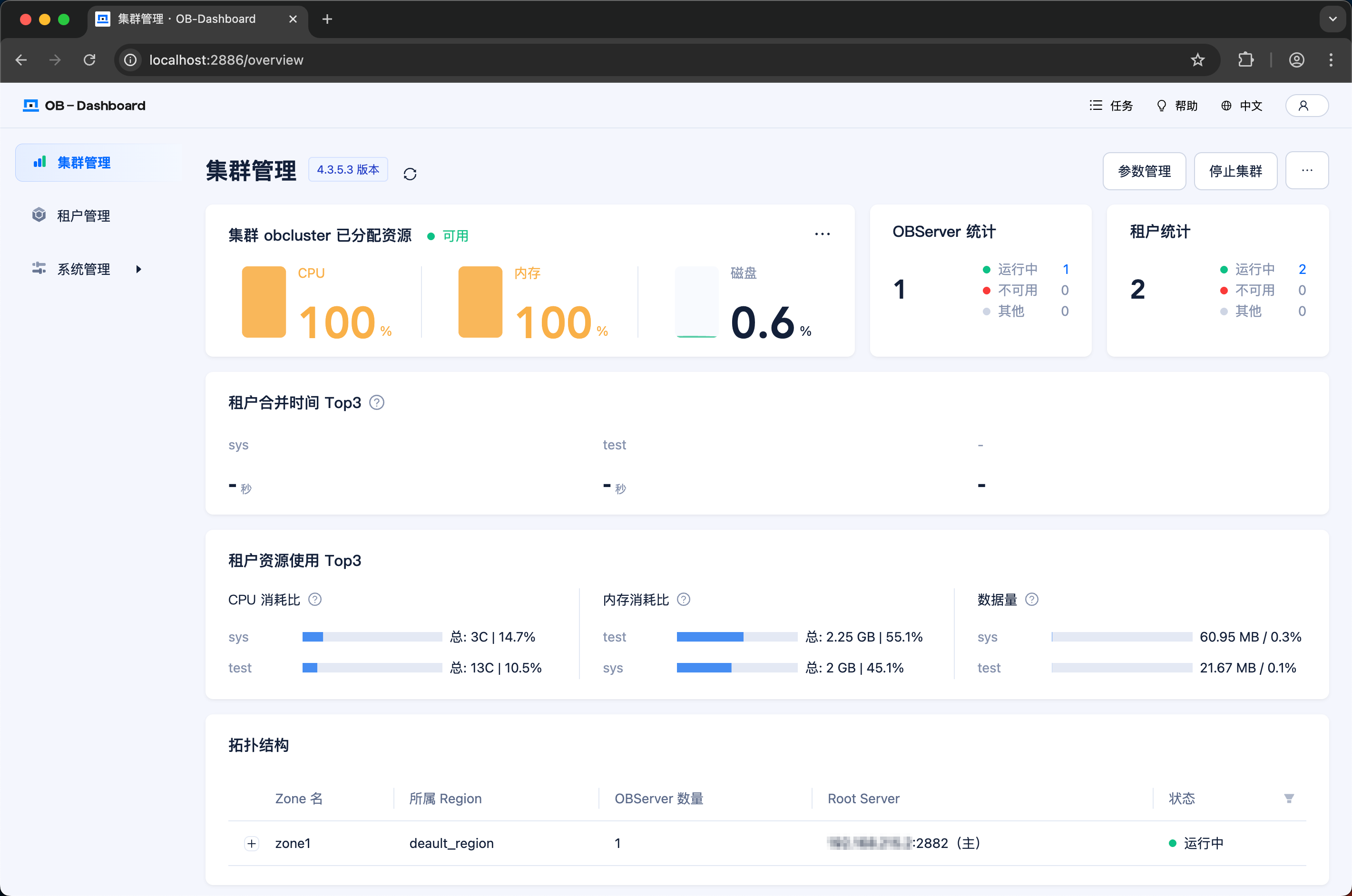
Supported environment variables
Variable name |
Default Value |
Value Description |
Description |
|---|---|---|---|
| MODE | MINI |
NoteWhen |
Sets the cluster startup mode. |
| EXIT_WHILE_ERROR | true |
|
Controls whether to exit the container when OceanBase Database cannot be started. |
| OB_CLUSTER_NAME | obcluster | None | Set the name of the OceanBase cluster. |
| OB_TENANT_NAME | test | Up to 63 bytes in length, consisting only of uppercase and lowercase English letters, numbers, and underscores, and must not be a keyword in OceanBase Database. | After configuration, a MySQL-compatible tenant with the same name will be created in the OceanBase cluster. If not configured, a tenant namedtestof the MySQL tenant.
NoteWhen |
| OB_MEMORY_LIMIT | 6G | [6G, +∞) | Sets the total memory size available to the OceanBase cluster, which is equivalent to the memory_limit parameter in the other two solutions. |
| OB_DATAFILE_SIZE | 5G | [5G, +∞) | Sets the data file size in an OceanBase cluster, which has the same effect as datafile_size in the other two solutions. |
| OB_LOG_DISK_SIZE | 5G | [5G, +∞) | Sets the size of the redo log disk for an OceanBase cluster, which serves the same purpose as log_disk_size in the other two solutions. |
| OB_SYS_PASSWORD | Default: empty | Must be set to a string. No requirements for the string. | Set the password for the administrator user (root@sys) of the sys tenant in the OceanBase cluster. |
| OB_TENANT_PASSWORD | Default: empty | Must be set to a string. No requirements for the string. | Set up in the OceanBase clusterOB_TENANT_NAMEPassword of the administrator user for the corresponding tenant. Not configured.OB_TENANT_NAMEThe default password is that of the root@test user. |
| OB_SYSTEM_MEMORY | 1G | [1G, +∞) | Set the reserved tenant ID in the OceanBase cluster to500The memory capacity for tenants, which serves the same purpose as system_memory. |
| OB_TENANT_MIN_CPU | None | Not involved | Set up the OceanBase cluster toOB_TENANT_NAMEThe minimum CPU specification for the corresponding tenant. If not configured, it will by default occupy all remaining resources of the OceanBase cluster. Its function is equivalent to that in the Create Resource Unit section.MIN_CPUFor more information about creating a resource unit, see CREATE RESOURCE UNIT. |
| OB_TENANT_MEMORY_SIZE | None | Not involved | Set in the OceanBase clusterOB_TENANT_NAMEThe memory specification for the corresponding tenant. If not configured, it will by default occupy all remaining resources of the OceanBase cluster. Its function is equivalent to that in the Create Resource Unit section.MEMORY_SIZEFor more information about creating a resource unit, see CREATE RESOURCE UNIT |
| OB_TENANT_LOG_DISK_SIZE | None | Not involved | Set in the OceanBase clusterOB_TENANT_NAMEThe size of the log disk space for the corresponding tenant. If not configured, it will by default occupy all remaining resources of the OceanBase cluster. Its function is equivalent to that of the parameter in creating a resource unit.LOG_DISK_SIZEFor more information about creating a resource unit, see CREATE RESOURCE UNIT |
| OB_CONFIGSERVER_ADDRESS | None | Not involved | Set the obconfigserver address. Example:http://10.10.10.1:8080 |