n8n is a workflow automation platform with built-in AI capabilities. It gives technical teams the flexibility of code and the speed of no-code tooling. With more than 400 integrations, native AI features, and a fair-code license, n8n lets you build powerful automations while keeping full control of your data and deployment.
This topic shows how to use n8n to build a Chat-to-OceanBase workflow: a template that lets users query your OceanBase database through natural language.
Prerequisites
You have deployed OceanBase Database and created a MySQL-compatible tenant. For details, see Create a tenant.
This integration is demonstrated in a Docker environment. Ensure you have Docker installed and running.
Step 1: Get database connection details
Obtain the database connection string from your OceanBase deployment team or administrator. For example:
obclient -h$host -P$port -u$user_name -p$password -D$database_name
Parameters:
$host: The IP address for connecting to OceanBase. When using OceanBase Database Proxy (ODP), use the ODP address. For direct connection, use the IP of an OBServer node.$port: The connection port. ODP uses2883by default (configurable at ODP deployment). Direct connection uses2881by default (configurable at OceanBase deployment).$database_name: The name of the database you want to use.Notice
The user that connects to the tenant must have
CREATE,INSERT,DROP, andSELECTprivileges on that database. For more on user privileges, see Privilege types in MySQL-compatible mode.$user_name: The tenant account. For ODP:username@tenant#clusterorcluster:tenant:username. For direct connection:username@tenant.$password: The account password.
For more on connection strings, see Connect to an OceanBase tenant by using OBClient.
Step 2: Create a test table and insert data
Before building the workflow, create an example table in OceanBase to store book data and insert sample rows.
CREATE TABLE books (
id VARCHAR(255) PRIMARY KEY,
isbn13 VARCHAR(255),
author TEXT,
title VARCHAR(255),
publisher VARCHAR(255),
category TEXT,
pages INT,
price DECIMAL(10,2),
format VARCHAR(50),
rating DECIMAL(3,1),
release_year YEAR
);
INSERT INTO books (
id, isbn13, author, title, publisher, category, pages, price, format, rating, release_year
) VALUES (
'database-internals',
'978-1492040347',
'"Alexander Petrov"',
'Database Internals: A deep-dive into how distributed data systems work',
'O\'Reilly',
'["databases","information systems"]',
350,
47.28,
'paperback',
4.5,
2019
);
INSERT INTO books (
id, isbn13, author, title, publisher, category, pages, price, format, rating, release_year
) VALUES (
'designing-data-intensive-applications',
'978-1449373320',
'"Martin Kleppmann"',
'Designing Data-Intensive Applications: The Big Ideas Behind Reliable, Scalable, and Maintainable Systems',
'O\'Reilly',
'["databases"]',
590,
31.06,
'paperback',
4.4,
2017
);
INSERT INTO books (
id, isbn13, author, title, publisher, category, pages, price, format, rating, release_year
) VALUES (
'kafka-the-definitive-guide',
'978-1491936160',
'["Neha Narkhede", "Gwen Shapira", "Todd Palino"]',
'Kafka: The Definitive Guide: Real-time data and stream processing at scale',
'O\'Reilly',
'["databases"]',
297,
37.31,
'paperback',
3.9,
2017
);
INSERT INTO books (
id, isbn13, author, title, publisher, category, pages, price, format, rating, release_year
) VALUES (
'effective-java',
'978-1491936160',
'"Joshua Block"',
'Effective Java',
'Addison-Wesley',
'["programming languages", "java"]',
412,
27.91,
'paperback',
4.2,
2017
);
INSERT INTO books (
id, isbn13, author, title, publisher, category, pages, price, format, rating, release_year
) VALUES (
'daemon',
'978-1847249616',
'"Daniel Suarez"',
'Daemon',
'Quercus',
'["dystopia","novel"]',
448,
12.03,
'paperback',
4.0,
2011
);
INSERT INTO books (
id, isbn13, author, title, publisher, category, pages, price, format, rating, release_year
) VALUES (
'cryptonomicon',
'978-1847249616',
'"Neal Stephenson"',
'Cryptonomicon',
'Avon',
'["thriller", "novel"]',
1152,
6.99,
'paperback',
4.0,
2002
);
INSERT INTO books (
id, isbn13, author, title, publisher, category, pages, price, format, rating, release_year
) VALUES (
'garbage-collection-handbook',
'978-1420082791',
'["Richard Jones", "Antony Hosking", "Eliot Moss"]',
'The Garbage Collection Handbook: The Art of Automatic Memory Management',
'Taylor & Francis',
'["programming algorithms"]',
511,
87.85,
'paperback',
5.0,
2011
);
INSERT INTO books (
id, isbn13, author, title, publisher, category, pages, price, format, rating, release_year
) VALUES (
'radical-candor',
'978-1250258403',
'"Kim Scott"',
'Radical Candor: Be a Kick-Ass Boss Without Losing Your Humanity',
'Macmillan',
'["human resources","management", "new work"]',
404,
7.29,
'paperback',
4.0,
2018
);
Step 3: Deploy the tools
Deploy n8n (self-hosted)
n8n is a Node.js-based workflow automation platform with many integrations and extensibility. Self-hosting n8n gives you control over the runtime and keeps your data on your own infrastructure. To run n8n in Docker:
sudo docker run -d --name n8n -p 5678:5678 -e N8N_SECURE_COOKIE=false n8nio/n8n
Deploy the Qwen3 model with Ollama
Ollama is an open-source AI model server that supports multiple models. Using Ollama, you can run the Qwen3 model locally to power your AI agent. To run Ollama in Docker and pull Qwen3:
# Run Ollama in Docker
sudo docker run -d -p 11434:11434 --name ollama ollama/ollama
# Pull and run the Qwen3 model
sudo docker exec -it ollama sh -c 'ollama run qwen3:latest'
Step 4: Build the AI Agent workflow
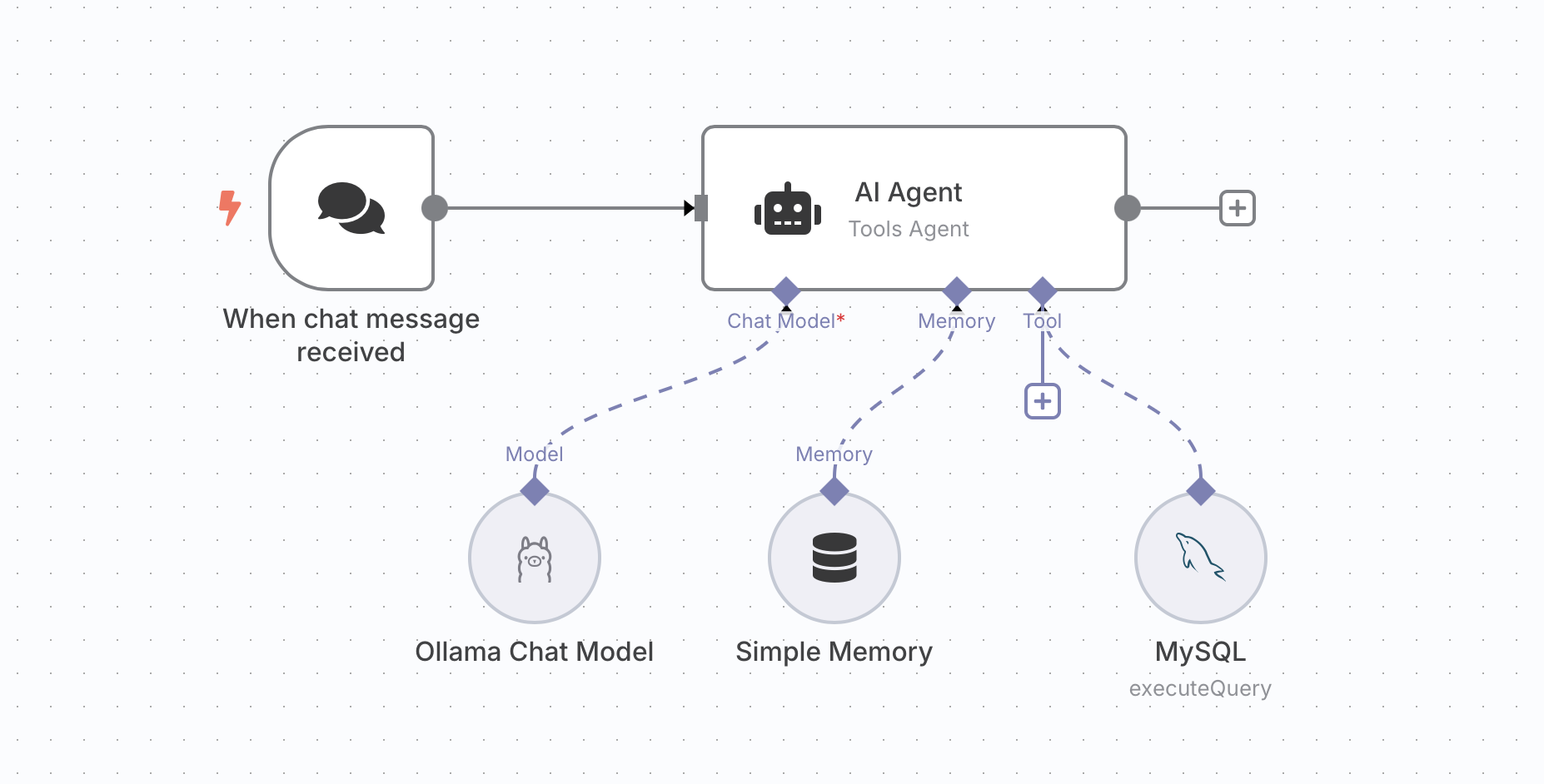
n8n provides nodes that you can combine into an AI Agent workflow. This section walks through building a Chat-to-OceanBase template by adding five nodes.
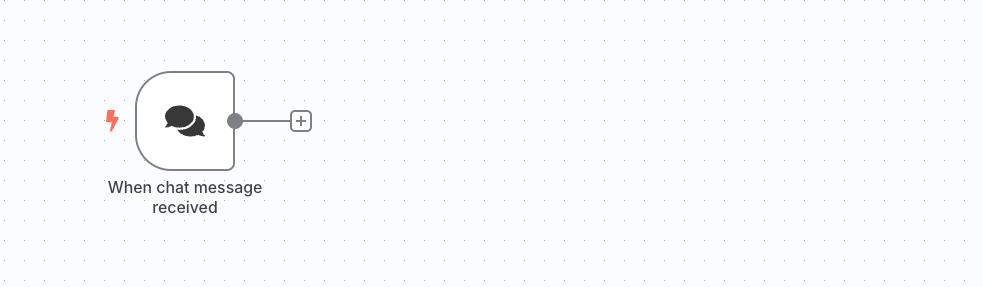
Add a trigger.
Add an HTTP Request trigger node to receive incoming HTTP requests.
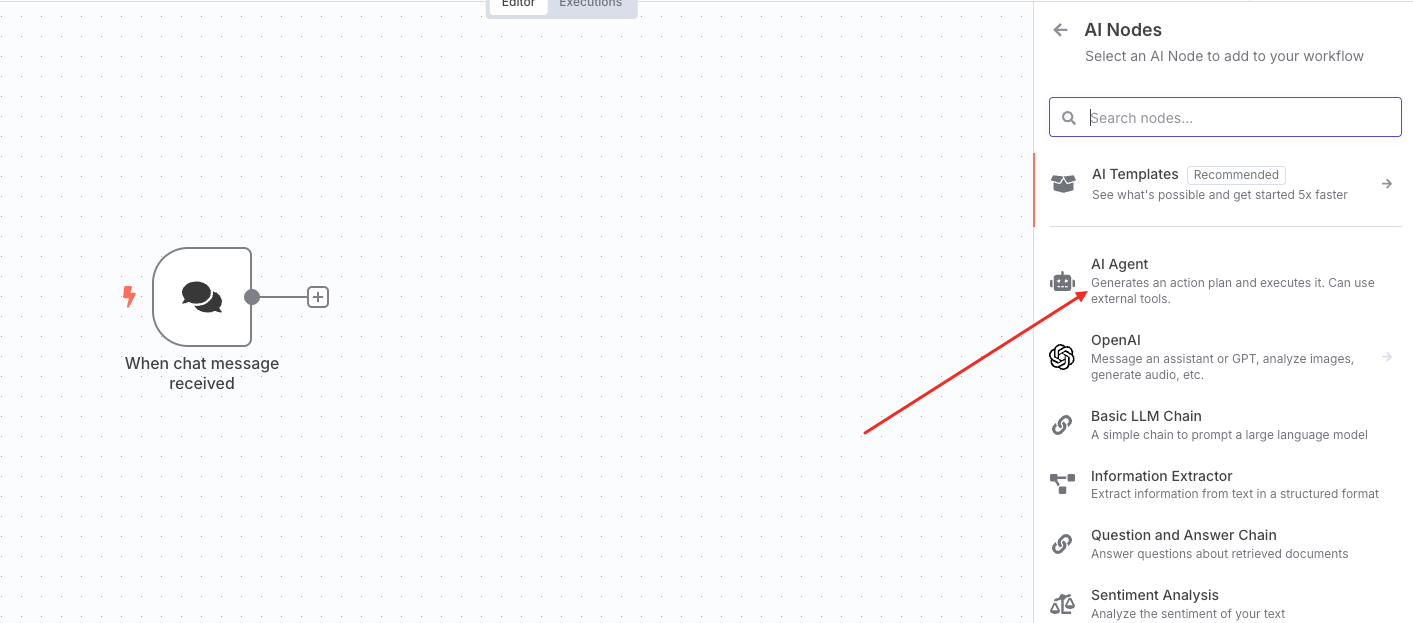
Add an AI Agent node.
Add an AI Agent node to handle the agent logic.
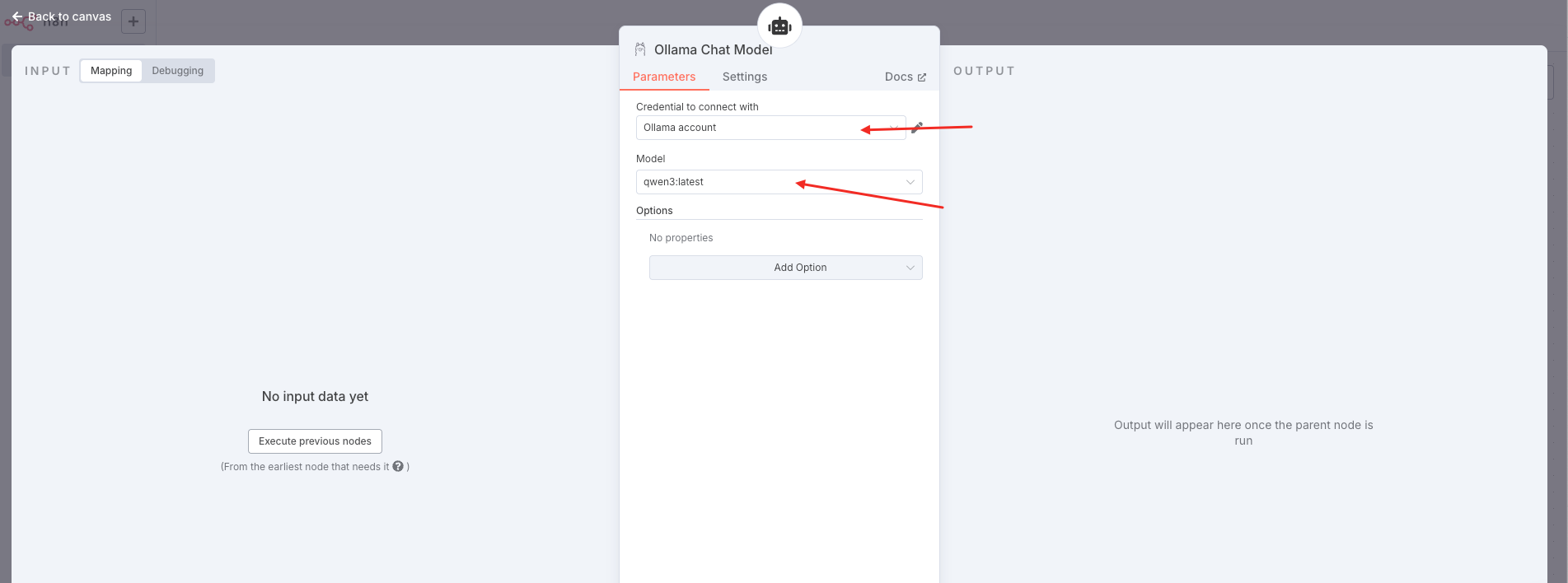
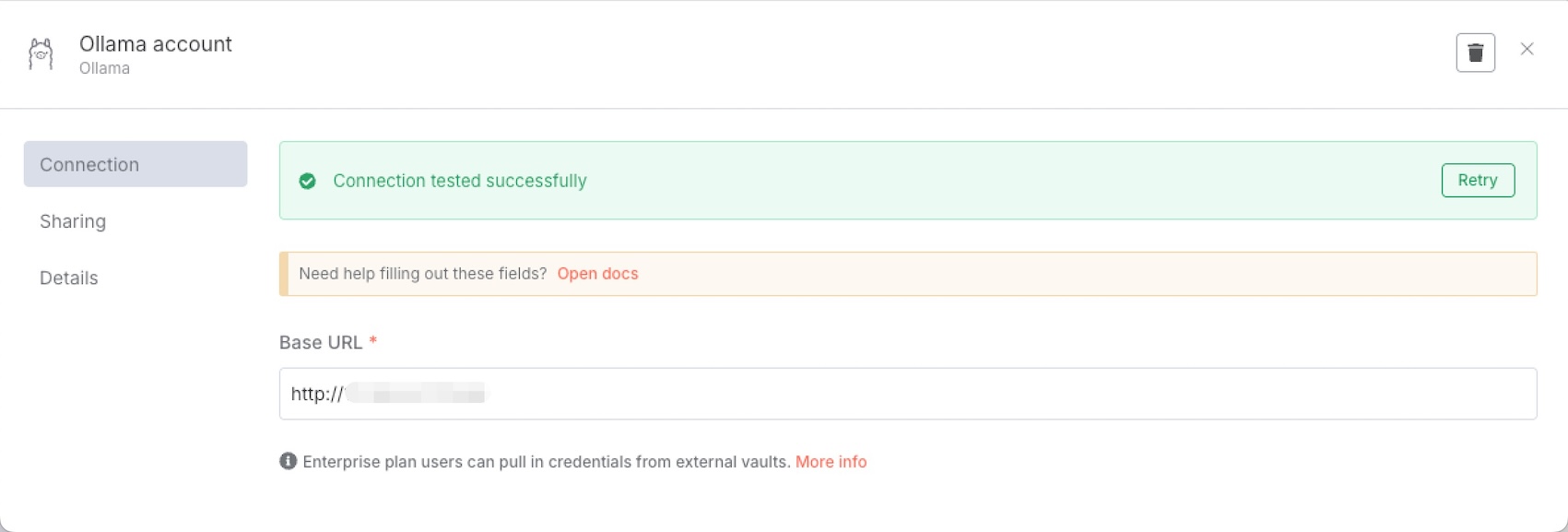
Add an Ollama Chat Model node.
You can choose from several free models. This example uses Qwen3. After selecting the model, configure the Ollama account.
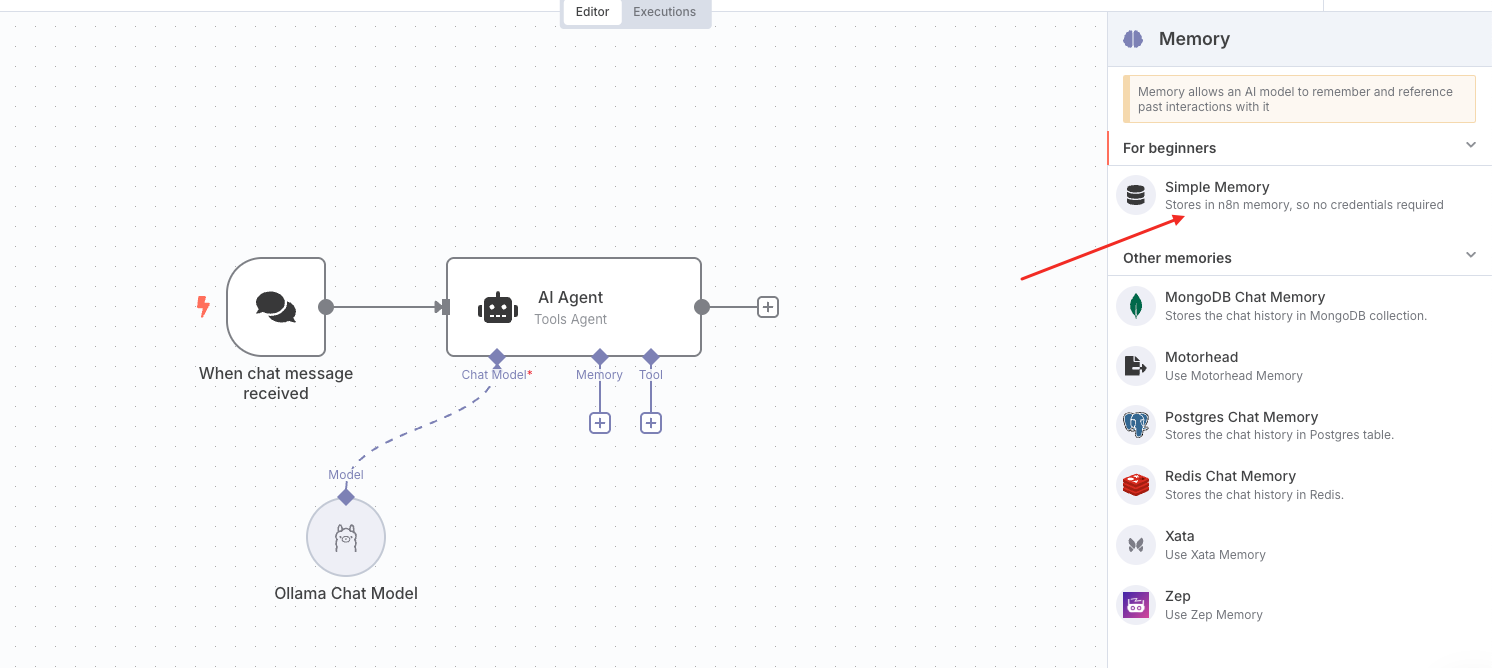
Add a Simple Memory node.
The Simple Memory node provides short-term context: it keeps the last five exchanges in the conversation.
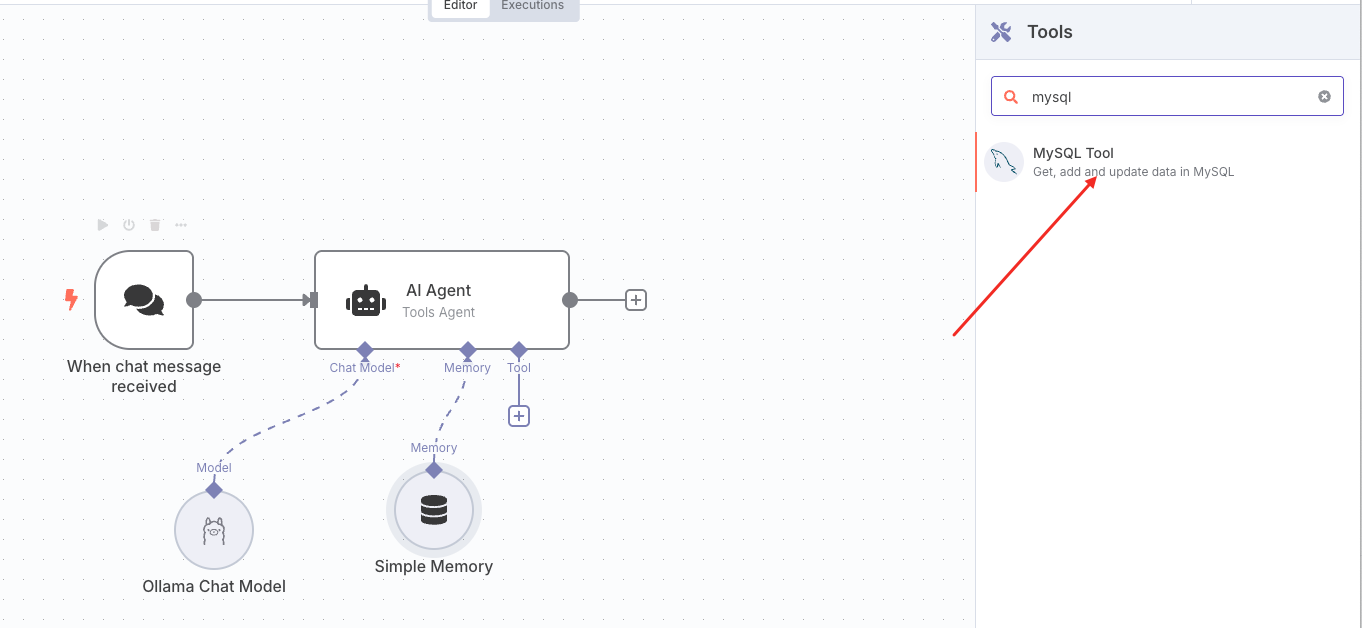
Add a Tool node.
The Tool node runs database operations against OceanBase. Under AI agent-tool, add a MySQL tool.
Configure the MySQL tool as follows:
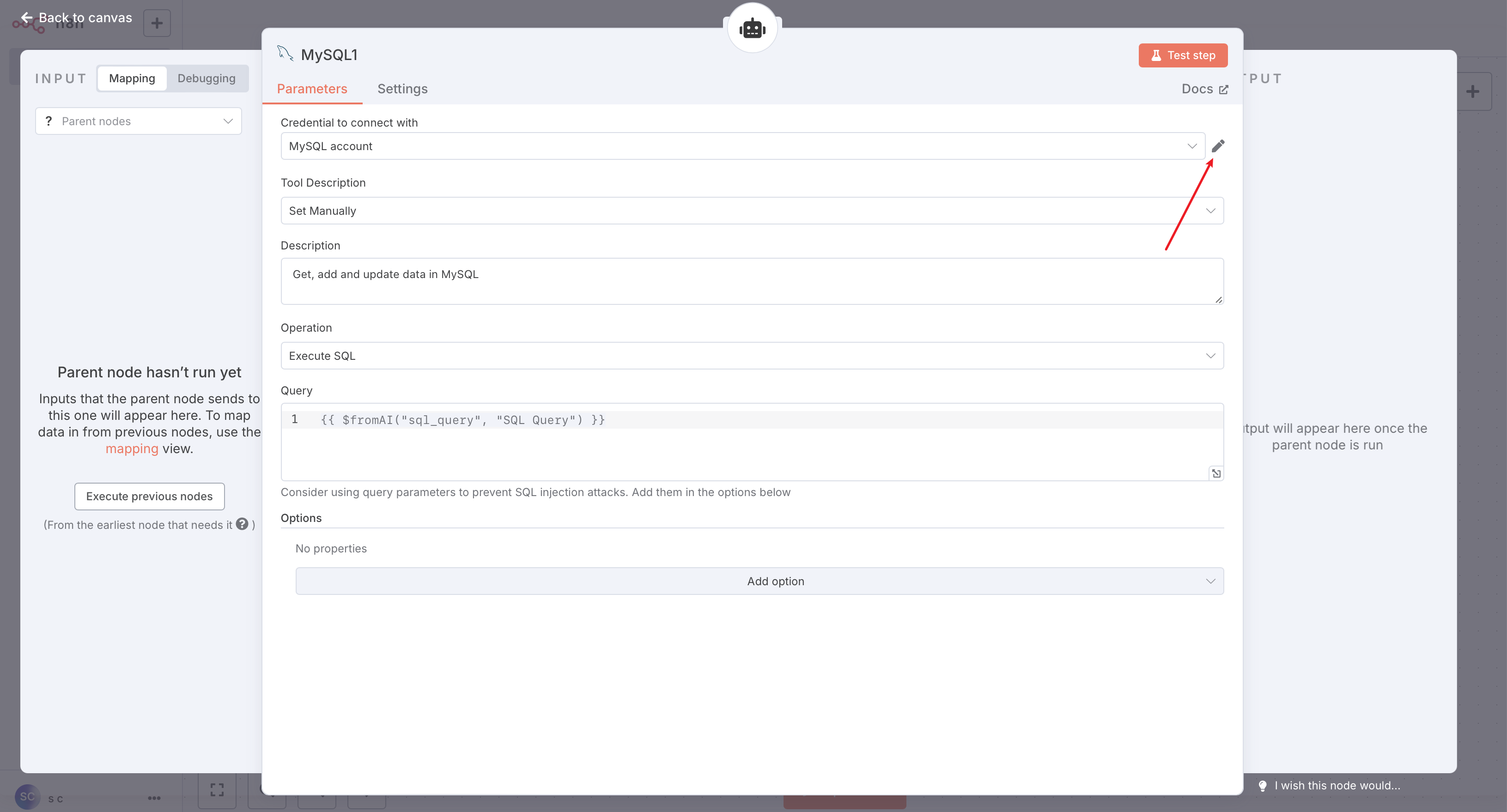
Click the Edit icon shown above and enter your MySQL (OceanBase) connection details.

After saving, you can click Test step in the top-right of the configuration panel to run a simple SQL test, or click Back to canvas to return to the workflow.
Save the workflow.
Once all five nodes are configured, save the workflow. You can then test it.
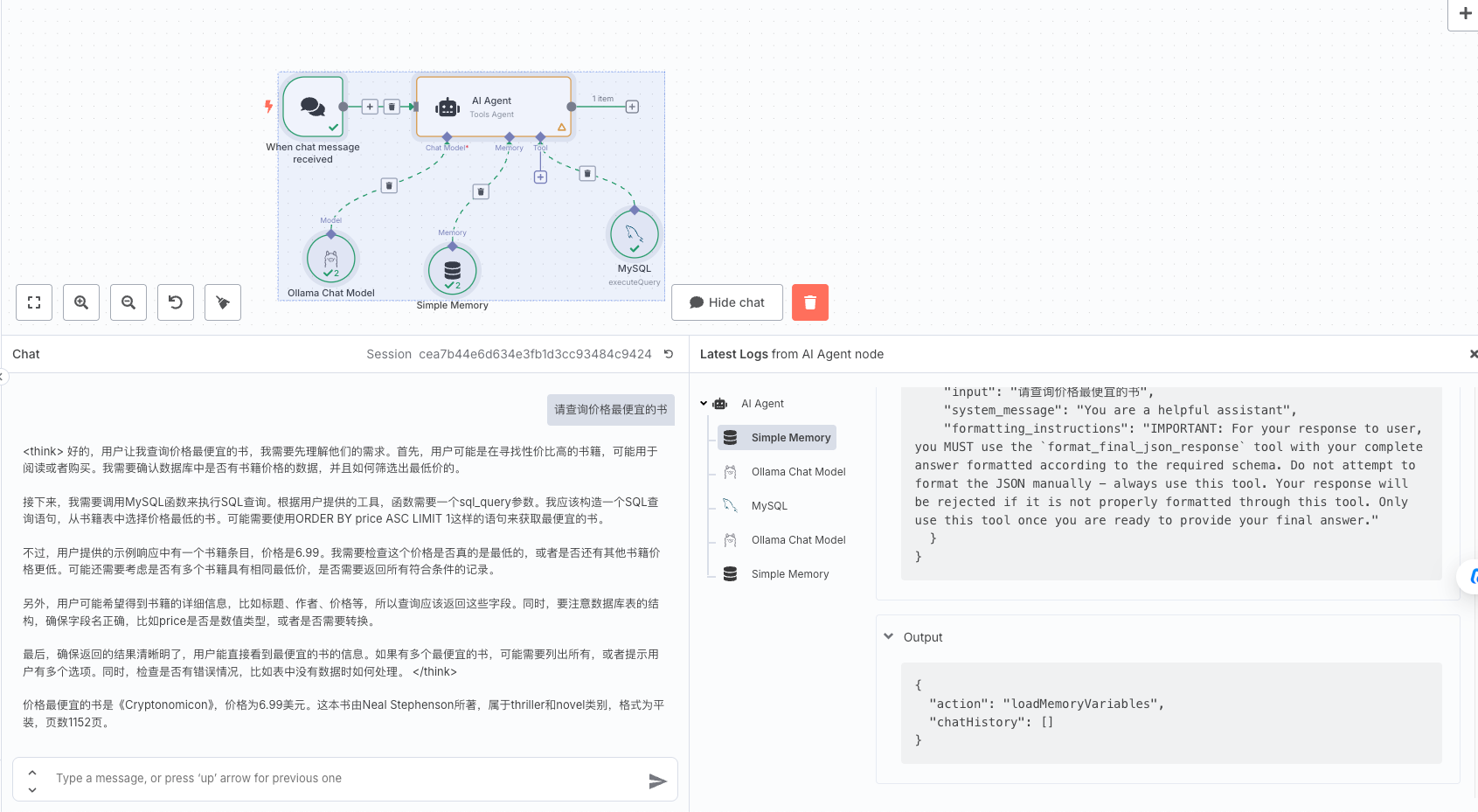
Workflow overview
The completed workflow looks like this: