






This topic describes how to use OceanBase Migration Service (OMS) to migrate data from one OceanBase database to another OceanBase database in the same tenant type.
Background information
You can create a data migration task in the OMS console to seamlessly migrate the existing business data and incremental data from a source OceanBase database to a target OceanBase database of the same type through schema migration, full migration, and incremental synchronization.
Prerequisites
You have created the corresponding schema in the target OceanBase database.
You have created dedicated database users for the source and target OceanBase databases for the data migration task and granted corresponding privileges to these users. For more information, see Create a database user.
If you want to migrate a table without a primary key, you need to create users and grant privileges to them as needed before you execute the data migration task. For more information, see Create the __oceanbase_inner_drc_user user.
Notice
If the version of OceanBase Database is earlier than V2.2.30, OMS does not support the migration of tables without primary keys.
Limitations
Limitations on the source database
Do not perform DDL operations for database or schema changes during the schema migration and full migration phases. Otherwise, the data migration task may be interrupted.
Data migration is supported only between databases of the same type in OceanBase Database.
Data can be migrated from the MySQL compatible mode of OceanBase Database to the MySQL compatible mode, or from the Oracle compatible mode of OceanBase Database to the Oracle compatible mode.
In the incremental synchronization scenario, if
useTargetIndex = false, and the target database uses the BINARY type as the primary key or unique key, the source data length does not equal the length of the BINARY type in the target database, the UPDATE or DELETE operation cannot match the data, and there is a risk of data quality.Data sources and user accounts must be globally unique in OMS.
OMS only supports migrating databases, tables, and column objects with ASCII-compliant names that do not contain special characters (spaces, line breaks, or .|"'`()=;/&\).
OMS does not support the migration of data from OceanBase Database V1.4.x to OceanBase Database V4.x.
The full migration will fail if there are temporary tables in the MySQL compatible mode of OceanBase Database V4.0.0 or earlier.
OMS does not support a primary key that contains the FLOAT or DOUBLE type.
If the source is OceanBase Database V1.4.79, the target must be V2.2.77 or later. If the source is OceanBase Database V2.1.0 or later, the source and target can be of different OceanBase Database versions.
In OMS V3.2.0 and later, a single migration task supports the migration of both tables with primary keys and tables without primary keys.
OMS does not support triggers in the target database. If triggers exist in the target database, the data migration may fail.
OMS does not support an OceanBase standby database as the source.
Considerations
For OceanBase Database V4.x, we recommend that you enable archive logs. With archive logs enabled, OMS can still achieve incremental synchronization capability by consuming archive logs even if Clogs are recycled. For more information about how to enable archive logs, see Archive logs.
If the source character set is UTF-8, we recommend that you use a compatible character set, such as UTF-8 or UTF-16, in the target database to avoid issues such as garbled characters due to incompatible character sets.
If the clocks between nodes or between the client and the server are out of synchronization, the latency (for incremental synchronization or reverse incremental synchronization) may be inaccurate.
For example, if the clock is earlier than the standard time, the latency can be negative. If the clock is later than the standard time, the latency can be positive.
During a one-way data migration task from an OceanBase Database of a version earlier than V3.2.x, if the source table with a global unique index has multiple partitions and you update the partition key of the table, data may be lost during the data migration.
Make sure that the migration precision of data types such as DECIMAL, FLOAT, or DOUBLE meets your expectations in OMS. If the precision of the target data type is smaller than that of the source data type, the target data may be truncated when it is migrated to the target column with a smaller precision. In this case, the data in the source column is inconsistent with that in the target column.
If you change the unique index in the target database without enabling DDL synchronization, you must restart the incremental synchronization component. Otherwise, the data in the target database may be inconsistent with that in the source database.
If the data migration task is not enabled for forward switchover, you must delete the unique indexes and pseudo columns in the target database. Otherwise, data cannot be written to the target database, and when data is imported to the downstream system, the pseudo columns are re-created, which causes conflicts with the pseudo columns in the source database.
If the data migration task is enabled for forward switchover, OMS automatically deletes hidden columns and unique indexes based on the type of the data migration task. For more information, see Data migration service hidden column mechanism.
In database or table aggregation scenarios:
We recommend that you map the relationships between the source and target databases by using matching rules.
We recommend that you manually create schemas in the target database. If you use OMS to create schemas, skip failed objects in the schema migration step.
If the source database is an OceanBase database and DDL synchronization is enabled, we recommend that you restart the data migration task if a table in the source database is renamed. This ensures that the data is not lost during incremental synchronization.
If the table objects in the source and target databases differ only in capitalization, the data migration result may not be as expected because the object names in the source and target databases are case-insensitive.
These points apply only to the MySQL compatible mode of OceanBase Database:
By default, when you migrate data from the MySQL compatible mode of OceanBase Database to another MySQL compatible OceanBase database, the parameter
lower_case_table_namesis set to1in the target database, and database objects in the target database are created in lowercase.If the schemas of the source and target tables are inconsistent, the data in the two databases may be inconsistent. Known scenarios are as follows:
When you manually create a table schema in the target database, if the data types of columns in the source and target columns are not supported by OMS, implicit data type conversion may occur, which causes inconsistent column types between the source and target columns.
If the length of a column in the target database is shorter than that in the source database, the data in this column may be truncated, which causes inconsistent data between the source and target databases.
These points apply only to the Oracle compatible mode of OceanBase Database:
A primary key table is a table that contains the
pkandnot null ukcolumns but does not contain thefunction-based ukcolumn.If the source database is earlier than V2.2.77 or the source table contains a
function-based ukon a virtual column, OMS may fail to accurately identify whether the source table is a primary key table. In this case, the full migration and full verification may be performed at a slower speed, and the incremental synchronization may be performed at an inconsistent speed.The
ALL_TABLESview in OceanBase Database of the Oracle compatible mode of V2.2.76 and earlier may incorrectly identify a partitioned table as a non-partitioned table and cause OMS to read incorrect view data. In this case, manually create the table in the target database. For more information, see Create a partitioned table.If you skip the "Source-Primary Database-ROW MOVEMENT Check" precheck item and synchronize a table where ROW MOVEMENT is enabled, the data in the source and target databases may be inconsistent.
If you configure only Incremental Synchronization when you create a data migration task, OMS requires that the archive logs in the source database be retained for more than 48 hours.
If you configure Full Migration + Incremental Synchronization when you create a data migration task, OMS requires that the archive logs in the source database be retained for at least seven days. Otherwise, the data migration task may fail or the data in the source and target databases may be inconsistent because OMS cannot obtain incremental logs.
Supported sources and targets
The following table describes the sources and the targets supported for data migration between OceanBase Database in MySQL compatible mode and OceanBase Database in Oracle compatible mode. In the table, OceanBase Database in MySQL compatible mode is abbreviated as OB_MySQL, and OceanBase Database in Oracle compatible mode is abbreviated as OB_Oracle.
Source |
Target |
|---|---|
| OB_MySQL (physical data source) | OB_MySQL (physical data source) |
| OB_MySQL (physical data source) | OB_MySQL (public cloud data source) |
| OB_MySQL (public cloud data source) | OB_MySQL (physical data source) |
| OB_MySQL (public cloud data source) | OB_MySQL (public cloud data source) |
| OB_MySQL (standalone data source) | OB_MySQL (standalone data source) |
| OB_MySQL (physical data source) | OB_MySQL (standalone data source) |
| OB_MySQL (public cloud data source) | OB_MySQL (standalone data source) |
| OB_MySQL (standalone data source) | OB_MySQL (physical data source) |
| OB_MySQL (standalone data source) | OB_MySQL (public cloud data source) |
| OB_Oracle (physical data source) | OB_Oracle (physical data source) |
| OB_Oracle (physical data source) | OB_Oracle (public cloud data source) |
| OB_Oracle (public cloud data source) | OB_Oracle (physical data source) |
| OB_Oracle (public cloud data source) | OB_Oracle (public cloud data source) |
| OB_Oracle (standalone data source) | OB_Oracle (standalone data source) |
| OB_Oracle (physical data source) | OB_Oracle (standalone data source) |
| OB_Oracle (public cloud data source) | OB_Oracle (standalone data source) |
| OB_Oracle (standalone data source) | OB_Oracle (physical data source) |
| OB_Oracle (standalone data source) | OB_Oracle (public cloud data source) |
Procedure
Create a data migration task.
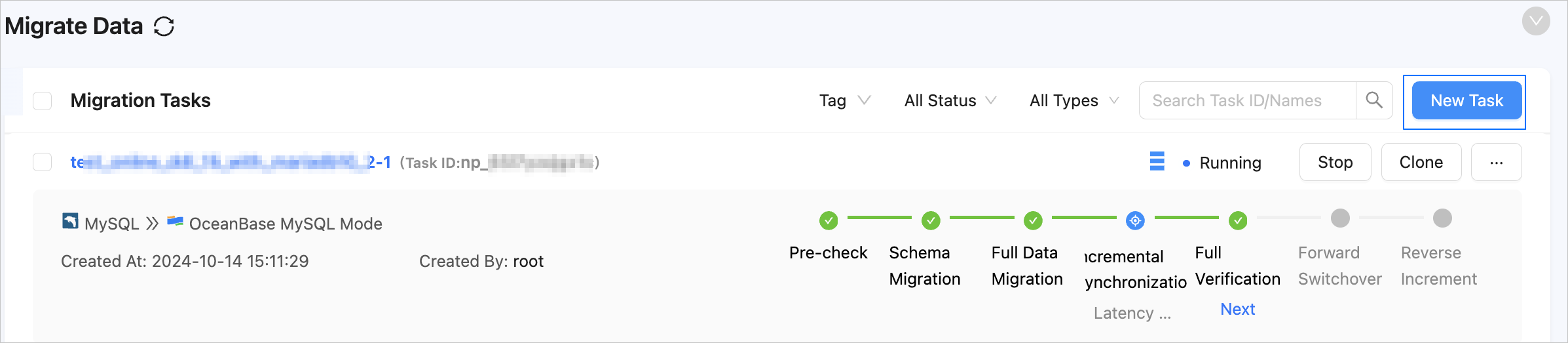
Log in to the OMS console.
In the left-side navigation pane, click Data Migration.
On the Data Migration page, click Create Task in the upper-right corner.
On the Create Task page, specify the task name.
We recommend that you use a combination of Chinese characters, numbers, and letters. The name cannot contain spaces and must be 64 characters or less in length.
Notice
The task name is a unique identifier in the OMS system. We recommend that you use a custom name.
On the Select Source and Target page, configure the parameters.
 ParameterDescription
Source If you have created an OceanBase data source (including a physical data source, public cloud data source, or standalone data source), select it from the drop-down list. Otherwise, click Create Data Source in the drop-down list to create one. For more information, see Create a physical data source for OceanBase Database, Create a public cloud data source for OceanBase Database, or Create a standalone data source for OceanBase Database. Destination If you have created an OceanBase data source (including a physical data source, public cloud data source, or standalone data source), select it from the drop-down list. Otherwise, click New Data Source in the drop-down list to create one. Scenario Valid values: Data Migration and Active-Active Disaster Recovery. Set the value to Data Migration. If you want to create a disaster recovery task, see Create an active-active disaster recovery task for OceanBase Database.
Notice:
The sources and targets must be OceanBase data sources of the same tenant type.Tags (Optional) Click the field and select a tag from the drop-down list. You can also click Manage Tags in the upper-right corner to create, modify, or delete a tag. For more information, see Manage tags of a data migration task. Click Next. On the Select Migration Type page, select the migration type for the current data migration task.
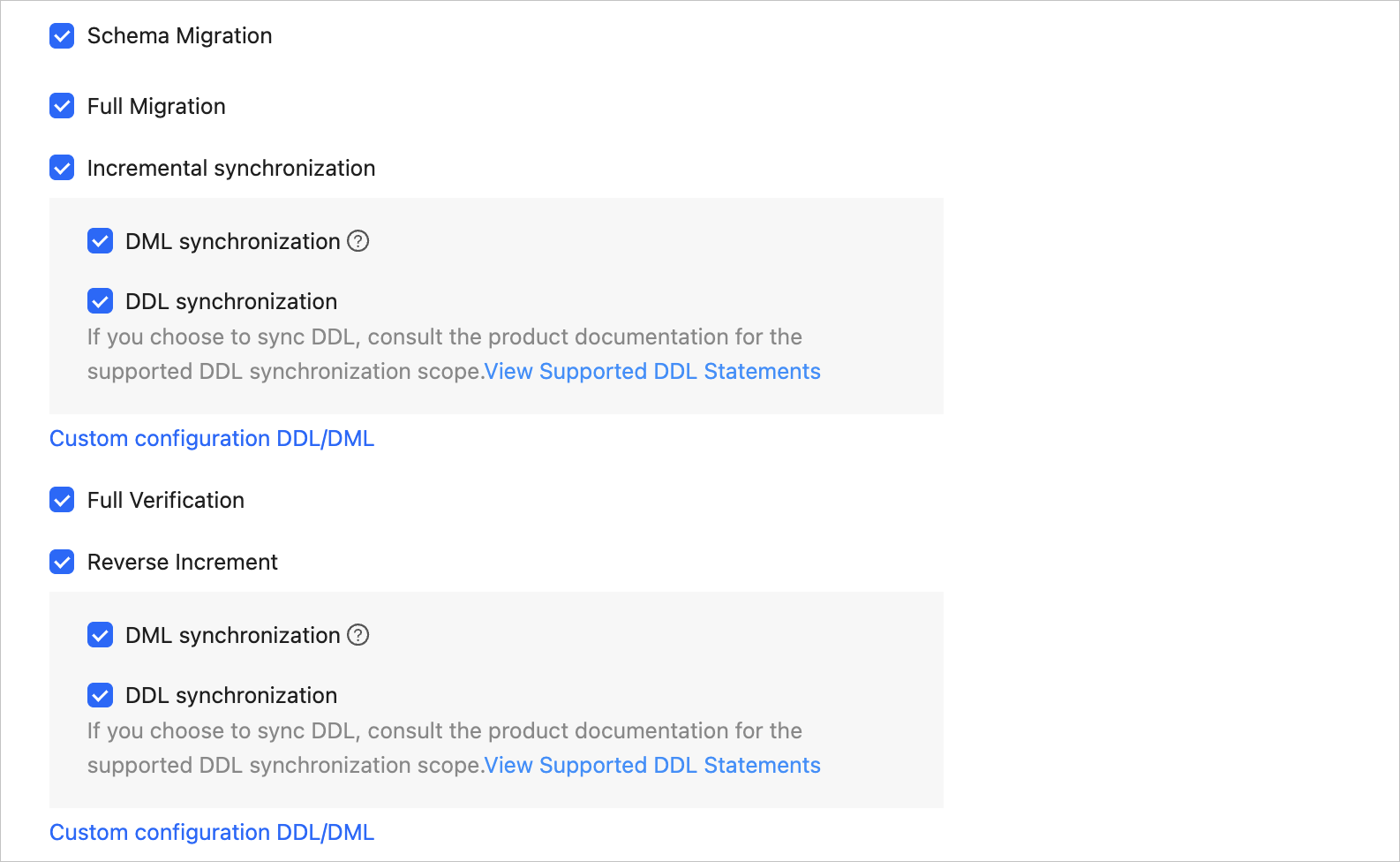
Migration Type includes Schema Migration, Full Migration, Incremental Synchronization, Full Verification, and Reverse Increment.
Migration typeDescriptionSchema Migration After the schema migration task starts, OMS migrates data objects in the source database to the destination database and automatically filters out temporary tables. Full Migration After the full migration task starts, OMS migrates the existing data in the source table to the corresponding table in the destination database. If you select Full Migration, we recommend that you collect the statistics of the source OceanBase database before the migration. For more information, see Manually collect statistics. Incremental Synchronization After the incremental synchronization task starts, OMS synchronizes the data that is added, modified, or deleted in the source database to the corresponding table in the destination database.
Incremental Synchronization includes DML synchronization and DDL synchronization, and you can configure them as needed. For more information, see Configure DDL/DML.Incremental Synchronization has the following limitations:- If you select DDL synchronization, OMS may interrupt the data migration when the source database performs a DDL operation that is not supported by OMS.
- If the DDL operation is to add a column, OMS may interrupt the data migration if you set the column attribute to NOT NULL.
Full Verification After full migration and incremental synchronization are completed, OMS automatically initiates a full data verification task for the data tables in the source database and destination database. - If you select Full Verification, we recommend that you collect the statistics of both the source and destination OceanBase databases before the full verification starts.
- If you select Incremental Synchronization and do not select all DML operations in DML synchronization, OMS does not support full data verification in this scenario.
Reverse Increment After the reverse incremental task starts, OMS can synchronize the changes in the destination database after the business switch to the source database in real time.
Usually, the reverse incremental task reuses the configurations of incremental synchronization. You can also configure them as needed. If the table to be migrated does not have a primary key, unique index, or has a large change volume, OMS may take a long time to synchronize data in the reverse incremental task. In this case, you can add a unique index to the source database.
You cannot select Reverse Increment in the following cases:- You have selected the Active-Active Disaster Recovery scenario.
- Multi-table aggregation is involved.
- Multiple source schemas map to the same target schema.
(Optional) Click Next.
If you select Schema Migration, Incremental Synchronization, or Reverse Increment, but the corresponding parameters are not configured for the OceanBase data source at the source or destination, a dialog box titled Add Data Source Information appears, reminding you to configure the parameters. For more information, see Create a physical data source for OceanBase Database, Create a public cloud data source for OceanBase Database, or Create a standalone data source for OceanBase Database.
After the parameters are configured, click Test connectivity. If the connection is established, click Save.
Click Next. On the Select Migration Objects page, select the objects to migrate.
You can use the Specify Objects and Matching Rules options to select migration objects. This topic describes how to select migration objects using the Specify Objects option. For information about how to configure matching rules, see Configure matching rules.
Notice
The name of a table to be migrated and the names of columns in the table must not contain Chinese characters.
If the name of a database or table contains the characters "$$", the data migration task cannot be created.
If you selected DDL Synchronization in the Choose Migration Type step, we recommend that you select the matching rules to specify migration objects. This way, you can ensure that all new objects that meet the migration object rules are synchronized. If you specify migration objects by using the Specify Object option, new objects or renamed objects will not be synchronized.
OMS automatically filters out unsupported objects. For information about the SQL statements for querying objects, see SQL statements for querying database objects.

On the Select Migration Objects page, set the Specify Object parameter to Specify Objects.
Select the tables and views in the Source Object(s) list that you want to migrate. You can select tables and views in one or more databases.
Click > to add them to the Target Object(s) list.
OMS allows you to import objects by using a text file, rename objects, set row filters, view column information, and remove one or all migration objects.
Note
When you use the Matching Rules method to select migration objects, the rename capability is replaced by the matching rules syntax. You can only set filter conditions. For more information, see Configure matching rules.
OperationStepsImport objects - In the Target Object(s) list, click the Import Objects icon in the upper-right corner.
- In the dialog box that appears, click OK.
Notice:
Importing overwrites the results of previous operations. Proceed with caution. - In the Import Migration Objects dialog box, select the objects to be migrated.
You can import a CSV file to rename databases and tables and set row filters. For more information, see Download and import migration object configurations. - Click Validate.
- If the imported objects are valid, click OK.
Rename OMS allows you to rename migration objects. For more information, see Rename a database or table. Set OMS allows you to use the WHEREcondition to set row filters. For more information, see Filter data by using SQL conditions.
You can also view the column information of the selected migration object in the View Column section.Remove/Remove All OMS allows you to remove one or all selected objects from the target list. - Remove a migration object
Hover the pointer over the target object in the Target Object(s) list and click the Remove icon displayed. - Remove all migration objects
Click the Remove All icon in the upper-right corner of the Target Object(s) list. In the dialog box that appears, click OK to remove all migration objects.
Click Next. On the Migration Type page, configure the parameters.
Schema Migration
The parameters described below will be displayed only if you select Schema Migration in the Select Migration Type step.
ParameterDescriptionAutomatically Enter Next Stage upon Completion Specifies whether to automatically proceed to the next phase after schema migration is completed. The default value is Yes. You can also view and modify this parameter on the Schema Migration tab of the data migration task. Normal Index Migration Method The migration method for non-unique key indexes associated with the migrated table objects. Valid values: Do Not Migrate, Migrate with Schema, and Post-Full-Migration. The value Post-Full-Migration is displayed only if full migration is selected. Full Migration
The parameters described below will be displayed only if you select Full Migration in the Select Migration Type step.
 ParameterDescription
Full Migration Rate Limit You can decide whether to enable the full migration rate limit based on your business requirements. If you enable it, specify the RPS and BPS. Note
The RPS and BPS specified here only serve as throttling capabilities. The actual full migration performance is limited by factors such as the source and destination databases and the instance specifications.
Full Migration Resource Configuration You can select the default settings of read concurrency, write concurrency, and memory for full migration, or customize the resource configuration for full migration. The resource configuration for full migration component Full-Import limits the resource consumption of the full migration phase of the task. Note
The minimum value is 1 and only integers are supported.
Handle Non-empty Tables in Target Database Valid values: Ignore and Stop Migration. - If you select Ignore, when the data to be inserted conflicts with the existing data of a target table, OMS retains the existing data and records the conflict data.
Notice
If you select Ignore, data is pulled in IN mode for full verification. In this case, the scenario where the target table contains more data than the source table cannot be verified, and the verification efficiency will be decreased.
- If you select Stop Migration and a target table contains data, an error is returned during full migration, indicating that the migration is not allowed. In this case, you must clear the data in the target table before you can continue with the migration.
Notice
After an error is returned, if you click Resume in the dialog box, OMS ignores this error and continues to migrate data. Proceed with caution.
- If you select Ignore, when the data to be inserted conflicts with the existing data of a target table, OMS retains the existing data and records the conflict data.
Incremental Synchronization
The parameters described below will be displayed only if you select Incremental Synchronization in the Select Migration Type step.
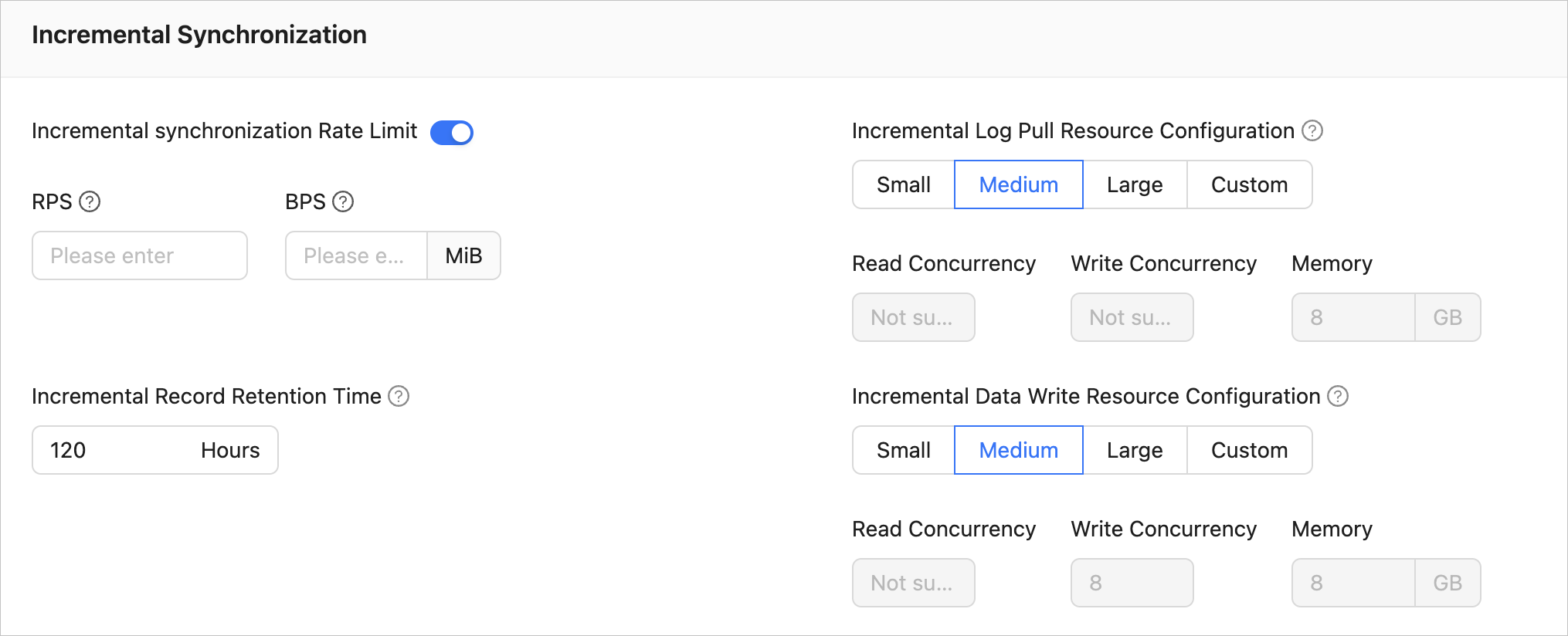 ParameterDescription
Incremental Synchronization Rate Limit You can decide whether to enable the incremental synchronization rate limit based on your business requirements. If you enable it, specify the RPS and BPS. Note
The RPS and BPS specified here only serve as throttling capabilities. The actual incremental synchronization performance is limited by factors such as the source and destination databases and the instance specifications.
Incremental Log Pull Resource Configuration You can select the default settings of memory for incremental log pull, or customize the resource configuration for incremental log pull. The resource configuration for incremental pull component Store limits the resource consumption of log pull in the incremental synchronization phase of the task. Note
The minimum value is 1 and only integers are supported.
Incremental Data Write Resource Configuration You can select the default settings of write concurrency and memory for incremental data write, or customize the resource configuration for incremental data write. The resource configuration for incremental synchronization component Incr-Sync limits the resource consumption of data write in the incremental synchronization phase of the task. Note
The minimum value is 1 and only integers are supported.
Incremental Record Retention Time The retention period of incremental parsing files in cache in OMS. The longer the retention period, the more disk space the Store component consumes. Incremental Synchronization Start Point - This parameter is not displayed if you selected Full Migration in the Choose Migration Type step.
- If you selected Full Migration in the Choose Migration Type step, this parameter is displayed. In this case, you can specify the point in time after which data is to be migrated in the incremental synchronization task. The default value is the current system time. For more information, see Set the incremental synchronization start point.
Reverse Increment
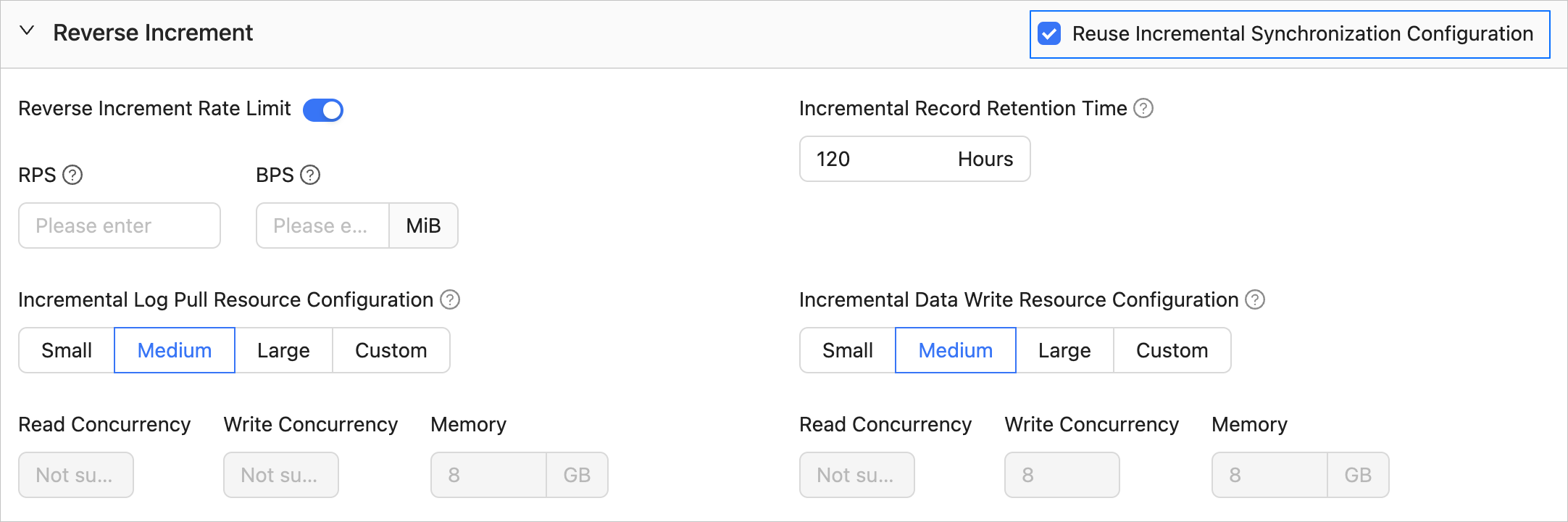
The parameters described below will be displayed only if you select Reverse Increment in the Select Migration Type step. The parameters for reverse incremental migration are the same as those for incremental synchronization. You can select the Reuse Incremental Synchronization Configuration check box in the upper-right corner.
Full Verification
The parameters described below will be displayed only if you select Full Verification in the Select Migration Type step.
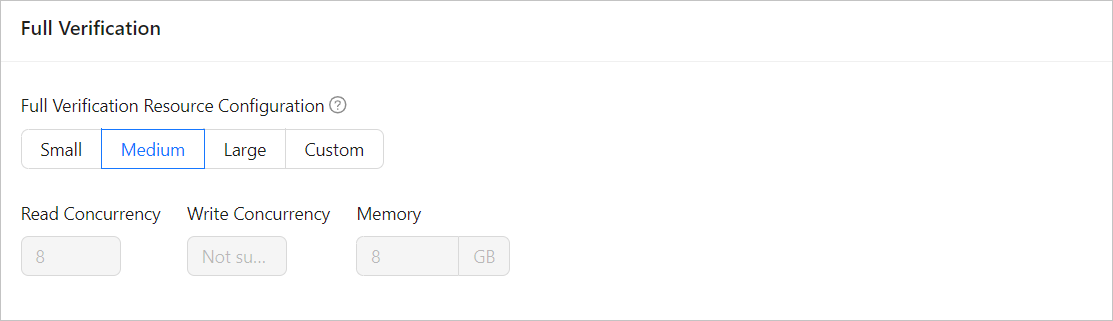 ParameterDescription
Full Verification Resource Configuration You can select the default settings of read concurrency and memory for full verification, or customize the resource configuration for full verification. The resource configuration for full verification component Full-Verification limits the resource consumption of the full verification phase of the task. Note
The minimum value is 1 and only integers are supported.
Advanced Options
ParameterDescriptionAdd Hidden Columns for Tables Without Non-null Unique Keys If data is to be migrated between OceanBase databases, you need to specify whether to add hidden columns for tables without non-null unique keys. For more information, see Hidden column mechanisms.
If you set the value to No, if the table to be migrated does not have a primary key or a non-null unique key, data duplication may occur when the task is restarted or encounters other exceptions. We recommend that you configure a non-null unique key for all tables.Destination Table Object Storage Type This parameter is displayed only if the destination OceanBase database is V4.3.0 or later, and you selected DDL synchronization or Incremental Synchronization > DDL synchronization in the Select Migration Type step.
The valid values are Default, Row storage, Column storage, and Hybrid columnar storage. This parameter determines the storage type of table objects in the destination database for schema migration or incremental synchronization. For more information, see default_table_store_format.Note
The Default value adapts other options based on the destination database parameters. It specifies the storage type for table objects in the destination database based on the settings for new table objects in incremental DDL synchronization.
Source Table Object Storage Type This parameter is displayed only if the source OceanBase database is V4.3.0 or later, and you selected Reverse Increment > DDL synchronization in the Select Migration Type step.
The valid values are Default, Row storage, Column storage, and Hybrid columnar storage. This parameter determines the storage type for table objects in the source database for incremental DDL synchronization in reverse incremental migration. For more information, see default_table_store_format.Note
The Default value adapts other options based on the destination database parameters. It specifies the storage type for new table objects in incremental DDL synchronization in reverse incremental migration.
If the parameters on the current page cannot satisfy your requirements, you can click Parameter Configuration at the bottom of the page to configure the parameters in more details. If you have a preconfigured task template or component template, you can also reference them here.
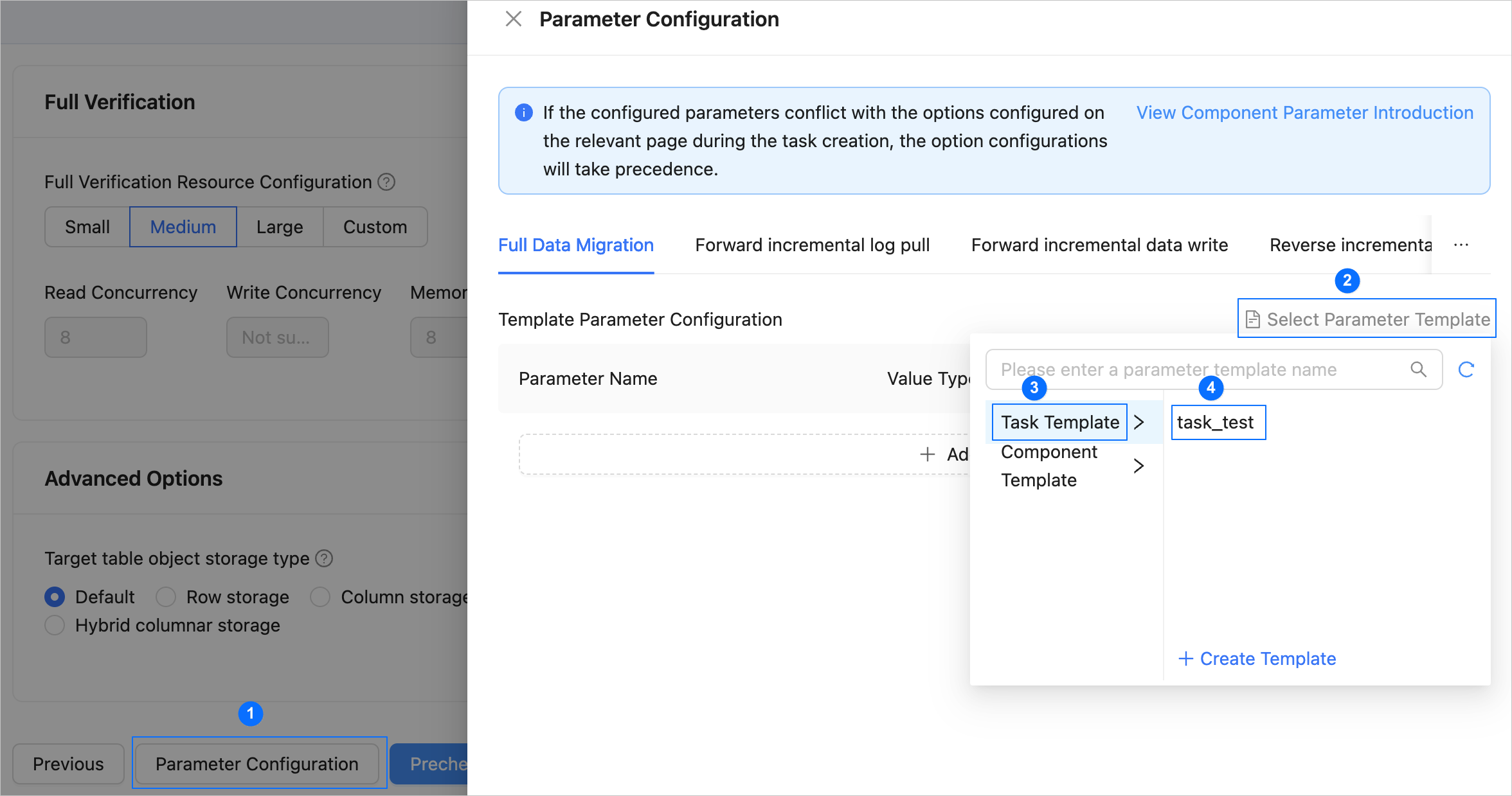
Click Precheck. The system performs a precheck on the data migration task.
In the Precheck step, OMS checks whether the database user has the required read/write permissions and whether the database network connection is established. The data migration task cannot be started unless all checks are passed. If the precheck fails:
You can troubleshoot the issues and retry the precheck until it succeeds.
You can also click Skip in the Actions column of the failed check item. A dialog box then appears, describing the impact of the skipped operation. After you confirm the skip, click OK in the dialog box.
Click Start Task. If you do not want to start the task immediately, you can click Save to go to the details page of the data migration task, where you can start the task at any time.
During the data migration task, you can modify the migration objects. For more information, see View and modify migration objects. After the data migration task starts, it will proceed to the next phase based on the selected migration type. For more information, see the View Migration Details section in View details of a data migration task.