

OceanBase logo

OceanBase

A unified distributed database ready for your transactional, analytical, and AI workloads.

DEPLOY YOUR WAY

OceanBase Cloud

The best way to deploy and scale OceanBase

OceanBase Enterprise

Run and manage OceanBase on your infra

TRY OPEN SOURCE

OceanBase Community Edition

The free, open-source distributed database

OceanBase seekdb

Open source AI native search database

Customer Stories

Real-world success stories from enterprises across diverse industries.

View All
BY USE CASES

Mission-Critical Transactions

Global & Multicloud Application

Elastic Scaling for Peak Traffic

Real-time Analytics

Active Geo-redundancy

Database Consolidation

Resources

Comprehensive knowledge hub for OceanBase.

Blog

Live Demos

Training & Certification

Documentation

Official technical guides, tutorials, API references, and manuals for all OceanBase products.

View All
PRODUCTS

OceanBase Cloud

OceanBase Database

Tools

Connectors and Middleware

QUICK START

OceanBase Cloud

OceanBase Database

BEST PRACTICES

Practical guides for utilizing OceanBase more effectively and conveniently

Company

Learn more about OceanBase – our company, partnerships, and trust and security initiatives.

About OceanBase

Partner

Trust Center

Contact Us

International - English
中国站 - 简体中文
日本 - 日本語
Sign In
Start on Cloud

A unified distributed database ready for your transactional, analytical, and AI workloads.

DEPLOY YOUR WAY

OceanBase Cloud

The best way to deploy and scale OceanBase

OceanBase Enterprise

Run and manage OceanBase on your infra

TRY OPEN SOURCE

OceanBase Community Edition

The free, open-source distributed database

OceanBase seekdb

Open source AI native search database

Customer Stories

Real-world success stories from enterprises across diverse industries.

View All
BY USE CASES

Mission-Critical Transactions

Global & Multicloud Application

Elastic Scaling for Peak Traffic

Real-time Analytics

Active Geo-redundancy

Database Consolidation

Comprehensive knowledge hub for OceanBase.

Blog

Live Demos

Training & Certification

Documentation

Official technical guides, tutorials, API references, and manuals for all OceanBase products.

View All
PRODUCTS
OceanBase CloudOceanBase Database
ToolsConnectors and Middleware
QUICK START
OceanBase CloudOceanBase Database
BEST PRACTICES

Practical guides for utilizing OceanBase more effectively and conveniently

Learn more about OceanBase – our company, partnerships, and trust and security initiatives.

About OceanBase

Partner

Trust Center

Contact Us

Start on Cloud
编组
All Products
    • Databases
    • iconOceanBase Database
    • iconOceanBase Cloud
    • iconOceanBase Tugraph
    • iconInteractive Tutorials
    • iconOceanBase Best Practices
    • Tools
    • iconOceanBase Cloud Platform
    • iconOceanBase Migration Service
    • iconOceanBase Developer Center
    • iconOceanBase Migration Assessment
    • iconOceanBase Admin Tool
    • iconOceanBase Loader and Dumper
    • iconOceanBase Deployer
    • iconKubernetes operator for OceanBase
    • iconOceanBase Diagnostic Tool
    • iconOceanBase Binlog Service
    • Connectors and Middleware
    • iconOceanBase Database Proxy
    • iconEmbedded SQL in C for OceanBase
    • iconOceanBase Call Interface
    • iconOceanBase Connector/C
    • iconOceanBase Connector/J
    • iconOceanBase Connector/ODBC
    • iconOceanBase Connector/NET
icon

OceanBase Developer Center

V3.2.2Community Edition

  • OceanBase Developer Center Documentation
  • What's New
    • Product updates
  • Overview
    • What is ODC?
    • Benefits
    • Architecture
    • Features
    • Limits
  • Quick Start
    • Overview
    • Install ODC
    • Log on to ODC with an account
    • Create a private connection
  • Tutorials
    • Tips on the SQL Console
    • Create a connection
    • Export data
    • Import data
    • Debug a stored procedure
    • View the performance of an SQL statement
  • User Guide (Web ODC)
    • Log on to ODC
      • Log on to ODC with an account
      • Change the password
    • ODC homepage
    • Connect to a database
      • Create a private connection
      • Manage private connections
    • Public resource management
      • Overview
      • Member management
        • Manage users
        • Manage roles
      • Resource management
        • Manage public connections
        • Manage resource groups
      • System settings
    • Use the workspace
      • Overview
      • SQL window
      • Anonymous block window
      • Command-line window
      • Stored scripts
      • Snippet
    • Use tools
      • Data export and import
        • Overview
        • Export and import formats
        • Batch export and import
        • Single table export and import
      • Data mocking
      • Asynchronous execution
    • Recycle bin
    • Task management
      • Overview
      • Import tasks
      • Export tasks
      • Data mocking tasks
      • Asynchronous tasks
    • Session management
    • Database objects
      • Table objects
        • Overview
        • Create a table
        • Table list
        • Manage table attributes
        • Manage table data
      • View objects
        • Overview
        • Create a view
        • Manage views
      • Function objects
        • Overview
        • Create a function
        • Manage functions
      • Stored procedure objects
        • Overview
        • Create a stored procedure
        • Manage stored procedures
      • Sequence objects
        • Overview
        • Create a sequence
        • Manage sequences
      • Package objects
        • Overview
        • Create a program package
        • Manage program packages
      • Trigger objects
        • Overview
        • Create a trigger
        • Manage triggers
      • Type objects
        • Overview
        • Create a type
        • Manage types
      • Synonym objects
        • Overview
        • Create a synonym
        • Manage synonyms
    • Help center
    • Revision note
  • User Guide (Client ODC)
    • Install ODC
    • ODC homepage
    • Connect to a database
      • Create a connection
      • Manage connections
    • Use the workspace
      • Overview
      • SQL window
      • Anonymous block window
      • Command-line window
      • Stored scripts
      • Snippet
    • Use tools
      • Data export and import
        • Overview
        • Export and import formats
        • Batch export and import
        • Single table export and import
      • Data mocking
      • Asynchronous execution
    • Recycle bin
    • Task management
      • Overview
      • Import tasks
      • Export tasks
      • Data mocking tasks
      • Asynchronous tasks
    • Session management
    • Database objects
      • Table objects
        • Overview
        • Create a table
        • Table list
        • Manage table attributes
        • Manage table data
      • View objects
        • Overview
        • Create a view
        • Manage views
      • Function objects
        • Overview
        • Create a function
        • Manage functions
      • Stored procedure objects
        • Overview
        • Create a stored procedure
        • Manage stored procedures
      • Sequence objects
        • Overview
        • Create a sequence
        • Manage sequences
      • Package objects
        • Overview
        • Create a program package
        • Manage program packages
      • Trigger objects
        • Overview
        • Create a trigger
        • Manage triggers
      • Type objects
        • Overview
        • Create a type
        • Manage types
      • Synonym objects
        • Overview
        • Create a synonym
        • Manage synonyms
    • Help center
    • Revision note
  • Deployment Guide
    • Deployment overview
    • Preparations before deployment
    • Deploy a single ODC node
      • Deployment process
      • Load and run an ODC image
    • Deploy ODC in high availability mode
      • Deployment process
      • Load and run an ODC image
      • Deploy SSL certificate
      • Deploy the NGINX proxy
      • Configure certificate trust
    • Deployment verification
    • Revision note
  • Upgrade Guide
    • Overview
    • Preparation for upgrade
    • Upgrade single-node ODC
      • Upgrade process
      • Stop ODC of the earlier version
      • Load and run an ODC image
    • Upgrade high-availability
      • Upgrade process
      • Stop ODC of the earlier version
      • Load and run an ODC image
      • Upgrade NGINX image
    • Upgrade verification
    • Rollback after upgrade failed
    • Revision note
  • FAQ

Download PDF

OceanBase Developer Center DocumentationProduct updates What is ODC? Benefits Architecture Features Limits Overview Install ODC Log on to ODC with an account Create a private connection Tips on the SQL Console Create a connection Export data Import data Debug a stored procedure View the performance of an SQL statement Log on to ODC with an account Change the password ODC homepage Create a private connection Manage private connections Overview System settings Overview SQL window Anonymous block window Command-line window Stored scripts Snippet Data mocking Asynchronous execution Recycle bin Overview Import tasks Export tasks Data mocking tasks Asynchronous tasks Session management Help center Revision note Install ODC ODC homepage Create a connection Manage connections Overview SQL window Anonymous block window Command-line window Stored scripts Snippet Data mocking Asynchronous execution Recycle bin Overview Import tasks Export tasks Data mocking tasks Asynchronous tasks Session management Help center Revision note Deployment overview Preparations before deployment Deployment process Load and run an ODC image Deployment process Load and run an ODC image Deploy SSL certificate Deploy the NGINX proxy Configure certificate trust Deployment verification Revision note Overview Preparation for upgrade Upgrade process Stop ODC of the earlier version Load and run an ODC image Upgrade process Stop ODC of the earlier version Load and run an ODC image Upgrade NGINX image Upgrade verification Rollback after upgrade failed Revision note FAQ
OceanBase logo

The Unified Distributed Database for the AI Era.

Follow Us
Products
OceanBase CloudOceanBase EnterpriseOceanBase Community EditionOceanBase seekdb
Resources
DocsBlogLive DemosTraining & Certification
Company
About OceanBaseTrust CenterLegalPartnerContact Us
Follow Us

© OceanBase 2026. All rights reserved

Cloud Service AgreementPrivacy PolicySecurity
Contact Us
Document Feedback
  1. Documentation Center
  2. OceanBase Developer Center
  3. V3.2.2
iconOceanBase Developer Center
V 3.2.2Community Edition
  • V 4.4.2
  • V 4.4.1
  • V 4.4.0
  • V 4.3.4
  • V 4.3.3
  • V 4.3.2
  • V 4.3.1
  • V 4.3.0
  • V 4.2.4
  • V 4.2.3
  • V 4.2.2
  • V 4.2.1
  • V 4.2.0
  • V 4.1.3 and earlier
Community Edition
  • V 4.1.0
  • V 4.0.0
  • V 3.3.2
  • V 3.2.2
Enterprise Edition
  • V 4.1.3
  • V 3.4.0

ODC homepage

Last Updated:2026-04-13 07:35:39  Updated
share
What is on this page
Overview
Manage database connections
Public resource console
Switch the language
Personal settings
Change the password
Log off
Help
Related tools
Related resources

folded

share

Overview

After you log on to OceanBase Developer Center (ODC), the ODC homepage automatically appears.

On the ODC homepage, you can click Task or Help in the top navigation bar to go to the Task Center or Help Center. You can also perform the following operations on the page: managing database connections, switching the language, setting personal information, changing the password, and logging off ODC. On the right side of the homepage, you can also find the Help, Related Tools, and Related Resources tabs.
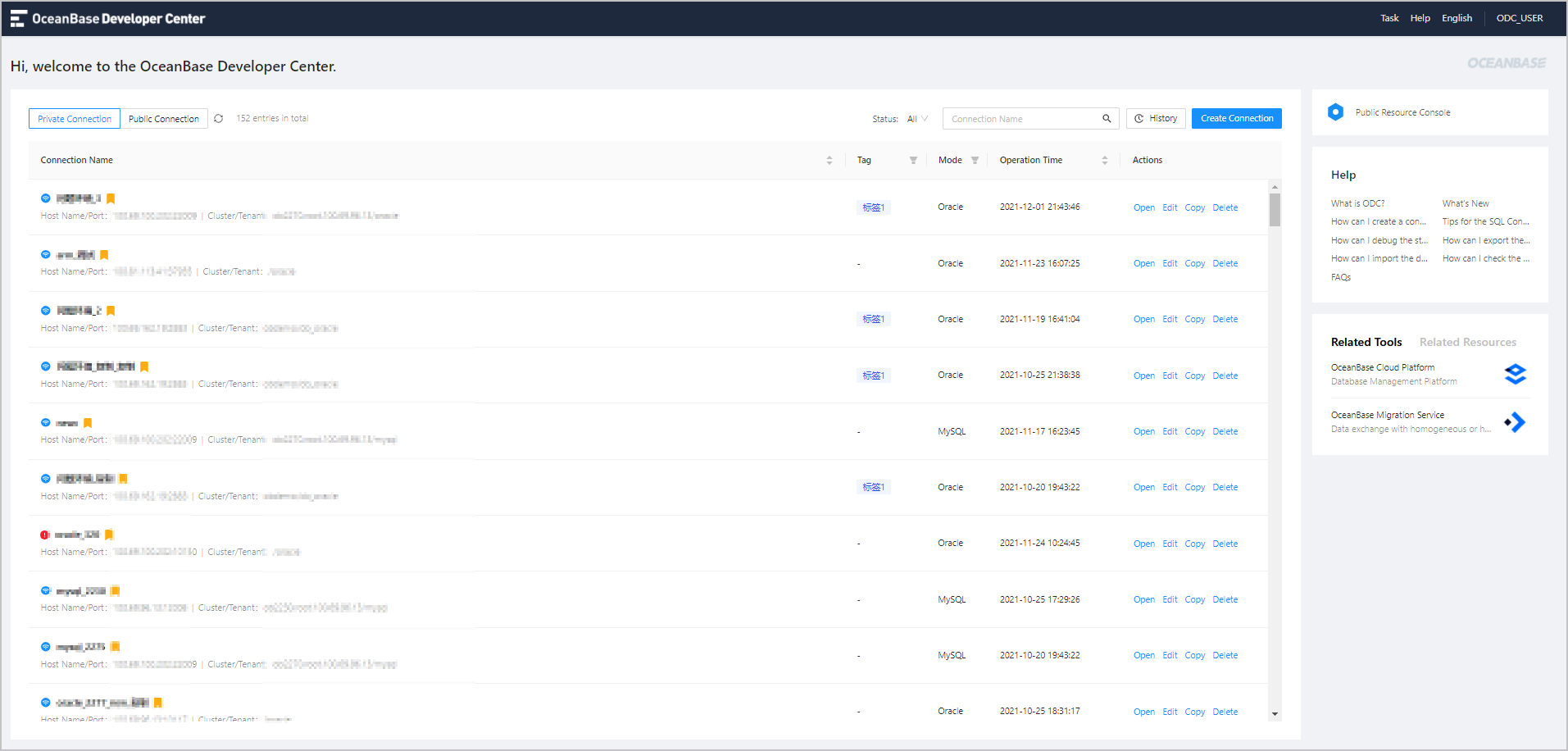
Image 878

Manage database connections

The ODC homepage provides the Private Connection tab that shows the connections you have created, and the Public Connection tab that shows the public connections that you have the permission to access.

  • On the Private Connection tab, you can click All Modes to filter connections to the databases in MySQL or Oracle mode. For more information, see Manage private connections.
  • On the Public Connection tab, you can click All Modes to filter connections to the databases in MySQL or Oracle mode, and click All Permissions to filter the read-only or read/write permissions. For more information, see Manage public connections.

Public resource console

As a database development platform for enterprises, ODC provides the public resource console for the ODC administrator to manage users, grant permissions, and allocate resources. Notice You can view the Public Resource Console tab only when you log on to the ODC homepage as an administrator.

Click the Public Resource Console tab, the Public Resource Management page automatically appears.

In the public resources management console, you can manage users, roles, public connections, resource groups, and system settings.

You can grant users the permissions to use public and individual resources by roles. You can also use a resource group to batch grant or revoke the permissions for multiple public connections. For more information, see Manage public resources.

Switch the language

The display language of ODC is displayed in the upper-right corner of the ODC logon page and homepage. The default language is Simplified Chinese . You can click the language option to switch the display language. ODC supports three display languages: English , Simplified Chinese , and Traditional Chinese .

Personal settings

The logged-on userame is displayed in the upper-right corner of the top navigation bar. Click the username and select Personal Settings from the drop-down menu that appears. The Edit Personal Settings panel appears.

In the panel, you can globally modify the settings of the customizable features. You can also select a connection and configure these features in the connection. The configurations take effect on the current connection. The priority of personal settings is lower than that of settings you configured for each connection. In addition, the personal settings are persisted.
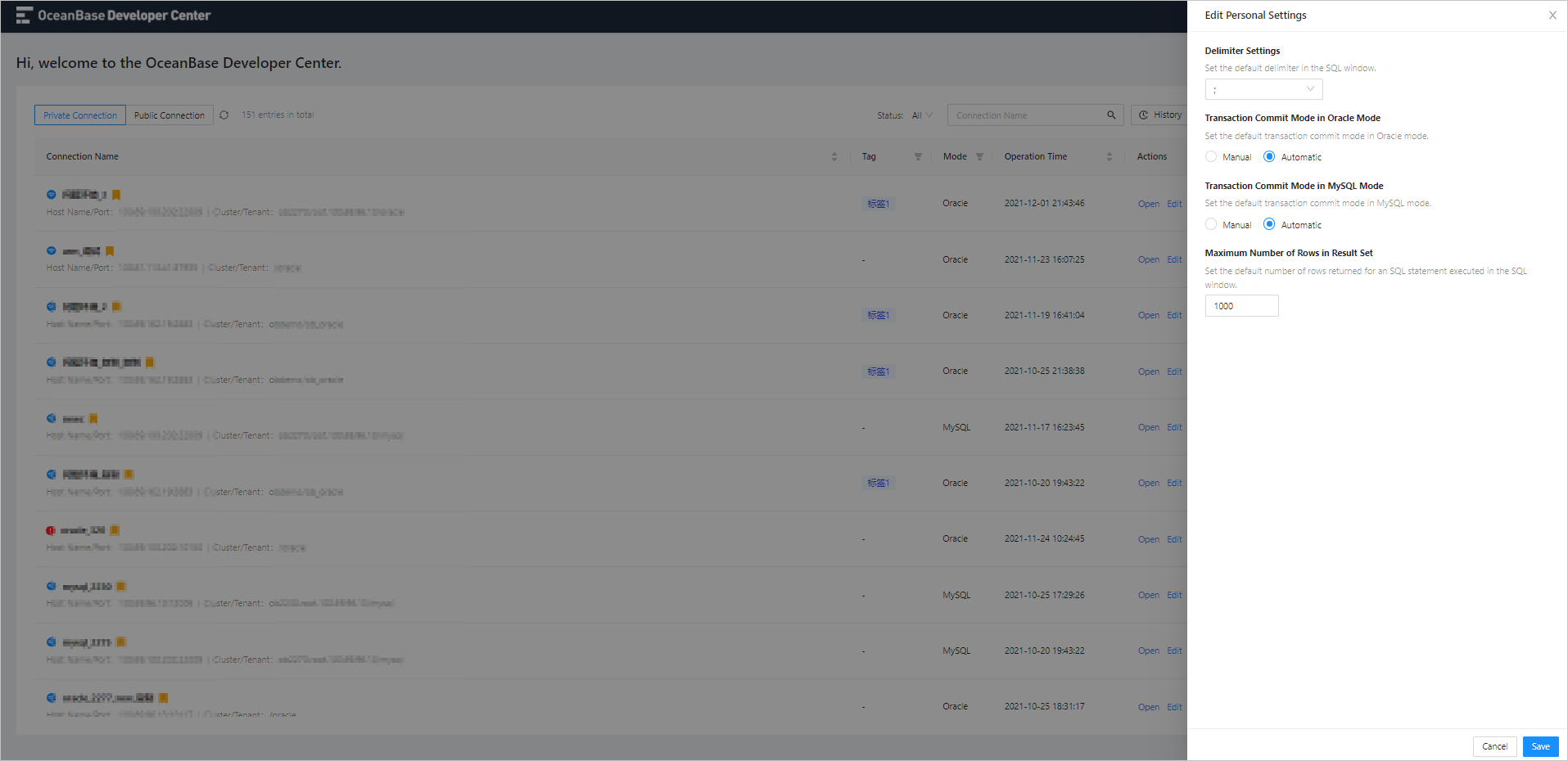
Image 698

Your modifications to fields in the Edit Personal Settings panel take global effect.

Setting Description
Delimiter Settings Set the default delimiter for executing PL statements in the SQL window. Five types of delimiters are supported: semi-colons ( ; ), slashes ( / ), double slashes ( // ), dollar signs ( $ ), and double dollar signs ( $$ ).
Transaction Commit Mode in Oracle Mode Set the default transaction commit mode in Oracle mode. Valid values: Manual and Automatic
Transaction Commit Mode in MySQL Mode Set the default transaction commit mode in MySQL mode. Valid values: Manual and Automatic
Maximum Number of Rows in Result Set Set the default number of rows returned for an SQL statement executed in the SQL window.

Change the password

The logged-on username is displayed in the upper-right corner of the top navigation bar. Click the username and select Change Password from the drop-down menu that appears. Then, set the new password in the Change Password dialog box. For more information, see Change Password.

Log off

Click the logged-on username and select Log Off from the drop-down menu that appears to return to the ODC logon page.

Help

On the right-side Help tab, you can view tutorial documents of some common operations in ODC, new features in the current version, and FAQ.

Click the document you want to view on this tab. The introduction and link to the document are displayed in a pop-up dialog box. You can view the PDF file on the current page, or click the link to go to the official website and view the document.

Related tools

On the right-side Related Tools tab, you can view other OceanBase services. Click the tool you want to view on this tab. The introduction and link to the tool are displayed in a pop-up dialog box.

Related resources

On the right-side Related Resources tab, you can view resources that are operated by OceanBase or that contain OceanBase information.

The tab provides links to resources such as OceanBase Enterprise, OceanBase Community Edition, and OceanBase Cloud Services.

Previous topic

Change the password
Last

Next topic

Create a private connection
Next
What is on this page
Overview
Manage database connections
Public resource console
Switch the language
Personal settings
Change the password
Log off
Help
Related tools
Related resources