

OceanBase logo

OceanBase

A unified distributed database ready for your transactional, analytical, and AI workloads.

DEPLOY YOUR WAY

OceanBase Cloud

The best way to deploy and scale OceanBase

OceanBase Enterprise

Run and manage OceanBase on your infra

TRY OPEN SOURCE

OceanBase Community Edition

The free, open-source distributed database

OceanBase seekdb

Open source AI native search database

Customer Stories

Real-world success stories from enterprises across diverse industries.

View All
BY USE CASES

Mission-Critical Transactions

Global & Multicloud Application

Elastic Scaling for Peak Traffic

Real-time Analytics

Active Geo-redundancy

Database Consolidation

Resources

Comprehensive knowledge hub for OceanBase.

Blog

Live Demos

Training & Certification

Documentation

Official technical guides, tutorials, API references, and manuals for all OceanBase products.

View All
PRODUCTS

OceanBase Cloud

OceanBase Database

Tools

Connectors and Middleware

QUICK START

OceanBase Cloud

OceanBase Database

BEST PRACTICES

Practical guides for utilizing OceanBase more effectively and conveniently

Company

Learn more about OceanBase – our company, partnerships, and trust and security initiatives.

About OceanBase

Partner

Trust Center

Contact Us

International - English
中国站 - 简体中文
日本 - 日本語
Sign In
Start on Cloud

A unified distributed database ready for your transactional, analytical, and AI workloads.

DEPLOY YOUR WAY

OceanBase Cloud

The best way to deploy and scale OceanBase

OceanBase Enterprise

Run and manage OceanBase on your infra

TRY OPEN SOURCE

OceanBase Community Edition

The free, open-source distributed database

OceanBase seekdb

Open source AI native search database

Customer Stories

Real-world success stories from enterprises across diverse industries.

View All
BY USE CASES

Mission-Critical Transactions

Global & Multicloud Application

Elastic Scaling for Peak Traffic

Real-time Analytics

Active Geo-redundancy

Database Consolidation

Comprehensive knowledge hub for OceanBase.

Blog

Live Demos

Training & Certification

Documentation

Official technical guides, tutorials, API references, and manuals for all OceanBase products.

View All
PRODUCTS
OceanBase CloudOceanBase Database
ToolsConnectors and Middleware
QUICK START
OceanBase CloudOceanBase Database
BEST PRACTICES

Practical guides for utilizing OceanBase more effectively and conveniently

Learn more about OceanBase – our company, partnerships, and trust and security initiatives.

About OceanBase

Partner

Trust Center

Contact Us

Start on Cloud
编组
All Products
    • Databases
    • iconOceanBase Database
    • iconOceanBase Cloud
    • iconOceanBase Tugraph
    • iconInteractive Tutorials
    • iconOceanBase Best Practices
    • Tools
    • iconOceanBase Cloud Platform
    • iconOceanBase Migration Service
    • iconOceanBase Developer Center
    • iconOceanBase Migration Assessment
    • iconOceanBase Admin Tool
    • iconOceanBase Loader and Dumper
    • iconOceanBase Deployer
    • iconKubernetes operator for OceanBase
    • iconOceanBase Diagnostic Tool
    • iconOceanBase Binlog Service
    • Connectors and Middleware
    • iconOceanBase Database Proxy
    • iconEmbedded SQL in C for OceanBase
    • iconOceanBase Call Interface
    • iconOceanBase Connector/C
    • iconOceanBase Connector/J
    • iconOceanBase Connector/ODBC
    • iconOceanBase Connector/NET
icon

OceanBase Deployer

V3.1.0Community Edition

  • What is obd
  • Quick Start
    • Install obd
    • Quickly deploy OceanBase Database
    • Quickly deploy OCP
    • Deploy an OceanBase cluster on the GUI
  • obd Command
    • Quick deployment command
    • Cluster commands
    • Mirror and repository commands
    • Testing commands
    • Tool commands
    • obdiag commands
    • Binlog commands
    • Telemetry commands
  • User Guide
    • Configuration files
    • Deploy through GUI
      • GUI operation overview
      • Deploy OCP through the GUI
      • Modify components on the GUI
    • Deploy through CLI
      • Deploy OceanBase Database on a single server
      • Deploy OCP Express by using commands
      • Deploy and use obconfigserver
      • Deploy the binlog service
      • Deploy oblogproxy by using the CLI
      • Deploy OCP by using commands
      • Use OCP to take over a cluster deployed by obd
      • Use obd to take over a cluster
      • Add GUI-based monitoring for an existing cluster
      • Upgrade OCP Express
      • Upgrade OceanBase Database
      • Physical Standby Database
        • Deploy primary and standby tenants by using obd
        • Switch the roles of tenants and decouple a standby tenant from the primary tenant
      • Scale out a cluster and change cluster components
      • Performance test
      • Cluster diagnotistics
  • FAQ
    • FAQ
    • How do I upgrade an OBProxy to obproxy-ce 3.2.3?
  • Mode configuration rules
  • Error codes
  • Release Notes
    • Version rules
    • V3.1
      • OceanBase Deployer V3.1.2
      • OceanBase Deployer V3.1.1
      • OceanBase Deployer V3.1.0
    • V3.0
      • OceanBase Deployer V3.0.1
      • OceanBase Deployer V3.0.0
    • V2.10
      • OceanBase Deployer V2.10.1
      • OceanBase Deployer V2.10.0
    • V2.9
      • OceanBase Deployer V2.9.2
      • OceanBase Deployer V2.9.1
      • OceanBase Deployer V2.9.0
    • V2.8
      • OceanBase Deployer V2.8.0
    • V2.7
      • OceanBase Deployer V2.7.0
    • V2.6
      • OceanBase Deployer V2.6.2
      • OceanBase Deployer V2.6.1
      • OceanBase Deployer V2.6.0
    • V2.5
      • OceanBase Deployer V2.5.0
    • V2.4
      • OceanBase Deployer V2.4.0
    • V2.3
      • OceanBase Deployer V2.3.1
      • OceanBase Deployer V2.3.0
    • V2.2
      • OceanBase Deployer V2.2.0
    • V2.1
      • OceanBase Deployer V2.1.1
      • OceanBase Deployer V2.1.0
    • V2.0
      • OceanBase Deployer V2.0.1
      • OceanBase Deployer V2.0.0
    • V1.6
      • OceanBase Deployer V1.6.2
      • OceanBase Deployer V1.6.1
      • OceanBase Deployer V1.6.0
    • V1.5
      • OceanBase Deployer V1.5.0
    • V1.4
      • OceanBase Deployer V1.4.0
    • V1.3
      • OceanBase Deployer V1.3.3
      • OceanBase Deployer V1.3.2
      • OceanBase Deployer V1.3.0
    • V1.2
      • OceanBase Deployer V1.2.1
      • OceanBase Deployer V1.2.0

Download PDF

What is obd Install obd Quickly deploy OceanBase Database Quickly deploy OCP Deploy an OceanBase cluster on the GUI Quick deployment command Cluster commands Mirror and repository commands Testing commands Tool commands obdiag commands Binlog commands Telemetry commands Configuration files GUI operation overview Deploy OCP through the GUI Modify components on the GUI Deploy OceanBase Database on a single server Deploy OCP Express by using commands Deploy and use obconfigserver Deploy the binlog service Deploy oblogproxy by using the CLI Deploy OCP by using commands Use OCP to take over a cluster deployed by obd Use obd to take over a cluster Add GUI-based monitoring for an existing cluster Upgrade OCP Express Upgrade OceanBase Database Scale out a cluster and change cluster components Performance test Cluster diagnotistics FAQ How do I upgrade an OBProxy to obproxy-ce 3.2.3? Mode configuration rules Error codes Version rules OceanBase Deployer V3.1.2 OceanBase Deployer V3.1.1 OceanBase Deployer V3.1.0 OceanBase Deployer V3.0.1 OceanBase Deployer V3.0.0 OceanBase Deployer V2.10.1 OceanBase Deployer V2.10.0 OceanBase Deployer V2.9.2 OceanBase Deployer V2.9.1 OceanBase Deployer V2.9.0 OceanBase Deployer V2.8.0 OceanBase Deployer V2.7.0 OceanBase Deployer V2.6.2 OceanBase Deployer V2.6.1 OceanBase Deployer V2.6.0 OceanBase Deployer V2.5.0 OceanBase Deployer V2.4.0 OceanBase Deployer V2.3.1 OceanBase Deployer V2.3.0 OceanBase Deployer V2.2.0 OceanBase Deployer V2.1.1 OceanBase Deployer V2.1.0 OceanBase Deployer V2.0.1 OceanBase Deployer V2.0.0 OceanBase Deployer V1.6.2 OceanBase Deployer V1.6.1 OceanBase Deployer V1.6.0 OceanBase Deployer V1.5.0 OceanBase Deployer V1.4.0 OceanBase Deployer V1.3.3 OceanBase Deployer V1.3.2 OceanBase Deployer V1.3.0 OceanBase Deployer V1.2.1 OceanBase Deployer V1.2.0
OceanBase logo

The Unified Distributed Database for the Al Era.

Follow Us
Products
OceanBase CloudOceanBase EnterpriseOceanBase Community EditionOceanBase seekdb
Resources
DocsBlogLive DemosTraining & Certification
Company
About OceanBaseTrust CenterLegalPartnerContact Us
Follow Us

© OceanBase 2026. All rights reserved

Cloud Service AgreementPrivacy PolicySecurity
Contact Us
Document Feedback
  1. Documentation Center
  2. OceanBase Deployer
  3. V3.1.0
iconOceanBase Deployer
V 3.1.0Community Edition
Community Edition
  • V 3.2.1
  • V 3.2.0
  • V 3.1.0
  • V 3.0.0
  • V 2.10.1
  • V 2.10.0
  • V 2.9.0
  • V 2.8.0
  • V 2.7.0
  • V 2.6.0
  • V 2.5.0
  • V 2.4.0
  • V 2.3.1
  • V 2.3.0
  • V 2.2.0
  • V 2.1.0
  • V 2.0.0
  • V 1.6.1

Modify components on the GUI

Last Updated:2025-03-21 09:00:59  Updated
share
What is on this page
Prerequisites
Install components
Step 1: Go to the GUI
Step 2: Deployment configuration
Step 3: Component configuration
Step 4: Pre-Check
Step 5: Deployment
Uninstall components
Step 1: Go to the GUI
Step 2: Uninstallation configuration
Step 3: Uninstallation

folded

share

This topic describes how to add or delete a component on the GUI.

Prerequisites

Make sure that the following conditions are met:

  • You have installed OceanBase Deployer (obd) V2.10.0 or later. For information about how to upgrade obd, see the How do I upgrade obd? section in FAQ.

  • At least one OceanBase cluster that runs properly is managed in obd.

  • The password-free SSH login from the current server to the node where the new component resides is supported. For information about the setting method, see (Optional) Set password-free SSH login.

Install components

Step 1: Go to the GUI

  1. Go to the GUI.

    Run the obd web command on the command-line interface (CLI), and click the generated URL to go to the GUI.

    [admin@test001 ~]$ obd web
    start OBD WEB in 0.0.0.0:8680
    please open http://10.10.10.1:8680
    

    Note

    • The default port in the URL is 8680. You can use the obd web -p <PORT> command to specify a port.

    • On Alibaba Cloud or other cloud environments, the program may fail to obtain a public IP address but return an intranet IP address. You must use a correct public IP address to access the GUI.

    • The obd web command is bound to the IP address 0.0.0.0. In a deployment scenario where multiple network interface cards (NICs) are used, you can access the GUI from any accessible IP address.

  2. (Optional) To change the display language, click the English icon in the upper-right corner of the page and select a language as needed.
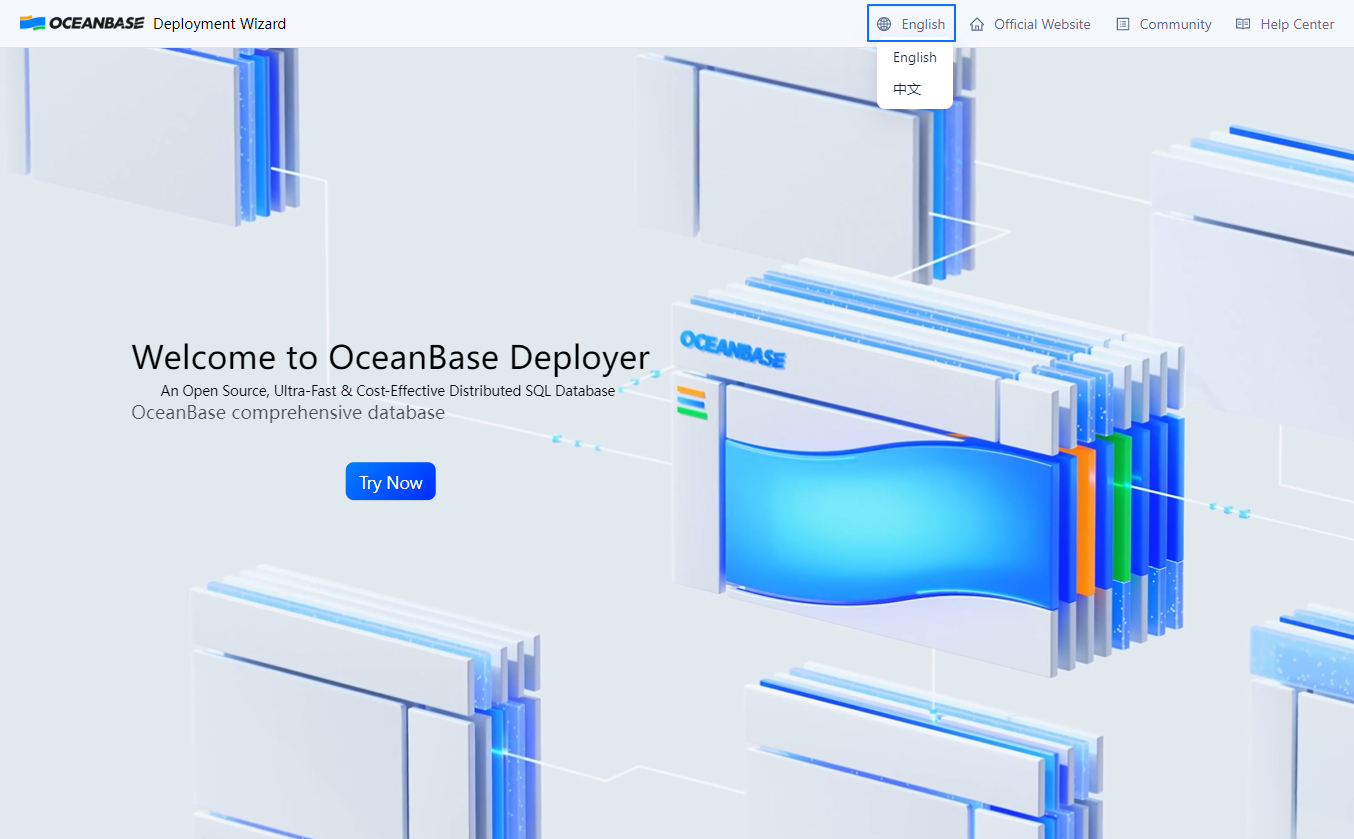
    English
  3. On the GUI, click Try Now to go to the Welcome to the OceanBase Deployment Wizard page. On the page that appears, select Component Management, move your pointer on Management, and then select a component management operation. In this example, select Component installation.

Step 2: Deployment configuration

On the Deployment configuration page, select the components to install, as shown in the following figure:
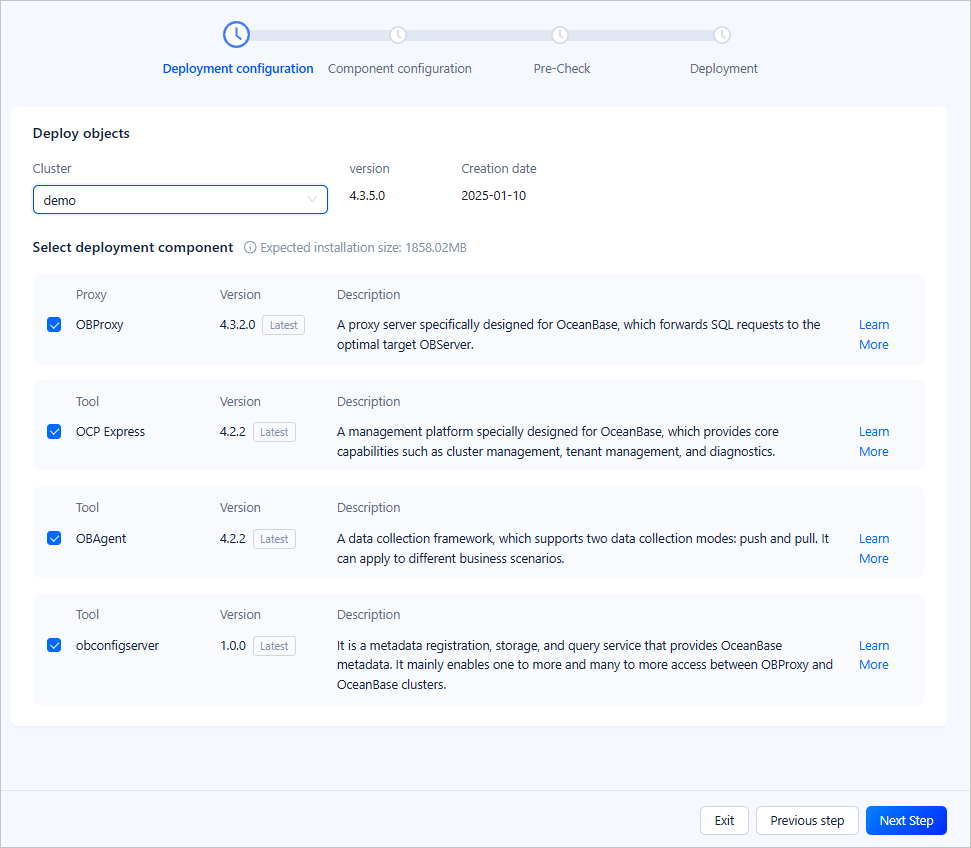
Deployment configuration

Section Description
Deploy objects Select a cluster to which you want to add components from the Cluster drop-down list. The Cluster drop-down list contains all clusters in the running state that are managed by obd. You can click the name of a cluster to select it.
Select deployment component This section displays all components deployed in the cluster and those to install. Select the components that you want to install. The latest versions of the selected components will be installed. You can click Learn More in the row of a component to view its documentation.

Note

If OceanBase Cloud Platform (OCP) Express and OceanBase Agent (OBAgent) are not installed in the cluster, you can select OBAgent, and OCP Express is selected along with OBAgent automatically. When you deselect OBAgent, OCP Express is automatically deselected.

Click Next Step in the lower-right corner to go to the Component configuration page.

Step 3: Component configuration

On the Component configuration page, configure nodes, ports, and other information of the components to install, as shown in the following figure:
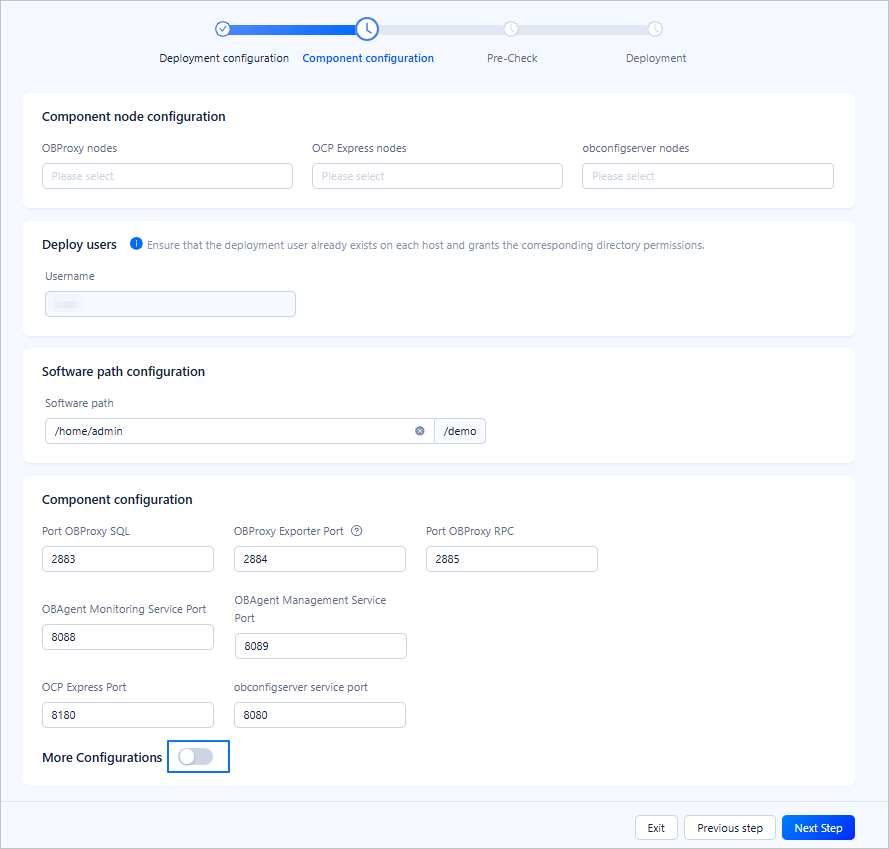
Component configuration

Section Description
Component node configuration Configure nodes for the selected components. After you specify the IP address of a node for a component, you can press Enter to specify the IP address of another node for the component. You can configure multiple ODP and Config Server nodes, but only one OCP Express node.

Notice

The IP address of a node cannot be 127.0.0.1.

Deploy users By default, the username is the one used to deploy the current cluster. The username cannot be modified. Make sure that the user exists on all servers and has required privileges on the specified directory.
Software path configuration By default, the software path is the installation path of the current cluster. You can modify the path. The software path must be an absolute path beginning with a slash (/).
Component configuration Configure ports for the selected components. For more information, see the Step 4: Cluster configuration section in Deploy an OceanBase cluster on the GUI.
More Configurations You can enable More Configurations to view more cluster parameters. You can retain the default settings or modify the settings.

Note

If multiple nodes are configured in the Config Server Node section on the Component configuration page, you must enable More Configurations and specify the vip_address and vip_port parameters. Otherwise, an error occurs in the pre-check.

Click Next Step in the lower-right corner to go to the Pre-Check page.

Step 4: Pre-Check

On the Pre-Check page, confirm all the configuration information. If any information is incorrect, you can click Previous step to modify the information. After you confirm that all the information is correct, click Pre-Check.

If the pre-check reports an error, and the error can be automatically fixed, you can click Automatic Repair to fix the error. You can also click Learn more to fix the reported error by referring to the error code document. After all the errors are fixed, click Re-check to perform a pre-check again.
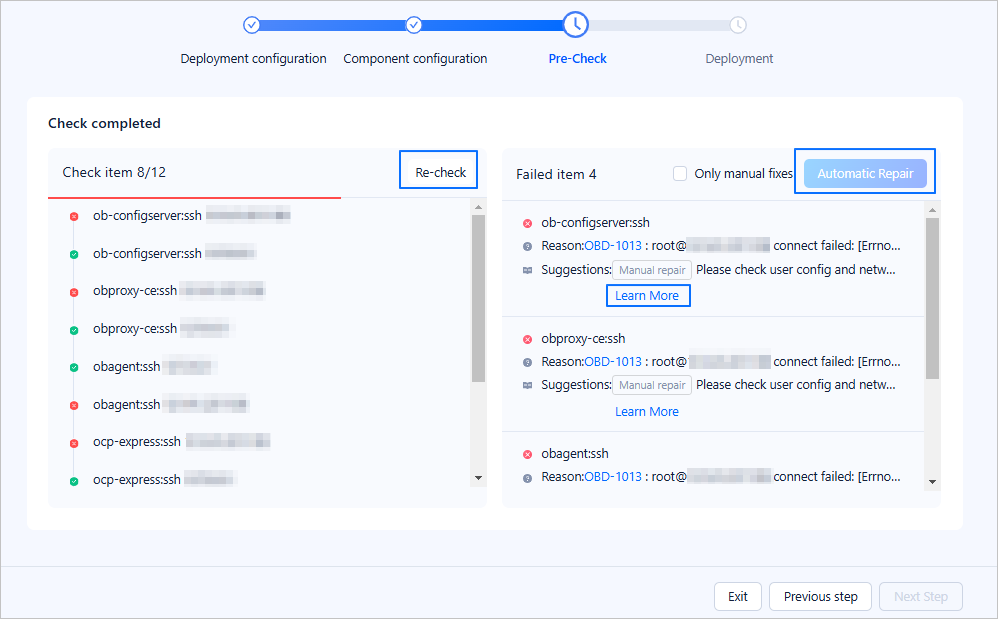
Pre-check

After the pre-check is passed, click Deployment to start the deployment.

Step 5: Deployment

You can perform the following operations:

  • After the deployment of ODP succeeds, copy the displayed connection string of OceanBase Database and use it to connect to ODP from the CLI as the root@proxysys user.

  • Click the connection string of OCP Express to go to the logon page of OCP Express. Log on with the account username and password provided on the deployment page, and then change the password. Then, you can manage the cluster on the GUI.

    Note

    On Alibaba Cloud or other cloud environments, the program may fail to obtain a public IP address but return an intranet IP address. You must use a correct public IP address to access the GUI.

  • In the Deployment Report section, click the Expand icon before a component to view its deployment logs on the GUI. You can also move your pointer on View Details in the row of a component to view the command for querying its logs. Then, you can click the Copy icon next to the command to copy the command and run the command on the central control server to view the log location of the component.

  • Click One-click Copy to save the access address and account information of all deployed components. Then, click Finish to exit.

Uninstall components

Step 1: Go to the GUI

  1. Go to the GUI.

    Run the obd web command on the CLI, and click the generated URL to go to the GUI.

    [admin@test001 ~]$ obd web
    start OBD WEB in 0.0.0.0:8680
    please open http://10.10.10.1:8680
    

    Note

    • The default port in the URL is 8680. You can use the obd web -p <PORT> command to specify a port.

    • On Alibaba Cloud or other cloud environments, the program may fail to obtain a public IP address but return an intranet IP address. You must use a correct public IP address to access the GUI.

    • The obd web command is bound to the IP address 0.0.0.0. In a deployment where multiple NICs are used, you can access the GUI from any accessible IP address.

  2. (Optional) To change the display language, click the English icon in the upper-right corner of the page and select a language as needed.

    English
  3. On the GUI, click Try Now to go to the Welcome to the OceanBase Deployment Wizard page. On the page that appears, select Component Management, move your pointer on Management, and then select a component management operation. In this example, select Component uninstallation.

Step 2: Uninstallation configuration

On the Uninstall configuration page, select the components to uninstall, as shown in the following figure:
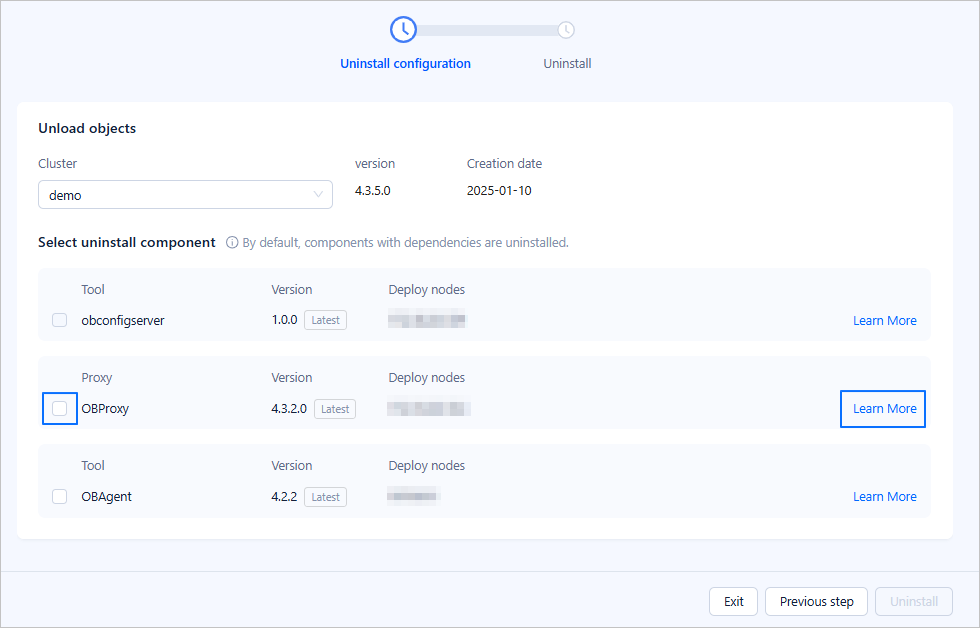
Uninstall configuration

Section Description
Unload objects Select a cluster for which you want to uninstall components from the Cluster drop-down list. The Cluster drop-down list contains all clusters in the running state that are managed by obd. You can click the name of a cluster to select it.
Select uninstall component This section displays all components that you can uninstall from the cluster. You can select the components that you want to uninstall. By default, all components are selected. You can click Learn More in the row of a component to view its documentation.

Note

  • By default, obd uninstalls components dependent on each other at a time. For example, when you select OBAgent or ODP, OCP Express is automatically selected, and when you deselect OCP Express, OBAgent or ODP is automatically deselected.

  • You cannot uninstall Config Server.

Click Uninstall in the lower-right corner. In the dialog box that appears, click OK to go to the Uninstall page.

Step 3: Uninstallation

On the Uninstall page, you can view the uninstallation progress and results. The Status column indicates whether the uninstallation is successful. You can move your pointer on View running logs in the Actions column to view the uninstallation logs of a component.
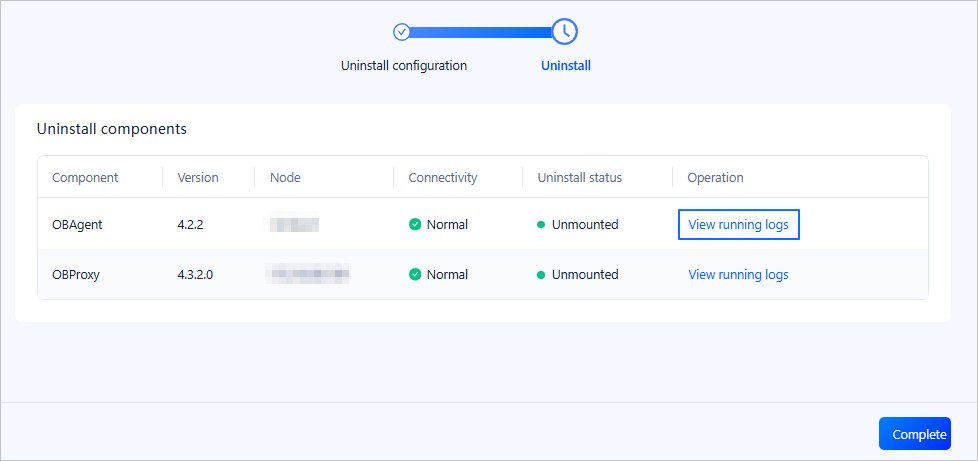
Uninstall results

The following table describes possible uninstallation results and supported operations.

Connectivity Uninstall status Operation
Checking To be uninstalled Wait for the system to uninstall the component.

Note

When you uninstall OBAgent and OCP Express at a time, OBAgent enters the Pending state if the uninstallation of OCP Express fails. The system uninstalls OBAgent only after OCP Express is uninstalled or forcibly removed.

Normal Unmounting The system is uninstalling the component. You can move your pointer over View running logs in the Actions column to view the uninstallation logs of the component.
Uninstall Failed Move your pointer over the prompt icon next to Uninstall failed to view the failure cause. You can perform the following operations:
  • Move your pointer over View running logs in the Actions column to view the uninstallation logs of the component.
  • Click Retry in the Actions column. After reconfirmation, the system attempts to uninstall the component again.
  • Click Force Uninstall in the Actions column. After reconfirmation, the system forcibly uninstalls the component.
Unmounted Move your pointer over View running logs in the Actions column to view the uninstallation logs of the component.
Unable to connect Cannot Be Uninstalled Move your pointer over the prompt icon next to Unable to uninstall to view the failure cause. You can click Force Removal in the Actions column. After reconfirmation, the system attempts to uninstall the component again. The Force Removal operation only cancels the dependency between OceanBase Database and the component, without uninstalling the component from the server.
Removing Wait for the system to remove the component.
Removed Successfully You do not need to perform any operation.

Click Complete in the lower-right corner. In the dialog box that appears, click Exit.

Previous topic

Deploy OCP through the GUI
Last

Next topic

Deploy OceanBase Database on a single server
Next
What is on this page
Prerequisites
Install components
Step 1: Go to the GUI
Step 2: Deployment configuration
Step 3: Component configuration
Step 4: Pre-Check
Step 5: Deployment
Uninstall components
Step 1: Go to the GUI
Step 2: Uninstallation configuration
Step 3: Uninstallation