







This topic describes how to deploy an OceanBase cluster in an x86-based CentOS Linux 7.9 system through the GUI of OceanBase Deployer (obd).
Terms
OceanBase Database
A distributed database for mission-critical workloads at any scale. For more information, see OceanBase Database documentation.
obd
OceanBase Deployer (obd) is the OceanBase installation and deployment tool. For more information, see OceanBase Deployer documentation.
ODP
OceanBase Database Proxy (ODP), also known as OBProxy, is a dedicated proxy server for OceanBase Database. For more information, see ODP documentation.
OBAgent
OBAgent is the OceanBase Database monitoring and collection framework. It supports both push and pull data collection modes for different application scenarios.
obconfigserver
OceanBase Configserver (obconfigserver) provides metadata registration, storage, and query services for OceanBase Database. For more information, see ob-configserver.
Grafana
Grafana is an open-source data visualization tool that displays various metrics from data sources for easier understanding of system status and performance. For more information, see Grafana.
Prometheus
Prometheus is an open-source service monitoring system and time-series database that provides a general data model and interfaces for data collection, storage, and query. For more information, see Prometheus.
Alertmanager
Alertmanager is an open-source alert manager that processes alerts from monitoring systems such as Prometheus and provides alert deduplication, grouping, routing, and silencing. For more information, see Prometheus.
Prerequisites
Before you begin, make sure that the following conditions are met:
Your server meets the software and hardware requirements. For more information, see Software and hardware requirements.
In a production environment, you need to perform environment and configuration checks. For specific operations, see Configuration before deployment.
To deploy OceanBase Database only, at least 2 vCPUs, 6 GB of memory, and 20 GB of disk space are required. Note that the memory requirement refers to the
availablevalue in the output of thefree -gcommand.To deploy OceanBase Database and all its components, at least 4 vCPUs, 10 GB of memory, and 25 GB of disk space are required. We recommend 16 GB or more memory. Note that the memory requirement refers to the
availablevalue in the output of thefree -gcommand.
Note
In environments with fewer CPU cores, obd sets the minimum CPU_Count to 8 by default. Configuring too few CPU cores may negatively affect OceanBase Database performance.
Prepare the software
You can deploy OceanBase Database through the GUI of obd either online or offline.
Online deployment: Make sure that the server where obd resides can connect to the Internet. In this deployment mode, obd obtains the installation package from a remote image repository during deployment. Therefore, you do not need to deploy and configure the installation package in advance.
Offline deployment: The server where obd resides does not need to connect to the Internet during deployment. In this deployment mode, you must upload the installation package to the local image repository of obd in advance. If you choose offline deployment, we recommend that you download the all-in-one package of the desired version.
You can select the appropriate method to prepare the software based on your specific circumstances.
Online deployment
If you choose online deployment, run the following commands to install obd on the central control server:
[admin@test001 ~]$ sudo yum install -y yum-utils
[admin@test001 ~]$ sudo yum-config-manager --add-repo https://mirrors.aliyun.com/oceanbase/OceanBase.repo
[admin@test001 ~]$ sudo yum install -y ob-deploy
[admin@test001 ~]$ source /etc/profile.d/obd.sh
Offline deployment
If you choose offline deployment, run the following commands to download and install the all-in-one package.
You can download the latest all-in-one package from OceanBase Download Center and copy it to the central control server.
[admin@test001 ~]$ tar -xzf oceanbase-all-in-one-*.tar.gz
[admin@test001 ~]$ cd oceanbase-all-in-one/bin/
[admin@test001 bin]$ ./install.sh
[admin@test001 bin]$ source ~/.oceanbase-all-in-one/bin/env.sh
Procedure
Note
This topic provides operational guidance using obd V3.6.0 as an example. The interface may vary with different versions of obd, so please refer to the actual interface. For more information about obd, see obd documentation.
Step 1: Start the GUI
Start to the GUI.
Run the
obd webcommand on the CLI to start the GUI, and click the generated URL to go to the GUI.[admin@test001 ~]$ obd web start OBD WEB in 0.0.0.0:8680 please open http://10.10.10.1:8680Note
The GUI uses port 8680 by default. You can use the
obd web -p <PORT>command to specify a port.On Alibaba Cloud or other cloud environments, the program may fail to obtain a public IP address but return an intranet IP address. This IP is not a public address. You must use the correct address to access the GUI.
The
obd webcommand is bound to0.0.0.0. In a multi-NIC deployment, you can access the GUI through any accessible IP address.You can use the nohup or screen command to run the
obd webcommand in the background.
(Optional) Hover over the language indicator in the upper-right corner of the GUI and click to switch between Chinese and English.
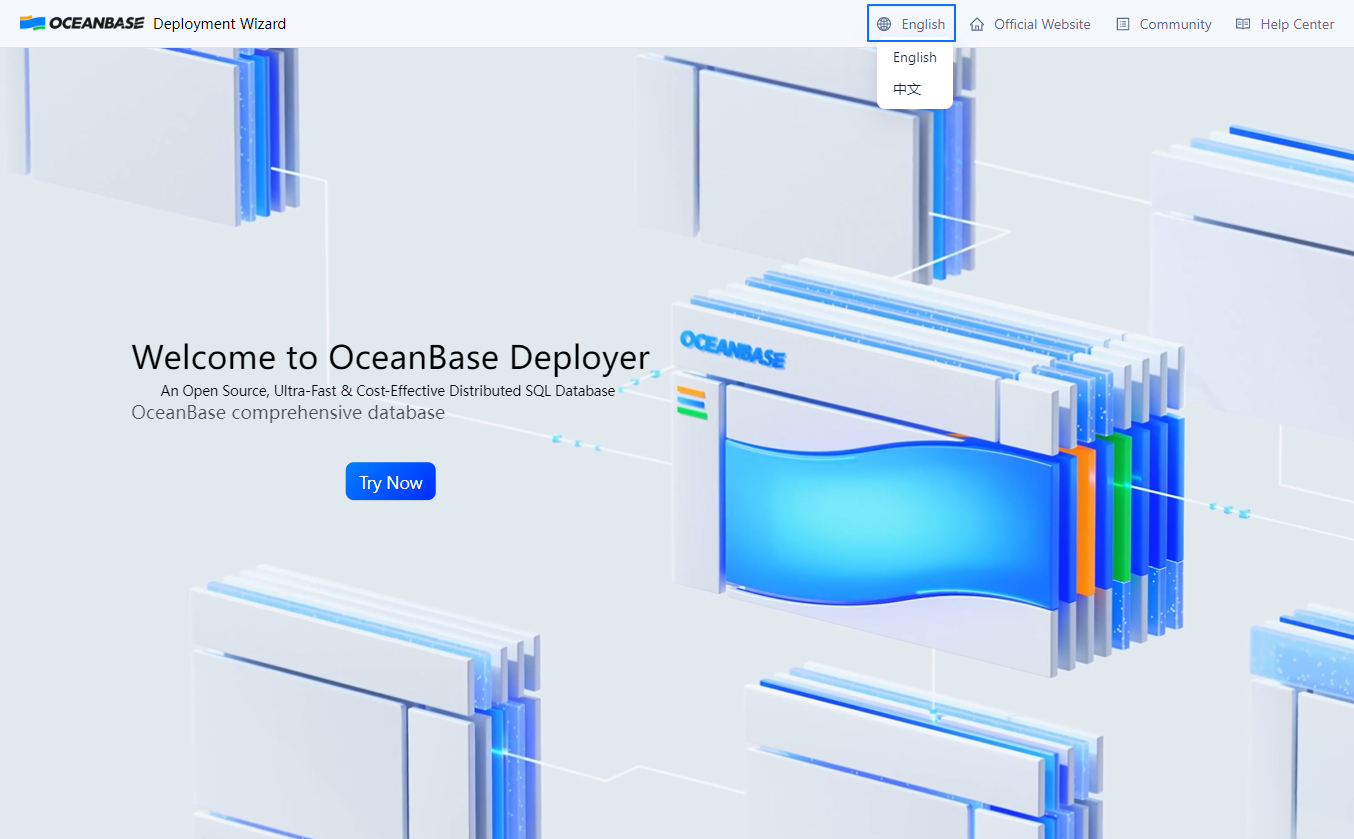
On the GUI, click Try Now to go to the Welcome to the OceanBase Deployment Wizard page. On the page that appears, select OceanBase and supporting tools and click Installation to go to the OceanBase Database deployment page.
Step 2: Configure the deployment information
On the Deployment Configuration page, you can configure the cluster name, load type, and components to deploy. The **Deployment Configuration**page contains the following.
Cluster configuration
SectionDescriptionDeployment Configuration The cluster name is a unique identifier for obd deployments, with a default of myoceanbase. You can customize it, but it cannot duplicate existing deployment names. The cluster name must start with a letter, end with a letter or digit, and can contain letters, digits, and underscores. The length must be 2 to 32 characters. Use theobd cluster listcommand to view clusters managed by obd.Deploy a database You can select an OceanBase Database version from the Version drop-down and click Learn more next to each component to view its documentation. Load Type You can select a load type for the OceanBase cluster from the Type drop-down. Each type has a description for its applicable scenarios. Note
This section is displayed only when the OceanBase Database version to be deployed is V4.2.5 or later.
Component selection
By default, only ODP is selected. You can check or uncheck the boxes under Optional components to set whether to deploy each component. Component versions are fixed to the latest. Click Learn more next to each component to view its documentation.
Note
Deployment of Grafana and AlertManager depends on OBAgent and Prometheus. Deployment of Prometheus depends on OBAgent. For example, when you check Grafana or AlertManager, OBAgent and Prometheus are automatically checked. When you uncheck OBAgent, Grafana, AlertManager, and Prometheus are automatically unchecked.
After configuration, click Next to go to the Node Configuration page.
Step 3: Configure the nodes
On the Node Configuration page, you can configure database and component nodes, deployment user, and software installation path. The Node Configuration page contains the following.
Section |
Parameter |
Description |
|---|---|---|
| Database Node | Zone Name | Configure the zone name in OceanBase Database. You can customize it. The zone name must start with a letter, end with a letter or digit, and can contain letters, digits, and underscores. The length must be 2 to 32 characters. In a multi-zone OceanBase cluster, one zone must share the same region as the primary zone. Click + Add Zone or the Delete icon next to a zone to add or remove a zone. |
| OBServer Node | Configure the OBServer node IP addresses in the OceanBase cluster. After entering an IP, press Enter to add more node IPs.
Notice
|
|
| RootService Node | You can select one IP from the configured OBServer node IPs as the RootServer node of the OceanBase cluster from the drop-down. For a multi-replica OceanBase cluster, you must specify a RootServer for each zone. | |
| Component node configuration | OBProxy Node | Supports multiple nodes. You can select from the OBServer node IPs or enter a new IP. We recommend using a non-127.0.0.1 IP. Press Enter after entering an IP to add more node IPs. |
| Load balancing management | Click the expand button to configure load balancing for accessing the OceanBase cluster. We recommend providing a VIP/DNS address when deploying multi-node ODP to avoid changing ODP access addresses later. If not configured, the system uses the first IP in OBProxy Node for the connection string. Select from the Access method drop-down:
Noticeobd does not deploy load balancing. If you need load balancing, deploy and configure it in advance. |
|
| Prometheus Node | Supports multiple nodes. You can select from the OBServer node IPs or enter a new IP. We recommend using a non-127.0.0.1 IP. Press Enter after entering an IP to add more node IPs. |
|
| Grafana Node | Supports multiple nodes. You can select from the OBServer node IPs or enter a new IP. We recommend using a non-127.0.0.1 IP. Press Enter after entering an IP to add more node IPs. |
|
| AlertManager Node | Supports only a single node. We recommend using a non-127.0.0.1 IP. |
|
| obconfigserver Node | Supports multiple nodes. You can select from the OBServer node IPs or enter a new IP. We recommend using a non-127.0.0.1 IP. Press Enter after entering an IP to add more node IPs.
NoteWhen configuring multiple nodes for obconfigserver, you must configure load balancing in advance and open the More Configurations button in the Component Configuration module on the Cluster Configuration page to configure |
|
| Deployment connection configuration | Username | The username for deploying the OceanBase cluster. Defaults to the user who started the current process. You can specify a custom username. The username can contain letters, digits, and dots, with a maximum length of 20 characters. Ensure the user exists on all hosts. |
| Password | The login password for the user specified by Username. If password-free login is configured between nodes, you can skip entering the password. | |
| SSH Port | Default is 22. You can specify a custom SSH port. | |
| Software path configuration | Software Path | Default is the home directory of the deployment user. You can customize it. Must be an absolute path starting with / and can contain only letters, digits, and special characters (-_:@/.). A folder with the same name as the cluster will be created in the specified directory. |
After configuration, click Next to go to the Cluster Configuration page.
Step 4: Configure the cluster
On the Cluster Configuration page, you can configure the cluster, including the sys tenant administrator password (root@sys), data and log directories, and ports and parameters for OceanBase Database and components.
Cluster configuration
ParameterDescriptionMode Configuration Select Maximum utilization or Minimum availability. Maximum utilization maximizes resource usage for cluster performance and stability (recommended). Minimum availability configures the minimum resources for normal cluster operation. For details, see Mode configuration rules. root@sys Password Click Randomly generated for obd to generate a random string, or set a custom password. For custom passwords: - Length: 8 to 32 characters
- At least three of: digits (0–9), uppercase (A–Z), lowercase (a–z), and special characters (
~!@#%^&*_-+=|(){}[]:;,.?/)
Data Directory Default is /data/1. You can customize it. Must be an absolute path starting with/and can contain only letters, digits, and special characters (-_:@/.). The directory must be empty.Log Directory Default is /data/log1. You can customize it. Must be an absolute path starting with/and can contain only letters, digits, and special characters (-_:@/.). The directory must be empty.SQL Port SQL service protocol port. Default is 2881. Supported range: 1025–65535. Ensure the port is not in use.RPC Port Remote access protocol port. Default is 2882. Supported range: 1025–65535. Ensure the port is not in use.OBShell Port OceanBase Database O&M port. Default is 2886. Supported range: 1025–65535. Ensure the port is not in use.More Configurations Click the expand button to view and configure cluster parameters. You can use auto-assigned values or customize them. Note
You can use the
enable_auto_startparameter in More Configurations to enable auto-start of the observer process at boot. Enabling this requires the deployment user to have sudo privilege, and the deployment environment must not be a container.Component configuration
ParameterDescriptionGrafana Password Grafana administrator login password. Click Randomly generated or set a custom password. For custom: 8–32 characters; at least 2 of each: digits, uppercase, lowercase, special characters ( ~!@#%^&*_-+=|(){}[]:;,.?/`$"<></code>). Click Copy password to copy and save.Prometheus Password Prometheus service login password. Click Randomly generated or set a custom password. For custom: 8–32 characters; at least 2 of each: digits, uppercase, lowercase, special characters ( ~!@#%^&*_-+=|(){}[]:;,.?/`$"<></code>). Click Copy password to copy and save.AlertManager Password Alertmanager service login password. Click Randomly generated or set a custom password. For custom: 8–32 characters; at least 2 of each: digits, uppercase, lowercase, special characters ( ~!@#%^&*_-+=|(){}[]:;,.?/`$"<></code>). Click Copy password to copy and save.OBProxy SQL Port ODP listening port. Default 2883. Range: 1025–65535. Ensure the port is not in use.OBProxy Exporter Port OBProxy Exporter port for Prometheus. Default 2884. Range: 1025–65535. Ensure the port is not in use.OBProxy RPC Port Default 2885. Range: 1025–65535. Ensure the port is not in use.OBAgent Monitoring Service Port Default 8088. Range: 1025–65535. Ensure the port is not in use.OBAgent Management Service Port Default 8089. Range: 1025–65535. Ensure the port is not in use.obconfigserver Service Port obconfigserver listening port. Default 8080. Range: 1025–65535. Ensure the port is not in use.Prometheus Service Port Prometheus listening port. Default 9090. Range: 1025–65535. Ensure the port is not in use.Grafana Service Port HTTP port for Grafana. Default 3000. Range: 1025–65535. Ensure the port is not in use.AlertManager Service Port HTTP port for Alertmanager. Default 9093. Range: 1025–65535. Ensure the port is not in use.More Configurations Click the expand button to view and configure component parameters. You can use auto-assigned values or customize them. Note
If you configured multiple nodes for obconfigserver Node in Node Configuration, you must configure
vip_addressandvip_portin More Configurations. Otherwise, the pre-check will fail.
After all configurations are complete, click Next to go to the Pre-check page.
Step 5: Pre-check
On the Pre-check page, review all configuration information. If you find any issues, click Previous to make changes. After confirming everything is correct, click Pre-check to run the check.
If the pre-check reports errors, you can choose Automatic repair (for auto-fixable items) or click Learn more solutions to go to the error code documentation and fix them manually. After fixing all errors, click Re-check to run the pre-check again.
After the pre-check passes, click Deploy to start the OceanBase Database deployment.
Step 6: Deployment
After deployment:
You can copy the displayed connection strings to connect to the corresponding components. On the CLI, the connection string after the OceanBase Database component connects to the OceanBase cluster as the root@sys user. The connection string after the OBProxy component connects to ODP as the root@proxysys user.
Click the connection strings for Prometheus, Grafana, AlertManager, and obshell Dashboard to go to their login pages. Use the account and password shown on the deployment page to log in.
Note
On Alibaba Cloud or other cloud environments, the program may fail to obtain a public IP address but return an intranet IP address. This IP is not a public address. You must use the correct address to access the GUI.
In Deployment Report, click the expand icon before a component to view its deployment logs. Click View details in the component list, then click the copy icon next to a command to copy it. You can run the command on the central control server to view the log location of the component.
Click Copy information to copy and save all account and password information of the OceanBase cluster. Then you can click Exit to exit the deployment program, or click Create business tenant to create a business tenant through the GUI.
Note
To deploy multiple clusters, you must click Exit on the GUI to end the current obd process before running the
obd webcommand again for the next cluster deployment.We recommend creating a business tenant for the OceanBase cluster. The sys tenant is for cluster management only. Using it as a business tenant may cause system anomalies.
(Optional) Step 7: Create a business tenant
After the OceanBase cluster is deployed successfully, click Create business tenant in the lower-right corner of the deployment success page to enter the create business tenant flow. Configure the tenant information according to the following table.
Parameter |
Description |
|---|---|
| Tenant name | Name of the tenant to be created. Requirements: 2–32 characters; can contain uppercase, lowercase letters, digits, and underscores; must start with a letter and end with a letter or digit. |
| Tenant mode | Select MySQL-compatible mode or Oracle-compatible mode from the drop-down.
Feature applicabilityOceanBase Database Community Edition does not support creating Oracle-compatible tenants. |
| Tenant root password | Click Randomly generated or set a custom password. For custom: 8–32 characters; at least three of: digits (0–9), uppercase (A–Z), lowercase (a–z), special characters (~!@#%^&*_-+=|(){}[]:;,.?/). |
| Mode configuration | Select Maximum utilization, Minimum availability, or Custom.
|
| Business load type | Select the tenant business load type from the drop-down. Different types show their applicable scenarios.
NoticeThis parameter is displayed only when the OceanBase Database version is V4.2.5 or later. |
| Character set | Default utf8mb4. You can select other character sets. |
| Collation | Default utf8mb4_general_ci. You can select other collations. |
| Table name case sensitivity | Set to 0, 1, or 2.
|
| Time zone | Default (GMT+08:00) China Standard Time. You can select other time zones. |
| IP address whitelist | Choose custom IPs or allow all IPs. For custom, specify client IPs in Custom IP. Press Enter or use comma (,) to add multiple IPs. Hover over View configuration guide for IP configuration instructions.
NoteFor custom, setting |
After configuration, click Next: Create business tenant. The system will create the tenant. After creation, the page shows tenant information including tenant name, root password, and connection string. Click Exit in the lower-left corner to exit the tenant creation flow. You can then click Exit on the deployment result page to exit the deployment program, or click Create business tenant to create another business tenant.
Related operations
Manage the deployed cluster
You can run the following commands to manage clusters deployed by obd. For more information, see Cluster commands.
# View the cluster list
[admin@test001 ~]$ obd cluster list
# View the cluster status (example: deployment name myoceanbase)
[admin@test001 ~]$ obd cluster display myoceanbase
# Stop a running cluster (example: deployment name myoceanbase)
[admin@test001 ~]$ obd cluster stop myoceanbase
# Destroy a deployed cluster (example: deployment name myoceanbase)
[admin@test001 ~]$ obd cluster destroy myoceanbase
Deploy components of a specific version
When deploying with OceanBase All in One, the package is iterated based on OceanBase Database versions. If other components in the package have newer versions, you can download the latest component from OceanBase Download Center and upload it to the local image repository. obd will automatically use the latest version from the local repository during deployment.
Go to the directory where the component installation package is located and add it to the local image repository:
[admin@test001 rpm]$ obd mirror clone *.rpmView the list of installation packages in the local image repository:
[admin@test001 rpm]$ obd mirror list local