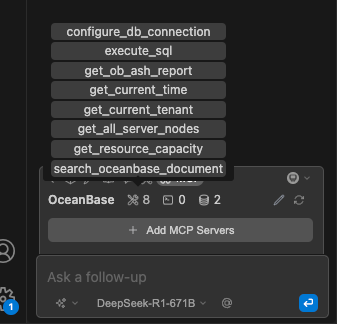
MCP (Model Context Protocol) is an open-source protocol launched by Anthropic in November 2024. It enables large language models (LLMs) to interact with external tools or data sources. With MCP, users don't need to manually copy and execute LLM outputs. Instead, the LLM can directly command tools to perform specific actions (Actions).
OceanBase MCP Server provides the capability for LLMs to interact with OceanBase Database through the MCP protocol. It can execute SQL statements. With the right client, you can quickly build a project prototype, and it's already open-sourced on GitHub.
Continue is an IDE plugin that integrates with MCP Server. It supports Visual Studio Code and IntelliJ IDEA.
This article will show you how to integrate Continue with OceanBase MCP Server to quickly build a backend application.
Prerequisites
You have deployed OceanBase Database and created a MySQL-compatible mode user tenant. For more information, see Create a tenant.
Install Python 3.11 or later and the corresponding pip. If the Python version on your machine is too low, you can use Miniconda to create a new environment with Python 3.11 or later. For more information, see Miniconda installation guide.
Install Git based on your operating system.
Install the Python package manager uv. After the installation is complete, run the
uv --versioncommand to verify whether the installation was successful:pip install uv uv --versionInstall the Continue plugin in Visual Studio Code or IntelliJ IDEA. The plugin name is
Continue.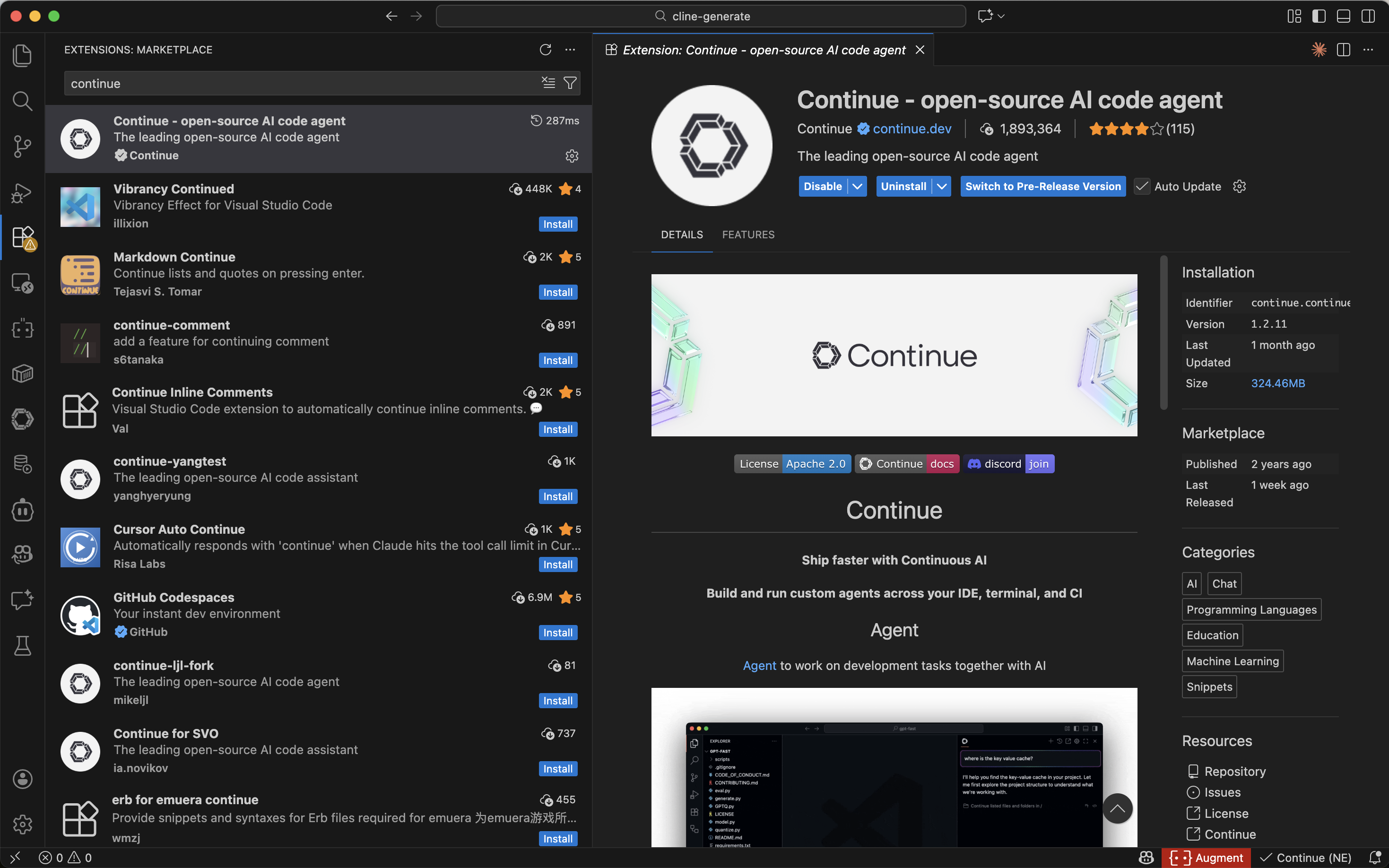
After the installation is complete, click
Add Modelsto configure the large model API for Continue. Here is an example of the API configuration: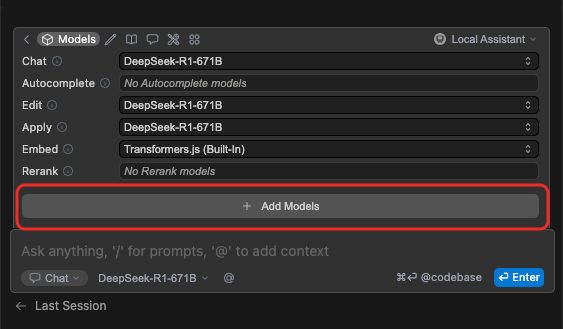
Here is an example of the configuration file:
name: Local Assistant version: 1.0.0 schema: v1 models: # Model name - name: DeepSeek-R1-671B # Model vendor provider: deepseek # Model type model: DeepSeek-R1-671B # URL for accessing the model apiBase: ********* # API key for accessing the model apiKey: ******** # Context providers context: - provider: code - provider: docs - provider: diff - provider: terminal - provider: problems - provider: folder - provider: codebase
Step 1: Obtain the database connection information
Contact the OceanBase Database deployment personnel or administrator to obtain the database connection string. For example:
obclient -h$host -P$port -u$user_name -p$password -D$database_name
Parameter description:
$host: the IP address for connecting to OceanBase Database. For ODP connection, use the IP address of the ODP; for direct connection, use the IP address of the OBServer node.$port: the port for connecting to OceanBase Database. For ODP connection, the default port is2883, which can be customized during ODP deployment; for direct connection, the default port is2881, which can be customized during OceanBase Database deployment.$database_name: the name of the database to be accessed.Notice
The user for connecting to the tenant must have the
CREATE,INSERT,DROP, andSELECTprivileges on the database. For more information about user privileges, see Privilege types in MySQL-compatible mode.$user_name: the tenant connection account. For ODP connection, the format isusername@tenant name#cluster nameorcluster name:tenant name:username; for direct connection, the format isusername@tenant name.$password: the account password.
For more information about the connection string, see Connect to an OceanBase tenant by using OBClient.
Step 2: Configure the OceanBase MCP Server
Clone the OceanBase MCP Server repository
Run the following command to download the source code to your local machine:
git clone https://github.com/oceanbase/mcp-oceanbase.git
Navigate to the source code directory:
cd mcp-oceanbase
Install dependencies
In the mcp-oceanbase directory, run the following commands to create a virtual environment and install the dependencies:
uv venv
source .venv/bin/activate
uv pip install .
Add and configure MCP Servers
Click the button in the top-right corner of the menu bar to open the MCP panel.
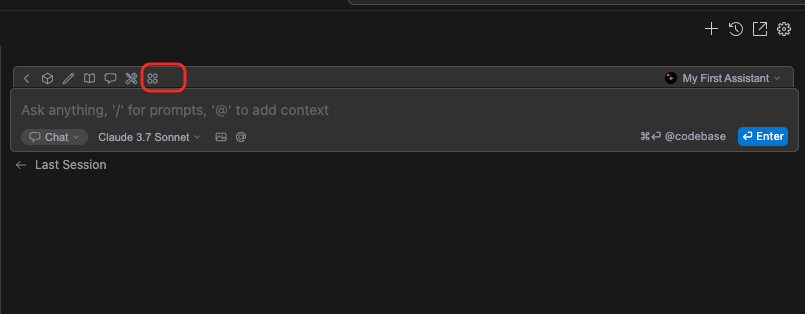
Click Add
MCP Servers.Notice
MCP can only be used in Continue's Agent mode.
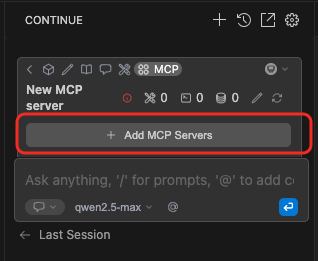
Fill in the configuration file and click Confirm.
Replace
/path/to/your/mcp-oceanbase/src/oceanbase_mcp_serverwith the absolute path to theoceanbase_mcp_serverfolder, and replaceOB_HOST,OB_PORT,OB_USER,OB_PASSWORD, andOB_DATABASEwith the corresponding information from your database:name: OceanBase version: 0.0.1 schema: v1 mcpServers: - name: OceanBase command: uv args: - --directory - /path/to/your/mcp-oceanbase/src/oceanbase_mcp_server - run - oceanbase_mcp_server env: OB_HOST: "****" OB_PORT: "***" OB_USER: "***" OB_PASSWORD: "***" OB_DATABASE: "***"If the configuration is successful, you will see the following message: