This topic describes how to download logs.
Access paths
You can access the Log Search page from the following paths and specify the search criteria to download required logs:
On the Overview page of a cluster, hover over the more icon in the upper-right corner and select Download Logs from the drop-down list.
On the Overview page of an OBProxy cluster, hover over the more icon in the upper right corner and select Download All Logs from the drop-down list.
On the host details page, click Download Logs .
Specify the time range
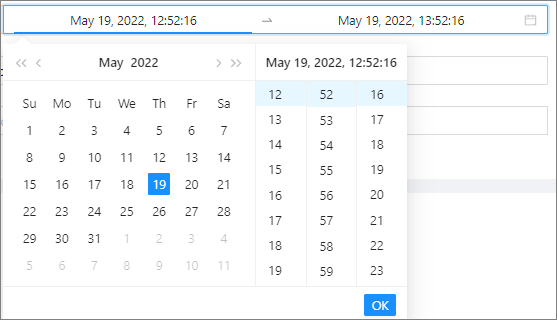
You can select 1 Minute, 5 Minutes, 10 Minutes, 20 Minutes, 30 Minute, or 1 Hour, which is the time interval from the current time, or specify a time range, to download logs generated within the specified time range.
Specify the object scope
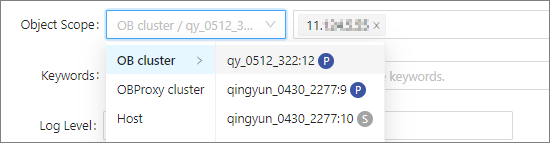
You can view the logs of a host, an OceanBase cluster, or an OBProxy cluster.
Log types
The following table describes the log types.
| Log type | Download entry | Description |
|---|---|---|
| OBServer logs | If you click Download Logs on the Overview page of a cluster, OBServer logs are downloaded by default. | All logs in the /log/ directory of the installation path. |
| OBProxy logs | If you click Download Logs on the Overview page of an OBProxy cluster, OBProxy logs are downloaded by default. | All logs in the /home/admin/logs/obproxy/log/ directory. |
| Host logs | If you click Download Logs on the host details page, host logs are downloaded by default. | All message- files in the /var/log directory. |
| OCP Agent logs | -- | All logs in the /home/admin/ocp_agent/log/ directory. |
| Custom logs | If you click Download Logs on the OCP Agent tab of the host details page, custom logs are downloaded by default. | The shell pattern format is supported. You can specify the directory and file name to search for logs. |
Keyword
You can select a keyword from the drop-down list or enter a keyword in the search box for case-insensitive exact match. This operation is optional.

Log levels
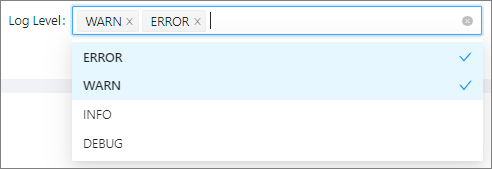
You can select an alert level from the drop-down list. Four alert levels are available: ERROE, WARN, INFO, and DEBUG. This operation is optional.