







OBDUMPER allows you to specify the information required for export in command-line options. For more information about the options and their scenarios and examples, see Options and Scenarios and examples.
Options
Parameter |
Required |
Description |
Introduced in |
Discarded |
|---|---|---|---|---|
| -h(--host) | Yes | The host IP address for connecting to OceanBase Database Proxy (ODP) or a physical OceanBase Database node. | ||
| -P(--port) | Yes | The host port for connecting to ODP or a physical OceanBase Database node. | ||
| -c(--cluster) | No | The cluster name of the database. | ||
| -t(--tenant) | No | The tenant name of the cluster. | ||
| -u(--user) | Yes | The username that you use to log on to the database. | ||
| -p(--password) | No | The password that you use to log on to the database. | ||
| -D(--database) | Yes | The name of the database. | ||
| -f(--file-path) | Yes | The directory to which data is exported. | ||
| --sys-user | No | The name of the user under the sys tenant. | ||
| --sys-password | No | The password of the user under the sys tenant. | ||
| --public-cloud | No | Enables the limited mode. | ||
| --log-path | No | The directory to which log files are exported. | ||
| --ddl | No | Exports DDL files. | ||
| --csv | No | Exports data files in the CSV format (recommended). | ||
| --sql | No | Exports data files in the SQL format, which is different from DDL files. | ||
| --orc | No | Exports data files in the ORC format. | 4.0.0 | |
| --par | No | Exports data files in the Parquet format. | 4.0.0 | |
| --cut | No | Exports data files in the CUT format. | ||
| --all | No | Exports all supported database object definitions and table data. | ||
| --table-group | No | Exports table group definitions. | V3.1.0 | |
| --table | No | Exports table definitions or table data. | ||
| --view | No | Exports view definitions. | ||
| --function | No | Exports function definitions. | ||
| --procedure | No | Exports stored procedure definitions. | ||
| --trigger | No | Exports trigger definitions. | ||
| --sequence | No | Exports sequence definitions. | ||
| --drop-object | No | Prepends a DROP statement when DDL statements are exported. |
||
| --distinct | No | Exports non-duplicate data in the table. | Yes | |
| --weak-read | No | Exports table data in the follower replica, which is different from a standby cluster. | ||
| --query-sql | No | Exports the result set of a custom SQL query statement. | ||
| --snapshot | No | Exports data after the last major compaction. | ||
| --where | No | Exports data that meets specified conditions. | ||
| --partition | No | Exports data in specified partitions. | ||
| --skip-header | No | Skips headers of CSV files when the files are exported. | ||
| --trail-delimiter | No | Truncates the last column separator in a line. | ||
| --null-string | No | Replaces NULL with the specified character. Default value: \N. |
||
| --empty-string | No | Replaces an empty character (' ') with the specified character. Default value: \E. |
||
| --line-separator | No | The custom line delimiter. Default value: \n. |
||
| --file-encoding | No | The file character set, which is different from the database character set. | ||
| --column-separator | No | The column separator, which is different from the column separator string in the CUT format. | ||
| --escape-character | No | The escape character. Default value: \. |
||
| --column-delimiter | No | The column delimiter. Default value: '. |
||
| --column-splitter | No | The column separator string, which is different from the column separator in the CSV format. | ||
| --retry | No | Reexports data from the last savepoint. | ||
| --ctl-path | No | The directory of the control files. | ||
| --exclude-table | No | Excludes the specified tables from the export of table definitions and table data. | ||
| --exclude-column-names | No | Excludes the specified columns from the export of data. | ||
| --exclude-data-types | No | Excludes the specified data types from the export of data. | ||
| --include-column-names | No | Exports data in the specified field order. | ||
| --endpoint | No | The endpoint of the region where the Object Storage Service (OSS) bucket resides. In OBDUMPER 4.1.0 or earlier, this option is --oss-point. |
4.1.0 | |
| --access-key | No | The AccessKey ID used to access the OSS bucket. | ||
| --secret-key | No | The AccessKey secret used to access the OSS bucket. | ||
| --bucket-uri | No | The URI of the OSS bucket. | ||
| --file-name | No | Merges sub-files exported from each table into one large file. | ||
| --remove-newline | No | Forcibly deletes line breaks or carriage returns in the data. It is applicable only to the CUT format. | ||
| --max-file-size | No | The maximum amount of data to be exported for each table. Default unit: MB. | ||
| --skip-check-dir | No | Skips checking on whether the data export directory is empty. The data export directory must be empty. | ||
| --retain-empty-files | No | Generates an empty file by default for the export of an empty table. | ||
| --add-extra-message | No | Exports table group attributes specified in the table creation statement. | ||
| --page-size | No | The page size in a query statement executed during export. Default value: 1000000. | ||
| --thread | No | The number of concurrent export threads allowed. | ||
| --block-size | No | The block size for a file to be imported. Default value: 64MB. | ||
| --parallel-macro | No | The number of macro blocks processed by each export thread. | ||
| --version | No | Shows the version of OBDUMPER. | ||
| --date-value-format | No | The export format of the DATE data type. | V3.2.0 | |
| --time-value-format | No | The export format of the TIME data type in MySQL mode. | V3.2.0 | |
| --datetime-value-format | No | The export format of the DATETIME data type in MySQL mode. | V3.2.0 | |
| --exclude-virtual-columns | No | Specifies not to export the data of generated columns. By default, the data of generated columns is exported. | V3.2.0 | |
| --no-sys | No | Identifies the scenario of a private cloud environment without the sys tenant password. | V3.3.0 | |
| --logical-database | No | Specifies to export data by using ODP (Sharding). | V3.3.0 |
Connection options
OBDUMPER can read data from and write data to an OceanBase database only after connecting to the database. You can connect to an OceanBase database by specifying the following options:
-h host_name , --host= host_name
The host IP address for connecting to ODP or a physical OceanBase Database node.
-P port_num , --port= port_num
The host port for connecting to ODP or a physical OceanBase Database node.
-c cluster_name , --cluster= cluster_name
The OceanBase cluster to connect to. If this option is not specified, the physical node of the database is connected. Relevant options such as
-hand-Pspecify the IP address and port number of the physical node of the database. When this option is specified, ODP is connected. Relevant options such as-hand-Pspecify the IP address and port number of ODP.-t tenant_name , --tenant= tenant_name
The OceanBase Database tenant to connect to. For more information about tenants, see the official OceanBase documentation.
-u user_name , --user= user_name
The username for connecting to OceanBase Database. If you specify an incorrect username, OBDUMPER cannot connect to OceanBase Database.
-p ' password' , --password=' password'
The user password for connecting to OceanBase Database. If no password is set for the current database account, you do not need to specify this option. To specify this option on the command line, you must enclose the value in single quotation marks (' '). For example,
-p'******'.Note
If you are using Windows OS, enclose the value in double quotation marks (" "). This rule also applies to string values of other options.-D database_name , --database= database_name
Exports database object definitions and table data from the specified database.
--sys-user sys_username
The username of a user with required privileges under the sys tenant, for example,
rootorproxyro. OBDUMPER requires such a user to query metadata in system tables. Default value:root.--sys-password ' sys_password'
TThe password of a user with required privileges under the sys tenant. This option is used along with
--sys-user. By default, the password of the root user under the sys tenant is left empty. When you specify this option on the command line, enclose the value in single quotation marks (' '). Example:--sys-password '******'. You do not need to specify this option for OceanBase Database 4.0.0.0 and later versions.Note
If this option is not specified, OBDUMPER cannot query metadata in system tables, and the export features and performance may be greatly affected.--public-cloud
Exports database objects or table data in an OceanBase cluster deployed in the public cloud to a file. If you specify this option on the command line, you do not need to specify the
-tor-cconnection option. OBDUMPER turns on the--no-sysoption by default. For more information about the--no-sysoption, see the corresponding option description.
Feature options
-f ' file_path ' , --file-path= ' file_path '
The absolute path on a local disk for storing data files.
--file-encoding ' encode_name '
The character set used during file export, which is not the database character set. When you specify this option on the command line, enclose the value in single quotation marks (' '). Example:
--file-encoding 'GBK'. Default value: UTF-8.--ctl-path ' control_path '
The absolute path on a local disk for storing control files. You can configure built-in preprocessing functions in a control file. Data will be preprocessed by these functions before being exported. For example, the functions can perform case conversion and check the data for empty values. For the use of control files, see Data processing. When you specify this option on the command line, enclose the value in single quotation marks (' '). Example:
--ctl-path '/home/controls/'.--log-path ' log_path '
The output directory for the operational logs of OBDUMPER. If this option is not specified, OBDUMPER operational logs are stored in the directory specified by the
-foption. Redirection is not required for log output, unless otherwise specified.--ddl
Exports DDL files. A DDL file stores database object definitions. The file is named in the format of object name-schema.sql. When this option is specified, only the database object definitions are exported, and table data is not exported. We recommend that you set the
--threadoption to a value less than 4 for exporting the definitions of multiple table objects. High concurrency affects access to internal views under the sys tenant, resulting in timeout errors during data export.--sql
Exports data files in the SQL format. In an SQL file, data is stored in the format of INSERT statements. The file is named in the format of table name.sql. Each line of table data corresponds to an executable INSERT statement in an SQL file. An SQL file is different from a DDL file in terms of content format. We recommend that you use this option together with the
--tableoption. When it is used together with the--alloption, OBDUMPER exports only table data but not database object definitions.--orc
Exports data files in the ORC format. An ORC file stores data in the column-oriented format. The file is named in the format of table name.orc. For more information about ORC format definitions, see Apache ORC. By default, all ORC files use the
Stringtype compression for data storage.--par
Exports data files in the Parquet format. A Parquet file stores data in the column-oriented format. The file is named in the format of table name.par. For more information about Parquet format definitions, see Apache Parquet. By default, all Parquet files use the
Stringtype compression for data storage.--csv
Exports data files in the CSV format. In a CSV file, data is stored in the standard CSV format. The file is named in the format of table name.csv. For CSV format specifications, see the definitions in RFC 4180. Delimiter errors are the most common errors that occur in CSV files. Single or double quotation marks are usually used as the delimiter. If data in the file contains the delimiter, you must specify escape characters. For more information, see symbol options in the CSV format. We strongly recommend that you use the CSV format. We recommend that you use this option together with the
--tableoption. When it is used together with the--alloption, OBDUMPER exports only table data but not database object definitions.--cut
Exports data files in the CUT format. A CUT file is a format that uses a character string as the separator string. A CUT file is named in the format of table name.dat. We recommend that you use this option together with the
--tableoption. When it is used together with the--alloption, OBDUMPER exports only table data but not database object definitions.Notice
In a CUT file, each data record is stored in an entire line. If the data to be exported contains special characters such as separator strings, carriage returns, or line breaks, OBDUMPER replaces or escapes these special characters.--table-group '*table_group_name [,table_group_name...]*'|--table-group '*'
Exports table group definitions. This option is similar to the
--tableoption, except that this option does not support data export.--all
Exports all database object definitions and table data. When this option is used in combination with
--ddl, all database object definitions are exported. When this option is used in combination with--csv,--sql, or--cut, data in all tables is exported in the specified format. To export all database object definitions and table data, you can specify--alland--ddlalong with a data format option.Notice
The--alloption is mutually exclusive with any database object options. It cannot be specified together with other database object options. If both the--alloption and a database object option are specified, the--alloption will be executed first.--table ' table_name [,table_name...] ' | --table ' * '
Exports table definitions or table data. When this option is used in combination with
--ddl, only table definitions are exported. When this option is used in combination with any data format option, only table data is exported. To specify multiple tables, separate the table names with commas (,). By default, the names of tables that are exported from MySQL tenants are in lowercase. For example, in MySQL mode, both--table 'test'and--table 'TEST'indicate the table namedtest. If table names are case-sensitive, enclose them in brackets ([ ]). For example,--table '[test]'indicates the table namedtest, while--table '[TEST]'indicates the table namedTEST. If the table name is specified as an asterisk (*), all table definitions or table data is exported.Note
You can use OBDUMPER 4.1.0 and later versions to export temporary table definitions from Oracle tenants of OceanBase Database.--view ' view_name [, view_name...] ' | --view ' * '
Exports view definitions. This option is similar to the
--tableoption, except that this option does not support data export.--trigger ' trigger_name [, trigger_name...] ' | --trigger ' * '
Exports trigger definitions. This option is similar to the
--tableoption, except that this option does not support data export.--sequence ' sequence_name [, sequence_name...] ' | --sequence ' * '
Exports sequence definitions. This option is similar to the
--tableoption, except that this option does not support data export.Notice
OBDUMPER 4.0.0 and earlier versions apply to Oracle tenants of OceanBase Database only. OBDUMPER 4.1.0 and later versions apply to both MySQL and Oracle tenants of OceanBase Database.--function ' function_name [, function_name...] ' | --function ' * '
Exports function definitions. This option is similar to the
--tableoption, except that this option does not support data export.--procedure ' procedure_name [, procedure_name...] ' | --procedure ' * '
Exports stored procedure definitions. This option is similar to the
--tableoption, except that this option does not support data export.--drop-object
Inserts a DROP statement before the database object creation statement for the export of a DDL file. This option can be used only in combination with the
--ddloption.--snapshot
Exports data of a historical version. This option can be used only in combination with a data format option. You can export data of a historical version to ensure the global consistency of the exported data. If this option is not specified, the real-time data exported from the memory may not be a globally consistent data snapshot.
--where ' where_condition_string '
Exports data that satisfies the specified conditions. This option can only be used together with a data format option and cannot be used in combination with the
--query-sqloption.--partition ' partition_name [, partition_name...] '
Exports data of specified partitions. The option specifies the partition names. Separate multiple partition names with commas (,). This option can only be used together with a data format option and cannot be used in combination with the
--query-sqloption.--query-sql ' select_statement '
Exports the result set of a custom query statement. This option cannot be used in combination with the
--partitionor--whereoption. You must ensure the correctness and query performance of the custom query statement. When you export the result set of a large query, you may wait for a long time before the database responds. To preprocess data to be exported by using a control file, you need to use the--tableand--ctl-pathoptions. The--tableoption must be set to the table name exactly the same as that specified in--ctl-path. If preprocessing is not required, you can specify any table name for the--tableoption.--retry
Resumes the export task from the location of the last export failure.
Notice
The CHECKPOINT.bin file is a savepoint file generated when the tool runs, and is located in the directory specified in the-foption. You cannot use this option if the CHECKPOINT.bin file does not exist.--distinct
Filters duplicate data in a table. This option is used only in combination with the
--cutoption.Notice
This option is discarded. Do not use it.--weak-read
Exports data from the follower replica. OBDUMPER of versions earlier than V3.1.0 can be used only with ODP V3.1.2 and later. For OBDUMPER V3.1.0 and later versions, you need to modify
ob.proxy.route.policy=follower_firstin theconf/session.propertiesfile. For the usage of thesession.propertiesfile, see Set session-level variables in Scenarios and examples under OBDUMPER.--file-name ' file_name '
Merges subfiles exported from a table into one large file.
Note
If this option is specified, the file name can contain an extension. Example: --file-name 'test.txt'.
If you set this option to a custom path, you cannot use OBLOADER to import the entire directory of the exported data. This is because the directory structure generated by OBDUMPER is changed to the custom path and OBLOADER cannot recognize it.Examples:
UsageDescriptionExample--file-name {file_name} Merges sub-files exported from one table or schema.
Sub-files exported from the single table are merged into one file, which is named as the value offile_name. The paths of the exported schema and record files remain unchanged.Specify the following options: - -f='/home/admin/foo'
- --file-path='custom.dat'
- --table='t_origin'
custom.datfile in the/home/admin/foo/data/{schema}/TABLE/directory.--file-name {*} Merges sub-files exported from one or more tables into one or more files.
Sub-files exported from the specified tables are merged into n files that are named after the corresponding tables, where n equals the number of the corresponding tables. The paths of the exported schemas and record files remain unchanged.Specify the following options: - -f='/home/admin/foo'
- --file-path='*'
- --table='*'
/home/admin/foo/data/{database}/TABLEdirectory. All schema files are in their original positions.Note
We recommend that you do not use--file-name '*'together with the--skip-check-diroption, because the--skip-check-diroption merges existing data files of the same table names in the path, resulting in issues such as data duplication.--file-name {file_path} Merges sub-files exported from a single table or a single schema. You can specify a relative or absolute path. Use this option only when --ddlis not specified. The file name for exporting a schema is different from that for exporting records.- Merges sub-files exported from a single table into one file and moves the file to the file path specified by
file_path. - If you specify
--ddlbut do not specify any data format, only the exported schema file is moved to the file path specified byfile_path.
- To export a schema, specify the following options:
- --table='custom'
- -f='/home/admin/foo'
- --file-name='/home/admin/bar/custom.ddl'
customtable are exported to thecustom.ddlfile in the/home/admin/bar/directory. - To export record files, specify the following options:
- --table='custom'
- -f='/home/admin/foo'
- --file-name='/home/admin/bar/custom.dat'
custom.datfile in the/home/admin/bar/directory.
--file-name {directory_path} A directory must end with a slash ( /) and cannot contain\*.
Merges sub-files exported from one or more tables into one or more files. You can specify a relative or absolute path. Sub-files exported from the specified tables are merged into n files that are named after the corresponding tables, where n equals the number of the corresponding tables. The files are then stored in the directory specified bydirectory_path.Specify the following options: - -f='/home/admin/foo'
- --file-path='/home/admin/bar/'
- --table='*'
/home/admin/bar/directory.--max-file-size int_num
The maximum size of a file. Data export stops when the size of the exported data reaches the limit.
--skip-check-dir
Skips checking on whether the data export directory is empty. When the export directory is not empty, the tool stops exporting.
--remove-newline
Forcibly deletes carriage returns or line breaks in the data before the data export. For example, ***
\r***, ***\n***, and\r\nwill be deleted. This option only modifies the data retrieved to the memory, and does not modify the data in the source table. This option can be used only in combination with the--cutoption.Notice
If data in the source table contains carriage returns or line breaks, the data exported with this option specified will be inconsistent with that in the source table. Before you use this option, ensure that the removal of\r,\n, and\r\ndoes not affect the business. If you do not need to delete carriage returns or line breaks in the data, to avoid data inconsistency, do not specify this option in the command.--retain-empty-files
Generates an empty file for each empty table. If this option is not specified, no file is generated for an empty table during data export.
--add-extra-message
Exports table definitions with additional information in DDL files. Example: tablegroup.
--exclude-table ' table_name [, table_name...] '
Excludes the specified tables from the export of table definitions or table data. Fuzzy match on table names is supported.
Example:
--exclude-table 'test1,test*,*test,te*st'The preceding example specifies to exclude the following tables from the export of table definitions and table data:
- test1
- All tables with the table name starting with
test - All tables with the table name ending with
test - All tables with the table name starting with
teand ending withst
--exclude-data-types ' datatype [, datatype...] '
Excludes the specified data types from the export of data.
--include-column-names ' column_name [, column_name...] '
Includes the specified columns in the export of table data. Data of the columns is exported in the specified order.
--exclude-column-names ' column_name [, column_name...] '
Excludes the specified columns from the export of table data. Fuzzy match on column names is not supported.
Notice
The letter case of the specified column name must be the same as that of the column name in the table structure.--skip-header
Skips headers of CSV files when the files are exported. This option can be used only in combination with the
--csvoption.--trail-delimiter
Truncates the last column separator in a line. This option can be used only in combination with the
--cutor--csvoption.--null-string ' null_replacer_string '
Replaces NULL with the specified character. This option can be used only in combination with the
--cutor--csvoption. Default value: \N.--empty-string ' empty_replacer_string '
Replaces an empty character (' ') with the specified character. This option can be used only in combination with the
--csvoption. Default value: \E.--line-separator ' line_separator_string '
The custom line break for the data file. The default value of this option varies with the system platform. Valid values: \r, \n, and \r\n.
--column-separator ' column_separator_char '
The column separator. This option can be used only in combination with the
--csvoption and supports a single character only. Default value: comma (,).--escape-character ' escape_char '
The escape character. This option can be used only in combination with the
--cutor--csvoption and supports a single character only. Default value: backslash ().--column-delimiter ' column_delimiter_char '
The column delimiter. This option can be used only in combination with the
--csvoption and supports a single character only. Default value: single quotation mark (').--column-splitter ' split_string '
The column separator string. This option can be used only in combination with the
--cutoption.--endpoint ' oss_endpoint_string '
The endpoint to access the OSS bucket. This option must be used in combination with
--access-keyand--secret-keyfor the access to OSS.Note
In OBDUMPER 4.1.0 or earlier, this option is `--oss-point`.
--access-key ' access_key_string '
The AccessKey ID used to access the OSS bucket. This option must be used in combination with
--endpointand--secret-keyfor access to the OSS bucket.--secret-key ' secret_key_string '
The AccessKey secret used to access the OSS bucket. This option must be used in combination with
--endpointand--access-keyfor access to the OSS bucket.--bucket-uri ' bucket_uri_string '
The URI of the OSS bucket. This option must be used in combination with
--endpoint,--access-key, andsecret-keyfor access to OSS. Comply with the following rules when you use the-foption in conjunction with the--file-nameoption:- `-f` and `--bucket-uri` are required.
- Regardless of whether the `--file-name` option is specified, the `-f` option is no longer associated with the key of OSS after the file is uploaded.
- When the `--file-name` option is specified to a value that does not include the path, the path specified in `--bucket-uri` is used and concatenated with an extension such as `data/{schema}/table`.
- When the `--file-name` option is not specified, the path specified in `--bucket-uri` is used and concatenated with an extension such as data/{schema}/table.
- When you upload a local data file to OSS, the object key is subject to the following circumstances.
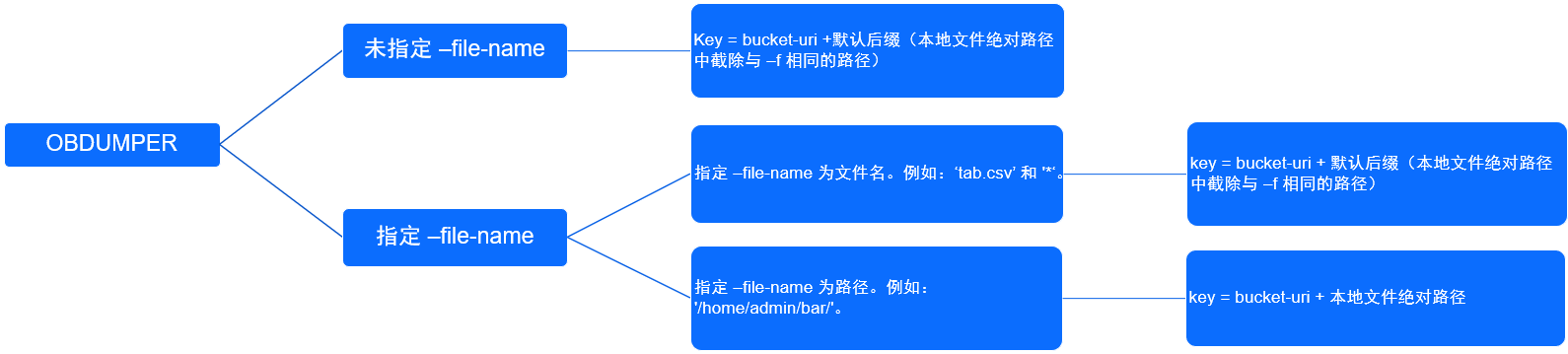
-f--file-name--bucket-uriParent path of the record files on the OSS bucket/home/admin/foonull oss://bucket/useross://bucket/user/data/db/table//null oss://bucket/useross://bucket/user/data/db/table//home/admin/foo*oss://bucket/useross://bucket/user/data/db/table//home/admin/footab.csvoss://bucket/useross://bucket/user/data/db/table//home/admin/foo/home/admin/bar/oss://bucket/useross://bucket/user/home/admin/bar//home/admin/foo/home/admin/tab.datoss://bucket/useross://bucket/user/home/admin/
* --date-value-format
The export format of the DATE data type. By default, the DATE type data is exported in the yyyy-MM-dd format in MySQL mode and in the yyyy-MM-dd HH:mm:ss format in Oracle mode.
--time-value-format
The export format of the TIME data type in MySQL mode. By default, the TIME data type is exported in the HH:mm:ss format. The precision is the same as that in the table definition.
--datetime-value-format
The export format of the DATETIME data type in MySQL mode. By default, the DATETIME data type is exported in the yyyy-MM-dd HH:mm:ss format. The precision is the same as that in the table definition.
--timestamp-value-format
The export format of the TIMESTAMP data type in MySQL or Oracle mode. By default, the TIMESTAMP data type is exported in the yyyy-MM-dd HH:mm:ss format. The precision is the same as that in the table definition.
--timestamp-tz-value-format
The export format of the TIMESTAMP WITH TIME ZONE data type in Oracle mode. By default, the data type is exported in the yyyy-MM-dd HH:mm:ss.SSSSSS format. The precision is the same as that in the table definition.
--timestamp-ltz-value-format
The export format of the TIMESTAMP WITH LOCAL TIME ZONE data type in Oracle mode. By default, the TIMESTAMP WITH LOCAL TIME ZONE data type is exported in the yyyy-MM-dd HH:mm:ss format. The precision is the same as that in the table definition.
--exclude-virtual-columns
Specifies not to export the data of generated columns. By default, the data of generated columns is exported.
--no-sys Specifies to export database objects or table data to OceanBase clusters deployed in the private cloud when the user cannot provide the sys tenant password. Unlike the
--public-cloudoption, when you use the--no-sysoption, you need to specify the-tconnection option on the command line and also need to add the-coption to connect to the ODP service. In OceanBase Database 4.0.0.0 or earlier, if you do not specify the--public-cloudor--no-sysoption, you must specify the--sys-userand--sys-passwordoptions for OBDUMPER.--logical-database
Specifies to export data by using ODP (Sharding). When you specify the
--logical-databaseoption on the command line, the definition of a random physical database shard is exported and the shard cannot be directly imported to the database. You need to manually convert the exported physical shard to a logical one before you import it to the database for business use.
Performance options
--page-size int_num
The page size in a query statement executed during export. Default value:
1000000.--thread int_num
The number of concurrent export threads allowed. This option corresponds to the number of export threads. Default value: Number of CPU cores x 2. We recommend that you set the
--threadoption to a value within 4 for exporting the definitions of multiple database objects. High concurrency affects access to system tables under the sys tenant, resulting in timeout errors during data export.--block-size int_num
The block size for a file to be exported. If the size of the data file to be exported exceeds the value of this option, the file will be split into logical sub-files. When specifying this option, you do not need to explicitly specify the unit. The default unit is MB. Default value: 64MB. This option does not take effect for ORC and Parquet formats. OBDUMPER 4.1.0 and later versions allow you to specify the maximum number of rows in each sub-file for data file splitting. The unit of
--block-sizecan be MB or ROW. For example,--block-size 256MBspecifies to split a data file greater than 256 MB into sub-files that do not exceed 256 MB each, and--block-size 256ROWspecifies to split a data file that contains more than 256 rows into sub-files that do not exceed 256 rows each.--parallel-macro int_num
The number of macroblocks that can be processed by each export thread. Default value:
8.
Other options
-h, --help
Shows the help information about the tool.
--version
Shows the version of the tool.