







This topic describes how to use OceanBase Deployer (OBD) to deploy OceanBase Database in an x86-based CentOS Linux 7.9 system on the GUI.
Background
OBD V2.0.0 or later supports GUI-based deployment for OceanBase Database and related components such as OceanBase Agent (OBAgent), OceanBase Database Proxy (ODP), and OceanBase Cloud Platform (OCP) Express. You can easily deploy an OceanBase cluster by following the wizard.
Prerequisites
At least 2 vCPUs, 8 GB of memory, and 19 GB of disk space are available for deploying OceanBase Database only.
At least 4 vCPUs, 10 GB of memory, and 25 GB of disk space are available for deploying OceanBase Database and all its components. We recommend that more than 16 GB of memory be available.
The Java environment has been installed and configured if OCP Express is to be deployed. At present, only Java Development Kit (JDK) 1.8 is supported. For more information, see the How do I configure the Java environment before I deploy OCP Express? section in FAQ.
Notice
OBD remotely performs installation and deployment by using the Secure Shell (SSH) protocol. Therefore, you must use SSH to verify whether the Java environment is available. For more information, see Verify the Java environment.
Prepare the software
You can use OBD to deploy OceanBase Database on the GUI in online or offline mode.
Online deployment: Make sure that the server where OBD resides can connect to the Internet. In this deployment mode, OBD obtains the installation package from a remote image repository during deployment, without the need for you to deploy and configure the installation package in advance.
Offline deployment: The server where OBD resides does not need to connect to the Internet during deployment. In this deployment mode, you must upload the installation package to the local image repository of OBD in advance. If you choose offline deployment, we recommend that you download the all-in-one package of the desired version.
Prepare the software based on the deployment mode.
Online deployment
If you choose online deployment, run the following commands to install OBD on the central control server.
[admin@test001 ~]$ sudo yum install -y yum-utils
[admin@test001 ~]$ sudo yum-config-manager --add-repo https://mirrors.aliyun.com/oceanbase/OceanBase.repo
[admin@test001 ~]$ sudo yum install -y ob-deploy
[admin@test001 ~]$ source /etc/profile.d/obd.sh
Offline deployment
If you choose offline deployment, run the following commands to download and install the all-in-one package.
You can download the latest all-in-one package from OceanBase Download Center and copy the package to the central control server. Run the following commands to decompress and install the package:
[admin@test001 ~]$ tar -xzf oceanbase-all-in-one-*.tar.gz
[admin@test001 ~]$ cd oceanbase-all-in-one/bin/
[admin@test001 bin]$ ./install.sh
[admin@test001 bin]$ source ~/.oceanbase-all-in-one/bin/env.sh
Procedure
Go to the GUI.
Run the
obd webcommand on the CLI, and click the generated URL to go to the GUI.[admin@test001 ~]$ obd web start OBD WEB in 0.0.0.0:8680 please open http://10.10.10.1:8680Note
The default port in the URL is 8680. You can use the
obd web -p <PORT>command to specify a port.On Alibaba Cloud or other cloud environments, the program may fail to obtain a public IP address but output an intranet IP address. You must use a correct public IP address to access the GUI.
The
obd webcommand is bound to0.0.0.0, which allows accessing the GUI through any accessible IP address in a multi-network card deployment scenario.
To change the display language, click the English icon in the upper-right corner of the page and select a language as needed.
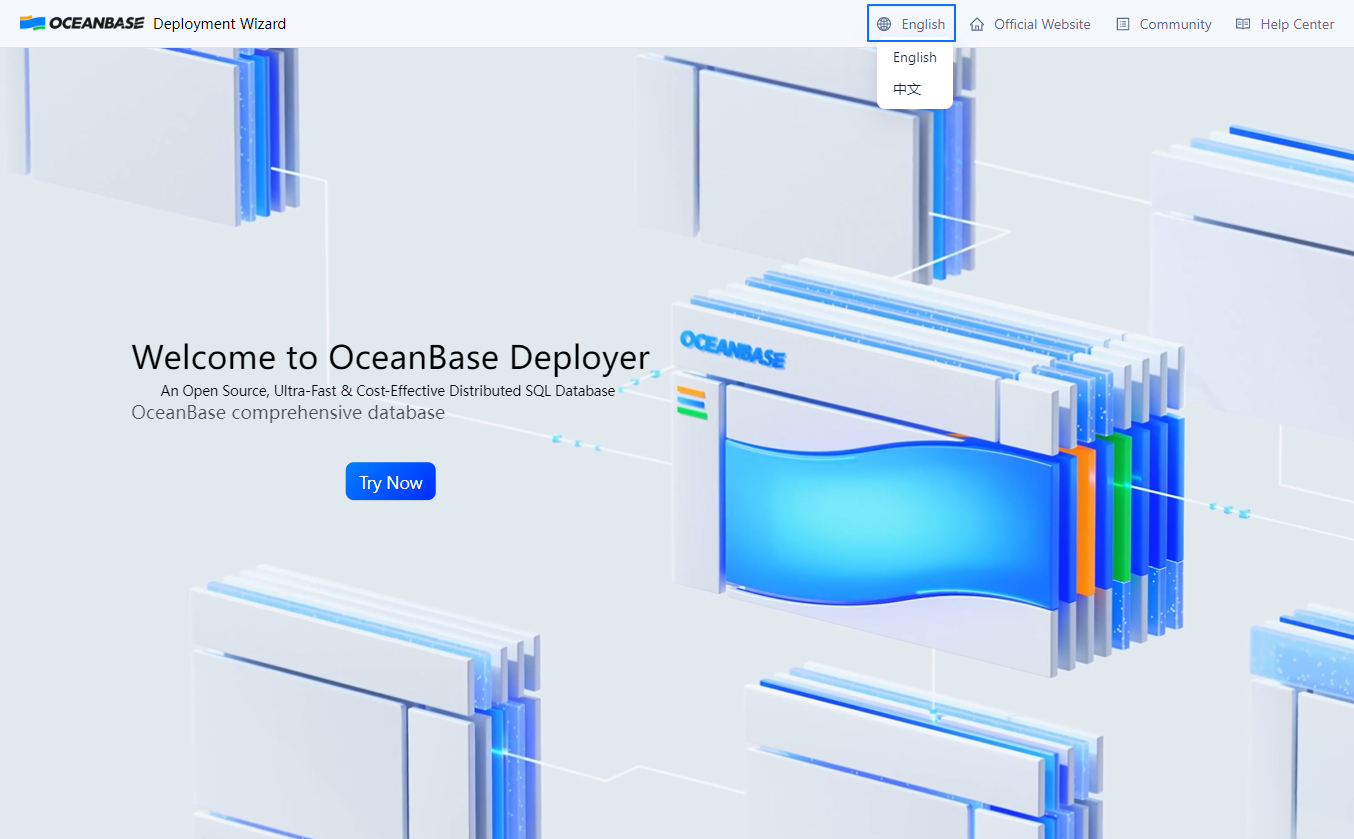
On the GUI, click Try Now to go to the Welcome to the OceanBase Deployment Wizard page. On the displayed Welcome to the OceanBase Deployment Wizard page, click OceanBase and supporting tools, and then click OK in the lower right part of the page.
Configure the deployment information.
On the Deployment Configuration page, you can configure the cluster name, deployment type, and components to deploy.
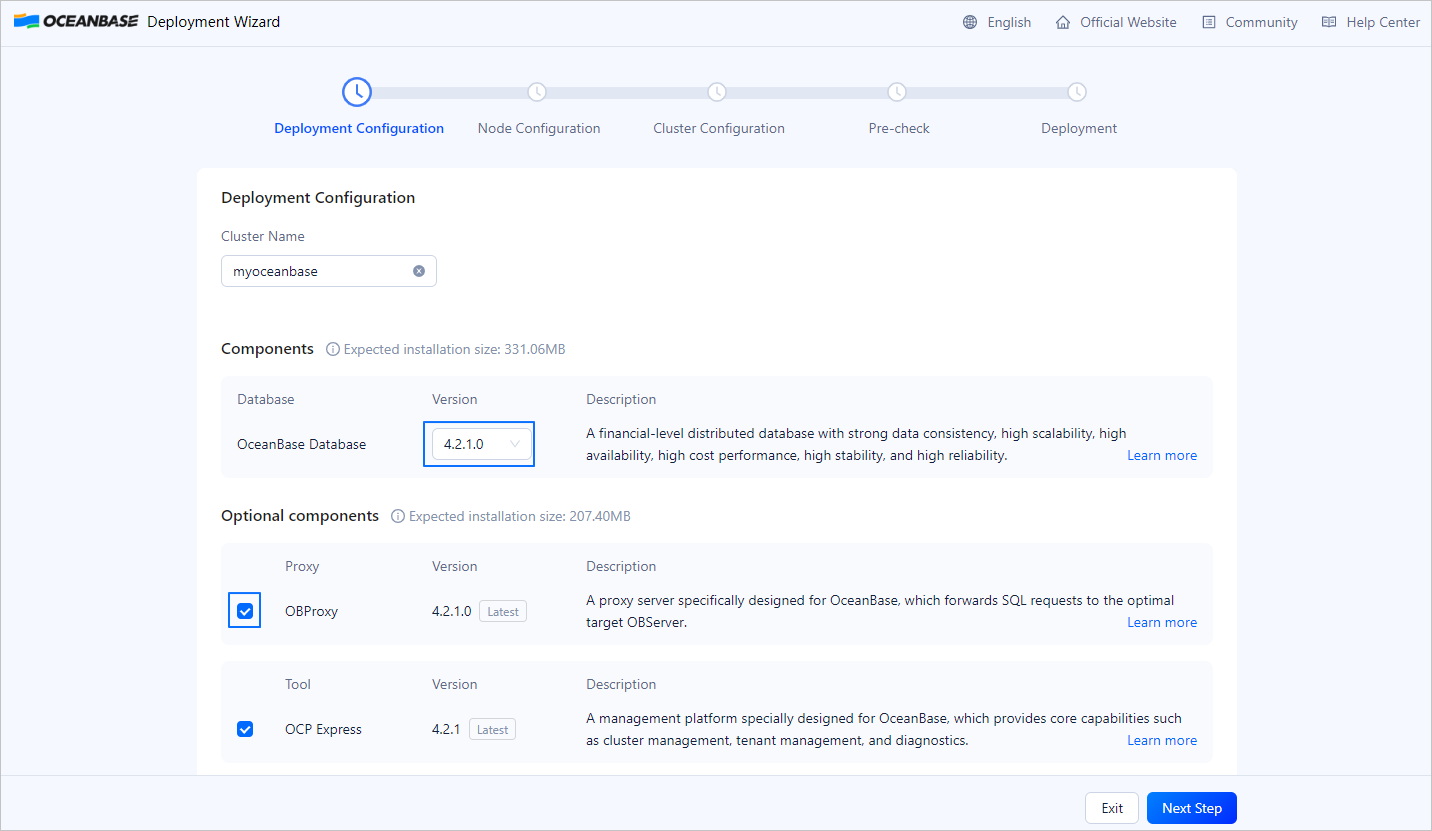
On the Deployment Configuration page:
The default value of Cluster Name is
myoceanbase, which can be modified and must not be the same as the name of an existing cluster.By default, all components are deployed, and you can choose whether to deploy specific components by clicking the check box next to the corresponding component under Optional components. Note that selecting OCP Express will automatically select OBAgent, and deselecting OBAgent will automatically deselect OCP Express.
Click Learn more in the Description column of a component to view more information about the component.
You can click the drop-down list in the Version column of OceanBase Database and select a version. For other components, the latest versions are displayed by default.
Click Next Step to go to the Node Configuration page.
Configure the node information.
On the Node Configuration page, configure the database and component nodes, and specify the user information and software installation path.
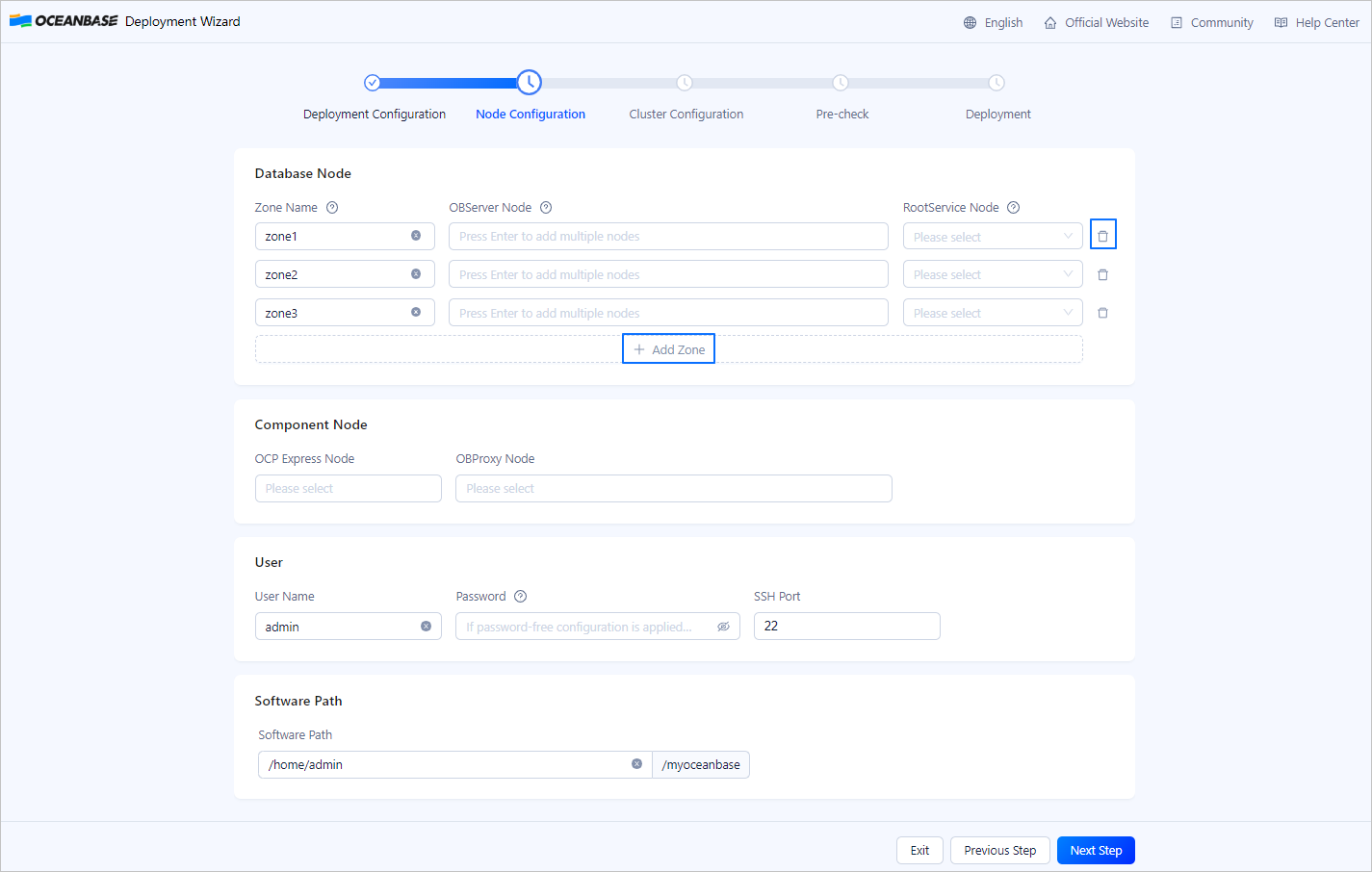
On the Node Configuration page:
By default, three zones are available for the database nodes. You can click + Add Zone to add a zone or click the delete icon to delete a zone.
For OCP Express Node, you can select the IP address of an OBServer node from the drop-down list or enter the IP address of a new node. You can select or enter only one IP address.
For OBProxy Node, you can select the IP address of an OBServer node or enter the IP address of a new node. You can configure multiple OBProxy nodes.
By default, the value of User Name is the user who started the current process and the SSH port is Port 22. You can change the user and SSH port as needed. If password-free access is not configured for the nodes, you must enter the password of the specified user.
By default, the value of Software Path is the home directory of the user who performed the deployment. You can change the path as needed.
Click Next Step to go to the Cluster Configuration page.
Configure the cluster information.
On the Cluster Configuration page, configure related cluster information, including the password of the administrator user in the sys tenant (root@sys), data directory, log directory, and ports and parameters of OceanBase Database and its components.
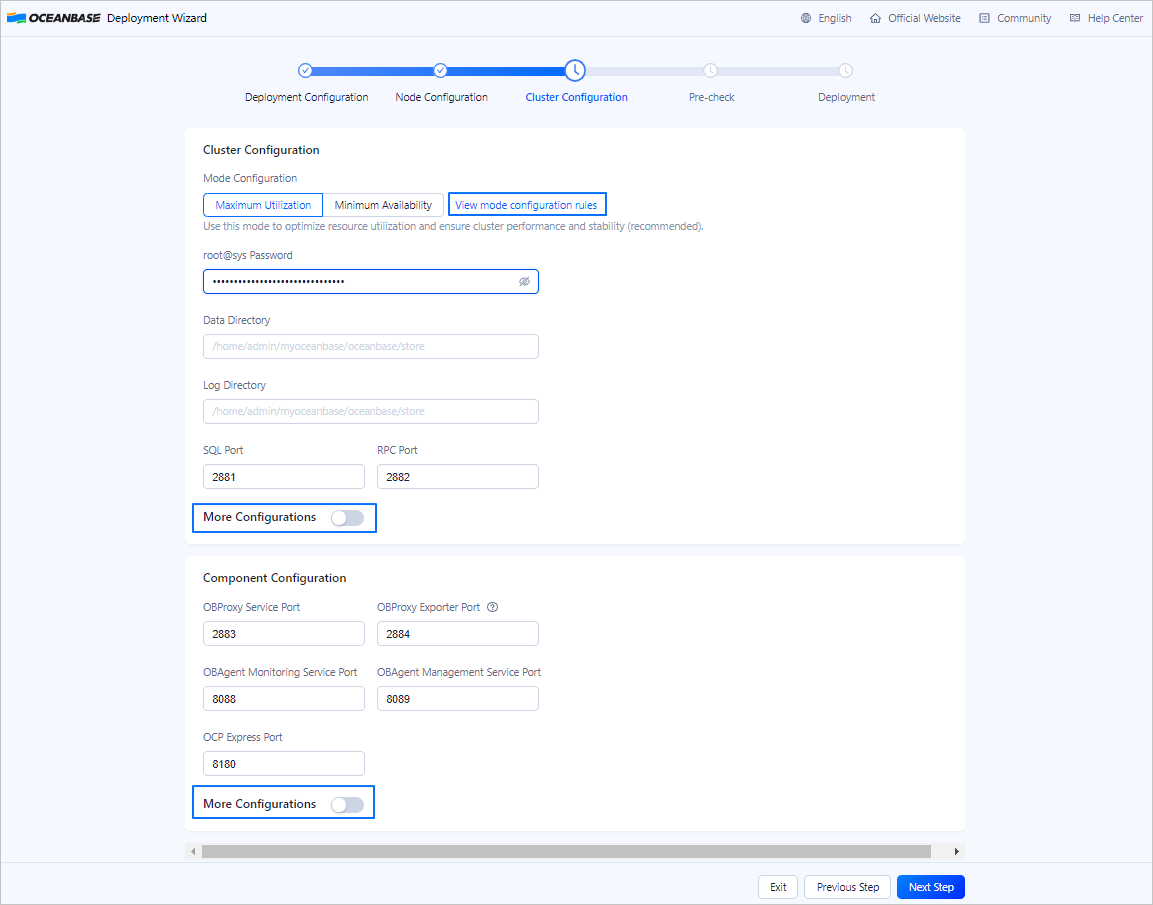
On the Cluster Configuration page:
Valid values of Mode Configuration are Maximum Utilization and Minimum Availability. The Maximum Utilization mode maximizes resource utilization to ensure cluster performance and stability, and is recommended. In the Minimum Availability mode, minimum resources required for the normal running of the cluster are configured. For more information about mode configuration, visit Mode configuration rules.
The default password of the root@sys user is a random string automatically generated by OBD, and can be modified. The password must meet the following complexity requirements:
It must be 8 to 32 characters in length.
It must contain characters of at least three of the following types: digits (0 to 9), uppercase letters (A to Z), lowercase letters (a to z), and special characters. Special characters are
~!@#%^&*_-+=|(){}[]:;,.?/
By default, the data directory and log directory of the cluster are in the software path configured on the Node Configuration page. The data and log directories must be absolute paths beginning with
/. You can change the data and log directories. Make sure that the specified directories are empty.The default ports are retained for the database and its components. You can change the ports. Make sure that the specified ports range from 1024 to 65535 and are not occupied.
Enable More Configurations to view more cluster or component parameters. You can retain the default settings or modify the settings.
Click Next Step to go to the Pre-check page.
Perform a precheck.
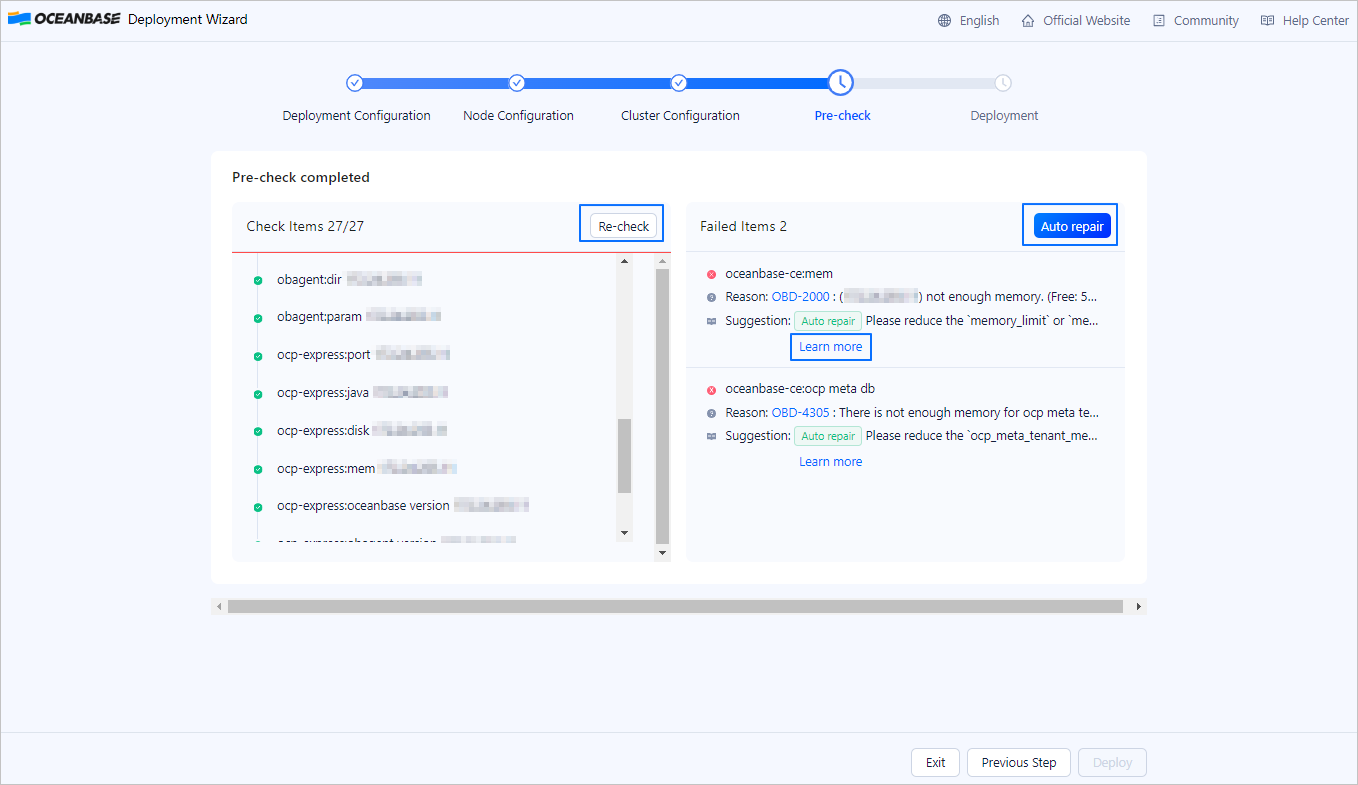
On the Pre-check page, confirm all the configuration information. If any information is incorrect, you can click Previous Step to modify the information. After you confirm that all the information is correct, click Pre-check.
If an error is returned, you can click Auto repair to automatically correct the error, or click Learn more to go to the error code document and correct the error based on the reference document. After all the errors are corrected, click Re-check to perform a precheck again.
Deploy OceanBase Database.
After the precheck is passed, click Deploy to start to deploy OceanBase Database.
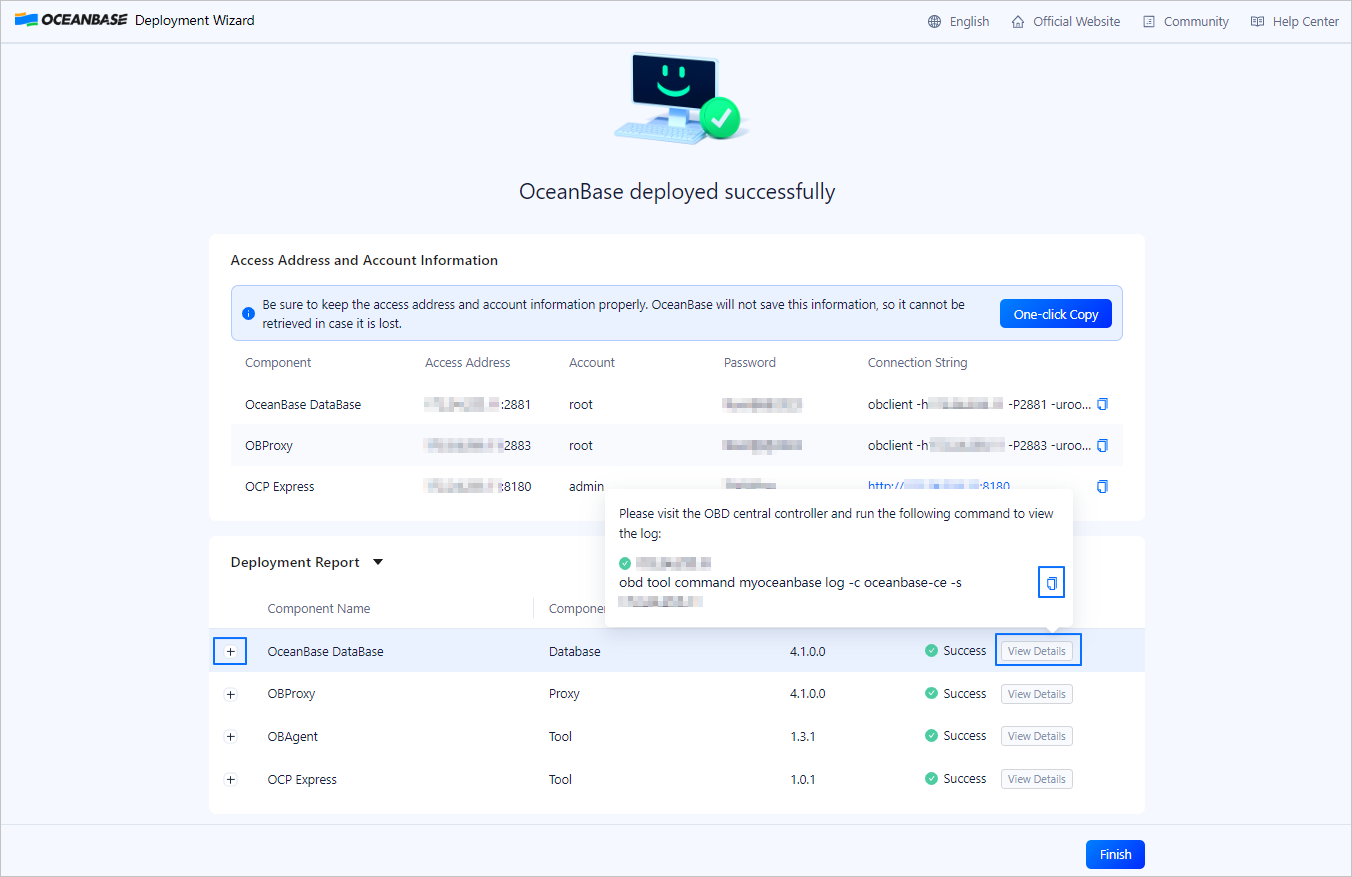
On the deployment page:
After the deployment succeeds, you can copy the displayed connection string and use it to connect to OceanBase Database from the CLI.
Click the connection string of OCP Express to go to the logon page of OCP Express. Log on with the account and password provided on the deployment page, and then change the password. Then, you can manage the cluster on the GUI.
Note
On Alibaba Cloud or other cloud environments, the program may fail to obtain a public IP address but output an intranet IP address. You must use a correct public IP address to access the GUI.
In the Deployment Report section, click the Expand icon in front of the corresponding component to view the deployment log on the GUI.
In the Deployment Report section, find the target component and click View Details. Then, you can click the Copy icon next to a command to copy the command and run the command on the central control server to view the log location of the component.
Click Finish.
Notice
To deploy multiple clusters, click Finish on the GUI to end the current OBD process and then run theobd web command to start the deployment of another cluster.
Related operations
Verify the Java environment
OBD remotely executes a script to deploy OCP Express. Therefore, you must use SSH to verify the Java environment. You cannot directly run the java -version command on the server where OCP Express is deployed to verify the Java environment.
Note
Interactions between the client and server will initialize the environment variables, but the SSH access mode does not initialize environment variables. As a result, the system prompts that the Java command does not exist or the Java version is wrong when you use SSH.
You can run the following command on any server that has established a network connection with the node where OCP Express resides.
# ocp_express_node_username: the username of the node where OCP Express resides
# ocp_express_node_ip: the IP address of the node where OCP Express resides
[admin@test001 ~]$ ssh <ocp_express_node_username>@<ocp_express_node_ip> 'java -version'

# Command output
openjdk version "1.8.0_xxx"
OpenJDK Runtime Environment (build 1.8.0_362-b08)
OpenJDK 64-Bit Server VM (build 25.362-b08, mixed mode)
If the required Java environment has been installed but failed the verification, you can resolve the issue in the following ways:
Method 1: Specify the java_bin parameter in the More Configurations section.
As shown in the following figure, set
java_binto the real path of Java, such as/jdk8/bin/java.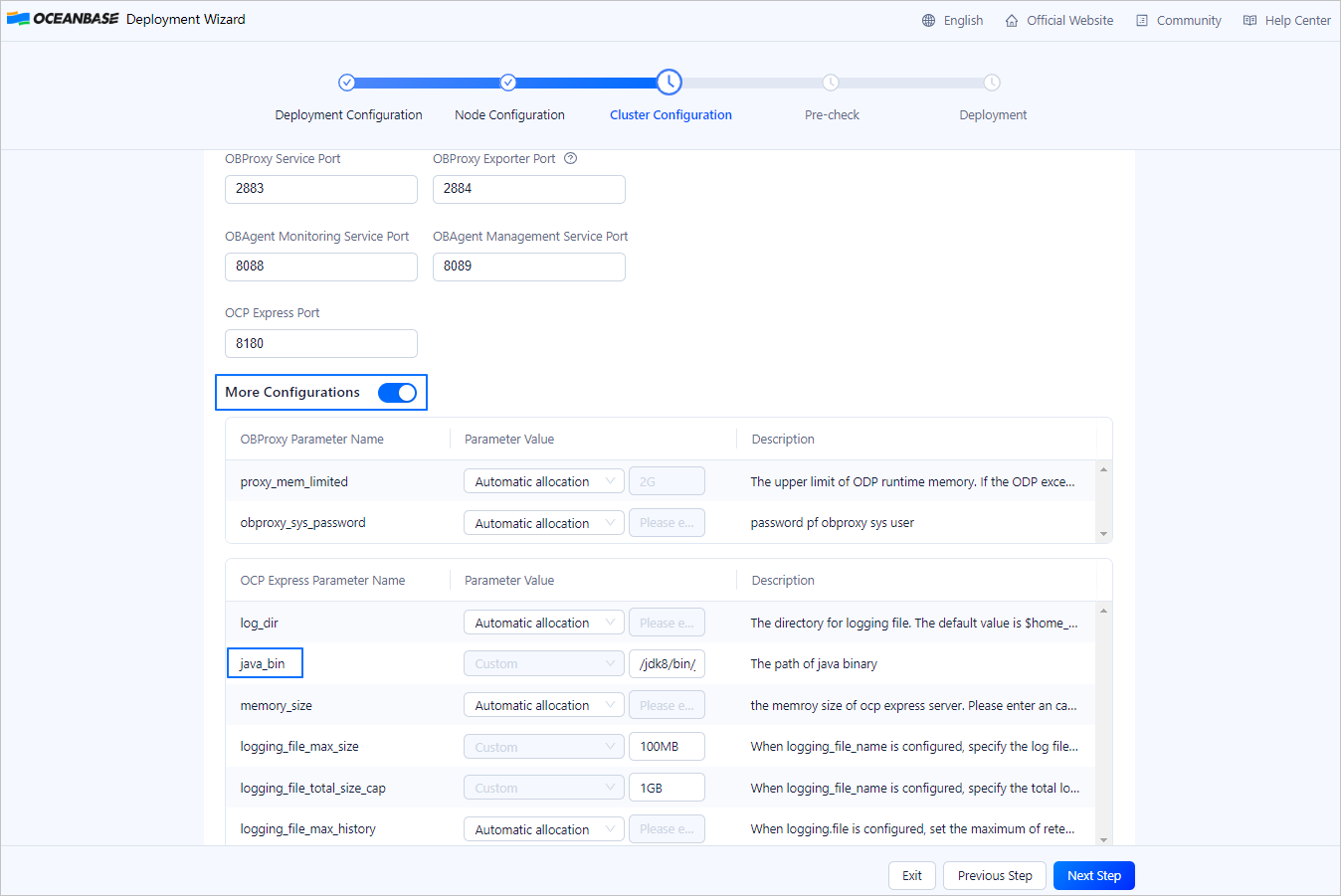
Method 2: Create a soft link from the executable file of Java to
/usr/bin/java.[admin@test001 bin]$ pwd /jdk8/bin [admin@test001 bin]$ ln -s /jdk8/bin/java /usr/bin/java
Manage the cluster
You can run the following commands to manage a cluster deployed by using OBD. For more information, see Cluster commands.
# View the cluster list.
[admin@test001 ~]$ obd cluster list

# View the status of the myoceanbase cluster.
[admin@test001 ~]$ obd cluster display myoceanbase

# Stop the myoceanbase cluster in the running state.
[admin@test001 ~]$ obd cluster stop myoceanbase

# Destroy the myoceanbase cluster.
[admin@test001 ~]$ obd cluster destroy myoceanbase
Deploy a component of the desired version
The all-in-one package is iterated based on OceanBase Database versions. If any component in the package has a later version, you can download the component of the latest version from OceanBase Download Center and then upload it to the local image repository of OBD. OBD will automatically obtain the latest version from the local image repository during deployment.
Go to the directory where the component installation package is located, run the following command to add it to the local image repository.
[admin@test001 rpm]$ obd mirror clone *.rpmView the list of installation packages in the local image repository.
[admin@test001 rpm]$ obd mirror list local