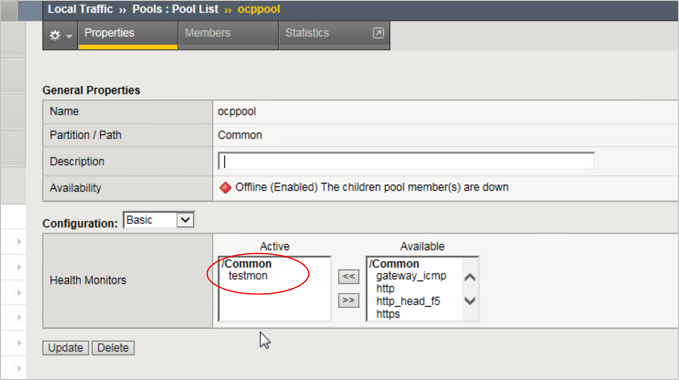
When an OCP port is still listening but the service is already abnormal, logging in to the OCP console via web will show the login page, but entering the username and password will fail the login. Therefore, it is necessary to monitor the health of OCP to prevent requests from being sent to an abnormal OCP node via F5.
Procedure
- Add an alert rule in Local Traffic>Monitors>add.
Send String:
GET /api/status HTTP/1.1\r\nConnection: Close\r\nHost: \r\n\r\nReceive String: okay
- In Local Traffic>Monitors, go to the alert rule created in step 2, select Test, enter the OCP address and port, and click Test.
- If the return value is bad, OCP is abnormal.
Click Local Traffic>Pools, select the Profile created in Accessing the OCP Console via F5, and modify the health monitors here to the monitoring rule created in step 1.
- Click Local Traffic>Pools, and select OCP Console Access F5 to create a profile, modify the health monitors here to the monitoring rules created in Step 1.
Click Local Traffic>Pools, and select OCP Console Access F5 to create a profile, modify the health monitors here to the monitoring rules created in Step 1.