







This topic describes how to modify parameters of and add parameters to a JDBCWriter in the OceanBase Migration Service (OMS) console.
Limits
Only OMS V3.2.2 and later versions support update of JDBCWriter configurations.
You can update configurations of only a JDBCWriter in the Stopped or Abnormal state. If a JDBCWriter is not in the Stopped or Abnormal state, stop the JDBCWriter first.
Procedure
Log on to the OMS console.
In the left-side navigation pane, click Data Migration.
On the Data Migration page, click the name of the target project to go to its details page.
Click View Component Monitoring in the upper-right corner.
Update the configurations of the JDBCWriter component.
Click Update in the Actions column of the JDBCWriter component.
In the Update Configurations dialog box, hover the pointer over the parameter to be modified and click the edit icon that appears.
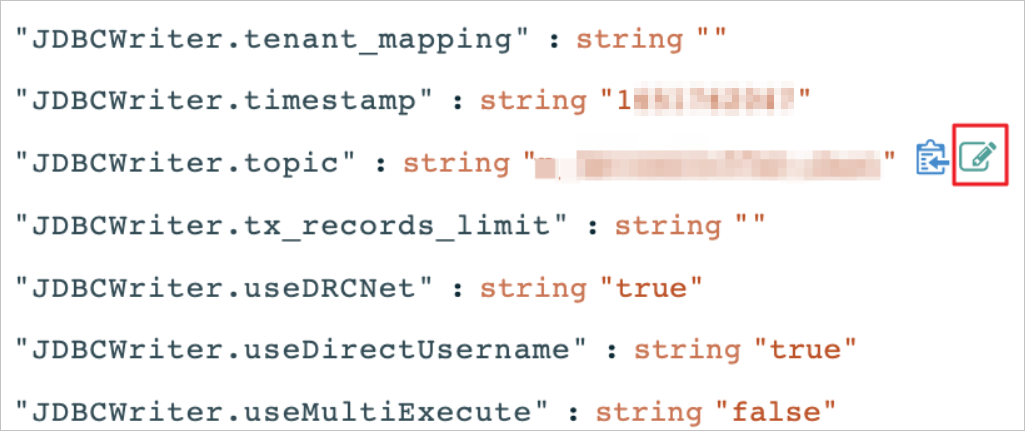
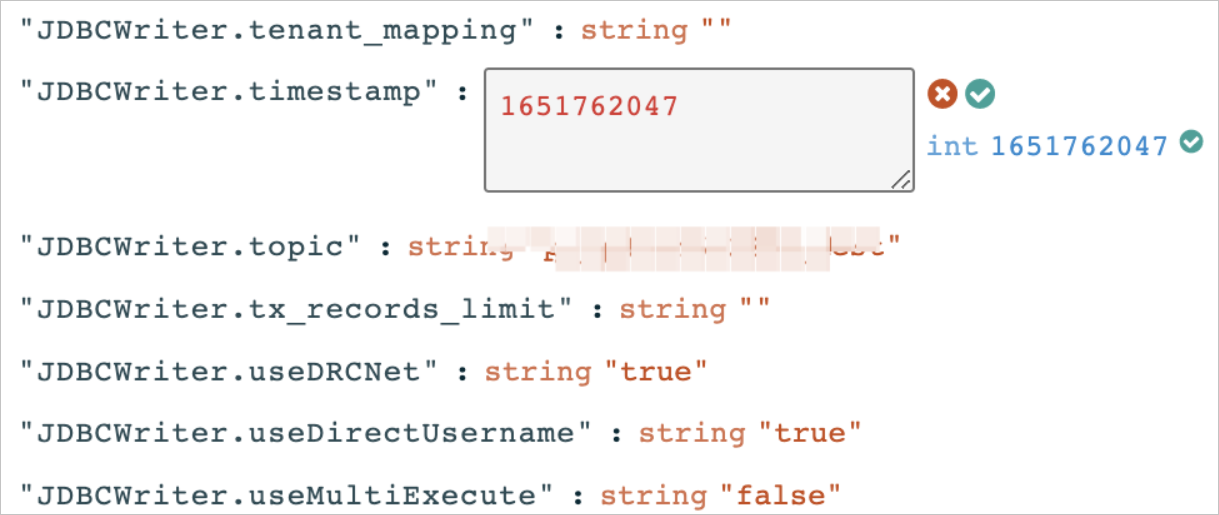
Modify the value in the text box and then click the check icon.
Click the check icon in green to update the value, or the cross icon in red to cancel the modification.
To add a parameter for the JDBCWriter component, perform the following operations:
In the Update Configurations dialog box, hover the pointer over the blank area next to the root parameter and click the add icon that appears.
Specify Key Name and click the check icon.
In the Update Configurations dialog box, find the new key name. The default value is NULL.
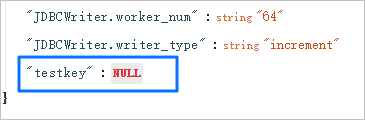
Hover the pointer over the new parameter and click the Edit icon that appears. Modify the parameter value and click the check icon.
In the Update Configurations dialog box, click Update.
Notice:
After the update operation is performed, the JDBCWriter will be started. Therefore, proceed with caution when you modify the configurations.